How to Enable the Download Menu in Microsoft Edge

- 11 steps
- Needs administrator rights
The Microsoft Edge download menu is a small panel that drops down from the top-right corner of the browser window. It shows your active file transfers, lets you track progress, and lets you open a finished file with one click. In version 120 and newer, Microsoft hides this full button by default. All you get is a small progress circle in the toolbar until you change your settings.
Pinning the full menu to your toolbar saves clicks every time you grab a file. You do it in two parts. First, you turn on the setting that opens the panel when a download starts. Then you pin the Downloads button so it stays visible. You do not need to restart Edge for either change.
To enable the download menu in Microsoft Edge, open Settings and more (the three dots), choose Settings, then click Downloads and switch on Show downloads menu when a download starts. Then right-click Downloads in the three-dot menu and select Show in toolbar to keep the button visible. No restart is needed.
Turn on the download menu in Edge
If the download menu is missing, the fix is in Edge’s settings. You are looking for the switch labeled Show downloads menu when a download starts. Setting it to On brings the panel back.
Follow the steps below to get there from the browser window. The shortcut with the address bar is covered further down.
What Changed
Microsoft Edge updated the way file downloads work to help you track progress better. When you enable download menu Edge features, a small flyout window appears automatically in the top-right corner whenever a file starts downloading, replacing the old bottom download bar with a cleaner interface.

- Open the Settings and more menu (the three dots) in the top-right corner of Edge, then choose Settings. A Settings tab opens with a list of categories on the left.
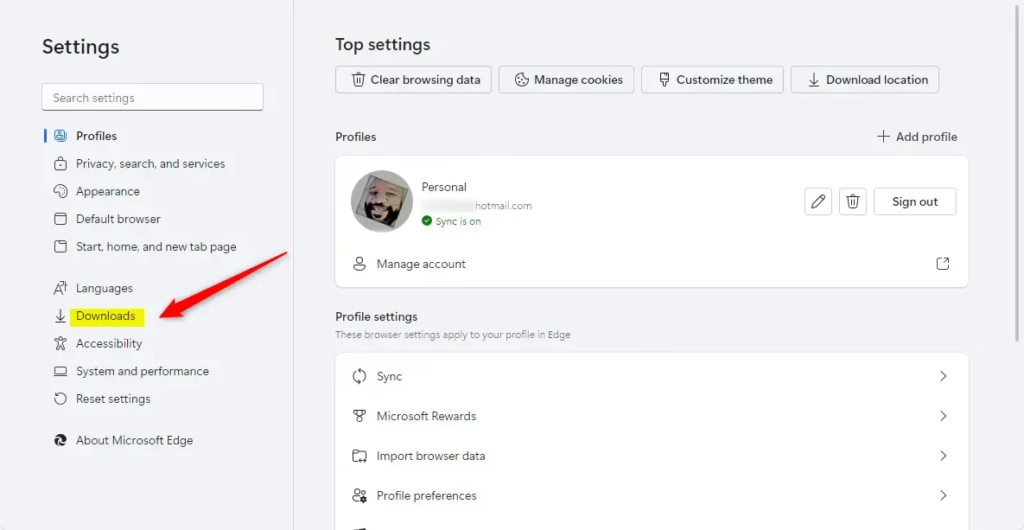
- Click Downloads in the left-hand list. If you can’t see the list, the window may be too narrow. Widen it, or click the menu icon at the top left of the Settings page.
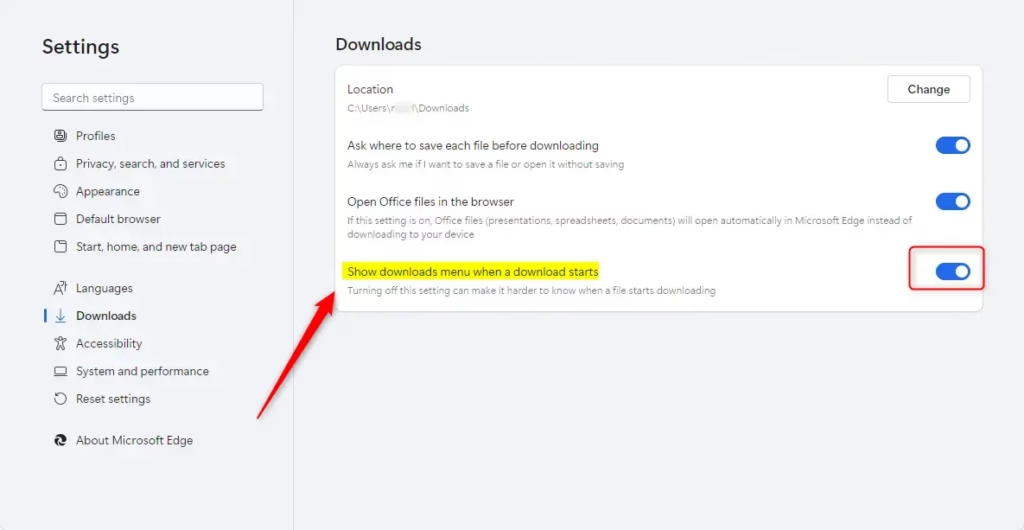
- Find Show downloads menu when a download starts and click the toggle to switch it to On. The toggle turns blue when it is on.
If the toggle is greyed out, or the page says Your browser is managed by your organization, an administrator has set a policy and you can’t change it. This applies to both Home and Pro, and to work or school PCs in particular.
Pin the Downloads button to your toolbar
Turning on the setting makes the panel appear when a download starts. To make the Downloads button stay in the toolbar all the time, pin it. That way you always know where to find your files, even when nothing is downloading.
- Click the three dots in the top-right corner of the window. A menu opens.
- Right-click Downloads in that menu. A small context menu appears.
- Select Show in toolbar. The Downloads icon now sits next to the three dots.
To undo this, right-click the Downloads icon in the toolbar and choose the option to hide it. Ctrl+J also opens the downloads list at any time, whether or not the button is pinned.
edge://settings/appearance and verify that the “Downloads” button remains toggled on beneath the ‘Customize toolbar’ section.Latest Update
Microsoft Edge version 91 brought major changes to how you manage downloaded files. This update lets you enable download menu Edge options directly from the browser settings and pin the download manager to your main toolbar for quick access to your history and active transfers.
Here is the pinning procedure again in short form:
- Click the three dots in the top right corner of Edge.
- Right-click on the Downloads icon.
- Select Show in toolbar.
If Show in toolbar isn’t offered, the button is probably already pinned. Look for the Downloads icon next to the three dots.
Once pinned, the download icon stays at the top of the browser window. Click it at any moment to see your recent downloads. From the panel you can open a finished file or check on one that is still running.
Conclusion
Keeping the download menu visible makes file management easier. Checking progress takes a single click, and you don’t have to dig through menus. This is a different job from the Ask where to save each file setting. That setting prompts you for a destination folder. It does not show transfer status.
Latest Update
This dropdown menu stays separate from the full Downloads page, which provides comprehensive history tracking and advanced options.
Understanding Edge Download Settings
You can reach all of your file transfer preferences from the main download settings page in Microsoft Edge. To get there quickly:
- Click the address bar.
- Type edge://settings/downloads and press Enter. The Downloads settings page opens.
From this page you can change your default save folder, manage your download history, and adjust how the browser handles incoming files. The Show downloads menu when a download starts toggle is on this page too.
The menu tracks file status. The save prompt forces a folder selection dialog on every single download. You can use both together, or either one alone.
Download Menu vs. Save Location Prompt
- The download menu shows the progress and status of your downloads as they happen.
- When you choose 'Ask where to save each file,' a prompt appears before each download to let you select a specific folder.
The download menu and the save location prompt do two different jobs when you grab files online. The download menu tracks active file progress in a flyout panel. The save prompt asks you to pick a specific destination folder every time you start a new download.
If you only want to watch progress, turn on the download menu. If you want control over where each file lands, turn on the save prompt. Both are on the Downloads settings page, and you can switch either one off again at any time.
Have a question about this guide?
Answered by AI from this guide. Good questions may be added to this page — please don't include personal details.
Did this guide fix your problem?

About the Author
Richard
Tech Writer, IT Professional
Richard is a writer at Geek Rewind who turns complex IT tasks into clear, step-by-step guides. He draws on years of hands-on experience in system administration and enterprise IT operations, focusing on Windows, Linux and WordPress: the problems people actually run into, and the fixes that work. His server and WordPress guides come from systems he runs himself. Richard builds and maintains the platform behind Geek Rewind, from its Ubuntu servers and Nginx configuration to its custom WordPress plugins. Many new tutorials start with readers' questions, and he's always glad to answer them in the comments.
No comments yet — be the first to share your thoughts!