How to Change the Notification Tone in Microsoft Teams


Notification sounds in Microsoft Teams let you pick a distinct audio alert for incoming chats and calls, so you notice an urgent message even when Teams is in the background. Microsoft Teams version 1.6 and newer includes built-in sound settings that keep your work alerts separate from the standard Windows system pings.
A different chime helps when you run several apps at once, because you can tell by ear that the sound came from Teams and not from your mail client or the system. The setting lives in the Teams app settings, and the change takes a few clicks. It only affects Teams. Your Windows sound scheme stays as it is.
Open Microsoft Teams, click the Settings and more button (the three dots) beside your profile picture, and select Settings. Choose Notifications and activity, tick the box to enable sounds with notifications in the Sound section, then pick a tone from the drop-down menu. The change applies to Teams only and takes effect straight away.
How to change your notification tone
To change your Microsoft Teams notification tone, open the app settings, go to the notifications menu, and pick a new sound for your chats and calls. The whole job takes about a minute. It works the same on Windows 11 Home and Pro, because it is a setting inside Teams and not a Windows feature. Follow the three steps below.
- Open the Start menu and find Microsoft Teams in your list of apps to launch it. If you don’t see it, start typing Teams and pick it from the search results. You should see the main Teams window. If you are asked to sign in, use your usual account first.
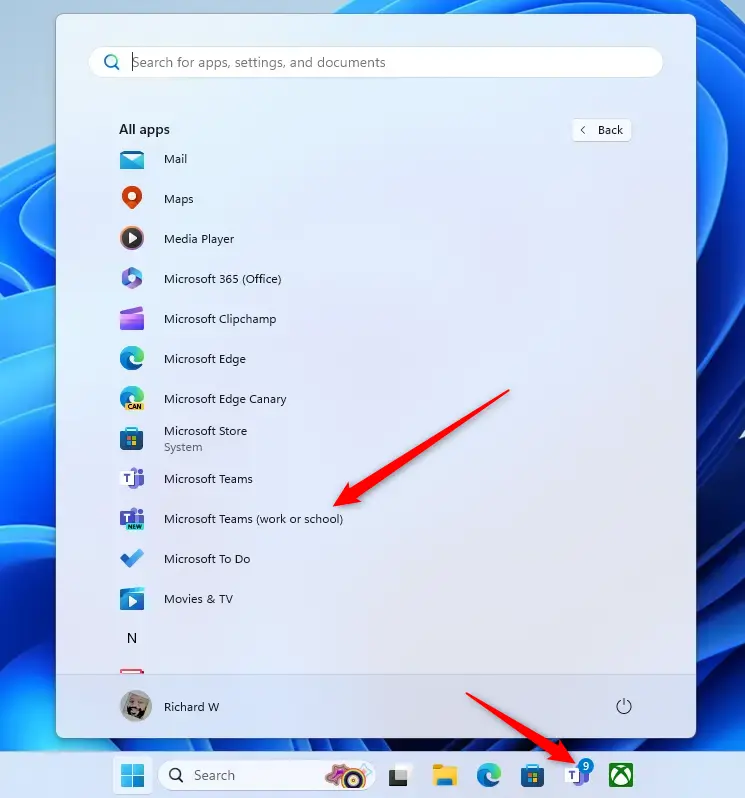
Applications launch quickly using the Taskbar or Taskbar overflow. Use whichever one you prefer. All you need is the Teams window open and ready before you move on to the next step.

- Once the main Teams window is open, click the Settings and more button (the three dots icon) near your profile picture. Select Settings from the menu. A menu opens when you click the dots, and after you choose Settings you should see the settings window or page. If you can’t find the button, check that the Teams window is not minimized or too narrow, since a small window can hide parts of the toolbar.
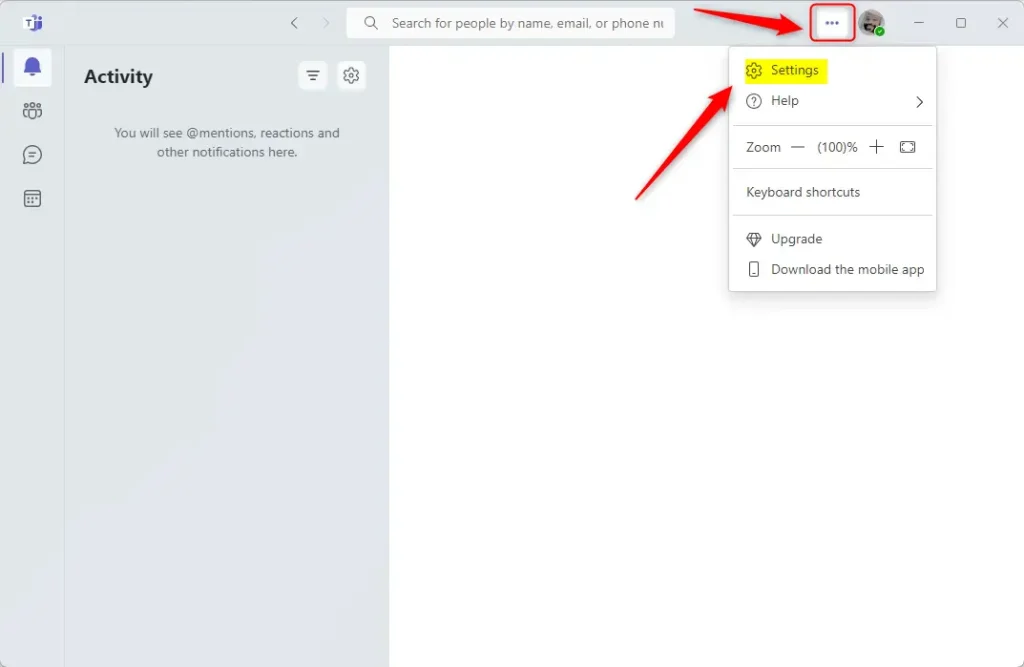
- On the left side of the screen, click Notifications and activity. The notification options should now appear on the right.
- Look for the Sound section on the right. Make sure you check the box to enable sounds with notifications. If the box stays unchecked, Teams stays silent and the sound you pick in the next step will not play.
- Click the drop-down menu to pick your favorite sound. You can choose from options like Default, Vibe, Nudge, Tab, Flick, Pluck, Summon, or Ping. Try a few and listen to each one before you settle. Choose the one that is easy to tell apart from your other apps.
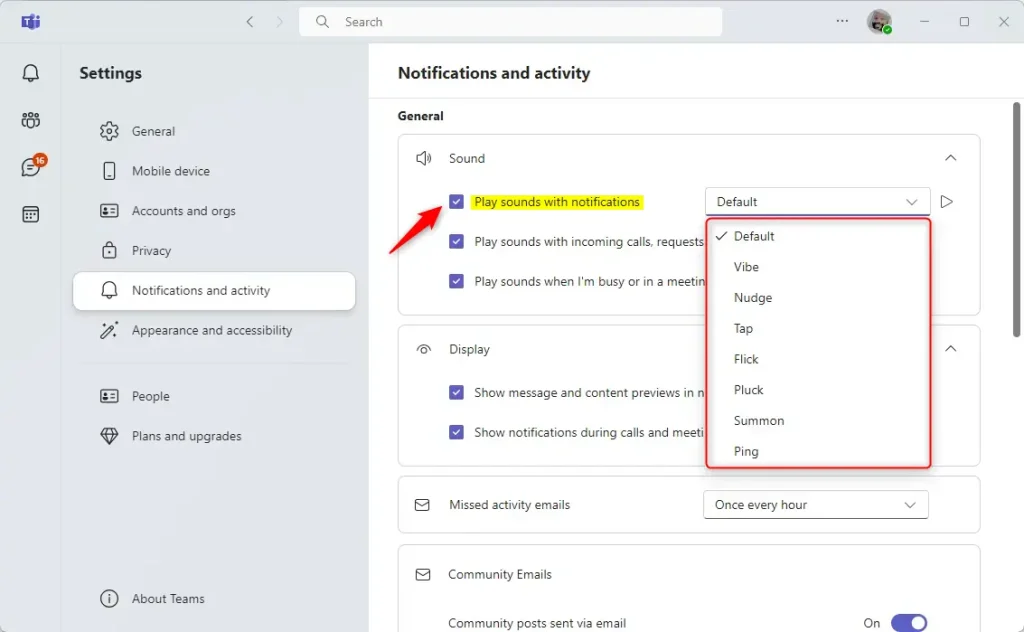
Menu names can differ slightly between Teams releases. If your device is managed by your employer, an administrator may also limit some notification options. To go back to the original tone, open the same drop-down menu and select Default. You can also uncheck the box in the Sound section to turn Teams sounds off completely.
Summary
Customizing notification audio is a fast way to make your workspace your own. After these steps in the Settings menu, new messages play the alert you chose. To test it, ask a colleague to send you a short message, or change the sound again at any time from the same menu.
Have a question about this guide?
Answered by AI from this guide. Good questions may be added to this page — please don't include personal details.
Did this guide fix your problem?

About the Author
Richard
Tech Writer, IT Professional
Richard is a writer at Geek Rewind who turns complex IT tasks into clear, step-by-step guides. He draws on years of hands-on experience in system administration and enterprise IT operations, focusing on Windows, Linux and WordPress: the problems people actually run into, and the fixes that work. His server and WordPress guides come from systems he runs himself. Richard builds and maintains the platform behind Geek Rewind, from its Ubuntu servers and Nginx configuration to its custom WordPress plugins. Many new tutorials start with readers' questions, and he's always glad to answer them in the comments.
No comments yet — be the first to share your thoughts!