A Windows 11 laptop keyboard on a wooden desk, showing the Windows logo key and Ctrl and Alt keys used for built-in keyboard shortcuts.
Before you start
🔢 15 steps
🛡 Needs administrator rights
Windows 11 keyboard shortcuts are key combinations that open built-in features without a mouse. This page lists the shortcuts for the main Windows 11 features, grouped by feature so you can find the one you need.
Some shortcuts only work if a setting is on, a certain Windows 11 version is installed, or a particular app is open. Each entry says so. If a shortcut does nothing, the troubleshooting section further down shows what to check.
To find a feature quickly, press Ctrl+F in your browser and type its name. The page jumps straight to that shortcut.
⚡ Quick Answer
Windows 11 keyboard shortcuts for built-in features are grouped by task below. Win+X opens the Quick Link menu, which links to Device Manager, Disk Management and Terminal. Win+S opens Search, Win+I opens Settings, and Win+A opens Quick Settings. Alt+Tab switches windows, Win+Tab opens Task View, and Win+Z opens Snap layouts.
Advertisement
How to Read the Shortcut Tables
Win is the Win, usually between Ctrl and Alt on the bottom row. A plus sign means you hold the first key and press the next. A comma between steps, as in Win + X, then U, means you release the first combination and then press the next key on its own.
Some entries only work on newer builds (specific releases) of Windows 11, such as version 22H2 or later. Open Settings›System›About and read the Version line under Windows specifications to see which build you have. Where a shortcut needs a recent build, the table says “recent builds”.
Advertisement
Start Menu, Search and System Panels Start Menu
These shortcuts open the main Windows 11 panels without the mouse. Win + X is the most useful of them: it opens the Quick Link menu (the right-click menu on the Start button), which links to Device Manager, Disk Management, Terminal and more.
Shortcut
What it does
Win or Ctrl + Esc
Opens or closes the Start menu.
Win + S
Opens Search.
Win + X
Opens the Quick Link menu.
Win + I
Opens Settings.
Win + R
Opens the Run dialog box.
Win + A
Opens Quick Settings (Wi-Fi, Bluetooth, volume, brightness and similar toggles).
Win + N
Opens the notification center and calendar.
Win + W
Opens Widgets.
Win + Pause
Opens Settings›System›About.
Win + F
Opens Feedback Hub.
Win + Ctrl + Q
Opens Quick Assist (the built-in remote help tool).
Switching Between Apps and Windows
Shortcut
What it does
Alt + Tab
Switches to the previous window. Keep holding Alt and tap Tab to move through all open windows.
Ctrl + Alt + Tab
Opens the window switcher and keeps it on screen after you release the keys. Use the arrow keys and Enter to pick a window.
Alt + Esc
Cycles through open windows in the order they were opened, without showing the switcher.
Win + Tab
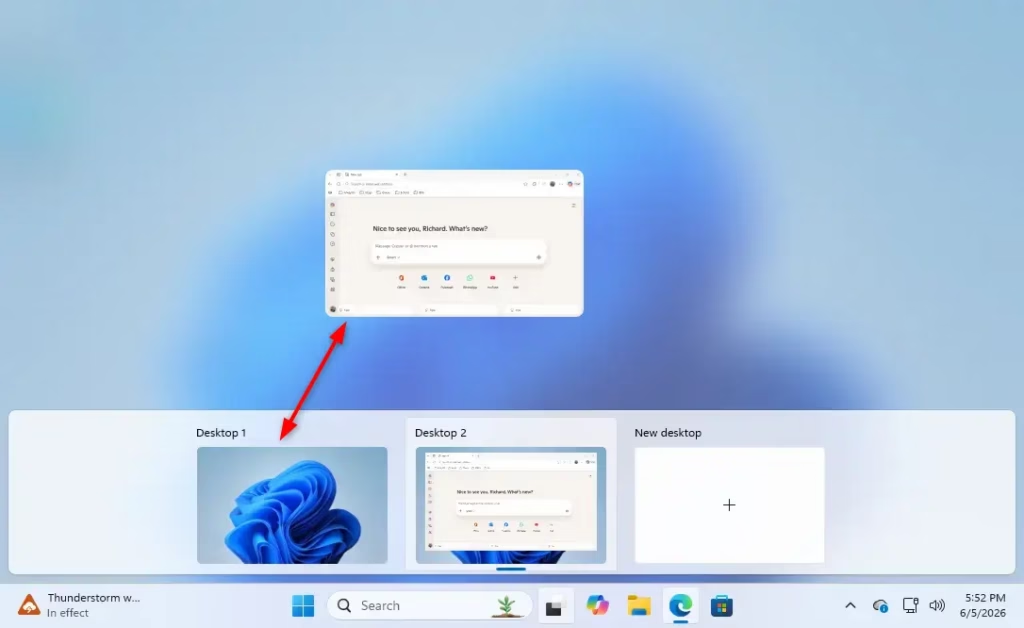
Opens Task View, which shows your open windows and virtual desktops.
Alt + F4
Closes the active window. On the desktop with no window active, it opens the Shut Down Windows dialog.
Win + D
Shows or hides the desktop.
Win + M
Minimizes all windows.
Win + Shift + M
Restores windows you minimized with Win + M.
Win + Home
Minimizes everything except the active window. Press it again to restore the rest.
Win + , (comma)
Shows the desktop for as long as you hold the keys.
Snap Layouts, Virtual Desktops and Multiple Monitors
Snapping Windows
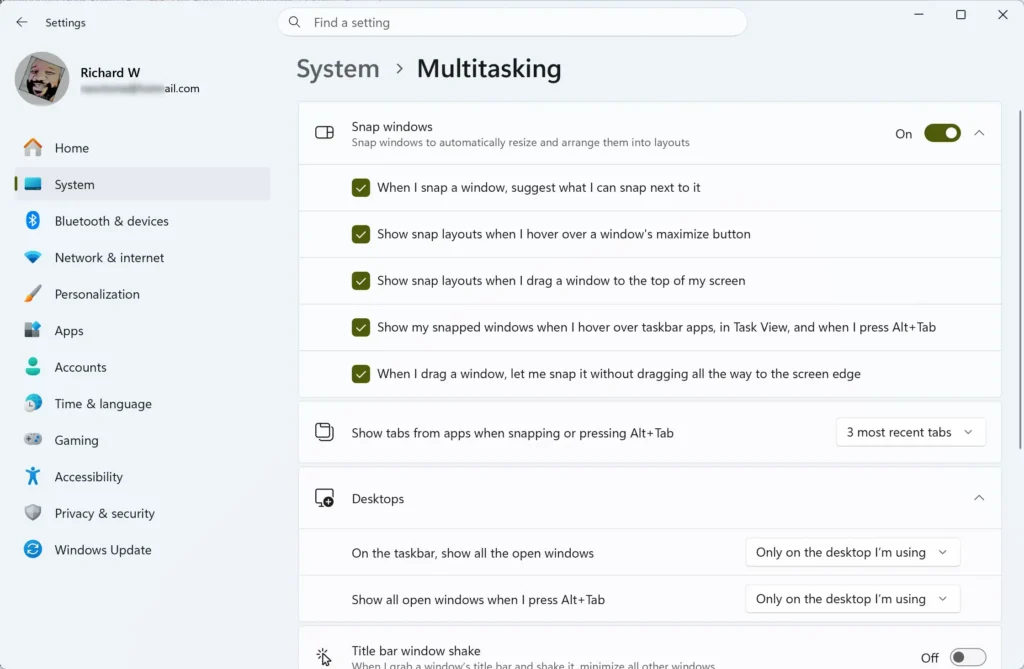
Snap arranges windows side by side or in a grid. Win + Z opens the Snap layouts picker, the same one you see when you hover over a window’s maximize button. Press the number shown on the layout you want, then pick a window for each area on the layout, called a zone.
Shortcut
What it does
Win + Z
Opens Snap layouts for the active window.
Win + Left / Right
Snaps the active window to the left or right half of the screen.
Win + Up
Maximizes the active window.
Win + Down
Restores a maximized window. Press it again to minimize.
Virtual Desktops Drag open app to another virtual desktop in Windows 11 Task View.
Virtual desktops are separate workspaces for grouping apps, for example one for work and one for personal use.
Shortcut
What it does
Win + Ctrl + D
Creates a new virtual desktop and switches to it.
Win + Ctrl + Left / Right
Switches to the previous or next virtual desktop.
Win + Ctrl + F4
Closes the current virtual desktop. Its open windows move to the adjacent desktop.
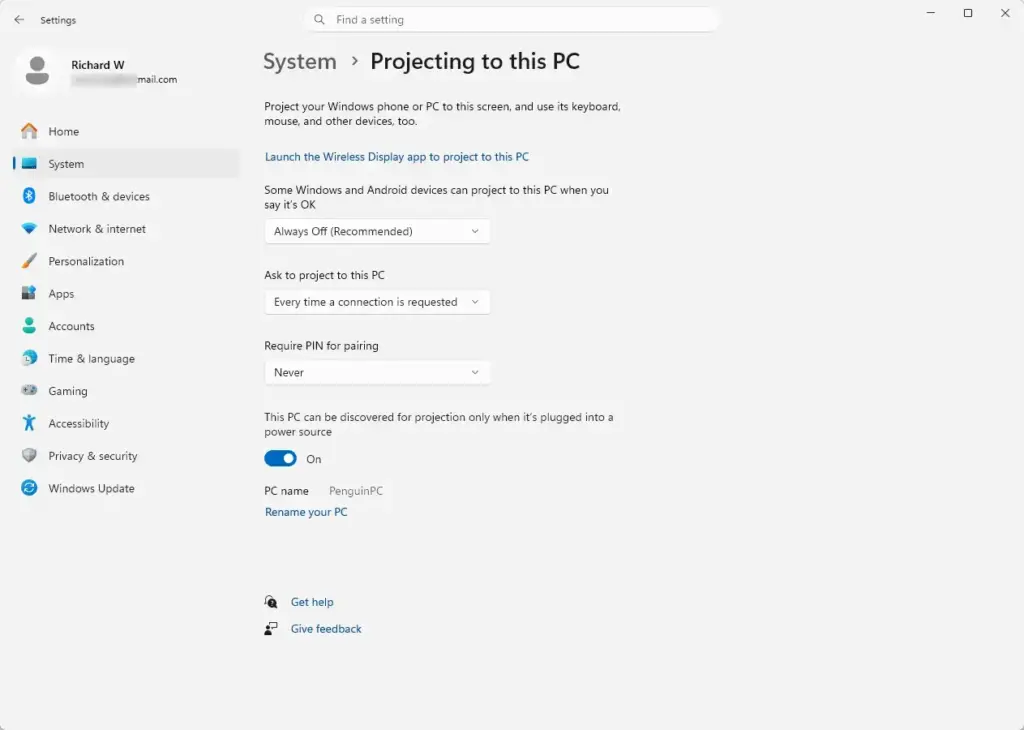
Multiple Monitors and Projecting Settings › System › Projecting to this PC
Shortcut
What it does
Win + Shift + Left / Right
Moves the active window to the monitor on the left or right.
Win + P
Opens the Project panel: PC screen only, Duplicate, Extend or Second screen only. Press P again, or use the arrow keys, to choose.
Win + K
Opens the Cast panel to send your screen to a wireless display.
Win + Ctrl + Shift + B
Restarts the graphics driver. Use it when the screen is black or frozen but the PC is still running. The screen flickers and you may hear a beep.
Win + Alt + B
Turns HDR on or off. It only works on a display that supports HDR.
Taskbar Shortcuts Taskbar
The number shortcuts below refer to the position of each pinned or running app on the taskbar, counted from the left. The first icon is 1, the second is 2, and so on up to 9.
Advertisement
Shortcut
What it does
Win + number
Opens the app in that taskbar position, or switches to it if it is running.
Win + Shift + number
Opens a new instance (a second window) of the app in that position.
Win + Ctrl + number
Switches to the last active window of the app in that position.
Win + Alt + number
Opens the jump list (the list of recent files and tasks) for the app in that position.
Win + Ctrl + Shift + number
Opens the app in that position as administrator. Requires administrator privileges. A User Account Control prompt appears, and you must approve it.
Win + T
Moves focus to the taskbar apps. Press T again, or use the arrow keys, to cycle, then press Enter to open one.
Win + B
Moves focus to the notification area (the hidden icons arrow and system tray).
Screenshots and Screen Recording
Windows 11 has two built-in capture tools: Snipping Tool and Xbox Game Bar. Use Snipping Tool for most desktop captures. Reach for Xbox Game Bar when you want to capture a game.
Shortcut
What it does
Win + Shift + S
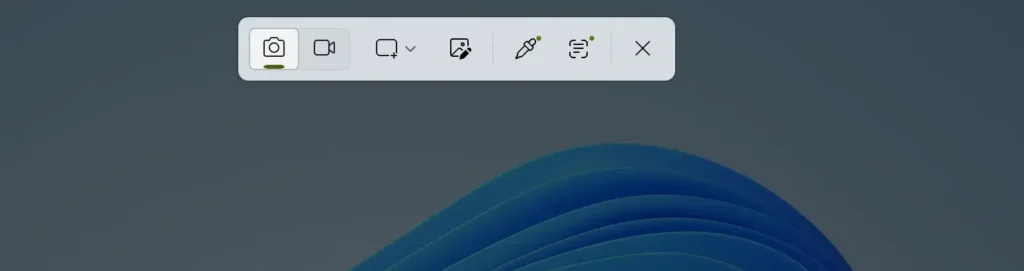
Opens the Snipping Tool capture bar so you can choose a rectangle, freeform shape, window or full screen. The capture goes to the clipboard, and a notification offers to open it for editing.
PrtScn
Opens the same Snipping Tool capture bar on most installations. See the troubleshooting section if it only copies the screen.
Win + PrtScn
Saves a full-screen screenshot as a file in the Screenshots folder inside Pictures.
Win + Shift + R
Starts a screen recording in Snipping Tool. Recent builds only.
Win + G
Opens Xbox Game Bar.
Win + Alt + R
Starts or stops a recording of the active window in Game Bar.
Win + Alt + PrtScn
Takes a screenshot of the active window with Game Bar.
Win + Alt + G
Saves the last stretch of gameplay or app activity from Game Bar’s background recording. This only works if background recording is on in Game Bar settings.
Clipboard, Emoji and Voice Typing
Shortcut
What it does
Ctrl + C / X / V
Copy, cut and paste.
Ctrl + Z / Y
Undo and redo.
Ctrl + A
Select everything in the current window or text field.
Win + V
Opens Clipboard history, a list of recently copied items. Click an item to paste it.
Win + . (period) or Win + ; (semicolon)
Opens the emoji panel, which also has GIFs, kaomoji and symbols.
Win + H
Starts voice typing in the active text field. Click into a text field first, or nothing happens.
Win + Space
Switches the keyboard input language or layout.
File Explorer Shortcuts File Explorer
Open File Explorer with Win + E. The shortcuts below work once it is open.
Shortcut
What it does
Ctrl + N
Opens a new File Explorer window.
Ctrl + T
Opens a new tab. Tabs need Windows 11 version 22H2 or later.
Ctrl + Tab / Ctrl + Shift + Tab
Moves to the next or previous tab.
Ctrl + W
Closes the current tab or window.
Ctrl + Shift + N
Creates a new folder.
F2
Renames the selected item.
F5
Refreshes the current folder.
Alt + D or Ctrl + L
Selects the address bar so you can type or paste a path.
Ctrl + E or Ctrl + F
Moves to the search box.
Alt + Up
Goes up one folder level.
Alt + Left / Right
Goes back or forward.
Alt + P
Shows or hides the preview pane.
Alt + Shift + P
Shows or hides the details pane.
Alt + Enter
Opens Properties for the selected item.
Shift + F10
Opens the right-click menu for the selected item. In Windows 11 this is the full classic menu, so you skip the Show more options step.
Shift + Delete
Deletes the selected item permanently without sending it to the Recycle Bin. This is hard to undo, so check your selection first.
Ctrl + Shift + 1 to 8
Switches the folder view, from extra large icons (1) through details (6) and tiles (7) to content (8).
Security, Task Manager and Power Options
Ctrl + Shift + Esc opens Task Manager directly, which is faster than going through the Ctrl + Alt + Del screen. Use it when an app stops responding.
Shortcut
What it does
Ctrl + Shift + Esc
Opens Task Manager.
Ctrl + Alt + Del
Opens the security screen with Lock, Switch user, Sign out and Task Manager.
Win + L
Locks the PC.
Win + X, then U, then U
Shuts down the PC.
Win + X, then U, then R
Restarts the PC.
Win + X, then U, then S
Puts the PC to sleep.
Win + X, then U, then I
Signs you out.
Win + X, then I
Opens Terminal as your normal user.
Win + X, then A
Opens Terminal as administrator. Requires administrator privileges. Approve the User Account Control prompt.
⚠️WarningShutting down with Win + X closes open apps. Save your work first.
Advertisement
Run Any App as Administrator From the Keyboard
⚠️WarningThis method opens an app elevated, which means running it with administrator rights, without right-clicking. Requires administrator privileges. Run only apps you trust this way, because an elevated app can change system files and settings.
Press Win + S to open Search, or press Win + R to open Run.
Type the name of the app, for example Command Prompt, or the command in Run.
Press Ctrl + Shift + Enter instead of Enter.
Select Yes on the User Account Control prompt. The app opens with administrator rights, and its title bar usually says so.
If you are signed in with a standard account, the prompt asks for an administrator’s password. If you don’t have one, the app does not open elevated.
Accessibility Shortcuts
These shortcuts turn on the accessibility tools built into Windows 11. Several are held-key shortcuts that you can switch off in Settings if you trigger them by accident.
Advertisement
Shortcut
What it does
Win + U
Opens the Accessibility page in Settings.
Win + Ctrl + Enter
Turns Narrator (the built-in screen reader) on or off.
Win + Ctrl + N
Opens Narrator settings.
Win + + (plus)
Turns Magnifier on and zooms in.
Win + - (minus)
Zooms out in Magnifier.
Win + Esc
Closes Magnifier.
Win + Ctrl + O
Turns the On-Screen Keyboard on or off.
Win + Ctrl + L
Turns Live captions on or off. Needs Windows 11 version 22H2 or later.
Win + Ctrl + C
Turns color filters on or off. The shortcut must be enabled first. See the next section.
Press Shift five times
Turns on Sticky Keys (lets you press shortcut keys one at a time instead of together). A prompt asks you to confirm.
Hold right Shift for 8 seconds
Turns on Filter Keys, which ignores brief or repeated keystrokes.
Hold Num Lock for 5 seconds
Turns on Toggle Keys, which plays a sound when you press Caps⇩, Num Lock or Scroll Lock.
Left Alt + left Shift + PrtScn
Turns high contrast on or off. A confirmation prompt appears.
Left Alt + left Shift + Num Lock
Turns on Mouse Keys, which lets the numeric keypad move the pointer.
Win + Alt + K
Mutes or unmutes the microphone in apps that support the feature. Recent builds only.
Why a Shortcut Does Nothing
Most failures come from a setting that is off, a keyboard quirk or a managed PC. Check these in order.
Check the Keyboard First
Laptops often use the Fn key to switch the top row between function keys and media keys. If F2 changes volume or brightness instead of renaming, press Fn + F2, or toggle Fn Lock. Many gaming keyboards also have a Win lock, often Fn + Win, which disables every Win shortcut. Press the lock combination again to release it.
Turn On Shortcuts That Are Off by Default
Some shortcuts only work after you enable them in Settings.
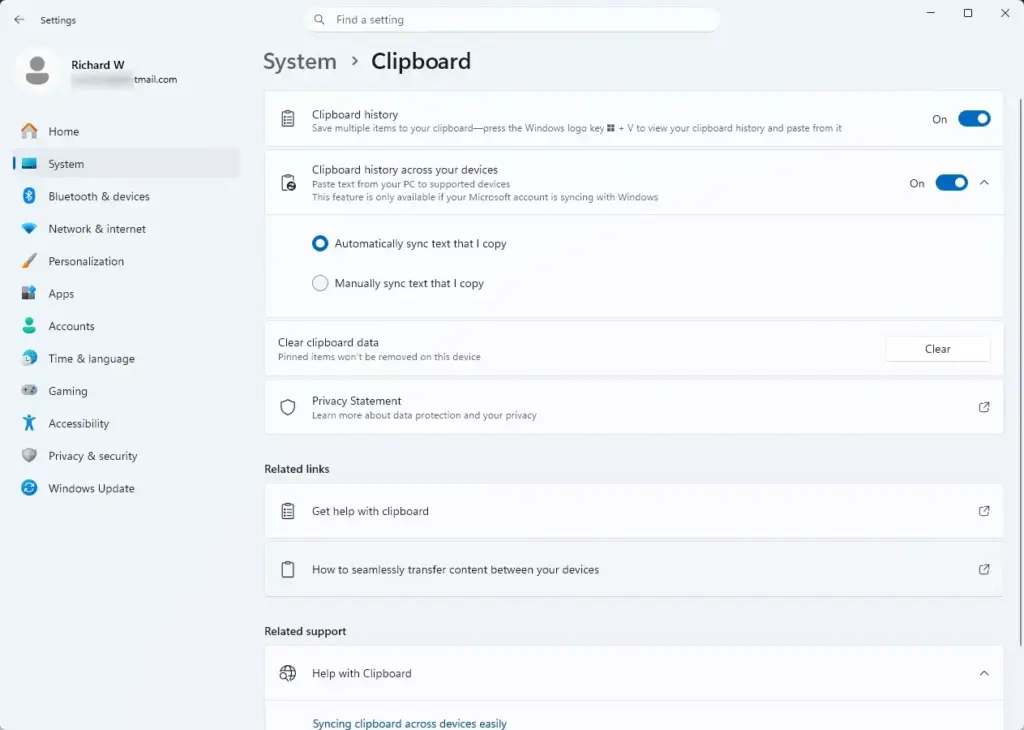
Clipboard history (Win + V):
Open Settings›System›Clipboard. Settings › System › Clipboard
Turn on Clipboard history. Win + V now shows your recent copies. Only items copied after you turn it on are stored.
Advertisement
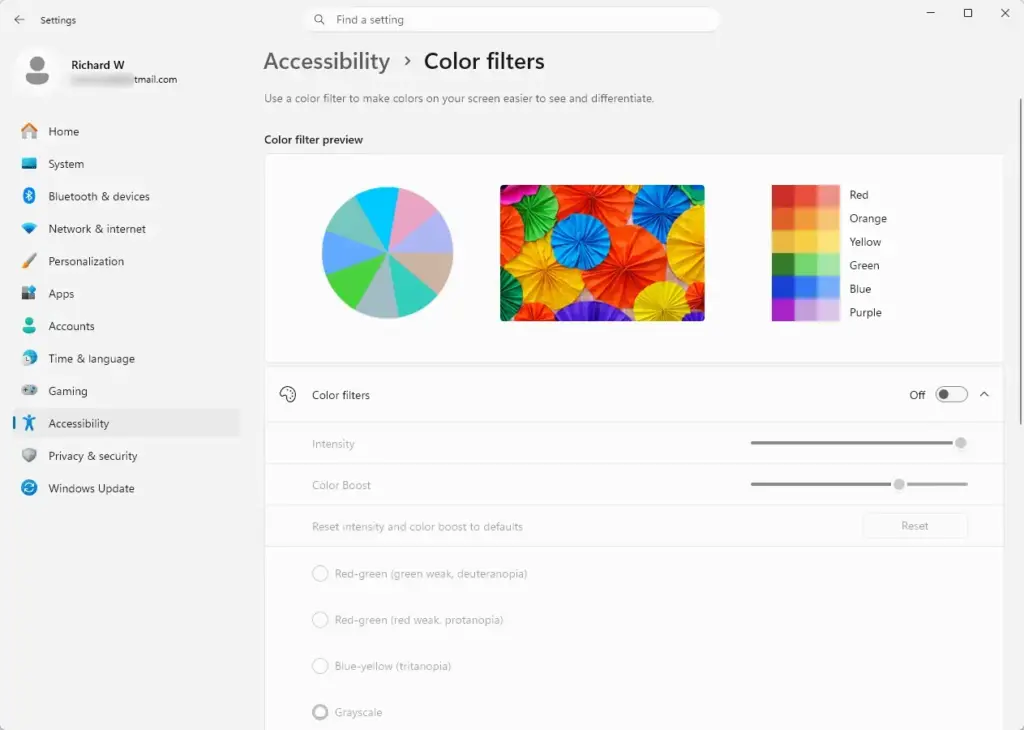
Color filters (Win + Ctrl + C):
Open Settings›Accessibility›Color filters. Settings › Accessibility › Color filters
Press Win + Ctrl + C. The screen changes to the filter you picked on that page.
Print Screen opening Snipping Tool (PrtScn):
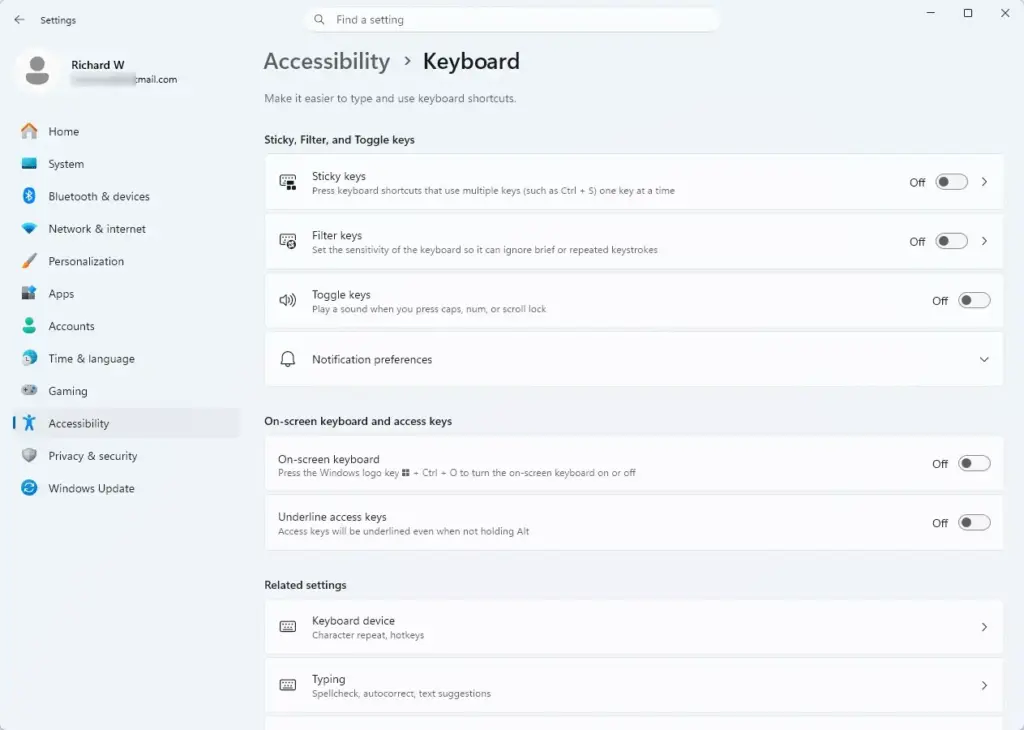
Open Settings›Accessibility›Keyboard. Settings › Accessibility › Keyboard
Turn on Use the Print screen button to open screen capture.
Press PrtScn. The capture bar appears at the top of the screen. To go back to the old behavior of only copying the screen, turn the option off.
Sticky Keys prompt appearing by accident:
Open Settings›Accessibility›Keyboard.
Select Sticky keys.
Turn off Keyboard shortcut for Sticky keys. Pressing Shift five times no longer opens the prompt. The Filter keys and Toggle keys pages on the same screen have matching options.
Game Bar Shortcuts
If Win + G does nothing, open Settings›Gaming›Game Bar and check the page for a Game Bar toggle. The label changes between Windows 11 builds, so look for a Game Bar toggle even if its wording differs from this list. If the page is missing or Game Bar won’t open, it may have been uninstalled. Reinstall it from the Microsoft Store.
Advertisement
Managed and Work PCs
On a PC managed by an employer or school, an administrator can disable individual shortcuts, Game Bar, Snipping Tool or Clipboard history. If a setting above is greyed out or the page says your organization manages some settings, contact your IT administrator. A standard account cannot change it, so ask your IT administrator to make the change.
Version-Dependent Shortcuts
File Explorer tabs and Live captions need version 22H2 or later. Snipping Tool recording and the microphone mute shortcut need recent builds. If one of these does nothing, check your version in Settings›System›About, then run Windows Update.
What to Do Next
Microsoft adds and changes shortcuts in feature updates, so one that is missing on an older build may appear after you open Settings›Windows Update and install the latest version. Pick two or three shortcuts from the tables that match what you do most, such as Win + V, Win + Shift + S and Win + Z, and use them for a week before adding more. If you want a shortcut that does not exist for an app or action, look at that app’s own Settings page, since many apps let you assign their own.
📬 Get new Windows tips in your inbox
One email when we publish something worth your time. We send a link to confirm. No spam, unsubscribe anytime.
Share
Have a question about this guide?
Answered by AI from this guide. Good questions may be added to this page — please don't include personal details.
Richard is a writer at Geek Rewind who turns complex IT tasks into clear, step-by-step guides. He draws on years of hands-on experience in system administration and enterprise IT operations, focusing on Windows, Linux and WordPress: the problems people actually run into, and the fixes that work.
His server and WordPress guides come from systems he runs himself. Richard builds and maintains the platform behind Geek Rewind, from its Ubuntu servers and Nginx configuration to its custom WordPress plugins.
Many new tutorials start with readers' questions, and he's always glad to answer them in the comments.





No comments yet — be the first to share your thoughts!