How to Enable or Disable Magnifier Win + Plus Keyboard Shortcut in Windows 11

- 4 steps
- Needs administrator rights
- Group Policy needs Windows 11 Pro, Enterprise or Education
Windows logo key + Plus (+) starts Magnifier. Magnifier enlarges part or all of your screen, so text and images are easier to read. If the shortcut launches Magnifier by accident, or clashes with another app or keyboard layout, you can turn it off for your account.
Microsoft added a keyboard shortcut toggle for Magnifier in Settings Accessibility Magnifier, starting with preview build 26340.9767 (Experimental 26H2), a version of Windows still in testing, for Windows Insiders (people who test preview builds). The toggle controls whether Windows logo key + Plus (+) launches Magnifier. The shortcut is on by default, so nothing changes unless you turn it off. You can still start Magnifier from Settings either way.
Open Settings (Win+I), select Accessibility, then select Magnifier, and set Keyboard shortcut for Magnifier to Off to stop Windows logo key + Plus (+) from launching Magnifier. The toggle is on by default and takes effect for your account. It appears only on preview build 26340.9767 (Experimental 26H2) or later, so if you don’t see it, your build does not have it yet.
Option 1Turn On or Off Magnifier Win + Plus Keyboard Shortcut in Settings
Turn the shortcut on or off with one toggle in Settings.
- Open Settings (Win+I).

Start Menu - Select Accessibility on the left, then select Magnifier on the right.
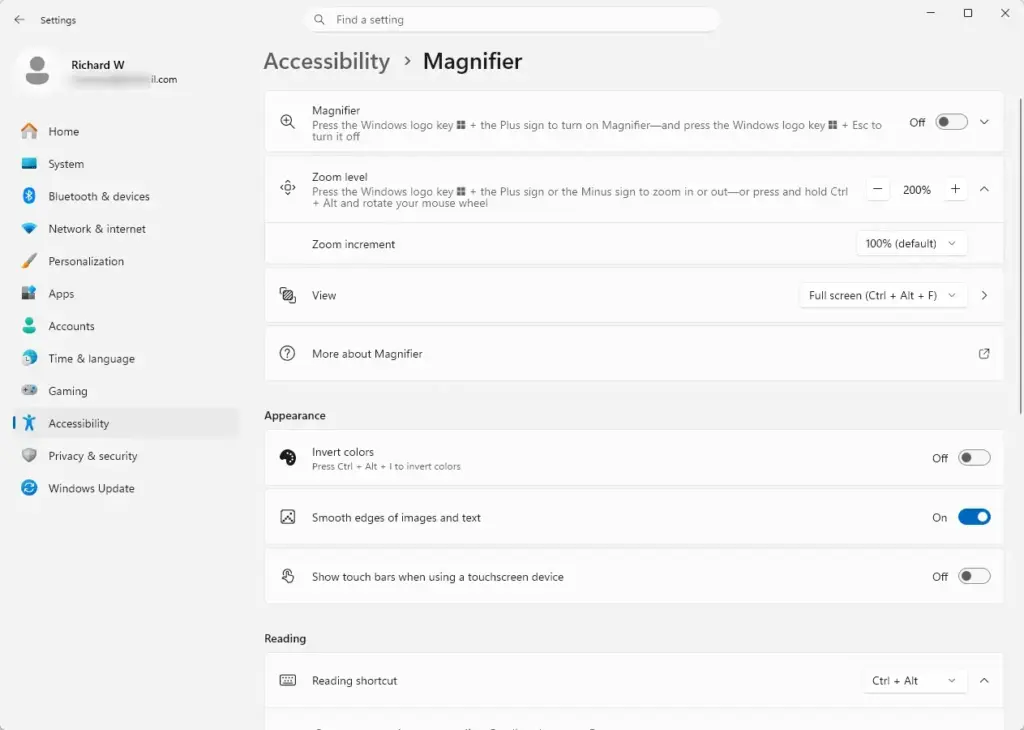
Settings › Accessibility › Magnifier - Set Keyboard shortcut for Magnifier to On (the default) or Off.
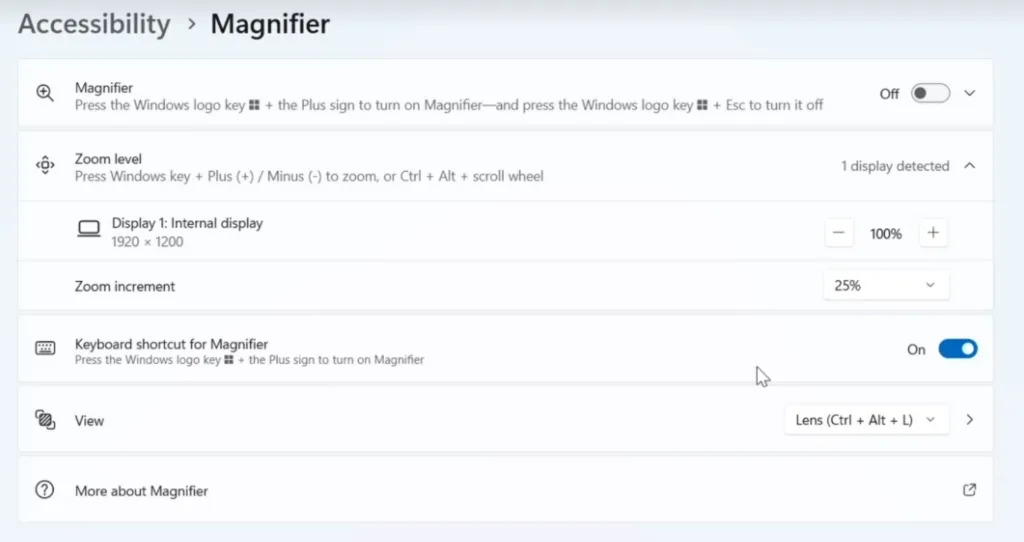
Settings > Accessibility > Magnifier - Close Settings.
Option 2Turn On or Off Magnifier Win + Plus Keyboard Shortcut using Registry
It does not give the registry key that holds the value, the value type, or the steps to apply it. The full registry path is not confirmed yet, so the Registry Editor steps are not included. [Verification Required: Registry key and value details should be confirmed]
Go to the registry path below: [Verification Required: Registry path should be confirmed]
HKEY_CURRENT_USER\Software\Microsoft\ScreenMagnifier
The ShortcutKeyEnabled value has two settings. Choose the one that matches what you want.
Turn On Magnifier Win + Plus Keyboard Shortcut
This is the default setting.
"ShortcutKeyEnabled"=dword:00000001
Turn Off Magnifier Win + Plus Keyboard Shortcut
"ShortcutKeyEnabled"=dword:00000000
If this didn't work
That means build 26340.9767 (Experimental 26H2) or later. If you don't see Keyboard shortcut for Magnifier under Accessibility Magnifier, your build does not have it yet. To undo this, go back to Settings Accessibility Magnifier and turn the Keyboard shortcut for Magnifier toggle back on.
Frequently asked questions
How to enable mobile hotspot in 🪟 Windows 11?
Open Settings with Win+I, then select Network & internet and choose Mobile hotspot. Turn on the Mobile hotspot toggle. Your PC must already be connected to the internet through Wi-Fi or Ethernet, because the hotspot shares that connection with nearby devices. Select Edit to change the network name and password if needed.
How to disable automatic updates in 🪟 Windows 11?
Turning off updates permanently is risky because you stop receiving security fixes. On Windows 11 Home, you can only pause updates for up to five weeks: open Settings, select Windows Update, then select Pause updates. On Windows 11 Pro, you can disable them in Local Group Policy Editor under Configure Automatic Updates.
How to get help in 🪟 Windows 11 keyboard sound?
Get Help is a Windows app that answers questions about your PC. Open it from the Start menu and type keyboard sound to find steps for your problem. To change the sound that plays when you press Caps Lock, Num Lock, or Scroll Lock, open Settings, select Accessibility, then Keyboard, and turn on Toggle keys.
How do I make my keyboard bigger I cannot see it on laptop 🪟 Windows 11 10?
Windows 11 has no setting that makes the physical keyboard bigger. Instead, open the On-screen keyboard by pressing Win+Ctrl+O, then drag its edges to resize it. To make text and apps larger across your screen, go to Settings, select Accessibility, then Text size.
What is the keyboard shortcut for screenshot?
Press Windows logo key + Shift + S to open the screenshot tool, then drag over the area you want to capture. Press Print Screen to copy the full screen to the clipboard. Press Windows logo key + Print Screen to save the full screen as a file in the Screenshots folder inside Pictures.
What is the keyboard shortcut for undo?
Press Ctrl+Z to undo your last action in most programs, including Word, Notepad, and Paint. Keep pressing it to step back through earlier changes. To reverse an undo, press Ctrl+Y, which redoes the action. Some programs use Ctrl+Shift+Z for redo instead.
Still have a question?
Answered by AI from this guide. Good questions may be added to this page — please don't include personal details.
Did this guide fix your problem?

About the Author
Richard
Tech Writer, IT Professional
Richard is a writer at Geek Rewind who turns complex IT tasks into clear, step-by-step guides. He draws on years of hands-on experience in system administration and enterprise IT operations, focusing on Windows, Linux and WordPress: the problems people actually run into, and the fixes that work. His server and WordPress guides come from systems he runs himself. Richard builds and maintains the platform behind Geek Rewind, from its Ubuntu servers and Nginx configuration to its custom WordPress plugins. Many new tutorials start with readers' questions, and he's always glad to answer them in the comments.
No comments yet — be the first to share your thoughts!