How to Enable Narrator Keyboard Shortcuts in Windows 11

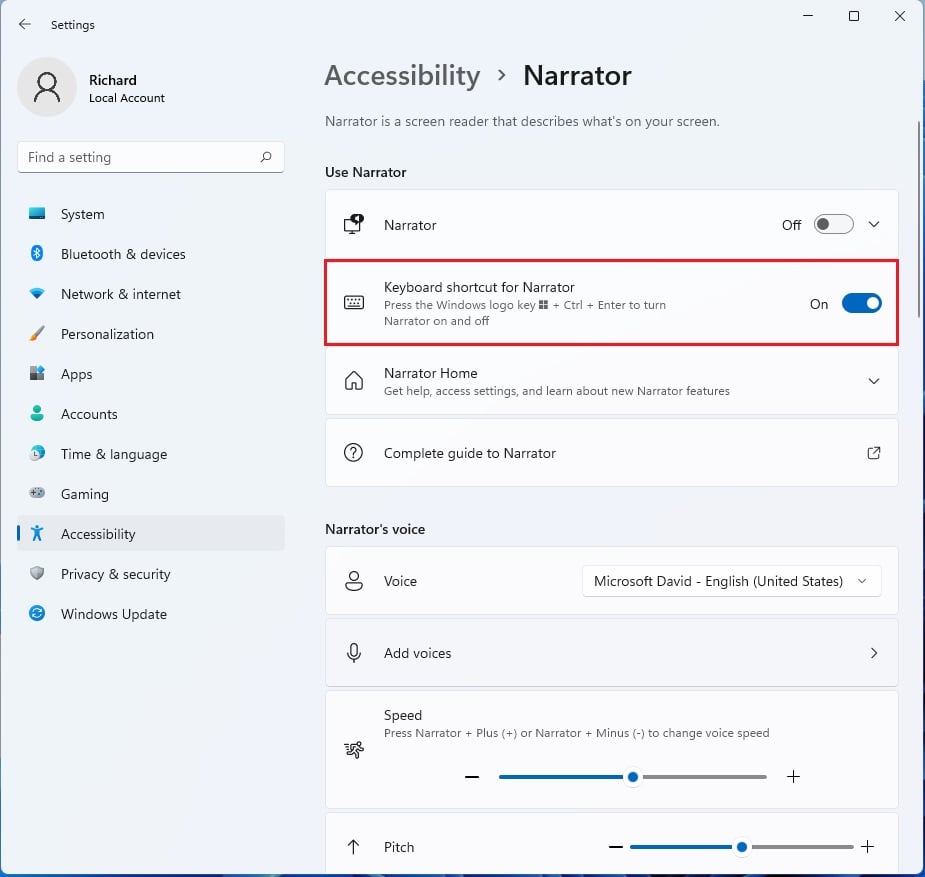
Narrator keyboard shortcuts in Windows 11 let you control Narrator, the built-in screen reader that reads text aloud and describes items on your screen, with key presses instead of a mouse. Press the Win+Ctrl+Enter to turn Narrator on or off at any time. You can then browse the web, read documents and check settings entirely from the keyboard.
Most Narrator commands start with the Narrator key. By default, both Caps Lock and Insert act as the Narrator key. If either one gets in your way, you can change it, as the steps below show.
Customize Narrator keyboard shortcuts in Windows 11 by opening Settings (Win+I), navigating to Accessibility, and selecting Narrator. You can then view available commands and assign new keys to suit your workflow.
How to Change the Narrator Key
You change the Narrator key in the Settings app, under Accessibility. The change applies to every Narrator command that uses the Narrator key. It takes effect right away, and you do not need to restart.
- Press Win+I to open Settings . The Settings window opens with the list of categories on the left.

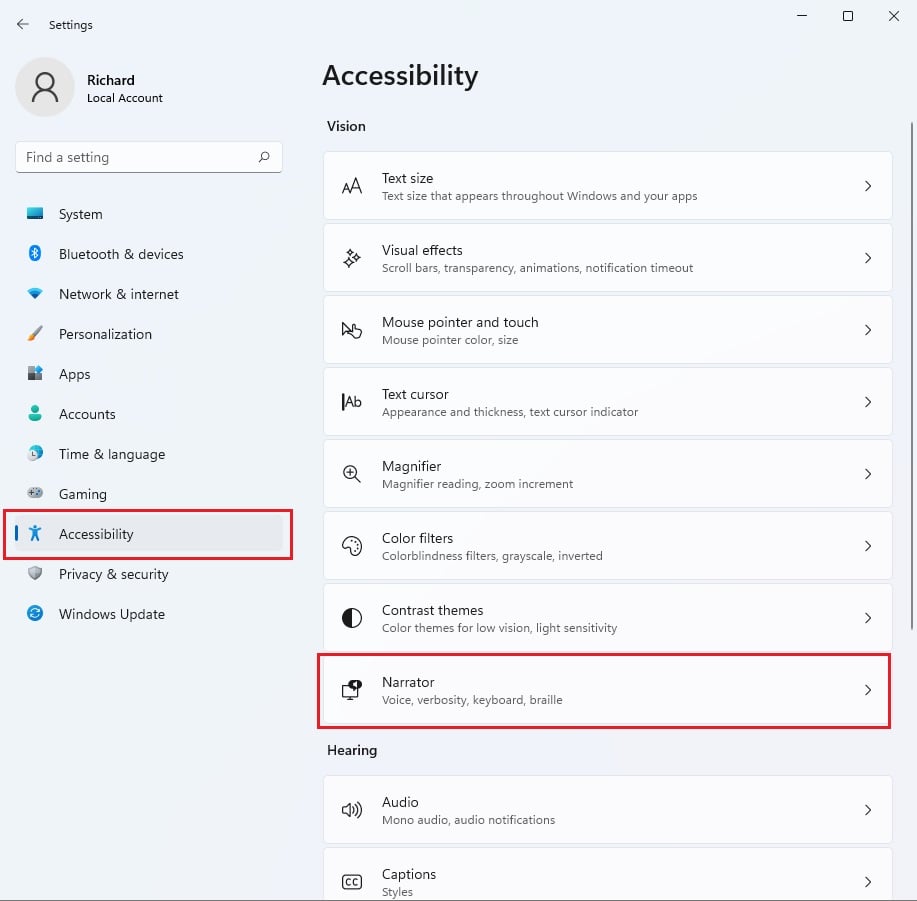
- Select Accessibility on the left. The accessibility options appear on the right.
- Click Narrator on the right. The Narrator page opens, with the on/off switch at the top.
- Find Narrator key and choose your preferred key from the dropdown menu. If you do not see it straight away, scroll down or expand the keyboard section of the page. Its position can vary slightly between Windows 11 builds.
It works the same on Home and Pro, because it only changes your own account’s settings. To go back, open the same dropdown and pick the key you used before.
Standard vs. Legacy Keyboard Layouts
Narrator offers two keyboard layouts: Standard and Legacy. The Standard layout is modern and quicker to learn. The Legacy layout mimics older screen readers, so it can help if you are used to those shortcuts. Most users will find the Standard layout gives the best experience. You choose the layout on the same Narrator settings page, in the keyboard options.
Essential Narrator Keyboard Shortcuts
This cheat sheet lists everyday Narrator keyboard shortcuts for Windows 11. Copying these commands to the clipboard speeds up routine computer management, and you can paste them into a note to keep next to your keyboard until they become habit.
| Action | Shortcut |
|---|---|
| Start/Stop Narrator | Windows + Ctrl + Enter |
| Read Next Item | Narrator + Right Arrow |
| Read Previous Item | Narrator + Left Arrow |
| Read Current Item | Narrator + Tab |
| Stop Reading | Ctrl |
Scan Mode and Navigation
Scan mode makes it much faster to move around web pages. It lets you step through a page's content with single keys, without tabbing from link to link.
- Open the page you want to read.
- Press Narrator + Spacebar to turn scan mode on. Narrator announces that scan mode is on.
- Press the Up and Down arrows to move through headings, links and paragraphs. In scan mode you can also press H to jump to the next heading or L to jump to the next link.
- Press Narrator + Spacebar again to turn scan mode off when you need to type in a text box.
Using Narrator with Microsoft Edge
Narrator works well with Microsoft Edge. Two shortcuts are worth learning first:
- Use Narrator + / to search for text on a page.
- Use Narrator + Ctrl + D to read the current web address.
Customizing and Resetting Shortcuts
You can change these keys directly inside the Narrator settings menu. Made a mistake while tweaking key combos? Hit the Reset button at the bottom of the page to revert to factory defaults. This undoes your custom key assignments, so note down any you want to keep before you click it.
Summary
Learn a handful of these shortcuts first, such as the Narrator key, scan mode and the Edge commands. Once those feel natural, add more from the cheat sheet. That is the quickest way to get comfortable with Narrator keyboard shortcuts in Windows 11.
Related posts:
Have a question about this guide?
Answered by AI from this guide. Good questions may be added to this page — please don't include personal details.
Did this guide fix your problem?

About the Author
Richard
Tech Writer, IT Professional
Richard is a writer at Geek Rewind who turns complex IT tasks into clear, step-by-step guides. He draws on years of hands-on experience in system administration and enterprise IT operations, focusing on Windows, Linux and WordPress: the problems people actually run into, and the fixes that work. His server and WordPress guides come from systems he runs himself. Richard builds and maintains the platform behind Geek Rewind, from its Ubuntu servers and Nginx configuration to its custom WordPress plugins. Many new tutorials start with readers' questions, and he's always glad to answer them in the comments.
No comments yet — be the first to share your thoughts!