How to Auto Start Narrator in Windows 11

Narrator is a built-in screen reader. It reads text aloud and describes elements on your screen. In Windows 11 you can set it to start on its own when you sign in, so you no longer need to press the Win+Ctrl+Enter keyboard shortcut at every logon.
You manage this in the Windows Settings app under Accessibility. Once it is set up, Narrator can start at the sign-in screen, before you type your password. The steps below work the same on Windows 11 Home and Pro.
Open Settings , go to Accessibility, then Narrator. Expand Narrator settings and check “Start Narrator before sign-in” and “Start Narrator after sign-in” to enable automatic startup.
How to turn on automatic Narrator
The quickest way to make Narrator start every time you turn on your PC is a setting in the main Settings app . You do not need shortcut keys or menu hunting after each boot. The screen reader is ready by the time you reach the sign-in screen.
- Press the Win+I to open Settings. You can also right-click the Start button and choose Settings. The Settings window should open with the list of categories on the left.

- Click Accessibility on the left side of the window. The accessibility options should appear on the right.
- Select Narrator on the right side of the screen. The Narrator settings page should open.
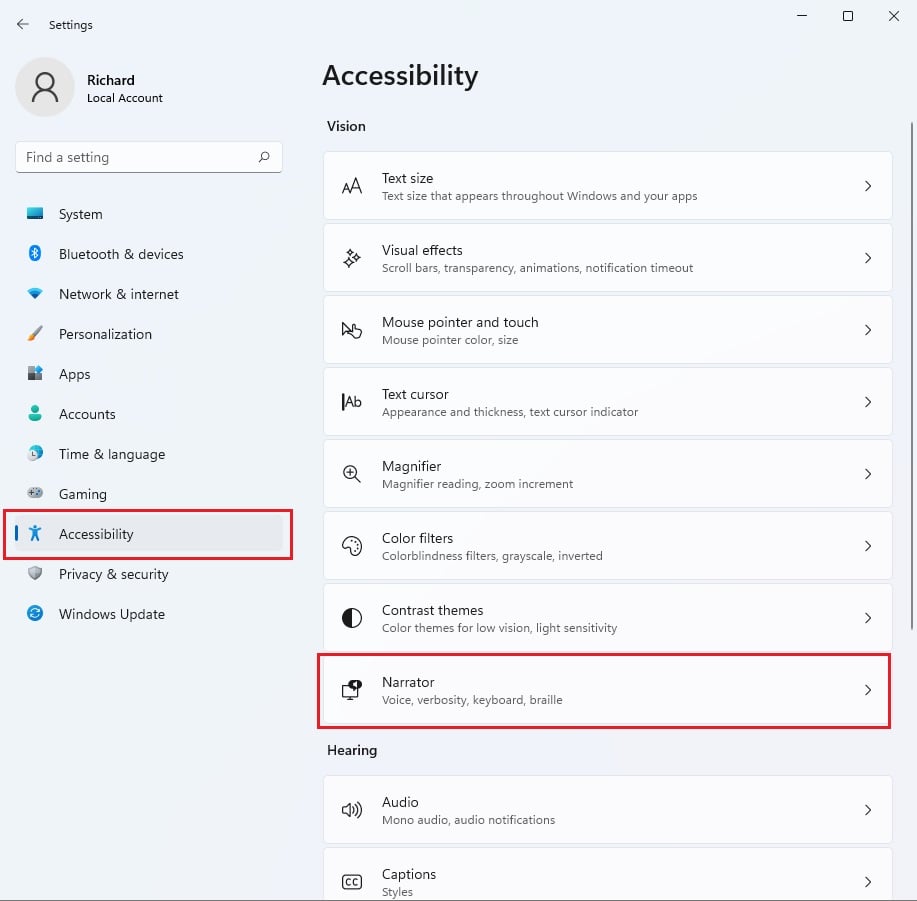
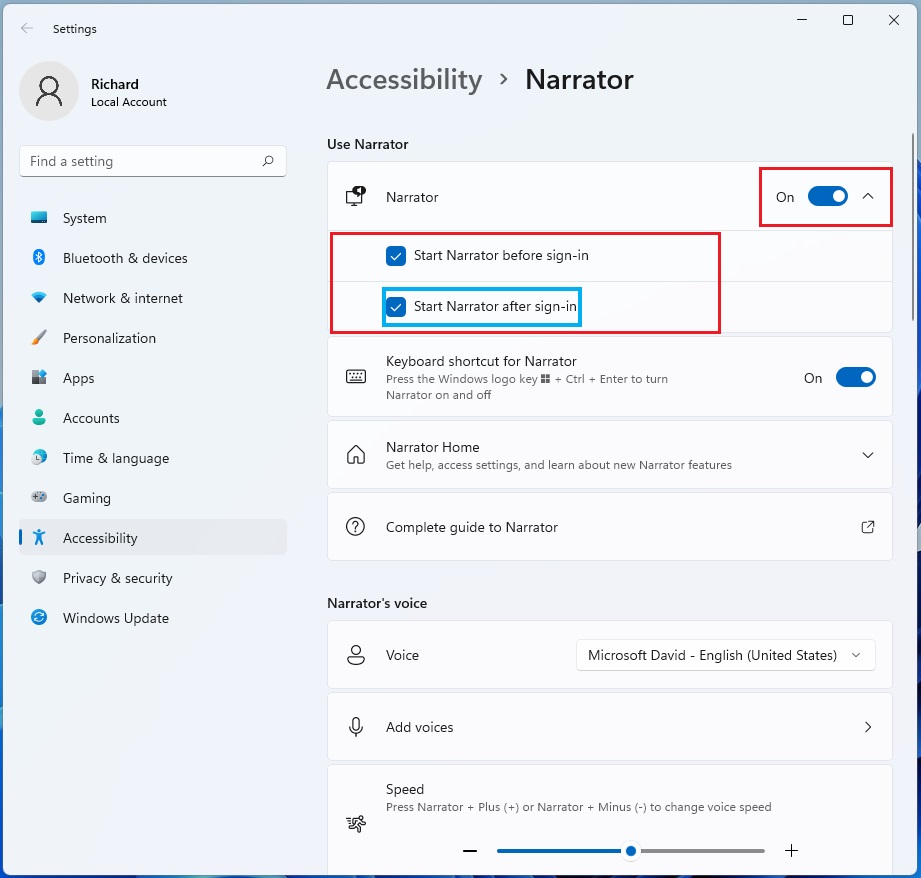
The Narrator settings page controls how Narrator behaves overall. Do the following:
- Switch the toggle in the "Use Narrator" section to On. Narrator starts speaking right away. If a Narrator welcome or quick start window opens, you can close it. To silence Narrator for now, press Win+Ctrl+Enter.
- Click the arrow to expand the additional settings. A list of startup options should appear.
- Tick the checkboxes for the automatic start options you want. They are described below.
- Start Narrator before sign-in: Narrator runs on the sign-in screen, so you can hear it while you pick an account and enter your PIN or password. On some builds the label is longer and ends with “for everyone”, because it applies to every account on the PC.
- Start Narrator after sign-in: Narrator starts once you are signed in to your own account. On some builds the label ends with “for me”. Use this one if you only need Narrator on the desktop.
You can tick one or both. To check that it works, restart the PC, or sign out and back in. Narrator should start by itself at the point you chose.
To get back to these settings quickly later, press the Win+Ctrl+N. The Narrator settings page should open directly, without clicking through Settings.
Advanced Configuration via Registry
Advanced users can set this in the Registry Editor, which is the database that stores low-level system configuration. This is a second route to the same result. The Settings method above is safer, so use it unless you have a reason not to. For example, you might be scripting a setup on several PCs.
HKEY_CURRENT_USER\Software\Microsoft\Narrator\NoRoam
- Open the Registry Editor and go to the path shown above.
- Find the AutoStart value and change its data to 1 to enable it.
- Restart the PC, or sign out and back in, and check that Narrator starts.
Registry edits carry real risk. A wrong change can cause problems that are hard to trace, so export the key as a backup before you touch it. To undo the change, set the value back to 0, or restore your backup.
How to disable Narrator
To stop Narrator from starting automatically, go back to the same settings page:
- Open Settings Accessibility Narrator
- Switch the main toggle to Off. Narrator stops speaking.
- Clear the checkboxes that control launch behavior, both before and after signing in. Otherwise Narrator may start again at the next logon.
If you changed the registry value instead, set AutoStart back to 0.
Troubleshooting Common Issues
If Narrator does not start as expected, work through these checks:
- Check the Ease of Access settings. Windows 11 labels this area Accessibility in Settings, but the older name still appears in some places. Make sure the Narrator toggle and the startup checkboxes are still set.
- Update your audio drivers. If the audio driver is outdated or broken, Narrator may run but produce no sound. Also check that the volume is up and the correct output device is selected.
- Look for custom keyboard profiles or remapping tools that block system shortcuts. These are the usual cause when the Win + Ctrl + Enter combination does not respond.
- Restart the PC after any change, so you test a clean startup.
Visit the official Microsoft accessibility documentation for further technical details.
Summary
Making Narrator start automatically in Windows 11 makes the PC accessible from the moment you log in. The Settings method takes about a minute, works on both Home and Pro, and is easy to undo if your needs change.
Was this guide helpful?

About the Author
Richard
Tech Writer, IT Professional
Richard is a writer at Geek Rewind who turns complex IT tasks into clear, step-by-step guides. He draws on years of hands-on experience in system administration and enterprise IT operations, focusing on Windows, Linux and WordPress: the problems people actually run into, and the fixes that work. His server and WordPress guides come from systems he runs himself. Richard builds and maintains the platform behind Geek Rewind, from its Ubuntu servers and Nginx configuration to its custom WordPress plugins. Many new tutorials start with readers' questions, and he's always glad to answer them in the comments.



No comments yet — be the first to share your thoughts!