Every Accessibility Keyboard Shortcut in Windows 11

- 11 steps
- Needs administrator rights
A keyboard shortcut is a key combination that runs a command. Accessibility keyboard shortcuts in Windows 11 turn on and control tools such as Magnifier, Narrator, Sticky keys, Filter keys, Mouse keys, color filters and live captions without opening Settings. Press Windows + U to open Settings Accessibility, or use the tables below to go straight to the shortcut you need.
Some work straight away on any Windows 11 PC. Others, such as pressing Shift five times for Sticky keys, need a setting turned on first.
The shortcuts work the same on Home and Pro editions. None of them needs administrator rights or a restart.
Windows 11’s accessibility keyboard shortcuts include Win+U to open Settings Accessibility, Win+Ctrl+Enter to turn Narrator on or off, Windows + Plus (+) to turn on Magnifier, and Win+Ctrl+C to toggle color filters. Pressing Shift five times offers Sticky keys once you enable its shortcut in Settings Accessibility Keyboard.
Quick Reference: The Most Used Accessibility Shortcuts
This table lists the shortcuts people look for most often. Each one is explained in more detail in the sections that follow.
| Shortcut | What it does |
|---|---|
Windows + U | Opens Settings Accessibility |
Windows + Ctrl + Enter | Turns Narrator on or off |
Windows + Plus (+) | Turns on Magnifier and zooms in |
Windows + Esc | Turns off Magnifier |
Windows + Ctrl + C | Turns color filters on or off |
Windows + Ctrl + O | Opens or closes the On-Screen Keyboard |
Windows + Ctrl + L | Turns live captions on or off |
Windows + Ctrl + S | Starts voice access |
Shift pressed five times | Offers to turn on Sticky keys |
Hold right Shift for 8 seconds | Offers to turn on Filter keys |
Hold Num Lock for 5 seconds | Turns Toggle keys on or off |
Left Alt + Left Shift + Num Lock | Turns Mouse keys on or off |
Left Alt + Left Shift + Print Screen | Turns a contrast theme on or off |
How to Turn On the Accessibility Keyboard Shortcuts in 🪟 Windows 11
Several accessibility keyboard shortcuts in Windows 11 stay inactive until you enable them in Settings. These steps turn on the shortcuts for Sticky keys, Filter keys, color filters and Mouse keys.
Menu labels below match current Windows 11 builds (24H2 and 25H2). Wording can differ slightly on older builds.
- Press
Windows + U. Settings opens on the Accessibility page, with categories listed on the left and tools grouped in the main pane.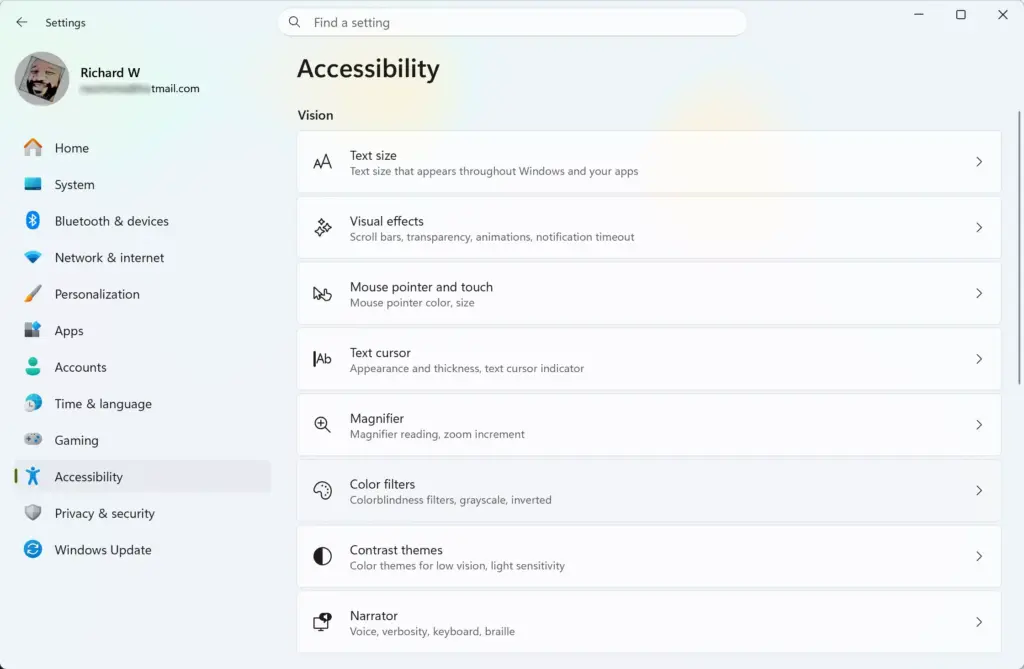
Settings › Accessibility - Select Keyboard. The page lists Sticky keys, Filter keys, Toggle keys and the On-screen keyboard setting.
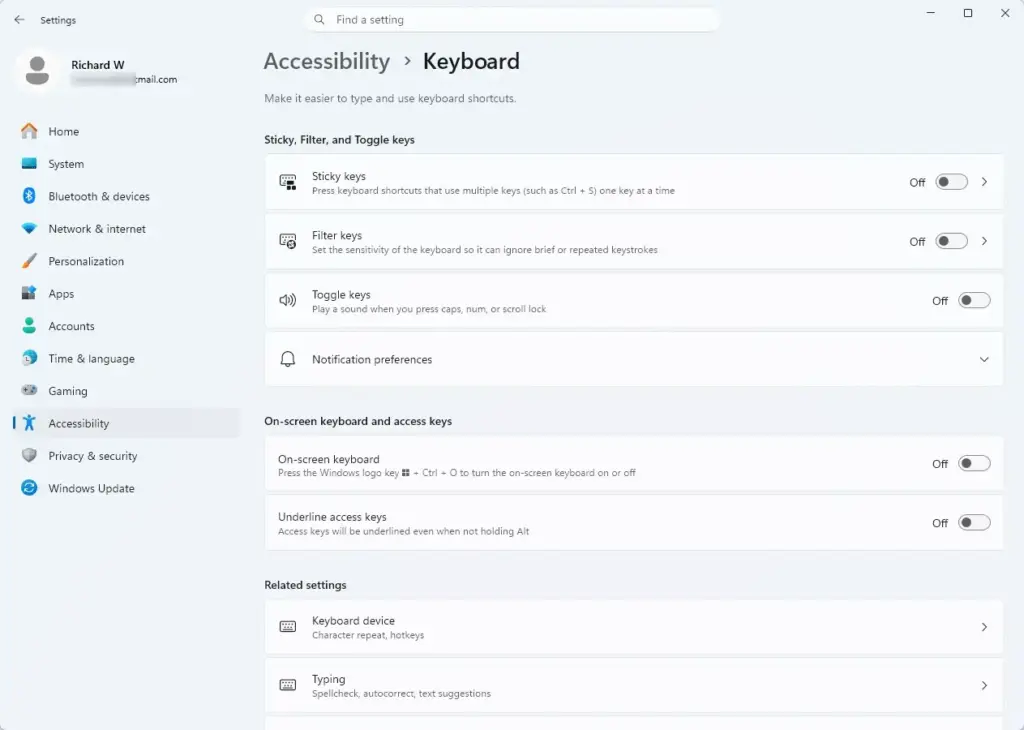
Settings › Accessibility › Keyboard - Select Sticky keys to expand it. Sticky keys lets you press modifier keys (keys such as Shift, Ctrl, Alt and Windows that change what other keys do) one at a time, instead of holding them together.
- Turn on Keyboard shortcut for Sticky keys. Pressing Shift five times now opens the Sticky keys prompt.
- Select Filter keys to expand it. Filter keys tells Windows to ignore brief or repeated keystrokes.
- Turn on Keyboard shortcut for Filter keys. Holding the right Shift key for 8 seconds now offers to turn Filter keys on.
- Select Back, or press
Windows + Uagain, to return to the Accessibility page. - Select Color filters. This page controls screen color adjustments for color blindness and light sensitivity.
- Turn on Keyboard shortcut for color filters. Then press
Windows + Ctrl + Cto switch your chosen filter on and off. - Return to the Accessibility page and select Mouse. Mouse keys lets the numeric keypad move the pointer.
- Select Mouse keys to expand it and check the shortcut option. Labels can differ between builds, so use the option that matches what you see in that section.
To undo any of this, return to the same page and turn the shortcut setting off. The tool keeps its own on/off setting. Turning off the shortcut does not stop the tool if it is already running.
If you only want to stop an accidental pop-up, turn off the shortcut for that one feature. Leave the others on.
Shortcuts That Open Accessibility Settings and Tools
The table below lists the shortcuts that open the main accessibility controls from anywhere in Windows 11.
| Shortcut | What it does |
|---|---|
Windows + U | Opens Settings Accessibility |
Windows + A | Opens Quick settings, which includes an Accessibility tile for fast toggles |
Windows + Ctrl + N | Opens Narrator settings |
Windows + Ctrl + O | Opens or closes the On-Screen Keyboard |
For a tour of what each Accessibility page contains, read How to Use Windows 11 Accessibility Features. If you are setting up a PC for someone else, How Do You Configure Windows 11 Accessibility? covers the wider settings.
Sticky Keys, Filter Keys, Toggle Keys and Mouse Keys Shortcuts
These four features change how the keyboard and numeric keypad respond. Each has a built-in trigger that you can press from any screen.
Sticky Keys Shortcut
Press Shift five times in a row. A prompt asks whether to turn on Sticky keys. Select Yes to confirm.
With Sticky keys on, you press Ctrl, Alt, Shift or the Windows key once, then press the next key. For example, you press Ctrl, release it, then press C to copy. Pressing a modifier key twice locks it until you press it a third time. This is the option for anyone who finds it hard to hold two keys at once.
To turn Sticky keys off, press Shift five times again, or switch it off in Settings Accessibility Keyboard. Sticky keys can also turn off when you press two keys at once, if that option is turned on.
Filter Keys Shortcut
Hold the right Shift key for 8 seconds. A prompt appears. Select Yes to turn Filter keys on.
Filter keys covers three behaviors: ignoring quick repeat presses (bounce keys), requiring a longer press (slow keys) and slowing key repeat (repeat keys). The setup, including each timing option, is covered in How to Manage Keyboard Filter Keys in Windows 11 Accessibility Settings.
Toggle Keys Shortcut
Hold Num Lock for 5 seconds. Toggle keys plays a sound when you press Caps Lock, Num Lock or Scroll Lock, so you know the state changed without looking at an indicator light.
Repeat the same 5-second hold to turn it off. The setting also appears as Toggle keys in Settings Accessibility Keyboard. Some builds may not have a separate on/off checkbox for this shortcut.
Mouse Keys Shortcut
Press Left Alt + Left Shift + Num Lock. A prompt asks you to confirm. Mouse keys then lets the numeric keypad move the pointer (the arrow on screen that the mouse moves).
With Mouse keys on and Num Lock set so the keypad is active for pointer control, these keys apply:
- The
1, 2, 3, 4, 6, 7, 8, 9keys on the numeric keypad move the pointer in each direction. 5clicks./selects the left mouse button,-selects the right button and*selects both.+double-clicks.0holds a button down for dragging, and.releases it.- Hold
Ctrlto move the pointer faster. HoldShiftto move it more slowly.
Magnifier Shortcuts
Magnifier enlarges part or all of the screen. Windows has three views: full screen, lens (a movable magnified rectangle) and docked (a fixed magnified strip at the top of the screen).
| Shortcut | What it does |
|---|---|
Windows + Plus (+) | Turns on Magnifier and zooms in |
Windows + Minus (-) | Zooms out |
Windows + Esc | Turns off Magnifier |
Ctrl + Alt + F | Switches to full screen view |
Ctrl + Alt + L | Switches to lens view |
Ctrl + Alt + D | Switches to docked view |
Ctrl + Alt + M | Cycles through the views |
Ctrl + Alt + R | Resizes the lens with the mouse |
Ctrl + Alt + I | Inverts colors |
Ctrl + Alt + arrow keys | Pans in the direction of the arrow |
Ctrl + Alt + Spacebar | Previews the whole desktop in full screen view |
The Plus and Minus keys work on both the main keyboard and the numeric keypad. If Magnifier opens too large or too small, press Windows + Minus or Windows + Plus until the text is comfortable. The zoom steps and other options are in Settings Accessibility Magnifier.
Narrator Shortcuts
Narrator is the built-in screen reader that reads aloud what is on screen. Many Narrator commands use the Narrator key, which is Caps Lock or Insert by default. Either key works.
| Shortcut | What it does |
|---|---|
Windows + Ctrl + Enter | Turns Narrator on or off |
Windows + Ctrl + N | Opens Narrator settings |
Narrator + F1 | Shows the list of Narrator commands |
Narrator + 1 | Turns input learning on or off, so Narrator describes each key you press without running it |
Narrator + Spacebar | Turns scan mode on or off, which lets you move through content with the arrow keys |
Narrator + Esc | Exits Narrator |
Ctrl | Stops Narrator from reading |
While Narrator runs with Caps Lock as its key, press Caps Lock twice quickly to toggle Caps Lock as normal. The first time you start Narrator, a short setup screen may appear. Select Exit on the Narrator Quick Start window if you want to move on, or work through it to learn the basics.
The full setup is in How to Set Up Windows Narrator for Accessibility.
Color Filters and Contrast Theme Shortcuts
These shortcuts change how the screen looks to make it easier to read or to reduce strain.
| Shortcut | What it does |
|---|---|
Windows + Ctrl + C | Turns color filters on or off |
Left Alt + Left Shift + Print Screen | Turns a contrast theme on or off |
Ctrl + Alt + I (with Magnifier running) | Inverts colors in Magnifier |
Win+Ctrl+C does nothing until you turn on Keyboard shortcut for color filters in Settings Accessibility Color filters. Choose a filter on that page first. The shortcut then toggles the filter you chose.
The contrast theme shortcut may show a confirmation prompt before it applies. If nothing happens, open Settings Accessibility Contrast themes and apply a theme there. Some builds may not have a setting to disable this shortcut.
Voice, Captions and On-Screen Keyboard Shortcuts
These shortcuts handle input and output without a standard keyboard or without sound.
| Shortcut | What it does |
|---|---|
Windows + Ctrl + S | Starts voice access, which lets you control the PC and dictate text with your voice |
Windows + Ctrl + L | Turns live captions on or off |
Windows + H | Opens voice typing, which turns speech into text in the active field |
Windows + Ctrl + O | Opens or closes the On-Screen Keyboard |
Voice access and live captions are available in current Windows 11 versions. The first time you use either one, Windows may ask you to download language files, so you need an internet connection for that step.
The On-Screen Keyboard shows a clickable keyboard on screen, useful when a physical keyboard is unavailable. Read How to Open and Use the On-Screen Keyboard in Windows 11 for its options.
Everyday Shortcuts for Using Windows Without a Mouse
These standard shortcuts are not part of the Accessibility settings, but they matter most for anyone who navigates by keyboard.
| Shortcut | What it does |
|---|---|
Tab / Shift + Tab | Moves forward or backward between buttons, links and fields |
Alt + Tab | Switches between open apps |
Windows + Tab | Opens Task View, which shows open windows and desktops |
Windows + B | Moves focus to the notification area of the taskbar |
Windows + T | Cycles through apps on the taskbar |
Windows + X | Opens the Power User menu, a list of system tools |
Windows + S | Opens Search |
Shift + F10 | Opens the right-click menu for the selected item |
Alt + Spacebar | Opens the window menu for move, resize and close |
Alt + F4 | Closes the active window |
Windows + Z | Opens snap layouts for arranging windows |
Use the arrow keys to move through a menu. Use Enter to select an item and Esc to go back.
Shortcuts for Switching Keyboard Language
People who type in more than one language need a fast way to switch. Two shortcuts handle it:
Windows + Spacebarswitches between installed input languages and layouts.Left Alt + Shiftalso switches input language by default, if more than one is installed.
Both do nothing if only one language or layout is installed. To add one, see How to Select Your Default Keyboard Language in Windows 11.
Why an Accessibility Shortcut Doesn’t Work
When a shortcut does nothing, one of these causes is usually responsible.
- The shortcut is turned off. Sticky keys, Filter keys and color filters each have a shortcut setting under Settings Accessibility. Turn it on, as described above.
- The feature needs a keypad. Mouse keys uses the numeric keypad. A laptop without one cannot control the pointer this way.
- Left and right keys matter. Mouse keys and contrast themes use the left Alt and left Shift keys. Right Shift is used for Filter keys.
- Another app uses the same combination. Some apps register global hotkeys (shortcuts that work in any window). Close the app and try again.
- A work PC restricts it. A managed PC may have accessibility options limited by an administrator. Ask your IT team.
- A known Windows issue. Microsoft lists a known issue on Windows 11 24H2 and 25H2 (KB5101650) where some built-in Windows features stop responding to certain keyboard shortcuts after a hotkey cleanup change. Restart the affected app. If that does not help, report the problem through the Feedback Hub app.
The accessibility prompts can also appear by accident. If Sticky keys keeps popping up during games, turn off Keyboard shortcut for Sticky keys in Settings Accessibility Keyboard.
What to Do Next
Press Windows + U now to confirm that Settings Accessibility opens, then test one shortcut from the table that matches your needs. To find where Windows keeps accessibility tools as files and shortcuts, read How to Find the Accessibility Folder in Windows 11. A feature update or a new user profile can bring back default shortcut settings, so recheck the Keyboard page if a shortcut stops working later.
Frequently asked questions
How to get help in 🪟 Windows 11 keyboard sound?
Press Win+F1 to open Get Help, then type your question about keyboard sounds. Get Help walks you through the fix step by step. If the sound setting is hard to find, search Settings for "sound" and check the Accessibility section for keyboard audio options.
How to set up the Windows keyboard for 🪟 Windows 11 for english?
Open Settings, select Time & language, then Language & region. Select Add a language, choose English, and install it. Windows adds the English keyboard automatically. Switch between keyboards with Windows + Spacebar. Check the Preferred languages list to confirm English is there.
How do I make my keyboard bigger I cannot see it on laptop 🪟 Windows 11 10?
You cannot make a physical laptop keyboard bigger, but you can show a larger one on screen. Press Win+Ctrl+O to open the On-Screen Keyboard. To make text bigger instead, press Windows + Plus (+) to turn on Magnifier and zoom in.
How to get help in 🪟 Windows 11 keyboard?
Press Win+F1 to open Get Help. Type a short description of your keyboard problem and follow the steps it suggests. To change keyboard options directly, open Settings, select Accessibility, then choose Keyboard.
How do I create a shortcut in 🪟 Windows 11?
Right-click an empty part of the desktop, select New, then Shortcut. Browse to the app or file, select Next, give it a name, and select Finish. To set a keyboard shortcut for it, right-click the shortcut, select Properties, click the Shortcut key box, and press your keys. Windows adds Ctrl + Alt to your combination.
Still have a question?
Answered by AI from this guide. Good questions may be added to this page — please don't include personal details.
Did this guide fix your problem?

About the Author
Richard
Tech Writer, IT Professional
Richard is a writer at Geek Rewind who turns complex IT tasks into clear, step-by-step guides. He draws on years of hands-on experience in system administration and enterprise IT operations, focusing on Windows, Linux and WordPress: the problems people actually run into, and the fixes that work. His server and WordPress guides come from systems he runs himself. Richard builds and maintains the platform behind Geek Rewind, from its Ubuntu servers and Nginx configuration to its custom WordPress plugins. Many new tutorials start with readers' questions, and he's always glad to answer them in the comments.
No comments yet — be the first to share your thoughts!