How to Use Mouse Keys with Num Lock In Windows 11

Mouse Keys in Windows 11 lets you move the mouse pointer and click items using your keyboard’s number pad instead of a physical mouse. This built-in accessibility tool helps you control your PC entirely with your keys when a mouse or touchpad is broken, missing, or hard to reach.
You turn the feature on in Windows Settings. After that, you press the Num Lock key to switch the number pad between its normal job and moving the pointer. You need a keyboard with a number pad for this. If yours has none, check the manual to see whether some keys double as number keys.
Enable Mouse Keys in Settings under Accessibility Mouse, then check the box for “Only use mouse keys when Num Lock is on.” This allows you to toggle Mouse Keys on and off by pressing the Num Lock key.
What Can Mouse Keys Do?
Mouse Keys lets you control your mouse pointer using your keyboard’s number pad instead of a physical mouse. The number keys move the cursor across the screen, the 5 key acts as a standard left-click, and the plus key handles double-clicks. This gives you full cursor control using only the keyboard.
- Press the
5key to click. - Press the
+key to double-click. - Use the other number keys to move the mouse pointer around the screen. Each key moves the pointer in the direction it sits relative to the 5 key.
Mouse Keys can be set to work only while Num Lock is active. With that option on, pressing the Num Lock key turns the pointer controls on and off without switching off the Mouse Keys feature itself. When Num Lock is off, the number pad goes back to its normal behavior, so you can use it as usual without leaving Settings.
How to Turn On or Off “Only Use Mouse Keys When Num Lock is On”
To make Mouse Keys respond only when Num Lock is active, open the Settings app and go to Accessibility Mouse. Turn on Mouse keys, then check the Num Lock option under it. After that you can switch the pointer controls on and off quickly with one key while you type.
- Open the Settings app. Click the Start menu and then click Settings, or press
Windows key + Ion your keyboard. The Settings window opens. - In the Settings window, click Accessibility on the left side. The accessibility categories appear on the right.
- Scroll down and click Mouse on the right side to open the mouse settings.
- Turn on the Mouse keys switch. The section expands and shows more options below the switch. If you do not see them, click the Mouse keys row to expand it.
- Find the option “Only use mouse keys when Num Lock is on”. Check this box if you want Mouse Keys to work only when
Num Lockis on. Uncheck it if you want Mouse Keys to work all the time.
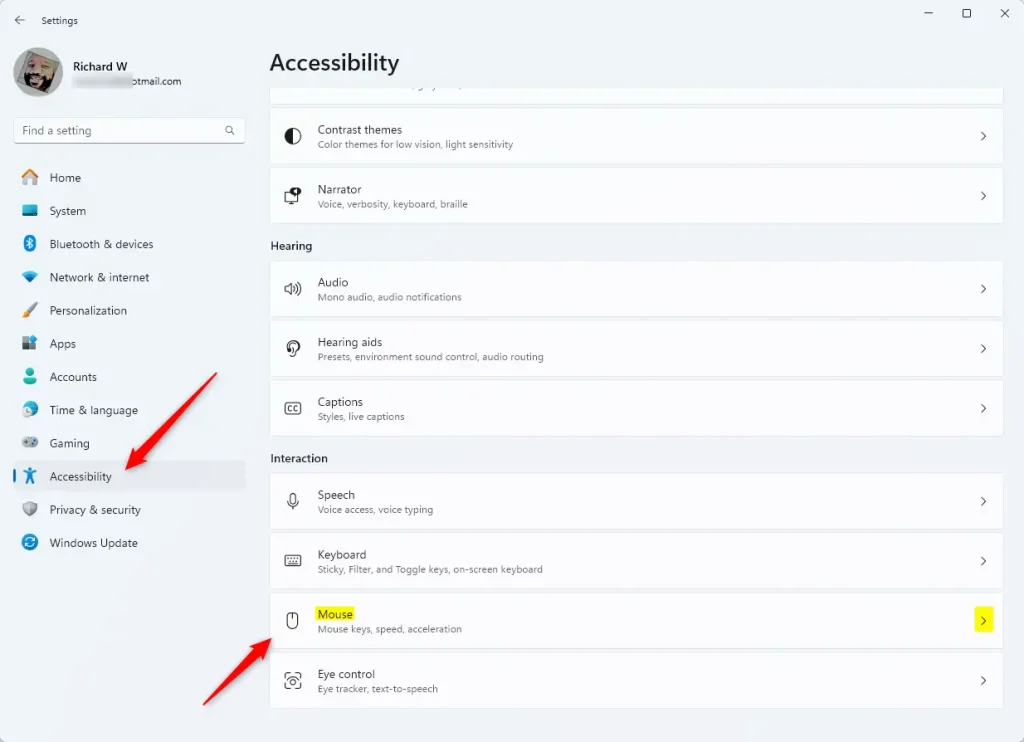
Mouse settings in Windows Accessibility options
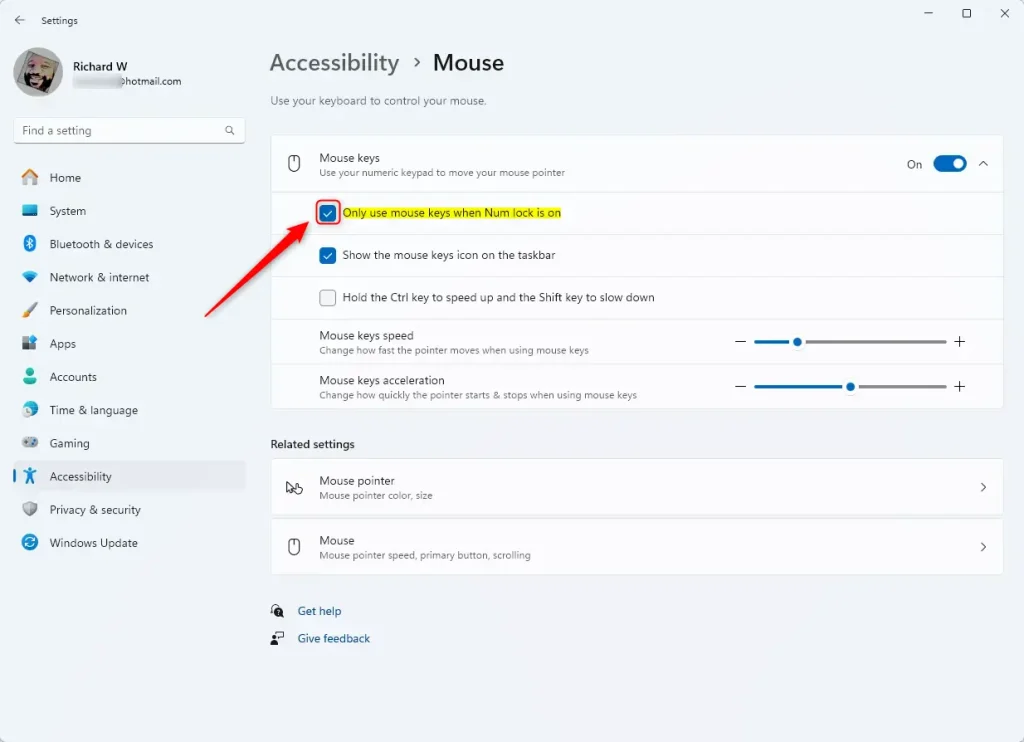
Turning on Mouse Keys and enabling “Only use mouse keys when Num Lock is on”
- When you are done, close the Settings app. The change applies right away and you do not need to restart.
To test it, press Num⇩ so it is on, then press the number pad keys. The pointer should move. Press Num⇩ again to turn it off, and the number pad goes back to normal. If the pointer does not move, check that the Mouse keys switch is still on and that Num Lock is on. If you leave the Num Lock box unchecked, Mouse Keys works regardless of Num Lock.
The same Mouse keys section has options for pointer speed and acceleration. If the pointer is too slow or too fast, adjust these. To undo everything, go back to Accessibility Mouse and turn the Mouse keys switch off. This works the same on Home and Pro editions.
Why Use This Feature?
- It helps people who have trouble using a regular mouse or touchpad.
- You can control the mouse pointer using just your keyboard, which is also a useful backup when a mouse stops working.
- You can choose when to activate Mouse Keys with the
Num Lockkey for easier switching. - It gives you more options to use your Windows 11 computer in a way that feels comfortable.
Mouse Keys helps people who have trouble using a regular mouse or touchpad by letting them control the pointer with the number pad. Tying the feature to the Num Lock key makes it easy to switch between typing numbers and moving the cursor on your screen.
Summary
Mouse Keys is an accessibility tool that lets you use your keyboard’s number keys to move and click the mouse pointer. Setting it to work only when Num Lock is on gives you a simple way to switch between pointer control and normal number pad use. If you no longer need it, you can turn it off in the same Settings page.
Have a question about this guide?
Answered by AI from this guide. Good questions may be added to this page — please don't include personal details.
Did this guide fix your problem?

About the Author
Richard
Tech Writer, IT Professional
Richard is a writer at Geek Rewind who turns complex IT tasks into clear, step-by-step guides. He draws on years of hands-on experience in system administration and enterprise IT operations, focusing on Windows, Linux and WordPress: the problems people actually run into, and the fixes that work. His server and WordPress guides come from systems he runs himself. Richard builds and maintains the platform behind Geek Rewind, from its Ubuntu servers and Nginx configuration to its custom WordPress plugins. Many new tutorials start with readers' questions, and he's always glad to answer them in the comments.
No comments yet — be the first to share your thoughts!