How to Change Mouse Keys Acceleration in Windows 11


Mouse Keys acceleration in Windows 11 controls how quickly your pointer speeds up when you hold down a number pad key to move it. Mouse Keys is a built-in accessibility feature that turns the numeric keypad into a mouse, so you can move around the screen without a physical mouse.
Two things shape how the pointer feels: the top speed it reaches, and how long it takes to get there. This tutorial covers the acceleration part. A slower ramp-up gives you finer control over small movements. A faster ramp-up gets you across the screen sooner.
Go to Settings Accessibility Mouse, turn on Mouse Keys, and adjust the acceleration slider. Alternatively, use the Registry Editor to modify the TimeToMaximumSpeed value.
Why Change Mouse Keys Acceleration?
With Mouse Keys on, the pointer starts slowly when you press a keypad key and then speeds up the longer you hold it. Acceleration sets how fast that speed-up happens. If the pointer overshoots your target, slow the acceleration down. If it crawls, speed it up. A small change here can make Mouse Keys much more comfortable to use.
Mouse Keys works from the numeric keypad, so you need a keyboard that has one. On a laptop without a keypad, you may not be able to use it at all.
Change Mouse Keys Acceleration in Windows
There are two ways to adjust Mouse Keys acceleration: the Settings app and the Registry Editor. The Settings app is the safer choice and works for most people. Use the Registry Editor only if you want to set an exact value or the slider is not available.
Using the Settings App
The Settings app is the easiest way to change Mouse Keys acceleration in Windows 11. It works the same on Home and Pro.
- Press Windows + I to open Settings.
- Go to Settings Accessibility Mouse You should see the Mouse keys options on this page.
- Turn on the Mouse keys toggle. The related options appear when you expand the Mouse keys entry.
- Find the acceleration slider (labeled Mouse key acceleration) and drag it. Move it toward the lower end for a slower ramp-up, or toward the higher end for a faster one.
- Test the pointer with the number pad keys. If it still does not feel right, adjust the slider again. Changes apply right away, so you do not need to restart.
If Num Lock is on, the keypad types numbers instead of moving the pointer. Check the Mouse keys options for a setting that controls whether Mouse Keys works with Num Lock on or off. To undo your changes, move the slider back or turn the Mouse keys toggle off. You can also turn Mouse Keys on and off from the keyboard by pressing Left Alt + Left Shift + Num Lock, if that shortcut is enabled.
Using Windows Registry Editor
The Registry Editor lets you set the exact acceleration value. The value controls how long the pointer takes to ramp up to its top speed when you hold a keypad key. Use it with care, because a wrong edit in the registry can cause problems. Before you start, back up the key you are about to change. In Registry Editor, select the key, then choose File Export and save the file somewhere you can find it.
- Admin required: Open Windows Registry editor as administrator. Click Yes if User Account Control asks for permission. The Registry Editor window should open.
- Navigate to this registry key. You can expand the folders in the left pane or paste the path into the address bar at the top of the window:
Computer\HKEY_CURRENT_USER\Control Panel\Accessibility\MouseKeys - Double-click the
TimeToMaximumSpeed(REG_SZ) name on the right pane to open it. An edit window with a Value data box should appear. - Enter a value between 1000 (faster) and 5000 (slower) to change how fast the pointer accelerates on your screen. The number is the time in milliseconds the pointer takes to reach top speed, so a smaller number means a quicker ramp-up.
- If you don't see the "TimeToMaximumSpeed" item, right-click a blank area in the right pane and create a new String value registry item. Type the name "TimeToMaximumSpeed" and enter a value between 1000 (faster) and 5000 (slower). Make sure the name is spelled exactly as shown, or Windows will ignore it.
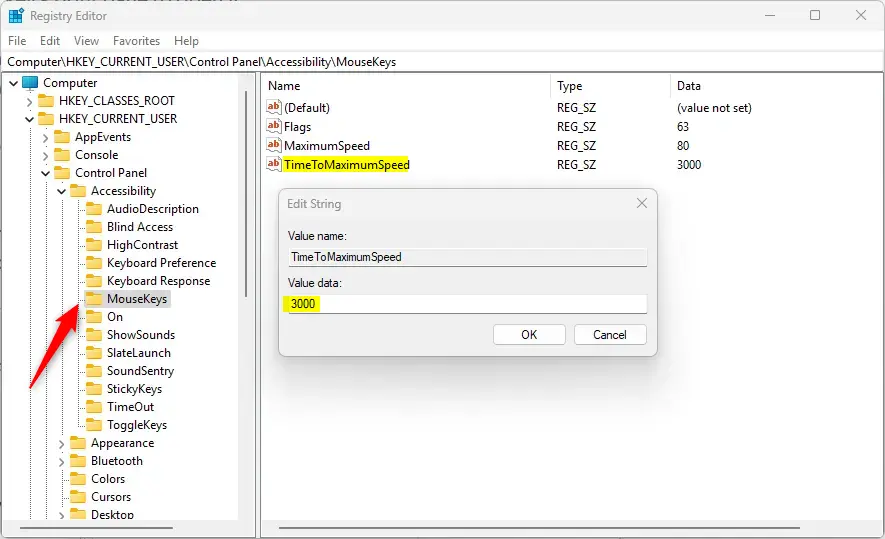
Change mouse keys accelations in Windows 11 registry - You may need to restart your computer to apply the changes. If the pointer behaves the same after the restart, check that you edited the right value. To undo the change, open the same value again and enter your old number, or import the backup file you exported earlier.
Summary
- Mouse Keys lets you control your cursor using your keyboard's numeric keypad instead of a mouse
- You can adjust how fast the pointer accelerates by changing the Mouse Keys acceleration setting
- The easiest way is through the Windows Settings app under Accessibility Mouse
- Advanced users can also adjust this setting using Windows Registry Editor by modifying the TimeToMaximumSpeed value
- Values range from 1000 (faster) to 5000 (slower) in the Registry Editor method
- You may need to restart your computer for registry changes to take effect
- Experiment with different settings to find what works best for you. Change one value at a time so you know which change made the difference
Mouse Keys acceleration settings in Windows 11 control how fast your cursor speeds up when you move it with the numeric keypad. You can change the speed in the Settings app, which is the simpler method, or in the Registry Editor if you want to set an exact value. If you do not like the result, you can always go back to your old setting.
Was this guide helpful?

About the Author
Richard
Tech Writer, IT Professional
Richard is a writer at Geek Rewind who turns complex IT tasks into clear, step-by-step guides. He draws on years of hands-on experience in system administration and enterprise IT operations, focusing on Windows, Linux and WordPress: the problems people actually run into, and the fixes that work. His server and WordPress guides come from systems he runs himself. Richard builds and maintains the platform behind Geek Rewind, from its Ubuntu servers and Nginx configuration to its custom WordPress plugins. Many new tutorials start with readers' questions, and he's always glad to answer them in the comments.



No comments yet — be the first to share your thoughts!