How to Add or Remove Mouse Keys Icon on Taskbar in Windows 11


The Mouse Keys icon appears in the notification area at the right end of the Windows 11 taskbar when the Mouse Keys accessibility feature is turned on. Mouse Keys lets you move the pointer with the number pad instead of a mouse, trackpad or other pointing device. It is useful if you can’t use a mouse comfortably, if your mouse has failed, or if you need very fine control over pointer position.
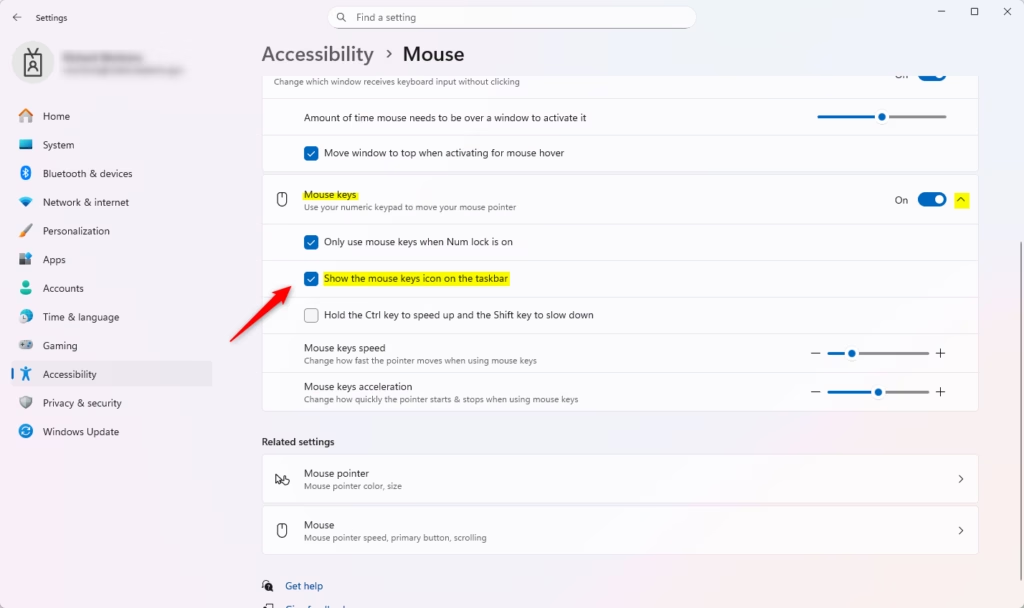
Open Settings , go to Accessibility Mouse, and check the box next to Show the mouse keys icon on the taskbar. The icon appears in the notification area at the right end of your taskbar when Mouse Keys is enabled.
Once Mouse Keys is on, a few number pad keys do the main jobs:
- The number keys 1 to 9, except 5, move the pointer in the direction they sit on the pad.
- The 5 key clicks.
- The 0 key holds a mouse button down, and the . (period) key releases it. This is how you drag.
Mouse Keys depends on Num Lock. Depending on how you have it set up, the number pad may only control the pointer when Num Lock is on, or only when it is off. If the keys type numbers when you expected pointer movement, check the Num Lock state first.
You can keep the tray icon visible all the time or hide it, whichever you prefer. The icon is only an indicator. Hiding it does not turn Mouse Keys off, and showing it does not turn Mouse Keys on. If you can’t see the icon when you expect it, click the up arrow (Show hidden icons) in the taskbar ’s notification area , because Windows may have tucked it into the overflow flyout.
Windows 11 stores this icon preference in the registry at 🗝️HKEY_CURRENT_USER\
Option 1Use Settings
You can use the Settings app to quickly show or hide the Mouse Keys icon Windows 11 feature on your taskbar. This built-in method lets you toggle the visibility switch directly from the Accessibility menu, provided you already have Mouse Keys turned on.- Open Settings by pressing
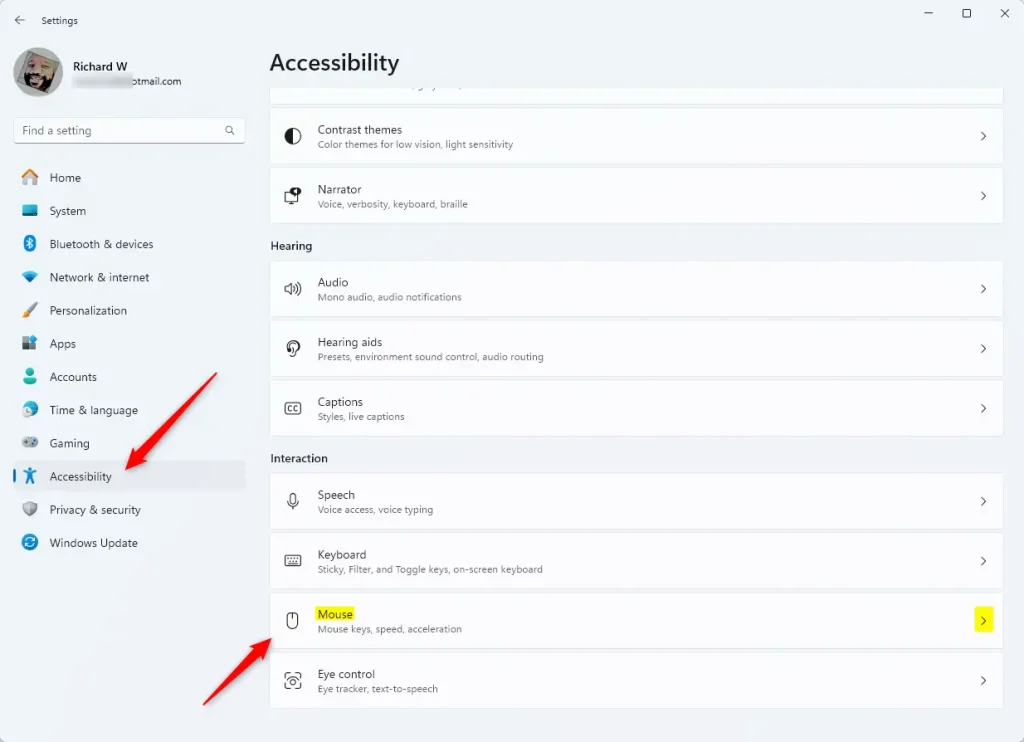
Win+I. - Click Accessibility on the left side, then click Mouse on the right side.
- Check the box next to Show the mouse keys icon on the taskbar to turn it on. Uncheck the box to turn it off.
- Note: This setting will be grayed out if Mouse Keys is turned off.
- You can close Settings now.
Option 2Use Control Panel
This menu lets you check a box to display or hide the keyboard cursor tool on your taskbar using familiar traditional system settings.
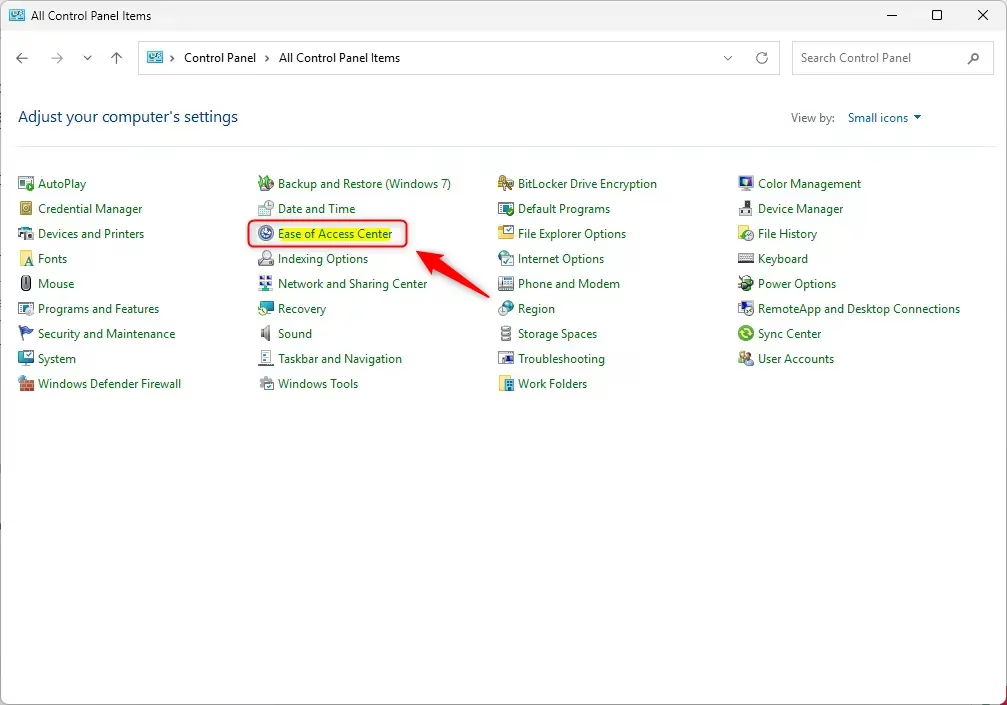
- Open Control Panel (in icons view) and click the Ease of Access Center icon.
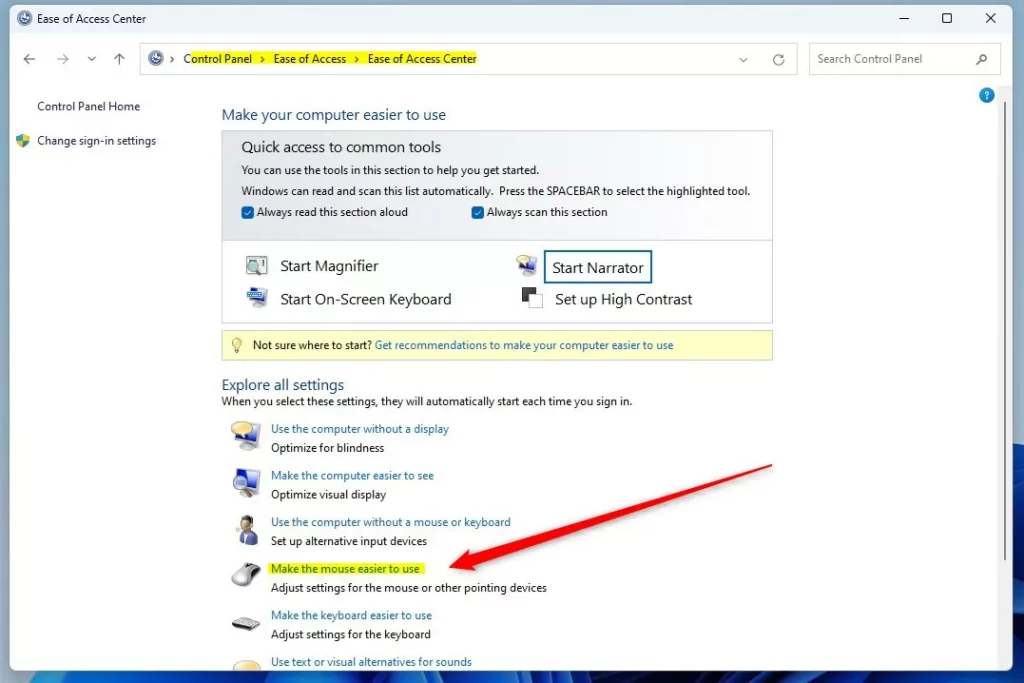
- Click Make the mouse easier to use.
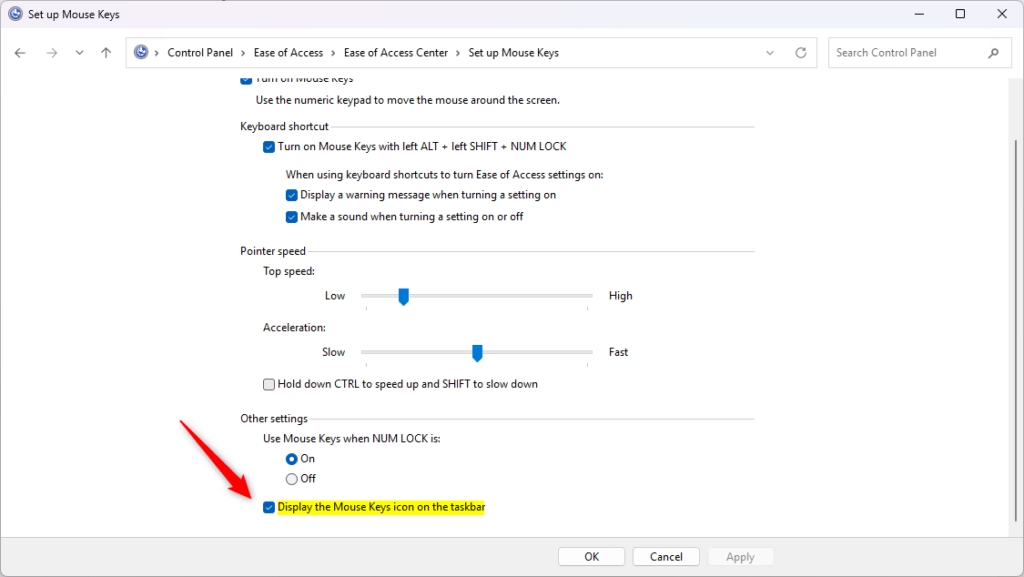
- Click Set up Mouse Keys under "Control the mouse with the keyboard".
- Under Other settings, check the box next to Display the Mouse Keys icon on the taskbar to turn it on. Uncheck to turn it off. Then click OK.
- Click OK again.
- You can close the Ease of Access Center now.
Option 3Use the Taskbar Hidden Icon Menu
Taskbar settings let you control whether the Mouse Keys icon Windows 11 appears directly on the taskbar or stays tucked away inside the hidden icons corner menu. You can easily flip a toggle switch in the Personalization menu to manage where this icon shows up.
- Open Settings by pressing
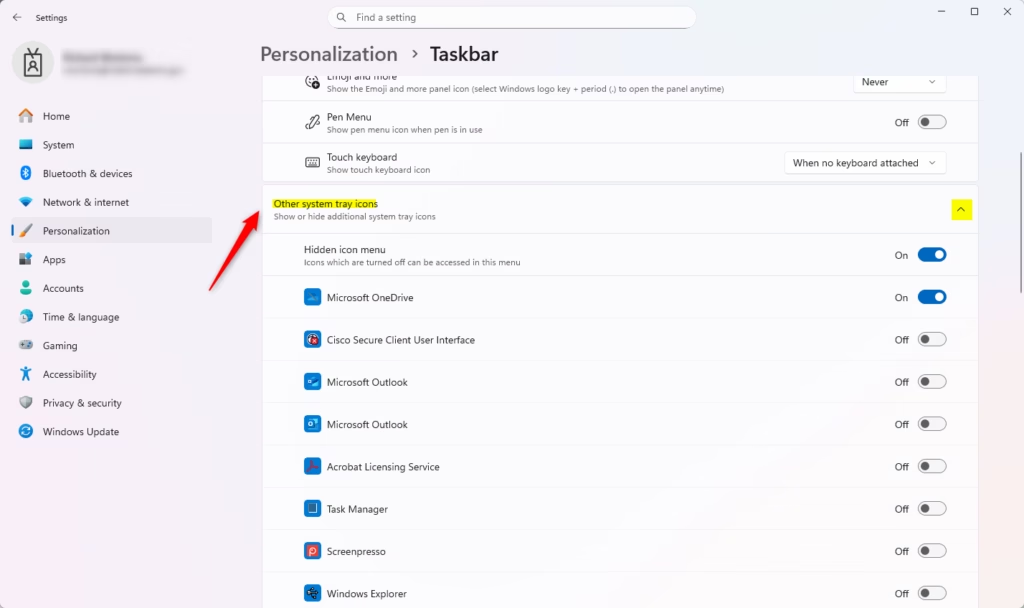
Win+I. - Click Personalization on the left side, then click Taskbar on the right side.
- Click Other system tray icons to expand that section.
- Turn On or Off the toggle next to Mouse Keys for what you want.
- You can close Settings now.

Summary
You can use the main Settings app, the classic Control Panel, or the taskbar corner settings to adjust this feature.
- Settings app: Go to Accessibility Mouse and toggle the mouse keys icon setting.
- Control Panel: Use Ease of Access Center Set up Mouse Keys and check the display option.
- Taskbar settings: Use Personalization Taskbar Other system tray icons to manage the icon.
Any of these approaches accomplishes the task effectively within Windows 11.
How to rebind mouse button?
Open Settings with Win+I, go to Accessibility Mouse, then select Mouse button settings. You can swap left and right button functions, or assign custom actions to buttons. Some apps also let you rebind buttons in their own settings.
How to make icons stay in place on desktop 🪟 Windows 11?
Right-click your desktop, select View, then check Auto arrange icons and Align icons to grid. This locks icons in place. To prevent accidental moves, you can also turn off "Allow themes to change the desktop background picture" in Personalization settings.
How do I disable Sticky Keys on my computer?
Open Settings with Win+I, go to Accessibility Keyboard, then turn off the Sticky Keys toggle. Sticky Keys lets you press modifier keys like Shift without holding them down. You can also press Shift five times quickly to toggle it off instantly.
How to right click on laptop without mouse?
On a laptop trackpad, tap with two fingers to right-click, or hold one finger down while tapping with another. You can also press Shift+F10 on the keyboard to open the right-click menu for selected items without touching the trackpad.
Have a question about this guide?
Answered by AI from this guide. Good questions may be added to this page — please don't include personal details.
Did this guide fix your problem?

About the Author
Richard
Tech Writer, IT Professional
Richard is a writer at Geek Rewind who turns complex IT tasks into clear, step-by-step guides. He draws on years of hands-on experience in system administration and enterprise IT operations, focusing on Windows, Linux and WordPress: the problems people actually run into, and the fixes that work. His server and WordPress guides come from systems he runs himself. Richard builds and maintains the platform behind Geek Rewind, from its Ubuntu servers and Nginx configuration to its custom WordPress plugins. Many new tutorials start with readers' questions, and he's always glad to answer them in the comments.
No comments yet — be the first to share your thoughts!