How to Turn On or off the Color Filters Keyboard Shortcut (Win + Ctrl + C) in Windows 11

The color filters keyboard shortcut (Win+Ctrl+C) switches your screen color filter on or off instantly in Windows 11. Color filters change how the display shows color, which helps people with color blindness and anyone who finds standard colors hard to read or tiring to look at.
Windows 11 turns this shortcut off by default so you don’t trigger it by accident while typing. You can turn it on in the Settings app whenever you want quick access to your filters. The same steps work on Windows 11 Home and Pro.
Open Settings Accessibility Color filters, then set Keyboard shortcut for color filters to On. Press Win+Ctrl+C to toggle your color filter without restarting. First choose a filter type like grayscale for the shortcut to work.
How to Enable or Disable the Color Filters Shortcut Using Settings
- Press Win+I to open Settings. The Settings window opens with the category list on the left.
- Click Accessibility in the left pane. The accessibility options appear on the right.
- Click Color filters in the right pane. The Color filters page opens.
- Find Keyboard shortcut for color filters. It sits with the other color filter options. If you don’t see it, expand the Color filters section.
- Set it to On to enable the shortcut, or Off if you don’t want to use it. The change applies straight away, and you don’t need to restart.
- Close Settings. To test it, press Win+Ctrl+C. The screen colors should change, and pressing the keys again should switch them back.
If nothing happens when you press the keys, go back to the Color filters page and choose a filter, such as grayscale or one of the color blindness options. Then try again.
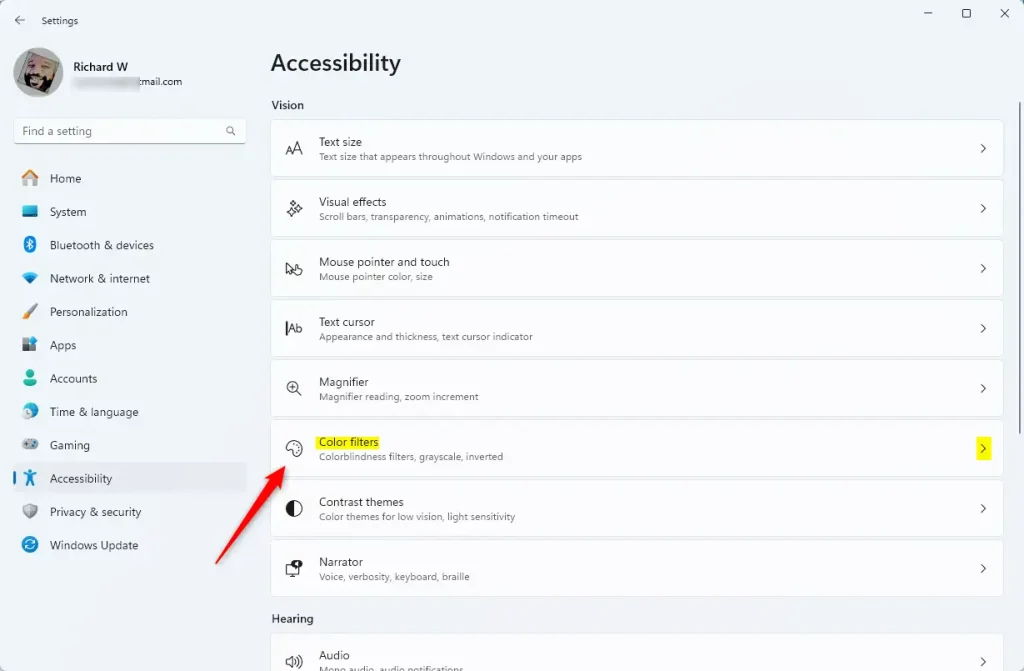
In short, you control this shortcut from the Windows 11 Settings app . Press the Win+I, open Accessibility, and select Color filters. The shortcut switch there decides whether pressing Win+Ctrl+C turns your screen filters on or off.
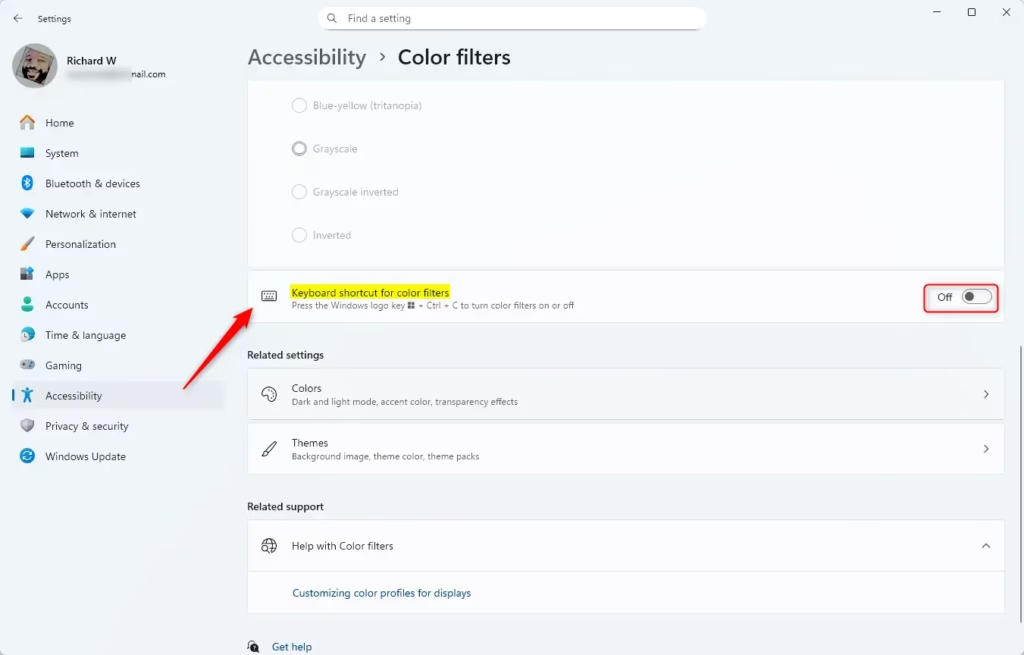
To undo the change, repeat the same steps and set Keyboard shortcut for color filters back to Off. This only affects the shortcut. Your chosen filter stays as it is, and you can still turn the filter on or off from the Color filters page.
If the switch is missing or you can’t change it, your PC may be managed by an organization that restricts Settings. In that case, ask your administrator.
How to Enable or Disable the Shortcut Using the Registry (Advanced)
Advanced users can turn the shortcut on or off in the Registry Editor instead. Create or change the HotkeyEnabled value inside the HKEY_CURRENT_USER\Software\Microsoft\ColorFiltering key. This does the same job as the Settings switch without opening the Settings app.
Before you edit the registry, consider making a backup or creating a restore point. If the shortcut doesn't respond straight after the change, sign out and back in.
To Enable the color filters shortcut, create or change this registry setting:
reg add "HKEY_CURRENT_USER\Software\Microsoft\ColorFiltering" /v HotkeyEnabled /t REG_DWORD /d 1 /fTo Disable the shortcut (this is the default setting), use this:
reg add "HKEY_CURRENT_USER\Software\Microsoft\ColorFiltering" /v HotkeyEnabled /t REG_DWORD /d 0 /fSummary
- The Win + Ctrl + C keys let you quickly turn color filters on or off when you need them.
- You can turn this shortcut on or off in Windows Settings, or by changing the Registry if you know how.
- Color filters help people with color blindness or vision problems see the screen better.
- If the shortcut doesn't work as expected, check that it is switched on in Settings and that you have chosen a filter on the Color filters page.
- This feature makes using your computer easier and more comfortable for many users.
The color filters keyboard shortcut gives you a fast way to turn screen filters on or off using the Win + Ctrl + C keys in Windows 11. Whether you use the Settings app or the Registry Editor, managing this shortcut lets you adapt your display for color blindness or other vision needs whenever you use your computer.
Was this guide helpful?
0% of readers found this helpful (1 votes)

About the Author
Richard
Tech Writer, IT Professional
Richard is a writer at Geek Rewind who turns complex IT tasks into clear, step-by-step guides. He draws on years of hands-on experience in system administration and enterprise IT operations, focusing on Windows, Linux and WordPress: the problems people actually run into, and the fixes that work. His server and WordPress guides come from systems he runs himself. Richard builds and maintains the platform behind Geek Rewind, from its Ubuntu servers and Nginx configuration to its custom WordPress plugins. Many new tutorials start with readers' questions, and he's always glad to answer them in the comments.



No comments yet — be the first to share your thoughts!