Windows 11 Keyboard Accessibility Shortcuts Explained

Windows 11 keyboard accessibility shortcuts are key combinations that switch on features such as Sticky Keys, Filter Keys and Toggle Keys. Many people meet them by accident: pressing Shift five times in a row turns on Sticky Keys, and holding the right Shift key for eight seconds turns on Filter Keys. This page groups the 31 guides on the subject by the task each one solves, so you can find the one that matches your problem. Start with the full shortcut list, then move to the section that fits.
Find the accessibility keys and their shortcuts
Start here if you are not sure which features are already on or where their settings live. These guides list the shortcuts, explain how to find the Accessibility folder, and cover the underlined menu letters that Underline Access Keys controls. Read them before you change anything else.
 Every Accessibility Keyboard Shortcut in Windows 11 Every Windows 11 accessibility keyboard shortcut in one list: Narrator, Magnifier, Sticky keys, Filter keys, Mouse keys and color filters, with the…
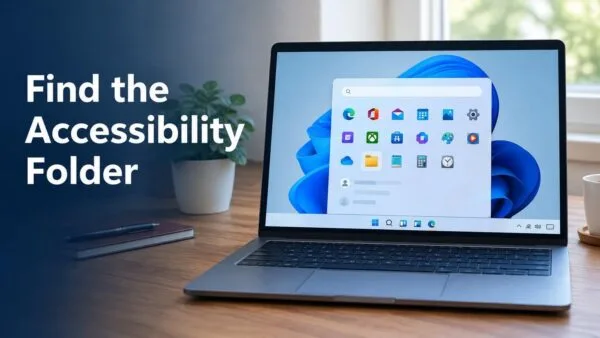 How to Find the Accessibility Folder in Windows 11 Can't find the Accessibility folder in Windows 11? It sits under the A heading in Start > All apps. Here are the steps, plus the Settings page for changing…
 Windows 11 Keyboard Shortcuts Every User Should Know Windows 11 Keyboard Shortcuts Every User Should Know: Windows + E, Windows + Shift + S, Windows + V and Ctrl + Shift + Esc. Full tables grouped by task.
 Every Windows 11 Keyboard Shortcut for Built-In Features Every Win + key shortcut for Windows 11 built-in features in one table: Quick Link menu, Snap layouts, Task View, Alt + Tab and more. Use Ctrl + F to find…
 What Happens When You Turn On Filter Keys in Windows 11 Filter keys in Windows 11 ignores fast or repeated presses. Turn it on under Settings > Accessibility > Keyboard, and see why fast typing drops letters.
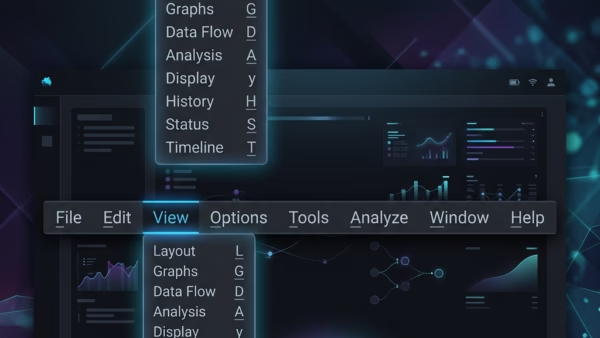 How to Turn Underline Access Keys on or off in Windows 11 Learn how to turn underline access keys on or off in Windows 11. Make keyboard shortcuts visible for faster navigation and improved workflow.
Stop accidental shortcuts from switching features on
Most reports of a keyboard acting strangely come from a shortcut pressed by mistake. These guides show how to turn off the key combination for Sticky Keys, Filter Keys or Toggle Keys, and how to change the Filter Keys settings themselves. Use them when a feature keeps switching back on.
 How to Enable or Disable Keyboard Shortcut for Toggle Keys in Windows 11 Stop Windows 11 Toggle Keys from triggering on accident. Turn off the Num Lock 5-second shortcut from the notification prompt, or in Control Panel's Ease…
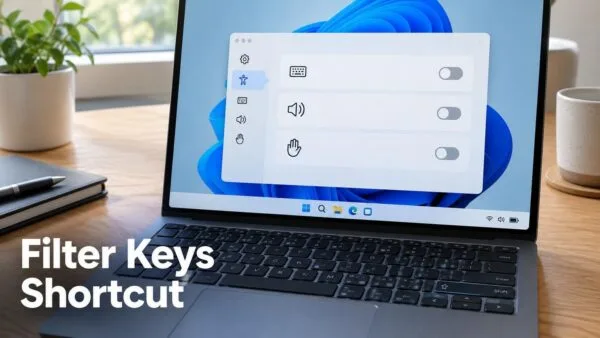 How to Enable or Disable Keyboard Shortcut for Filter Keys in Windows 11 Filter Keys shortcut firing by accident? Turn off the right Shift 8-second trigger in Settings, Control Panel, or from the prompt itself.
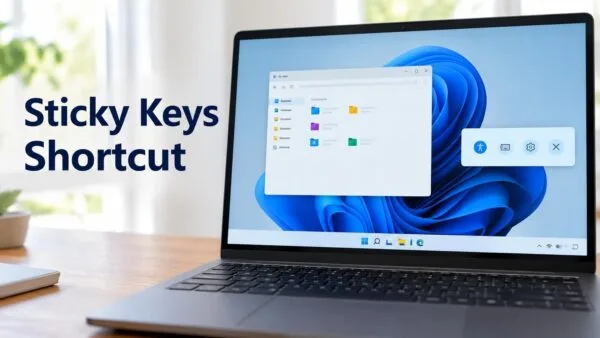 How to Enable or Disable Keyboard Shortcut for Sticky Keys in Windows 11 Sticky Keys shortcut turning on when you press Shift five times? Turn it off in Settings or Control Panel for your account, no admin rights needed.
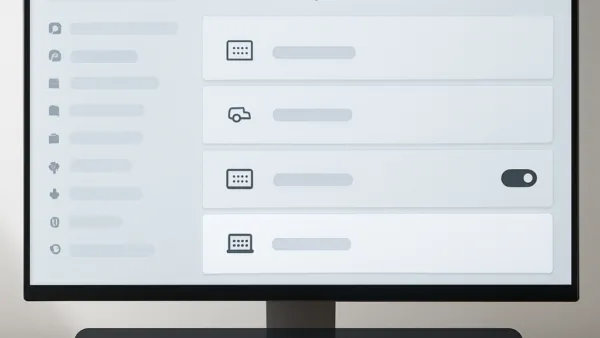 How to Enable or Disable Filter Keys for Accessibility in Windows 11 To enable Filter Keys in Windows 11, go to Settings > Accessibility > Keyboard and turn on the Filter Keys toggle. To turn it off, flip the same togg
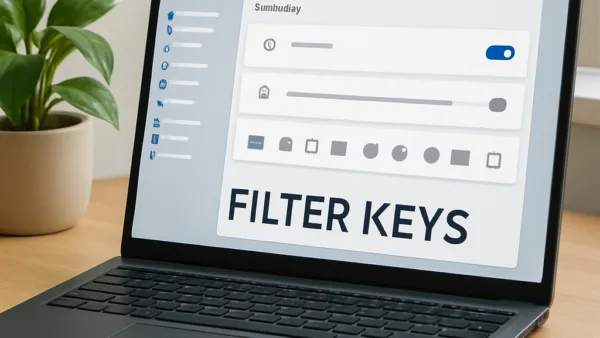 How to Manage Keyboard Filter Keys in Windows 11 Accessibility Settings Stop accidental double-typing and hand tremor inputs. Turn on and configure keyboard filter keys in Windows 11 Accessibility settings.
Control the sounds and alerts when keys change
When Sticky, Filter or Toggle Keys switch on or off, Windows can play a sound and show a notification. These guides let you keep or silence each of those signals. Check them first if the beeps are the thing bothering you.
 How to Turn On or Off Play Sound when Sticky, Filter, or Toggle keys Turned on or off from Keyboard in Windows 11 Sticky keys sound too loud or unwanted? Turn the alert sound on or off for Sticky, Filter, and Toggle keys in Windows 11 using Settings, Control Panel, or…
 How to Turn On or Off Notification when Turn on Sticky, Filter, or Toggle keys from Keyboard in Windows 11 Stop Windows 11 from warning you every time Sticky, Filter or Toggle keys switch on. Turn the notification off in Settings under Accessibility > Keyboard…
 How to Enable or Disable Toggle Keys Tone in Windows 11 Manage the Toggle Keys Tone in Windows 11. Enable or disable audible alerts for Caps Lock, Num Lock, and Scroll Lock with simple steps.
 Get Visual Alerts Instead of Sounds for Notifications in Windows 11 Visual alerts in Windows for notification sounds: open Settings > Accessibility > Audio and pick a flash option. Sounds still play unless muted.
Change how keys repeat and behave while typing
Holding a key can repeat letters faster or slower than you want, and text suggestions or Caps Lock can get in the way. These guides adjust the repeat delay and repeat rate, and turn off text suggestions and Caps Lock. Change repeat settings in small steps and test each one in a text box.
 How to Change Keyboard Character Repeat Delay in Windows 11 Adjust keyboard repeat delay in Windows 11 using Settings, Control Panel, or Registry Editor. Fix fast or slow key repeating for comfortable typing.
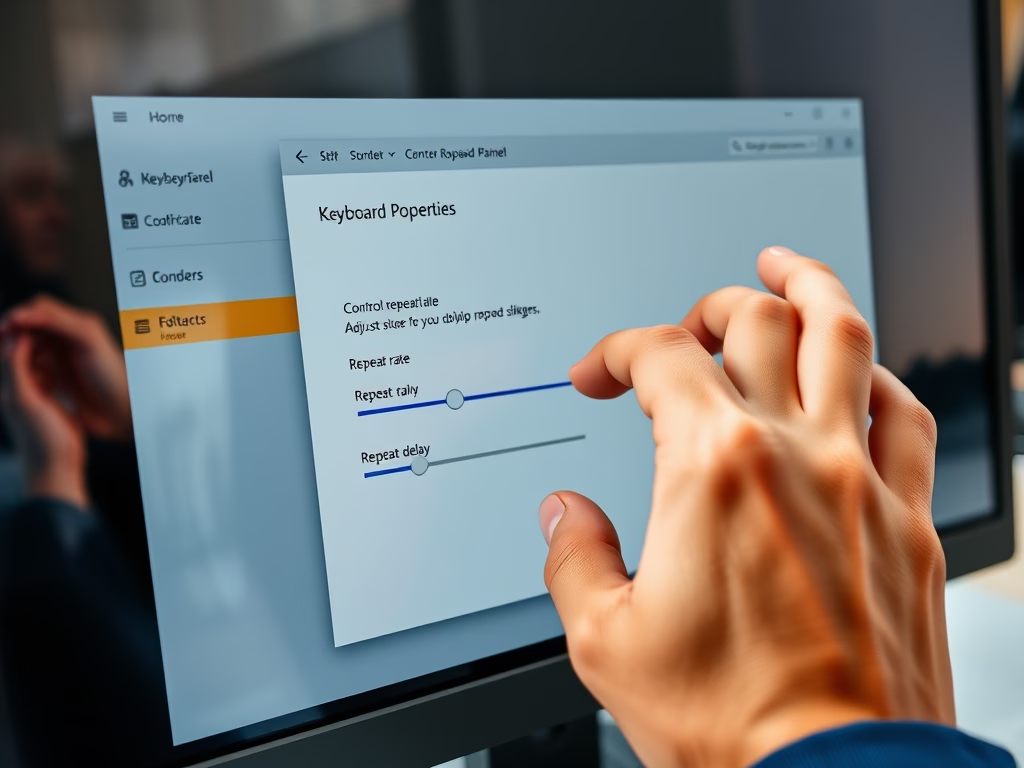 How to Change Keyboard Repeat Rate in Windows 11 Customize your keyboard repeat rate in Windows 11 using Control Panel or Registry Editor. Adjust speed and delay settings to match your typing style.
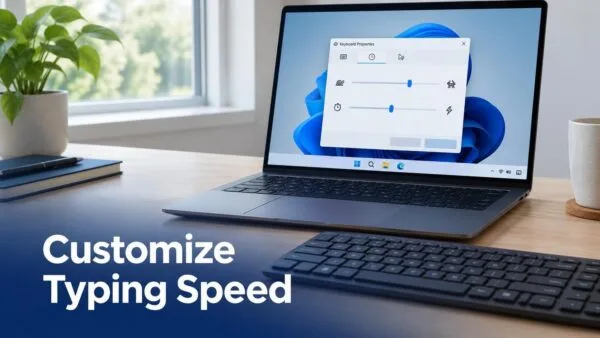 Customize Typing Speed In Windows 11 Customize typing speed in Windows 11: change Repeat delay and Repeat rate in Keyboard Properties. Open it with control keyboard; no admin rights needed.
 How to Disable Caps Lock In Windows 11 Disable Caps Lock in Windows 11 using the Registry Editor. Follow our step-by-step guide to turn off the key and prevent accidental uppercase typing.
 How to Enable or Disable Text Suggestions in Windows 11 Enable or disable Windows 11 text suggestions in Settings or Registry. Speed up typing with word predictions or turn them off with our step-by-step guide.
Control the pointer with the keyboard or make it easier to see
Mouse Keys lets the number pad move the pointer, and these guides change its speed and how Num Lock, Ctrl and Shift affect it. The other guides in this group make the text cursor thicker, change how the mouse indicator is activated, and hide the pointer while you type. Every setting here can be reversed from the same page.
 How to Change Mouse Key Speed In Windows 11 Adjust mouse keys speed in Windows 11. Control pointer movement with number keys using Settings or Registry Editor. Find your perfect speed.
 How to Change Mouse Key Speed Using CTRL and SHIFT in Windows 11 Control your mouse pointer speed in Windows 11 using Mouse Keys with CTRL and SHIFT keys. Enable this accessibility feature in Settings today.
 How to Use Mouse Keys with Num Lock In Windows 11 Master Mouse Keys in Windows 11 with Num Lock control. Use keyboard number keys to move your cursor, click, and double-click.
 How to Adjust Text Cursor Thickness in Windows 11 Make your text cursor easier to spot in Windows 11. Adjust text cursor thickness in seconds using Settings, Control Panel, or Registry. Simple guide…
 How to Change Mouse Indicator Activation Method in Windows 11 Change the mouse indicator activation method in Windows 11 to highlight your cursor with a single or double Ctrl key press via Accessibility settings.
 How to Hide the Mouse Pointer While Typing in Windows 11 Hide mouse pointer while typing in Windows 11 with easy Control Panel steps or Registry Editor. Reduce screen clutter and improve focus while typing.
Use everyday keyboard shortcuts and fix Print Screen
This group covers the shortcuts people use most: pasting plain text, capturing a selected area of the screen, and opening Snipping Tool from the Print Screen key. It also includes a fix for when Print Screen does nothing and a guide to muting your microphone from the keyboard. Start with the Print Screen guides if that key has stopped working.
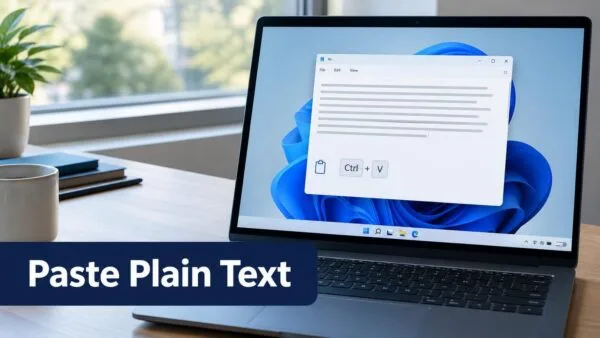 Paste Plain Text with Ctrl + Shift + V in Windows 11 Paste Plain Text with Ctrl + Shift + V in Windows 11 to drop fonts, colors and links. Works in Edge, Chrome and Firefox. Word and Outlook need other steps.
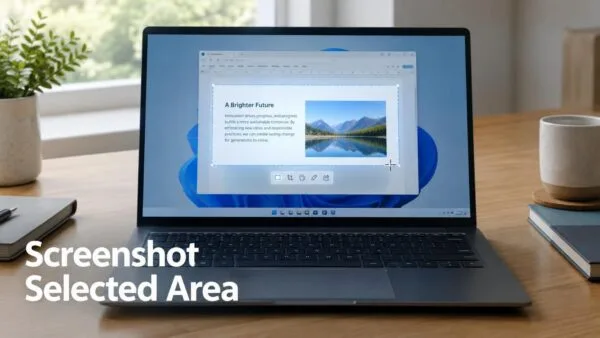 Take a Screenshot of a Selected Area in Windows 11 Press Windows key + Shift + S, drag a box around the area you want, and release. Windows 11 copies it to the clipboard. Covers Rectangular and Freeform…
 How to Use the Print Screen Key to Open Screen Snipping in Windows 11 Set your Print Screen key to open the Snipping Tool in Windows 11. Capture, annotate, and share screenshots with this simple toggle in Settings.
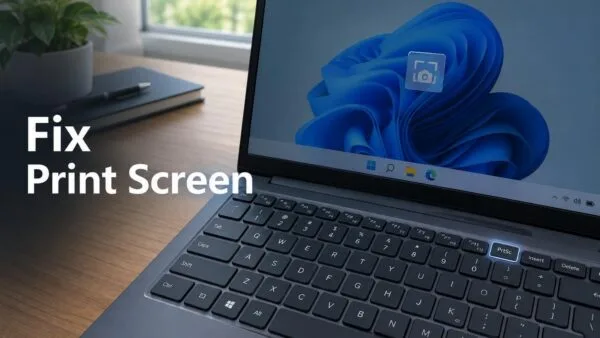 What to Do When the Print Screen Key Does Nothing in Windows 11 What to Do When the Print Screen Key Does Nothing in Windows 11? Check the clipboard and Screenshots folder, then fix the Print screen setting.
 How to Mute and Unmute Your Microphone in Windows 11 Master 6 simple ways to mute microphone Windows 11. Use keyboard shortcuts, Game Bar, Settings, or Control Panel to control your mic.
Have a question about this guide?
Answered by AI from this guide. Good questions may be added to this page — please don't include personal details.

About the Author
Richard
Tech Writer, IT Professional
Richard is a writer at Geek Rewind who turns complex IT tasks into clear, step-by-step guides. He draws on years of hands-on experience in system administration and enterprise IT operations, focusing on Windows, Linux and WordPress: the problems people actually run into, and the fixes that work. His server and WordPress guides come from systems he runs himself. Richard builds and maintains the platform behind Geek Rewind, from its Ubuntu servers and Nginx configuration to its custom WordPress plugins. Many new tutorials start with readers' questions, and he's always glad to answer them in the comments.
No comments yet — be the first to share your thoughts!