Paste Plain Text with Ctrl + Shift + V in Windows 11

- 38 steps
- Needs administrator rights
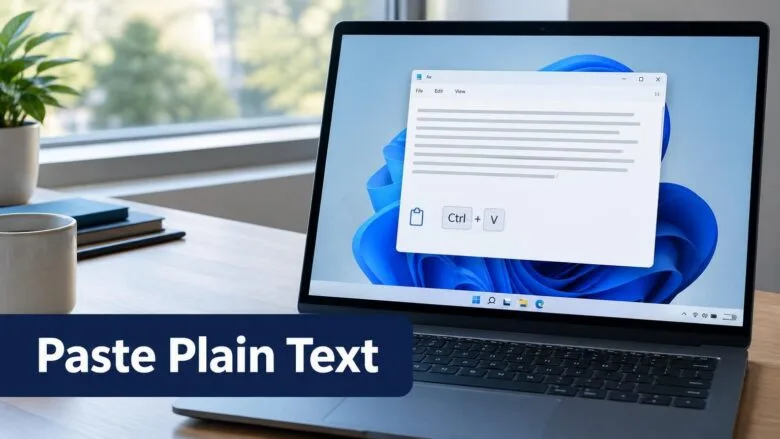
Ctrl+Shift+V pastes copied text into an app as plain text, with no fonts, colors, links, or sizes carried over from the source. Copy as usual with Ctrl+C, then press Ctrl+Shift+V instead of Ctrl+V where you want the text to land.
The shortcut works in Microsoft Edge, Google Chrome, Firefox, Windows Terminal, and web apps such as Google Docs. Microsoft Word and Outlook handle it differently, so they get their own steps below. None of the methods in this post needs administrator rights, apart from a possible prompt when you install PowerToys.
Ctrl+Shift+V pastes copied text as plain text in Windows 11, stripping the fonts, colors, links, and sizes from the source. Copy with Ctrl+C, click where the text should go, then press Ctrl+Shift+V. It works in Microsoft Edge, Google Chrome, Firefox, Windows Terminal, and Google Docs. Word and Outlook use Keep Text Only from the Paste Options menu instead.
What Ctrl + Shift + V does
A normal paste with Ctrl+V copies the text and its formatting. Formatting is the styling stored with the text: font, size, color, bold, italic, hyperlinks, and table layout. That is why text copied from a web page often looks wrong in an email or document.
Ctrl+Shift+V pastes only the characters. The text then takes on the font, size, and color of the place where you paste it. Line breaks stay, but images are dropped, and a copied table becomes lines of text with the cells separated by tab spaces.
The shortcut changes nothing on your PC. It affects one paste, and the next Ctrl+V pastes with formatting again.
How to paste plain text with Ctrl + Shift + V
These steps show how to paste plain text with Ctrl+Shift+V in a browser, a web app, or any other program that supports the shortcut.
- Select the text you want to copy. Drag across it with the mouse, or hold Shift and use the arrow keys. The selection highlights on screen.
- Press Ctrl+C. This copies the text and its formatting to the clipboard (the temporary storage Windows uses for copy and paste). Nothing visible happens.
- Click where you want the text to go. This can be a document, a text box, an email, or a form field. A blinking cursor should appear.
- Press Ctrl+Shift+V. Hold Ctrl and Shift together, then tap V. The text appears in the style of the surrounding text.
- Check the result. If the text still carries the old font, color, or links, the app does not support the shortcut. Go to the section on why the shortcut does nothing, below.
- Press Ctrl+Z to undo the paste if needed. Then press Ctrl+V to paste again with the original formatting.
Keep Ctrl held down through the whole sequence if you paste into several fields in a row. Holding Shift and pressing V on its own does nothing. Hold Ctrl and Shift together, then press V.
Where Ctrl + Shift + V works and where it doesn’t
The shortcut comes from web browsers and has spread to many other programs. It is not a Windows-wide feature. Each app decides what the key combination does, so results differ.
Apps that support it
- Microsoft Edge, Google Chrome, and FirefoxThe shortcut works in any text box on any web page, including webmail and forums.
- Google Docs and other web editorsThese run in the browser and support the shortcut. Google Docs calls it Paste without formatting.
- Windows TerminalThe shortcut pastes text into the command line, the window where you type commands. Terminal windows only handle plain text anyway.
Apps that behave differently
- Microsoft WordCtrl+Shift+V does not reliably paste unformatted text. Use the Keep Text Only option instead, described in the next section.
- OutlookIt has the same Paste Options menu as Word, with Keep Text Only.
- NotepadNotepad stores only plain text, so every paste is already unformatted and Ctrl+V is enough.
If you are unsure about an app, test it with a short piece of bold or colored text. You will see at once whether the formatting survives.
Paste plain text in Word and Outlook
Word and Outlook paste plain text through the Paste Options menu rather than a single shortcut. The steps below work in current Microsoft 365 versions of Word, where the button and menu names can differ slightly in older releases.
Use the Paste Options button
This method pastes normally, then strips the formatting from that one paste.
- Copy the text. Select it in the source and press Ctrl+C.
- Click where the text should go. Place the cursor in your Word document or Outlook email.
- Press Ctrl+V. The text appears with its original formatting.
- Click the Paste Options button. It is a small clipboard icon labeled (Ctrl) that appears just below the pasted text.
- Choose Keep Text Only. Point at the icons to see their names. The pasted text now matches the formatting of the text around it.
If the Paste Options button does not appear, the app has this feature turned off. In Word, go to File Options Advanced and select Show Paste Options button when content is pasted under Cut, copy, and paste.
Use Paste Special
Paste Special lets you pick the paste format before the text goes in. This avoids pasting twice.
- Copy the text. Press Ctrl+C in the source.
- Click in the document. Place the cursor where the text should land.
- Press Ctrl+Alt+V. The Paste Special dialog opens.
- Select Unformatted Text. It is in the list under As:.
- Click OK. The text pastes without formatting.
The Paste Special dialog is useful when the source is a web page. The Unformatted Text entry may not appear for every kind of copied content, so try another format if the list looks short.
Make Word paste text only by default
This changes how Word treats every paste from another program. It does not affect pastes within the same document. To undo it, choose Keep Source Formatting or Merge Formatting in the same setting.
- Open Word. Open any document or a blank one.
- Click File. It is in the top-left corner of the ribbon.
- Click Options. It is near the bottom of the left pane. The Word Options window opens.
- Click Advanced. It is in the left pane of Word Options.
- Find Cut, copy, and paste. Scroll down to this heading in the right pane.
- Set Pasting from other programs to Keep Text Only. Open the drop-down menu next to that label and pick the option.
- Click OK. Word now pastes text copied from other apps without its formatting.
Paste plain text from the right-click menu
Browsers include a menu item for pasting plain text. It is a good fallback when the keyboard shortcut is blocked or you prefer the mouse.
- Copy the text. Press Ctrl+C after selecting it.
- Right-click the text box. A context menu appears.
- Click Paste as plain text. In Edge and Chrome, this item sits just under Paste.
The menu item can be worded differently in each browser or version. If you cannot find it, press Ctrl+Shift+V instead.
Use PowerToys to paste plain text in any app
Microsoft PowerToys is a free set of add-on utilities for Windows 11. Its Advanced Paste tool can paste plain text in apps that lack their own shortcut. PowerToys is a separate download, available from the Microsoft Store or from Microsoft’s GitHub page. The installer may ask for administrator approval, depending on how you install it.
- Install PowerToys. Search for PowerToys in the Microsoft Store and select Install.
- Open PowerToys. Start it from the Start menu. The Settings window appears.
- Click Advanced Paste. It is in the left pane.
- Turn on Enable Advanced Paste. Move the toggle to On.
- Check the Paste as plain text shortcut. The page lists the key combination. The default at the time of writing is Ctrl+Win+Alt+V, but it is worth confirming on your screen.
- Copy text and use the shortcut. Press Ctrl+C in the source, click the destination, and press the shortcut. The text pastes without formatting.
You can change the shortcut in the same settings page. To stop using it, turn the Advanced Paste toggle to Off. Because it works across apps, this is a handy fix for programs where Ctrl+Shift+V fails.
Strip formatting with Notepad
- Copy the text. Press Ctrl+C in the source.
- Open Notepad. Press the Win, type Notepad, and press Enter.
- Press Ctrl+V. The text appears in Notepad as plain text.
- Select all the text. Press Ctrl+A.
- Press Ctrl+C. The clipboard now holds the clean version.
- Paste into your destination. Click where the text should go and press Ctrl+V. It matches the surrounding formatting.
This takes more steps than the shortcut, but it works in any app that accepts a normal paste. This method also works for text you copy from a phone conversation, such as a message you read on your PC. If you read texts on your PC, see how to send and receive text messages on Windows 11 with the Phone Link app. Then paste a message into a document as plain text.
Why Ctrl + Shift + V does nothing or pastes the wrong way
Most failures come from the app, not from Windows. Work through these checks in order.
The app does not support the shortcut
Some programs ignore Ctrl+Shift+V or give it another job. Word is the common example. Use Paste Options, Paste Special, the right-click menu, PowerToys, or Notepad instead.
The formatting comes back after pasting
The keyboard shortcut conflicts with a language switch
Ctrl + Shift can also switch your keyboard layout when more than one layout is installed. Pressing the combination may then change the input language instead of pasting. To check, open Settings Time & language Typing Advanced keyboard settings and select Input language hot keys. If the key sequence uses Ctrl + Shift, change it to another combination so the paste shortcut is free.
Another program uses the same shortcut
Some clipboard managers (tools that keep a history of what you copy) and text-expansion tools can claim Ctrl+Shift+V for themselves. If the shortcut behaves oddly in every app, close those programs one at a time and test again. Change the shortcut in the settings of that program so it no longer uses Ctrl+Shift+V.
The pasted text looks the wrong size
Plain text adopts the font and size of the destination. If it looks small, the destination’s font setting controls that, not the paste method. Change the font in the document or app first. For the Windows interface text, see how to change text size in Windows 11.
Pasting a table or image gives unexpected results
Plain text cannot hold images or table borders. A copied table pastes as text with tab spaces between the cells, and a copied image does not paste at all. Use a normal Ctrl+V when you need to keep these.
Keyboard shortcuts that share Ctrl
Some Ctrl shortcuts also use other keys, such as Shift or Win, to trigger a feature, and pressing them by mistake can start the wrong one. If a paste shortcut seems to trigger something unexpected, check whether another accessibility shortcut is active. For example, the Win + Ctrl + C color filters shortcut can be turned on or off if you press it by accident.
Text suggestions can also interrupt your typing near pasted text. To turn them off, see how to enable or disable text suggestions in Windows 11.
What to do next
If you paste plain text into Word often, set Pasting from other programs to Keep Text Only so you never need an extra step. If the shortcut fails in an app you use daily, PowerToys gives you one paste-as-plain-text shortcut that works across all of them. When you want formatting back, press Ctrl+V as usual.
Have a question about this guide?
Answered by AI from this guide. Good questions may be added to this page — please don't include personal details.
Did this guide fix your problem?

About the Author
Richard
Tech Writer, IT Professional
Richard is a writer at Geek Rewind who turns complex IT tasks into clear, step-by-step guides. He draws on years of hands-on experience in system administration and enterprise IT operations, focusing on Windows, Linux and WordPress: the problems people actually run into, and the fixes that work. His server and WordPress guides come from systems he runs himself. Richard builds and maintains the platform behind Geek Rewind, from its Ubuntu servers and Nginx configuration to its custom WordPress plugins. Many new tutorials start with readers' questions, and he's always glad to answer them in the comments.
No comments yet — be the first to share your thoughts!