How to Use the Print Screen Key to Open Screen Snipping in Windows 11

- 2 ways to do it
- Needs administrator rights
- Includes a restart or sign-out
Pressing the Print Screen key to open screen snipping in Windows 11 launches the Snipping Tool (the built-in app for capturing your screen) with a single press. You no longer have to dig through menus or hold down several keys at once.
You can turn this on in the Settings app in a few clicks. Once it is on, pressing the physical PrtScn key opens the screen capture bar straight away. On some laptops you must hold the Fn key as well, because Print Screen shares a key with another function.
Press the Win+I to open Settings, go to Bluetooth & devices Keyboard, find “Use the Print screen key to open screen snipping” under Shortcuts and hotkeys, and toggle it on. The Print Screen key now opens the Snipping Tool instead of copying a screenshot to your clipboard.
What Happens When You Turn This On or Off?
With this setting on, the Print Screen key opens the screen capture tool instead of copying a full-screen image to the clipboard. With it off, the key goes back to its traditional behavior: it copies a picture of your entire screen to the clipboard and opens no editing menus. You then paste that image into Paint, Word, an email or any other app that accepts pictures.
When it’s On: Pressing Print Screen brings up the Snipping Tool, so you can capture your screen immediately. A small toolbar appears at the top of the screen. From it you can choose a rectangle, a freeform shape, a single window or the full screen. The screen dims slightly while you choose.
When screen snipping is off, the Print Screen key takes a full screenshot and saves it to the clipboard. Nothing appears on screen to confirm it, so the screen may look unchanged after you press the key. Two related shortcuts are worth knowing. Alt + Print Screen copies only the active window. Windows key + Print Screen saves the full screen as a file in your Pictures folder, in a Screenshots subfolder.
If you installed a recent version of Windows 11, the setting is probably already on and you may not need to change anything. Win+Shift+S opens the same capture bar whatever this setting is, so it works as a backup shortcut.
Installed screenshot apps can change how the Print Screen key works on Windows 11. Some third-party capture tools and cloud-sync apps claim the key for themselves. If the key does not behave as expected, check the settings of those apps first.
Restart your computer after changing this setting so the Print Screen key function updates. Often the change works at once, but a restart rules out a stale setting.
How to Turn On or Off Print Screen for Screen Snipping
Option 1Using Windows Settings
- Press the Win+I to open Settings . The Settings window opens with a list of categories on the left.
- Click Bluetooth & devices on the left menu. A list of device options, such as Bluetooth , Printers & scanners and Mouse, appears on the right.
- Click Keyboard on the right side. The keyboard options page opens. On some Windows 11 builds this toggle sits under Settings Accessibility Keyboard instead, so look there if you can’t find it on this page.
- Look for “Use the Print screen key to open screen snipping” under Shortcuts and hotkeys. On some builds the wording is slightly different, for example “Use the Print screen button to open screen capture”. It is the same setting.
- Turn it On or Off depending on what you want. The toggle should show the new state straight away. To undo the change, come back to this page and flip the toggle again.
The main Settings app controls this feature through your keyboard preferences. The setting works the same on Windows 11 Home and Pro, and you need no extra software or advanced system tweaks. You also don’t need administrator rights, because the setting applies to your own account.
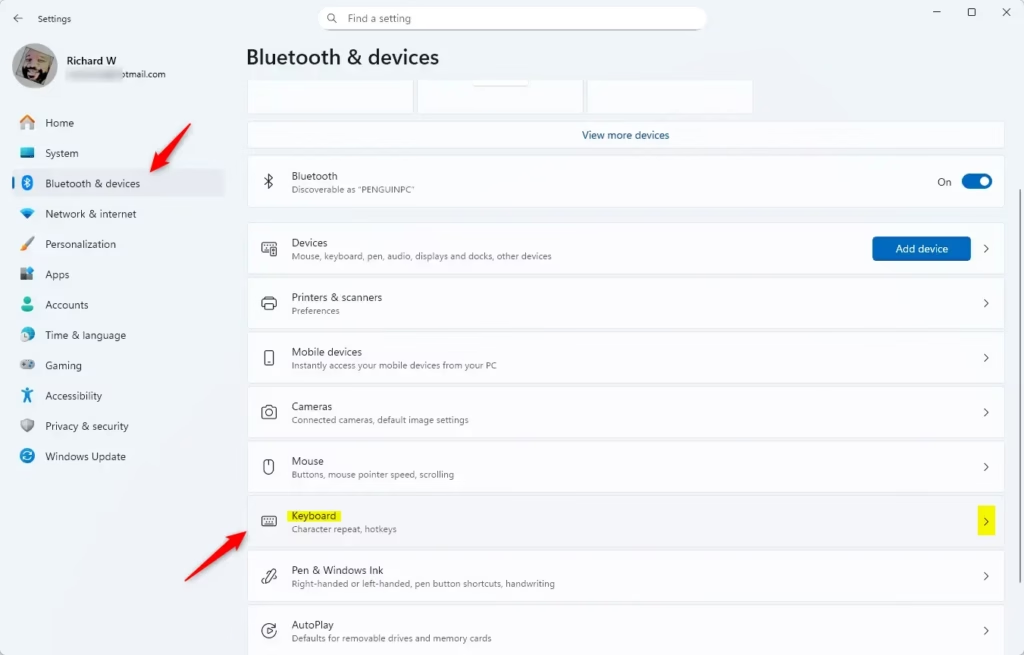
Open Keyboard Settings in Windows 11
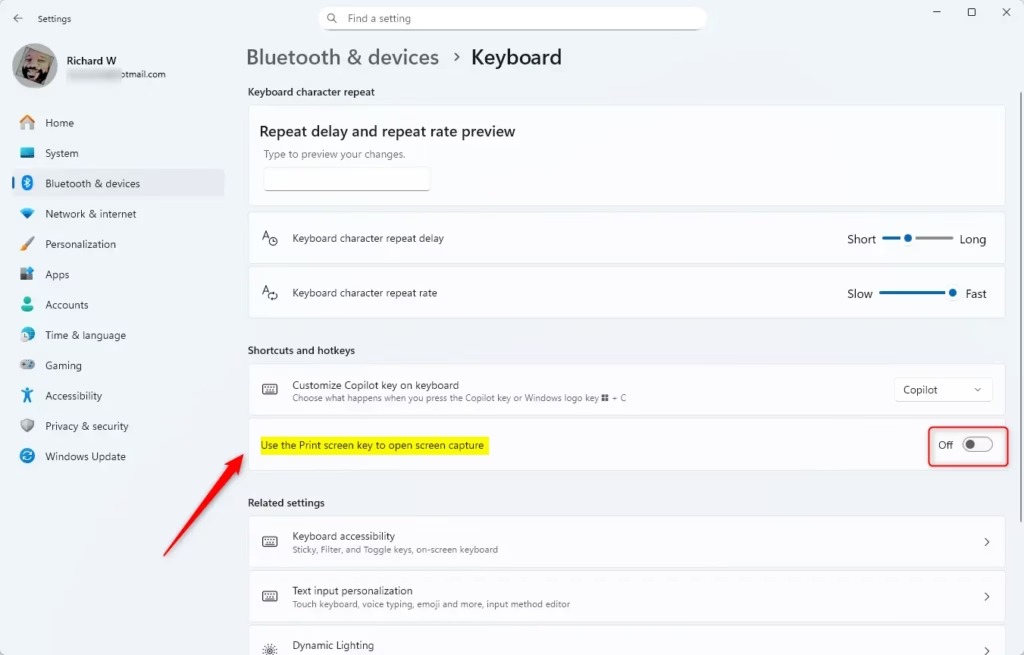
Turn On or Off the Print Screen Key for Screen Snipping
After you change the setting, close Settings. Then press the Print Screen key to test it. If the capture bar appears, the setting is on. If it doesn’t and you expected it to, restart the PC and try again.
Option 2Using a Registry File (For Advanced Users)
Registry Editor changes how your keyboard behaves by editing system values directly. This is useful if you cannot reach the standard settings page, for example when you are scripting the change for several PCs. Running the right command updates the Print Screen preference through the Windows registry without any manual clicking. It works on both Home and Pro editions.
To turn ON Print Screen for Snipping:
reg add "HKEY_CURRENT_USER\Control Panel\Keyboard" /v PrintScreenKeyForSnippingEnabled /t REG_DWORD /d 1 /fTo turn OFF Print Screen for Snipping:
reg add "HKEY_CURRENT_USER\Control Panel\Keyboard" /v PrintScreenKeyForSnippingEnabled /t REG_DWORD /d 0 /fBack up your Registry before making changes. In Registry Editor you can do this with File Export. You can also use the Settings app method if you prefer. After running either command, sign out and back in, or restart the PC, so the change is picked up. The Settings page should then show the same toggle state you set here.
Summary
- Quick AccessPress Print Screen to open Snipping Tool instantly, with no menus to search.
- Easy to ChangeTurn this feature on or off anytime in Settings. The change is reversible and takes a few seconds.
- Default in New Windows 11The Snipping Tool opens by default with Print Screen in recent Windows 11 versions, so many PCs need no setup.
- May Need RestartRestart your PC if changes don't take effect right away. Also check any third-party screenshot apps that may be using the key.
- More than ScreenshotsSnipping Tool lets you draw, save, and share your screen captures easily. You can mark up an image before you send it.
The Print Screen snipping shortcut gives you a fast way to capture a specific part of your display instead of the whole screen. You can change it in Settings whenever you like. The registry method does the same job and suits scripted or repeated setups. If you prefer the old behavior of copying the full screen to the clipboard, turn the setting off.
Have a question about this guide?
Answered by AI from this guide. Good questions may be added to this page — please don't include personal details.
Did this guide fix your problem?

About the Author
Richard
Tech Writer, IT Professional
Richard is a writer at Geek Rewind who turns complex IT tasks into clear, step-by-step guides. He draws on years of hands-on experience in system administration and enterprise IT operations, focusing on Windows, Linux and WordPress: the problems people actually run into, and the fixes that work. His server and WordPress guides come from systems he runs himself. Richard builds and maintains the platform behind Geek Rewind, from its Ubuntu servers and Nginx configuration to its custom WordPress plugins. Many new tutorials start with readers' questions, and he's always glad to answer them in the comments.
No comments yet — be the first to share your thoughts!