How to Mute and Unmute Your Microphone in Windows 11


Muting your microphone in Windows 11 cuts your audio feed right away, so you can block background noise or take a private aside during a video call. Windows 11 gives you at least five ways to control your mic, from keyboard shortcuts to the taskbar and the Settings app.
Press the Win plus Alt plus K to toggle your mic in apps that support it, such as Microsoft Teams. You can also click the speaker icon in the bottom right corner of your screen to reach the sound controls, or open the Sound settings page to manage your audio input directly. Pick the method that fits the app you are in. A shortcut that works in Teams may do nothing in another program.
Press Win+Alt+K to toggle your microphone off and on in Windows 11. If that does not work in your app, open Settings, click System Sound, scroll to Input, select your microphone, and click the Mute button. The Settings method mutes the mic for all apps.
Option 1Use the Microphone Key on Your Keyboard
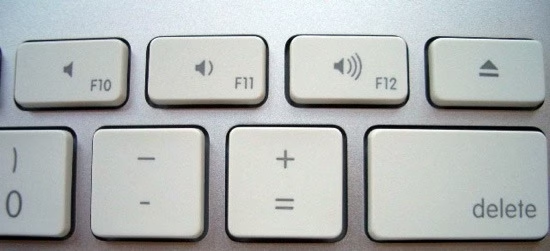
Many modern laptops and some external keyboards have a key marked with a microphone icon. One press toggles your audio off, and a second press turns it back on. Most laptops show a small light on the key, or an on-screen pop-up, so you can see the current state.
Some keyboards have no microphone key at all. Others only mute the mic inside specific apps like Zoom, or work through the manufacturer’s utility software. If the key does nothing, or the light and the actual state disagree, check the mute state in Windows as well, using one of the methods below.
Option 2Use a Keyboard Shortcut
If your keyboard has no microphone key, try a shortcut instead.
Press the Windows key + Alt + K at the same time to toggle mute or unmute. Press the same combination again to reverse it. This shortcut works in apps that support it, with Microsoft Teams being the usual example. If nothing happens in your call app, use the mute button inside the app itself, or one of the Windows methods below.
Option 3Use the Game Bar
The Xbox Game Bar is an overlay for gaming and capturing media. It works over any app, not just games, which makes it handy when you cannot switch windows.
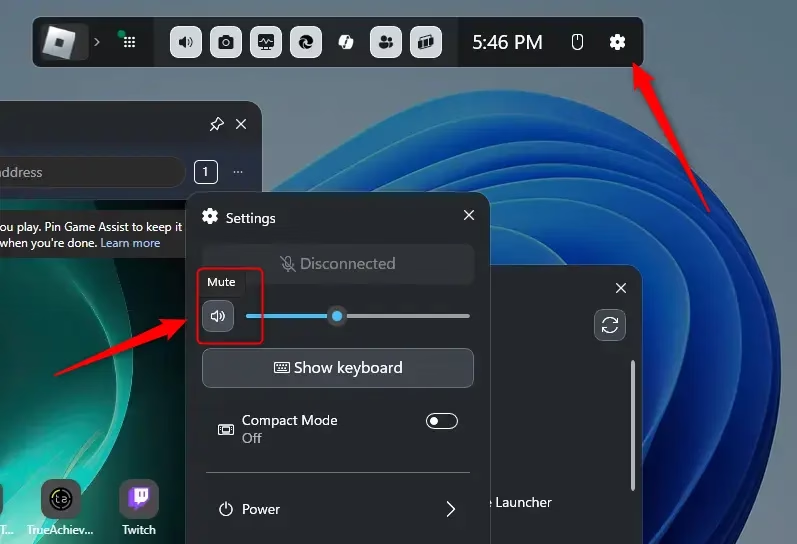
- Press the Win and G together. The Game Bar overlay should appear on top of your current window.
- Click the settings gear icon in the Game Bar. The settings panel should open.
- Find the audio toggle and turn your microphone off or on.
After using it, confirm the result in your call app or in Sound settings. If the overlay does not open, the Game Bar may be switched off in Settings. Press the same Win+G combination again to close it.
- Press
Windows + Gto open the Game Bar. - Click the Settings (gear) icon on the top bar.
- Look for the Mic off or Mic on toggle and click it to mute or unmute your microphone.
Option 4Mute or Unmute Microphone in Windows Settings
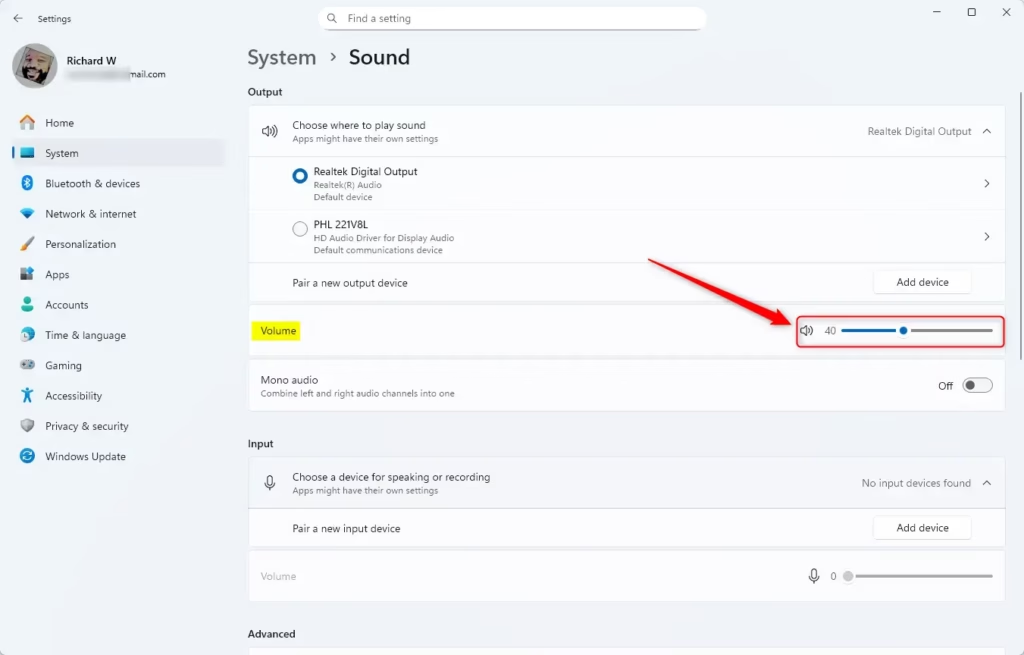
- Open Settings by pressing
Windows + I. - Click System on the left, then choose Sound on the right.
- Scroll down to the Input section.
- Click the Mute microphone or Unmute microphone button to toggle your mic.
The Settings app lets you mute the microphone through the system menus. This applies to every app that uses the mic, so it is the most reliable method when a shortcut fails. Follow these steps:
- Press Windows and I together. The Settings app should open.
- Click System, then click Sound. The sound options page should appear.
- Scroll down to the Input section. Your available recording devices are listed there.
- Select your active microphone. Its properties, including the input volume, should appear.
- Click the mute button next to your microphone to turn it off. Click it again to turn the mic back on.
If you have more than one microphone, such as a webcam mic and a headset, make sure you mute the one your app is actually using. Layouts differ slightly between Windows 11 versions, so the mute button may sit beside the input volume slider rather than the device name.

Windows Sound tile in Windows Settings app
Option 5Use Advanced Sound Settings
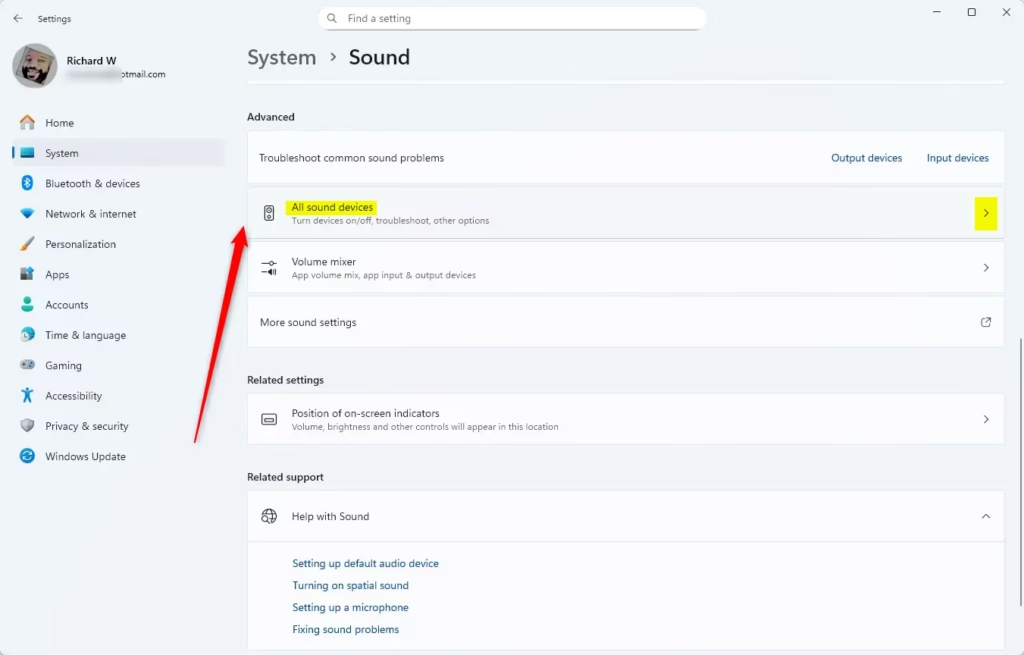
- Open Settings (press
Windows + I). - Click System, then Sound.
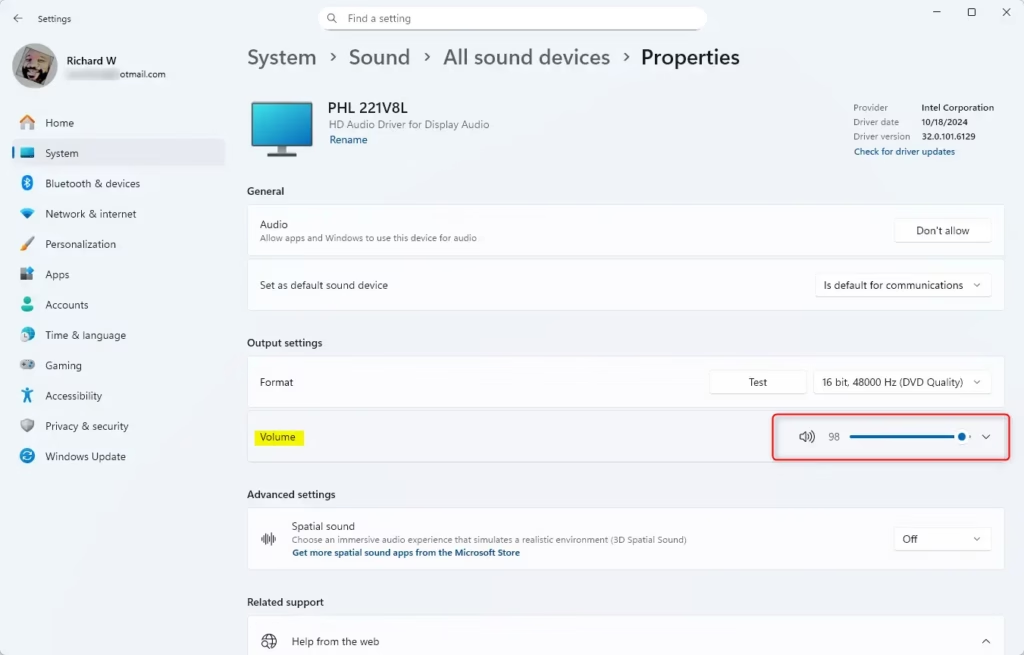
- Under Advanced, click All sound devices.
- Find and select your microphone under Input devices.
- Click the Mute microphone or Unmute microphone button.
Option 6Use the Control Panel
The Control Panel still offers the older sound settings, which some admins prefer. It works the same on Windows 11 Home and Pro. Follow these steps:
- Search for Control Panel in the Start menu and open it.
- Switch the View by option to large or small icons. All the items should now show in one list.
- Open Sound. A Sound dialog box should appear.
- Select the Recording tab and choose your microphone. If it does not appear, right-click a blank area and enable disabled and disconnected devices.
- Open the microphone’s properties and look at the volume controls under Levels. Click the small speaker icon next to the microphone volume slider. It should change to show a red mark, meaning the hardware feed is muted.
- Click OK to save and close the dialog.
To unmute, return to the same spot and click the speaker icon again. The red mark should disappear.
- Open the Control Panel (search for it in the Start menu) and set the view to Icons.
- Click Sound.
- Go to the Recording tab.
- Double-click your microphone from the list.
- Go to the Levels tab.
- Click the speaker icon next to the volume slider to mute or unmute.
- Click OK to save changes.
Summary
You can mute your microphone in Windows 11 with a physical keyboard key, the Windows + Alt + K shortcut, the Xbox Game Bar, the main Windows Settings app, or the Control Panel. Each method turns your microphone off and on instantly. Which one fits best depends on the app you are using. Keys and shortcuts are quickest, while Settings and Control Panel are the most dependable because they act on the device itself.
- Press the microphone key on your keyboard (if available).
- Use the keyboard shortcut:
Windows + Alt + K. - Open the Game Bar with
Windows + Gand toggle the mic. - Go to Settings System Sound to control your mic.
- Use Advanced options in Settings for more control.
- Open Control Panel and adjust mic settings the classic way.
Windows 11 gives you several ways to manage your microphone, so you can keep communication clear. If one method does not respond, try another. Choosing the right way to mute or unmute keeps your audio input under control during calls and recordings.
Have a question about this guide?
Answered by AI from this guide. Good questions may be added to this page — please don't include personal details.
Did this guide fix your problem?

About the Author
Richard
Tech Writer, IT Professional
Richard is a writer at Geek Rewind who turns complex IT tasks into clear, step-by-step guides. He draws on years of hands-on experience in system administration and enterprise IT operations, focusing on Windows, Linux and WordPress: the problems people actually run into, and the fixes that work. His server and WordPress guides come from systems he runs himself. Richard builds and maintains the platform behind Geek Rewind, from its Ubuntu servers and Nginx configuration to its custom WordPress plugins. Many new tutorials start with readers' questions, and he's always glad to answer them in the comments.
No comments yet — be the first to share your thoughts!