How to Change Mouse Key Speed Using CTRL and SHIFT in Windows 11

- 11 steps
- Includes a restart or sign-out
Mouse Keys lets you move the mouse pointer and click using your keyboard instead of a physical mouse. This built-in Windows 11 accessibility tool relies on a numeric keypad. You need a full-size keyboard with a separate number pad on the right side to use it. Most laptops and compact keyboards don’t have one.
Hold the CTRL key to make the pointer move faster, or hold the SHIFT key to make it crawl slowly across the screen. These speed shortcuts help you place the cursor exactly where you need it. They don’t change your main mouse settings, so your regular mouse behaves as before.
Turn on Mouse keys in Windows 11 by opening Settings Accessibility Mouse and switching on the Mouse keys toggle. Then tick the box for CTRL to speed up and SHIFT to slow down. The change applies with no restart. Mouse Keys needs a full-size keyboard with a number pad.
Latest Update
What are Mouse Keys?
Mouse Keys is a built-in accessibility feature in Windows 11 that lets you control the mouse pointer with the number pad on your keyboard. You can move the cursor, click items, and drag windows without a physical mouse. The number keys around the middle of the pad move the pointer in their direction, and the 5 key performs a standard left click.
The feature is part of Windows itself, so there is nothing to download or install. It is available on Home and Pro alike.
The 5 key registers a single click. The plus (+) key executes a double-click. The surrounding number keys direct the cursor across the display. For example, 8 moves it up, 2 moves it down, 4 moves it left and 6 moves it right. The corner keys (7, 9, 1 and 3) move it diagonally.
Basic Mouse Keys Controls
- The 5 key clicks.
- The + key double-clicks.
- Other keys on the numeric keypad control movement.
Latest Update
Directional layout assigns 8 upward, 2 downward, 4 leftward, and 6 rightward. Diagonals map to 7, 1, 9, and 3. The 5 key triggers a click, while the + key performs a double-click.
Why Use CTRL and SHIFT to Control Mouse Speed?
By default, holding the CTRL key speeds up pointer movement, while holding the SHIFT key slows it down for precise positioning. You need to turn on Mouse Keys in Settings before these shortcuts do anything. The speed checkbox only appears once the Mouse keys section is available on the Mouse page.
How to Turn On “Hold CTRL to Speed Up and SHIFT to Slow Down”
- Open Windows Settings. You can use either method:
- Click the Start menu (Windows icon) and select Settings, or
- Press Win+I on your keyboard.
- In the Settings window, click Accessibility on the left side. The accessibility categories appear on the right.
- Scroll down to the Interaction group and click Mouse to open the mouse accessibility options.
- Turn on the Mouse keys toggle switch. The switch moves to the right and reads On. The section also shows its extra options, including the speed checkbox. If you don’t see them, click the Mouse keys row to expand it.
- Check or uncheck the box for Hold the Ctrl key to speed up and Shift key to slow down to enable or disable this feature. A tick in the box means CTRL and SHIFT now change the pointer speed.
To recap the path: Settings Accessibility Mouse. Turn on the Mouse keys toggle, then tick the box that lets CTRL speed up the cursor and SHIFT slow it down. The change takes effect straight away and you don’t need to restart. To undo it, untick the box, or turn the Mouse keys toggle off.
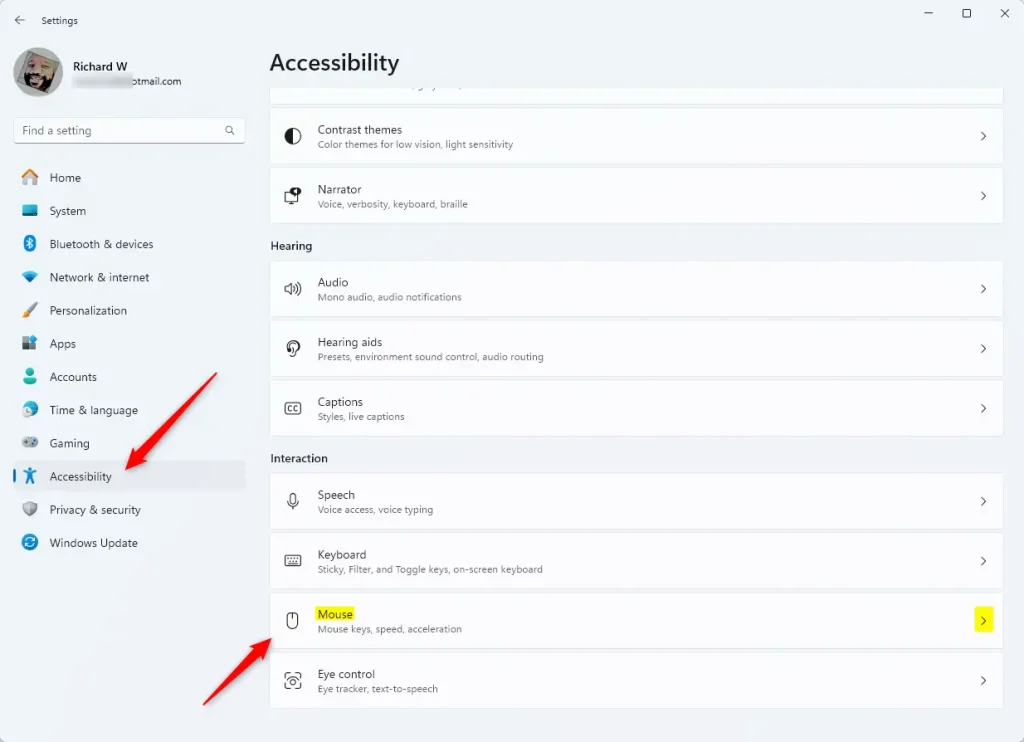
Expand the Mouse keys section to see all of its options in one place. The speed checkbox sits alongside the sliders for pointer speed and acceleration.
This checkbox controls the speed changes linked to the CTRL and SHIFT keys. Tick it and the modifiers work. Untick it and the keys have no effect on pointer speed:
This option lets you change how fast the pointer moves when you hold down the modifier keys. It also sets the base speed that CTRL and SHIFT work from. Drag the slider, then test it with the number pad. Adjust it until the normal speed feels comfortable, and use CTRL and SHIFT only for the extremes.
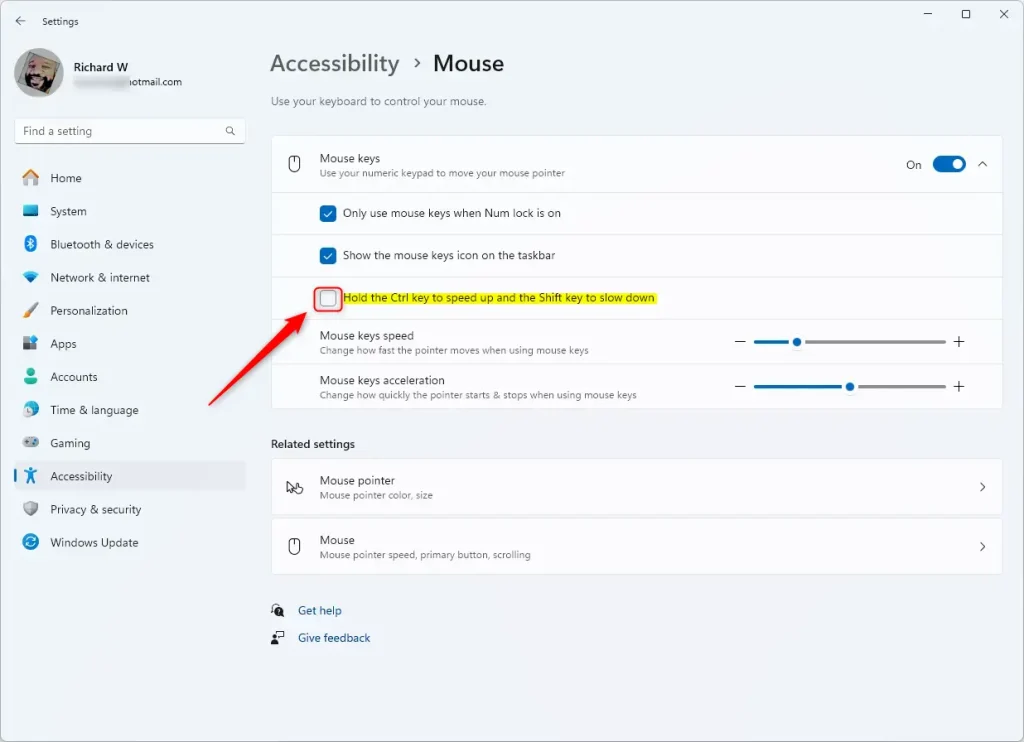
If the pointer still feels too fast or too slow, try the other sliders in the same section. Change one at a time so you can tell which one made the difference.
Closing the Settings app saves the configuration changes. There is no Save or Apply button, because each option takes effect as soon as you change it. Test it by pressing a direction key on the number pad, then try again while holding CTRL and then SHIFT.
Summary
Mouse Keys shortcuts let you replace a physical mouse with your numeric keypad for everyday navigation. You can speed up or slow down the cursor using keyboard modifiers and perform single and double clicks with specific keys. You can also turn the whole feature on or off with a keyboard shortcut.
Pressing the 5 key executes a left click. A right click takes two presses: the hyphen (-) key, then the 5 key. Pressing the plus (+) key double-clicks. Pressing left Alt+← Shift + Num Lock toggles Mouse Keys on or off. Windows may show a prompt the first time you use this shortcut. Read it and choose to confirm, or the shortcut won’t turn the feature on.
How It Compares
Default pointer speed: Adjust using the slider in Mouse settings, independent of Mouse Keys. Mouse Keys speed adjustment: Uses CTRL to speed up and SHIFT to slow down pointer movement when Mouse Keys is active.
Troubleshooting Mouse Keys
If navigation fails, work through these checks in order:
- Open Settings Accessibility Mouse and confirm the Mouse keys toggle is still on.
- Confirm Num Lock is active. The number pad needs number mode to process movement commands. Look for the Num Lock light on your keyboard.
- Restart the computer. This clears most lingering input conflicts.
- Test the keys in several applications. If it works in some but not others, software interference is the likely cause.
If you have no number pad at all, such as on a compact laptop keyboard, Mouse Keys won’t work as described here. In that case an external USB keypad is the simplest fix.
How to Turn On Mouse Keys
Turning on Mouse keys in the Windows 11 Accessibility settings turns the numeric keypad into a working pointing device. With the CTRL and SHIFT speed option ticked, you can cross the screen quickly and still make fine adjustments. You can reverse any of this from the same page in Settings.
Have a question about this guide?
Answered by AI from this guide. Good questions may be added to this page — please don't include personal details.
Did this guide fix your problem?

About the Author
Richard
Tech Writer, IT Professional
Richard is a writer at Geek Rewind who turns complex IT tasks into clear, step-by-step guides. He draws on years of hands-on experience in system administration and enterprise IT operations, focusing on Windows, Linux and WordPress: the problems people actually run into, and the fixes that work. His server and WordPress guides come from systems he runs himself. Richard builds and maintains the platform behind Geek Rewind, from its Ubuntu servers and Nginx configuration to its custom WordPress plugins. Many new tutorials start with readers' questions, and he's always glad to answer them in the comments.
No comments yet — be the first to share your thoughts!