What Happens When You Turn On Filter Keys in Windows 11

Filter keys in Windows 11 tells your keyboard to ignore brief, repeated or accidental keystrokes, so only deliberate presses appear as typed characters. You turn it on at Settings Accessibility Keyboard, or by holding the right Shift key for 8 seconds.
The feature helps people with hand tremors or limited dexterity, and anyone who types doubled letters by accident. It also changes how your keyboard feels in ways you will notice right away, so it is worth knowing what to expect before you switch it on.
Filter keys in Windows 11 ignores brief, repeated or accidental keystrokes so only deliberate presses appear as text. To turn it on, open Settings , go to Accessibility Keyboard, and move the Filter keys toggle to On. You can also hold the right Shift key for 8 seconds. Expect slower typing and lost quick double taps at first.
What Filter Keys Does to Your Keyboard
Filter keys is not a single behavior. It is a group of keyboard timing adjustments that Windows applies to every key you press, in every app. Each adjustment solves a different typing problem.
- Bounce Keys (a setting that ignores a key pressed again too quickly) stops a single press from producing double letters, such as “hheello”.
- Slow Keys (a setting that makes you hold a key down before Windows accepts it) stops light, accidental brushes against a key from registering.
- Repeat Keys (a setting that controls the delay and speed of a held-down key) slows or stops the stream of repeated characters when you hold a key.
Windows 11 groups these under the single label Filter keys in Settings. In practice, the keyboard waits a moment longer before it accepts a press as deliberate. That is the point of the feature, and it is also the reason it can feel broken if you turn it on without knowing.
What You Notice After You Turn On Filter Keys
Expect typing to feel slower and less responsive at first. That is normal. Windows is holding back keystrokes until it decides they were deliberate.
- Fast typists lose characters. If you type quickly, some letters never appear because Windows treats them as too brief.
- Quick double taps stop working. Typing a double letter, or pressing Backspace twice in a row, may register only once.
- Held keys behave differently. Holding a key no longer fills the screen with repeated characters the way it did before.
- Keyboard shortcuts feel sluggish. Combinations such as Ctrl+C may need a slower, steadier press.
- Games and fast-input apps suffer. Anything that depends on quick taps responds poorly, so turn Filter keys off before you play.
If you type slowly and press keys firmly, the effect is small. If you have a hand tremor, this setting can mean the difference between a page full of repeated letters and clean text.
How to Turn On Filter Keys in 🪟 Windows 11
Filter keys is a setting for your own user account in the Settings app. You do not need administrator rights, and you do not need to restart. Turn on Filter keys from the Accessibility page. The steps work the same on Windows 11 Home and Pro.
- Open Settings . Press Win+I, or right-click Start and choose Settings. The Settings window opens.

- Click Accessibility in the left menu. The Accessibility page lists vision, hearing and interaction options.
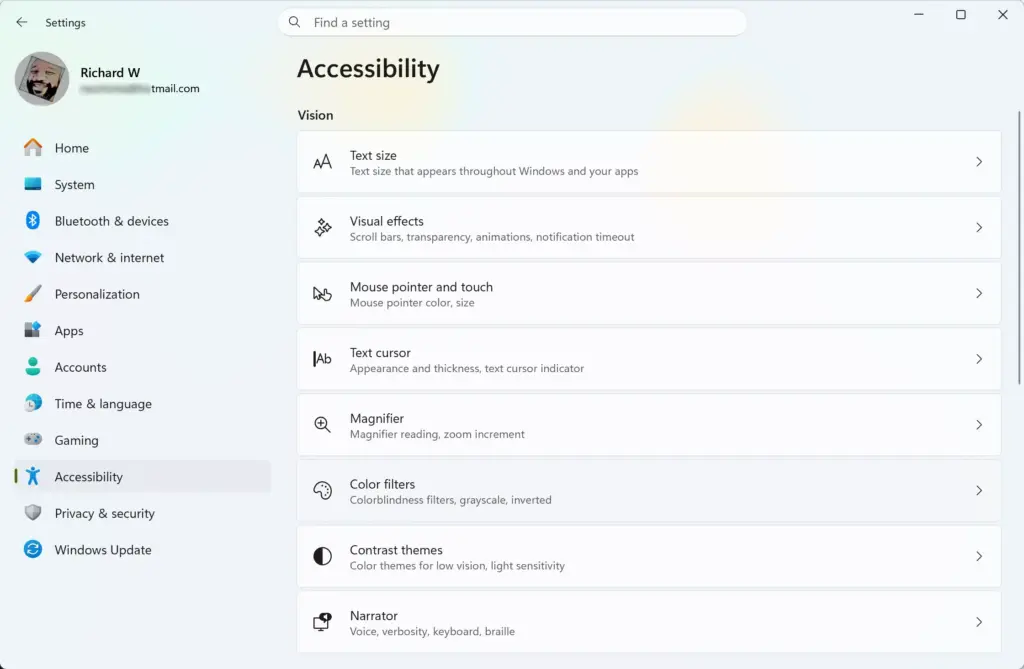
Settings › Accessibility - Scroll to the Interaction section and click Keyboard. The path is Settings Accessibility Keyboard You now see switches for Sticky keys, Filter keys and Toggle keys.
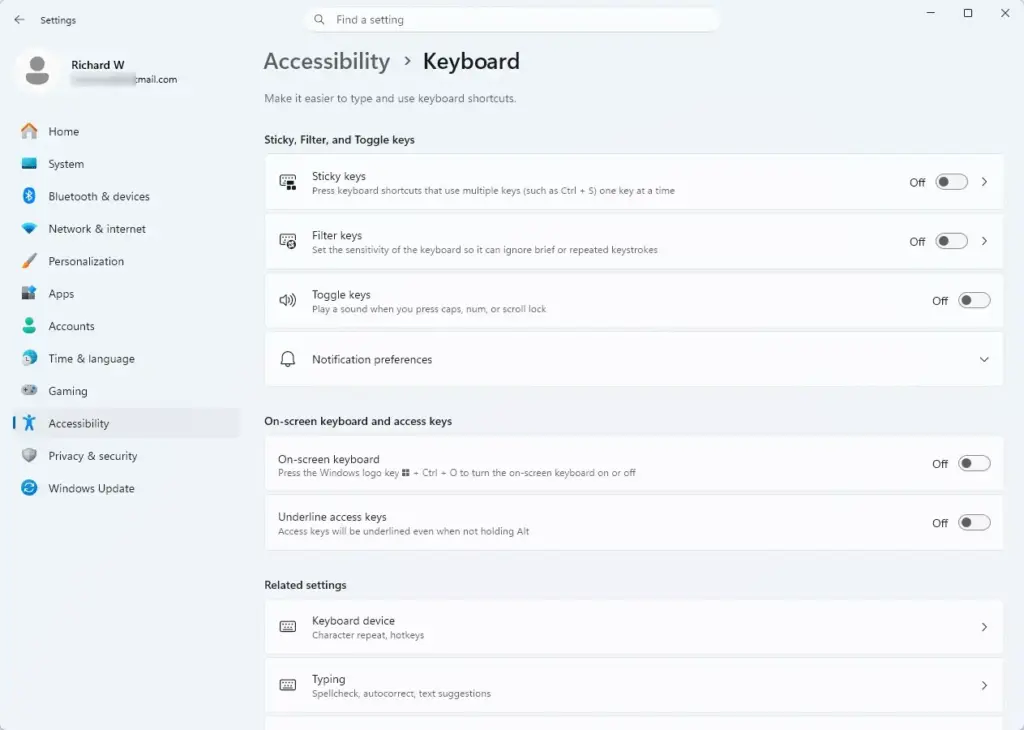
Settings › Accessibility › Keyboard - Find Filter keys in the list. The row has a toggle on the right and an arrow that expands extra options.
- Move the Filter keys toggle to On. The toggle changes to On straight away. Windows may play a sound when it activates.
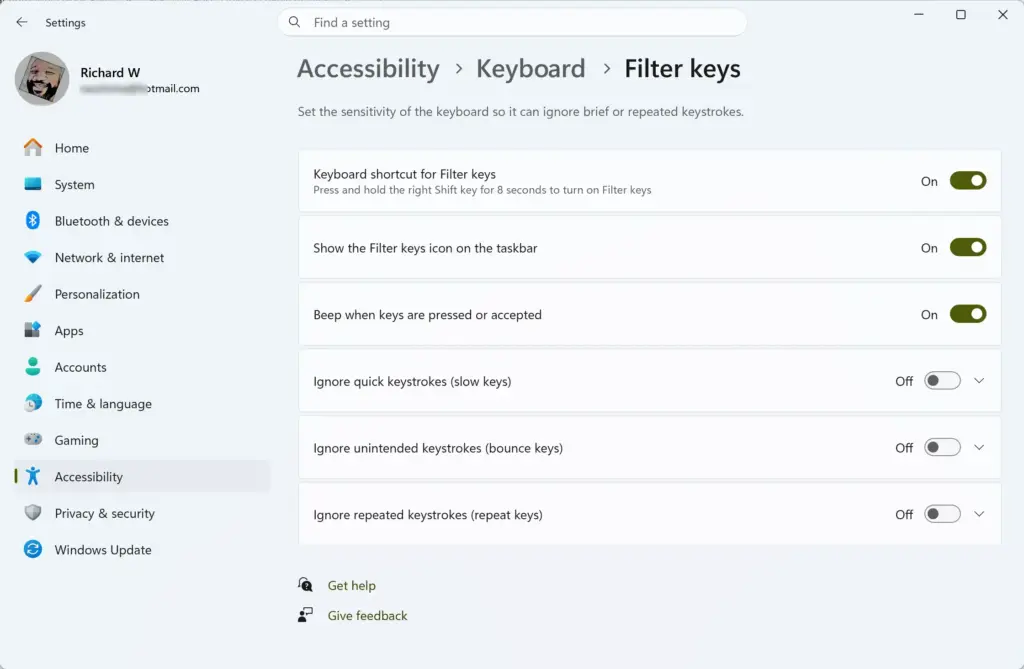
- Click the Filter keys row to expand it. A list of extra options appears underneath the toggle.
- Test your keyboard. Open Notepad and type a few words at your normal speed. Compare what appears on screen with what you typed.
If the toggle does not move, or switches back to Off, go to the “If Filter Keys Is Missing or Greyed Out” section below.
Filter Keys Options You Can Adjust
Expanding the Filter keys row shows the options that control how the feature starts and how it signals what it is doing. Labels can differ slightly between Windows 11 versions, so match them by meaning if yours read a little differently.
- Keyboard shortcut for Filter keys controls whether holding the right Shift key for 8 seconds can switch Filter keys on. Turn this off if you do not want the shortcut.
- Show the Filter keys icon on the taskbar places a small icon in the taskbar ’s notification area while the feature is active. It gives you a quick visual sign that Filter keys is running.
- Beep when keys are pressed or accepted plays a sound each time Windows registers a key. This helps you hear which presses count, and it is a useful way to tune your typing speed.
Windows 11 does not always show the Bounce Keys, Slow Keys and Repeat Keys timing controls on the main Settings page. On many versions you can reach them through the older Control Panel . Go to Control Panel Ease of Access Ease of Access Center Make the keyboard easier to use > Set up Filter Keys.
The wording there can vary by version. Some Windows 11 versions may not offer every timing control, so check the Settings page first. If you do not see them, the Settings page is the supported route.
Turn On Filter Keys With the Keyboard Shortcut
Windows includes a shortcut that starts Filter keys without opening Settings. It is the fastest way to turn the feature on, and it is also the most common way people turn it on by accident.
- Press and hold the right Shift key. Use the Shift key on the right side of the keyboard, not the left.
- Keep holding for 8 seconds. Windows may play a sound as it detects the shortcut.
- Read the prompt that appears. Windows asks whether you want to turn on Filter Keys. The prompt explains that you held the right Shift key for 8 seconds.
- Select Yes to turn it on. Select No to cancel and leave the keyboard as it was.
When the shortcut runs, a dialog appears. It includes a link to the accessibility settings, where you can turn the shortcut off. If the dialog appears and you do not want it again, use that link, or switch off Keyboard shortcut for Filter keys in the expanded Filter keys options.
How to Turn Off Filter Keys in 🪟 Windows 11
Turning off Filter keys returns your keyboard to its normal timing. The change takes effect at once, and you do not need to sign out or restart.
- Open Settings . Press Win+I.
- Click Accessibility, then click Keyboard. The path is Settings Accessibility Keyboard
- Move the Filter keys toggle to Off. The toggle switches to Off.
- Click the Filter keys row to expand it. Review the shortcut option.
- Clear the Keyboard shortcut for Filter keys option. This stops the right Shift shortcut from turning the feature back on.
- Type in Notepad to confirm. Your keyboard should respond at normal speed, with repeated characters appearing when you hold a key.
Why Filter Keys Turns On by Itself
It is common to hold that key for 8 seconds by accident, especially when you rest a hand on the keyboard or a child or pet presses it.
Check for these signs:
- A Filter keys icon in the taskbar ’s notification area , if the icon option is on.
- A beep or tone when you press keys, if the beep option is on.
- The Filter keys toggle showing On in Settings Accessibility Keyboard
If you find it on and did not want it, turn it off and clear the shortcut option, as described above. Do both to stop the feature from switching on again.
If Filter Keys Is Missing or Greyed Out
The Filter keys toggle is built into every edition of Windows 11, so it should be present on both Home and Pro. If it is missing, check these causes in order.
- You are on the wrong page. Filter keys sits under Accessibility Keyboard, not under Bluetooth & devices Typing. Open Settings Accessibility Keyboard
- The toggle is greyed out or flips back to Off. A work or school device may be managed by an organization that controls accessibility settings. Contact your IT administrator, because you cannot override this from your account.
- The Settings app is damaged or out of date. Install pending updates in Settings Windows Update, restart, and open the page again.
This guide uses the Settings app, which is the supported method for turning Filter keys on and off. The Settings app is the supported method.
How Filter Keys Differs From Sticky Keys and Toggle Keys
The same Keyboard page holds two similar-sounding features. They solve different problems, so it helps to know which one you need.
- Filter keys ignores brief or repeated keystrokes. It changes how Windows judges each key press.
- Sticky keys lets you press shortcut keys such as Ctrl, Alt and Shift one at a time instead of together. It helps if you type with one hand.
- Toggle keys plays a sound when you press Caps Lock, Num Lock or Scroll Lock. Our guide on turning the Toggle keys tone on or off in Windows 11 covers that setting.
You can use all three at once. Filter keys and Sticky keys together suit people who both type slowly and press shortcuts one key at a time.
Another keyboard-related setting you may meet on the way is the underline that appears under menu letters when you press Alt. If you want to control it, see how to turn underline access keys on or off in Windows 11.
Tips for Typing With Filter Keys On
A few habits make the feature easier to live with. None of them need extra software.
- Press each key firmly and release it cleanly. Light, fast taps are the ones Windows is designed to ignore.
- Turn on the beep option while you learn. A tone on each accepted key tells you the exact moment Windows registers it.
- Pause slightly between double letters. If a double letter keeps dropping, a brief gap between presses helps.
- Turn the feature off for fast-input tasks such as games, and turn it back on afterward.
Filter keys does not filter words or content. It only affects timing. If you were looking for a feature that hides offensive language, that is a different setting. Our guides on the Live captions profanity filter and the voice typing profanity filter cover those.
What to do next
If your keyboard still misses keys with Filter keys off, the cause is probably the hardware or a driver (the software that lets Windows use the keyboard), not this feature. Try a different keyboard, or a different USB port, to rule out a failing device. If you keep triggering the shortcut by accident, leave Keyboard shortcut for Filter keys cleared. Then, if you need other keyboard aids, open the Sticky keys and Toggle keys switches on the same page.
Have a question about this guide?
Answered by AI from this guide. Good questions may be added to this page — please don't include personal details.
Did this guide fix your problem?

About the Author
Richard
Tech Writer, IT Professional
Richard is a writer at Geek Rewind who turns complex IT tasks into clear, step-by-step guides. He draws on years of hands-on experience in system administration and enterprise IT operations, focusing on Windows, Linux and WordPress: the problems people actually run into, and the fixes that work. His server and WordPress guides come from systems he runs himself. Richard builds and maintains the platform behind Geek Rewind, from its Ubuntu servers and Nginx configuration to its custom WordPress plugins. Many new tutorials start with readers' questions, and he's always glad to answer them in the comments.
No comments yet — be the first to share your thoughts!