How to Enable or Disable Toggle Keys Tone in Windows 11


Toggle keys in Windows 11 is an accessibility feature that plays a sound when you press Caps⇩, Num Lock, or Scroll Lock. The quickest way to turn it on is to hold the Num Lock key for 5 seconds, or you can switch it on or off in Settings Accessibility Keyboard The tone lets you hear whether a lock key just turned on or off, so you catch a stray Caps Lock before it ruins a password or a line of text.
This guide covers four ways to change the setting: the keyboard shortcut, the Settings app , Control Panel , and the Registry Editor. It also includes a PowerShell option for administrators and a few checks if you hear nothing.
You can enable or disable the Toggle Keys tone in Windows 11 using the Settings app by navigating to Accessibility, then Keyboard, and toggling the option. Alternatively, press and hold the Num Lock key for 5 seconds to bring up the confirmation prompt.
How to Enable or Disable Toggle Keys
The fastest way to change this setting is the keyboard shortcut. It works on both Home and Pro editions and needs no trip through menus.
- Press and hold the Num Lock key for 5 seconds. Keep it down until something appears on screen.
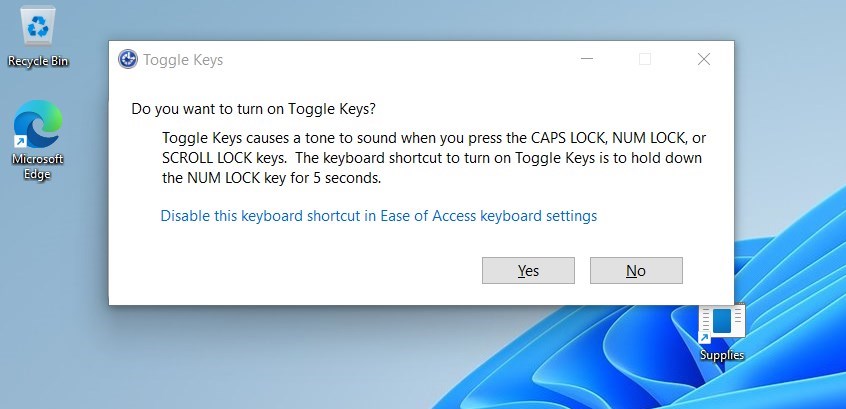
- Wait for the window that pops up asking if you want to turn on Toggle Keys. If nothing appears, the shortcut may be switched off in the Toggle keys section of the Keyboard settings page (see the Settings method below).
- Select Yes to confirm. From now on, Caps Lock, Num Lock, and Scroll Lock each play a tone when you press them.
To turn the tone off again, hold Num Lock for 5 seconds a second time, or switch it off in Settings. No restart is needed either way.
Using the Settings App
The Settings app is the standard place to manage toggle keys on Windows 11. It controls the sound that plays whenever you press Caps⇩, Num Lock, or Scroll Lock, and the change takes effect as soon as you flip the switch. The steps are the same on Home and Pro.
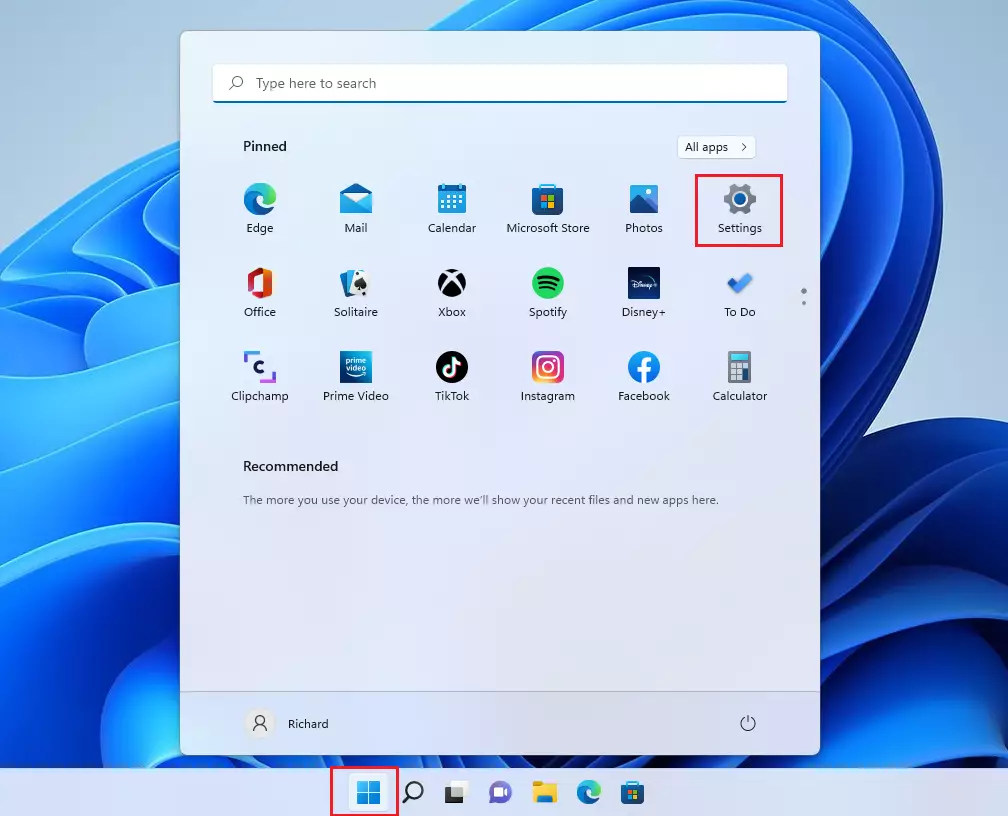
- Press Win+I to open Settings .
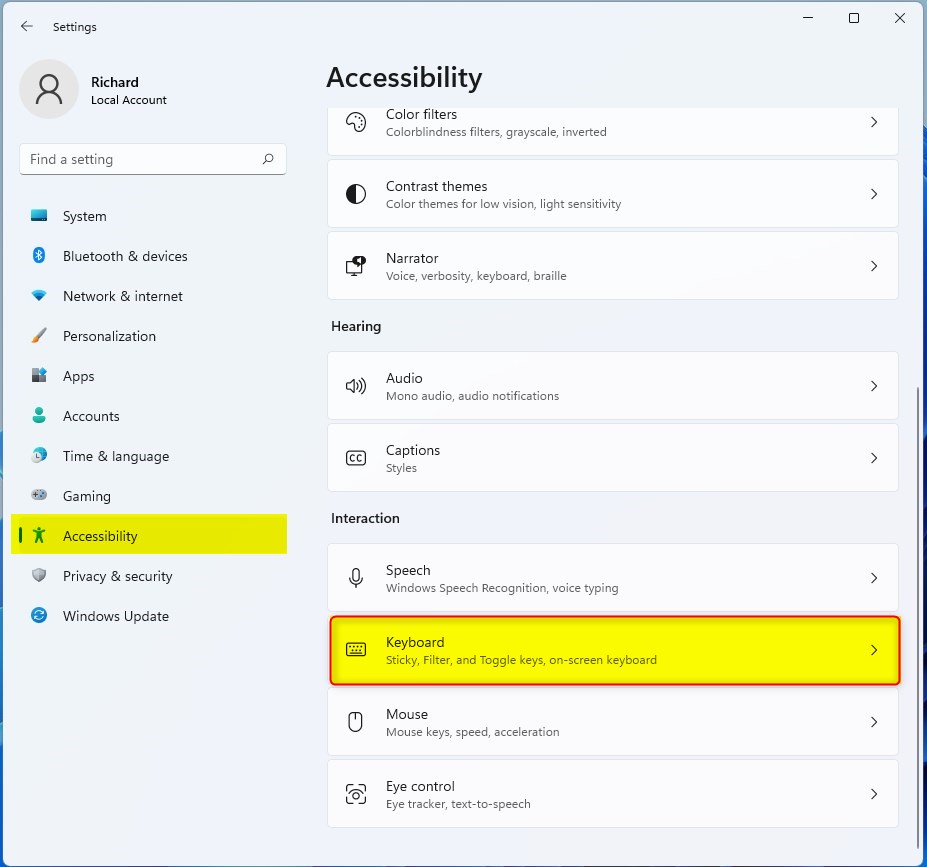
- Click on Accessibility in the menu on the left. The accessibility options appear on the right.
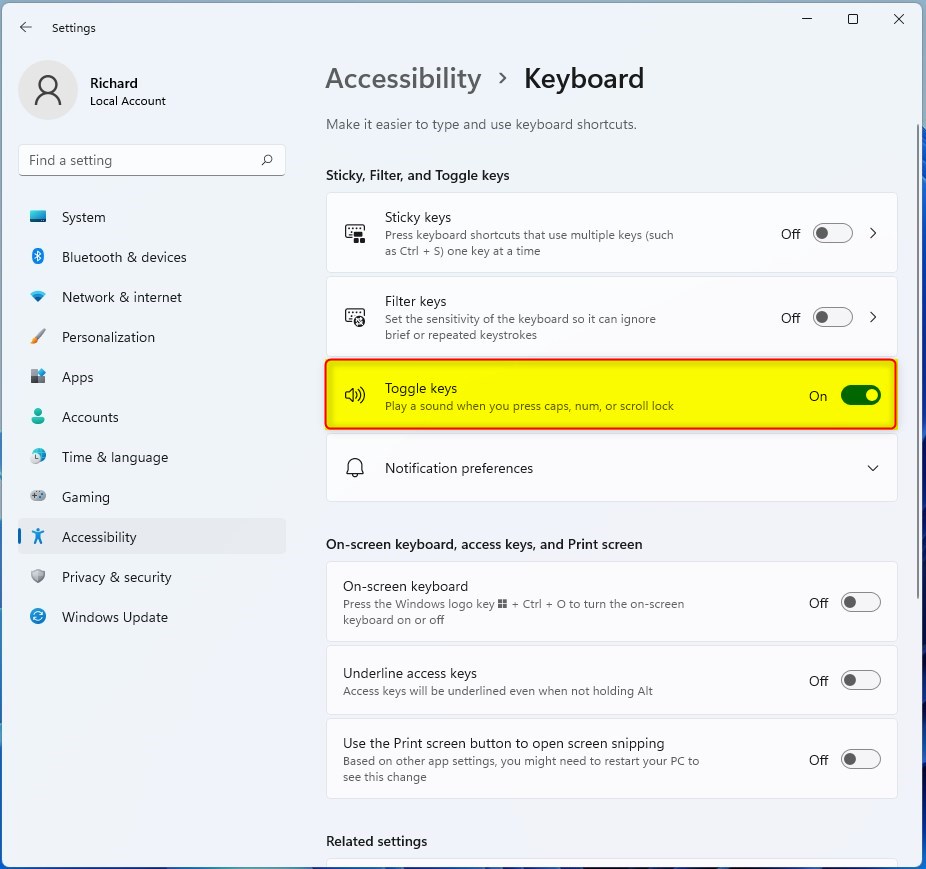
- Select the Keyboard tile on the right side. You will see a list of keyboard options, including Sticky keys, Filter keys, and Toggle keys.
- Click on the Toggle keys option to switch it On or Off. Press Caps⇩ to test it. With the switch on, you should hear a tone each time.
Control Panel Method
If you prefer the classic interface, you can use the Control Panel . It reaches the same setting as the Settings app, so a change made in one place shows up in the other.
- Press Win+R, type control, and hit Enter. Control Panel opens.
- Go to Ease of Access Center. If you do not see it, switch the “View by” option in the top right to large or small icons.
- Click Make the keyboard easier to use. A list of keyboard options appears.
- Check or uncheck Turn on Toggle Keys. Checked means the tone is on, unchecked means it is off. Click Apply and then OK to save the change.
Advanced Configuration and Troubleshooting
Registry Editor Method (Admin Required)
The Registry Editor is the advanced way to manage the toggle keys tone. It writes the setting directly to the registry, so use it only when the other methods are not an option. You need administrator rights to make these changes safely. Because a wrong edit can cause problems, consider exporting the key first (File Export) so you can restore it.
- Press Windows key + R, type regedit, and press Enter. Approve the User Account Control prompt if it appears.
- Navigate to: HKEY_CURRENT_USER\Control Panel\Accessibility\ToggleKeys
- Modify the Flags string value by double-clicking it and entering a new value. Setting it to 59 enables the feature, while 58 disables it. Click OK to save. If the change does not take effect right away, sign out and back in.
PowerShell for IT Management (Admin Required)
IT administrators can use PowerShell (a task automation and configuration management framework) to deploy this setting across multiple machines. This saves you from visiting each PC. Test the script on a single machine first.
Set-ItemProperty -Path 'HKCU:\Control Panel\Accessibility\ToggleKeys' -Name 'Flags' -Value '59'
Troubleshooting Audio Issues
If you do not hear the tone, first make sure your system volume is not muted and that the correct output device is selected. Then check your audio drivers in Device Manager to confirm your speakers are working correctly. Toggle Keys relies on the default system sound scheme, so a muted or changed sound scheme can also silence it. Also confirm the feature is actually on by checking the Toggle keys switch in Settings Accessibility Keyboard
Summary
Toggle Keys in Windows 11 provides a sound when you press Caps Lock, Num Lock, or Scroll Lock, indicating whether these keys are on or off. You can turn it on or off with the Num Lock shortcut, Settings, Control Panel, or the Registry Editor, and none of these methods needs a restart in normal use.
Have a question about this guide?
Answered by AI from this guide. Good questions may be added to this page — please don't include personal details.
Did this guide fix your problem?

About the Author
Richard
Tech Writer, IT Professional
Richard is a writer at Geek Rewind who turns complex IT tasks into clear, step-by-step guides. He draws on years of hands-on experience in system administration and enterprise IT operations, focusing on Windows, Linux and WordPress: the problems people actually run into, and the fixes that work. His server and WordPress guides come from systems he runs himself. Richard builds and maintains the platform behind Geek Rewind, from its Ubuntu servers and Nginx configuration to its custom WordPress plugins. Many new tutorials start with readers' questions, and he's always glad to answer them in the comments.
[…] Assistive technology is a suite of features allowing people with disabilities to use Windows easily. These include a Narrator to help users read text on the screen, a Magnifier to make items on the screen larger, Stikcy keys to help press keyboard shortcuts one key at a time, Filter keys to help ignore extras presses with repeated keys, and Toggle Keys. […]
[…] Toggle Keys play a tone each time you press the Caps Lock, Num Lock, or Scroll Lock keys, indicating whether those keys are on or off. […]
[…] How to use Toggle Keys sounds […]