How to Turn On Notifications for Sticky, Filter, or Toggle Keys in Windows 11

Sticky, Filter, and Toggle Keys notifications in Windows 11 flash an alert on your screen or play a sound whenever you turn these keyboard helpers on or off. Sticky Keys lets you press shortcut keys one at a time. Filter Keys ignores accidental double-presses. Toggle Keys makes a beep when you press Caps⇩, Num Lock, or Scroll Lock.
Turning on these alerts stops you from wondering why your keyboard is acting strangely. A common case is hitting Shift several times in a row and suddenly finding that shortcuts behave differently. You can set the alerts up in under a minute in the Settings app , under Accessibility. The steps are the same on Windows 11 Home and Pro, and you do not need to restart.
Open Settings with Win+I, select Accessibility, click Keyboard, scroll to Notification preferences, then check “Notify me when I turn on Sticky, Filter, or Toggle keys on or off from the keyboard.” The notifications activate immediately without requiring a restart.
What Are Sticky, Filter, and Toggle Keys?
They help if you find it hard to press several keys at once or to hold keys down. Anyone can use them, though, and they sometimes get switched on by accident.
- Sticky Keys lets you press shortcut keys one at a time instead of together. For example, you can press Ctrl, release it, then press C.
- Filter Keys ignores brief or repeated key presses.
- Toggle Keys plays a sound when you press Caps⇩, Num Lock, or Scroll Lock.
Filter Keys help by ignoring quick or repeated key presses that happen by accident while you type. This is useful if you have a hand tremor or tend to rest your fingers on the keys. When Filter Keys is on, Windows may seem slow to respond, because you have to press a key a little longer for it to register. That is why a notification is handy: it tells you the feature is active and explains the odd behavior.
Toggle Keys produce a sound when you press lock keys like Caps Lock, Num Lock, or Scroll Lock. This audible alert confirms whether a lock key is active or inactive, so you get immediate feedback on its state. You do not need to look at your keyboard to know the status of your lock keys. This helps if your keyboard has no indicator lights, or if you type without watching the keys.
Sticky, Filter, and Toggle Keys make typing easier for many users. Turning on notifications for these keys prompts Windows to display a message when a key feature activates or deactivates. For example, the Sticky Keys notification appears when you press the Shift key five times.
Without it, the feature can switch on quietly from a keyboard shortcut, and you only notice when your typing stops working the way you expect.
How to Enable Notifications for These Keys in 🪟 Windows 11
- Open the Settings app. Click the Start menu button (the Windows icon on the bottom-left), then click Settings. Or press
Windows key + Ion your keyboard to open Settings quickly. The Settings window should now be open on your screen. - In the Settings window, click Accessibility in the left-hand list. The Accessibility options should now appear on the right.
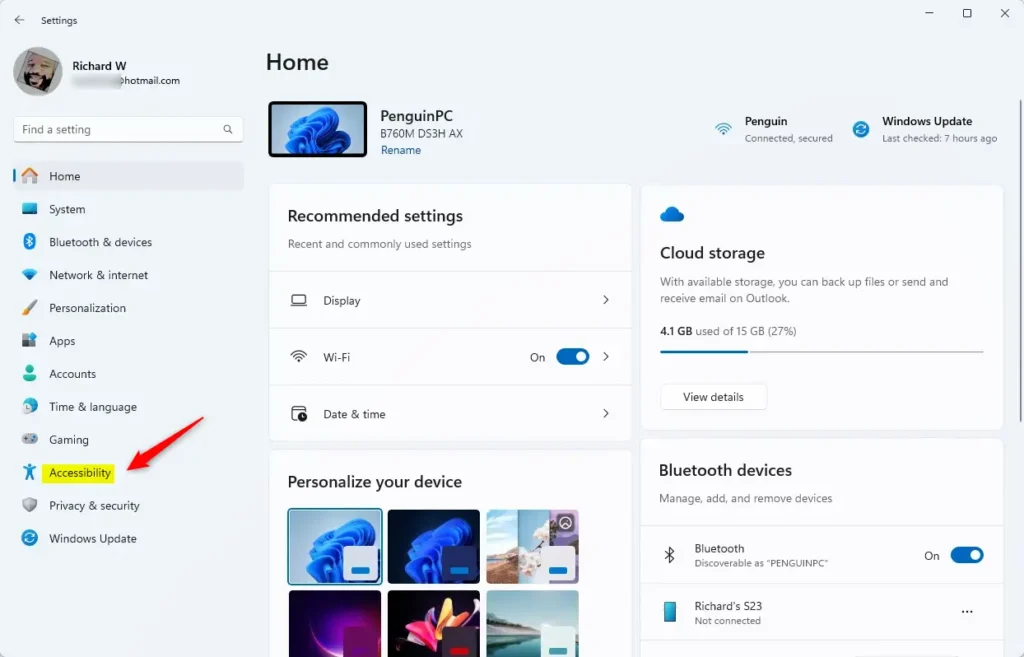
Windows 11 Accessibility button in Settings - On the right side, find and click the Keyboard option. You should see the Sticky keys, Filter keys, and Toggle keys settings listed on this page.
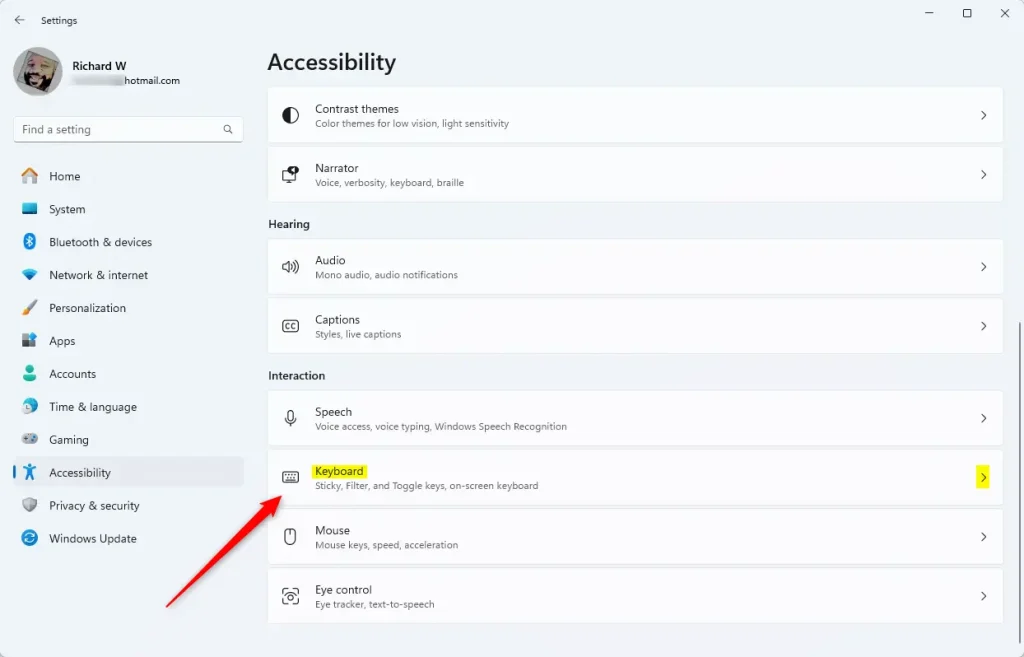
Windows 11 Accessibility Keyboard tile in Settings - Scroll down and click Notification preferences. This is the section that holds the notification option. If you cannot find it, scroll further down the Keyboard page and check each of the Sticky keys, Filter keys, and Toggle keys sections. Exact placement can vary slightly between Windows 11 builds, so update Windows if the option is missing.
- Check the box that says “Notify me when I turn on Sticky, Filter, or Toggle keys on or off from the keyboard.” The check mark should now appear in the box. To stop notifications later, just uncheck the box.
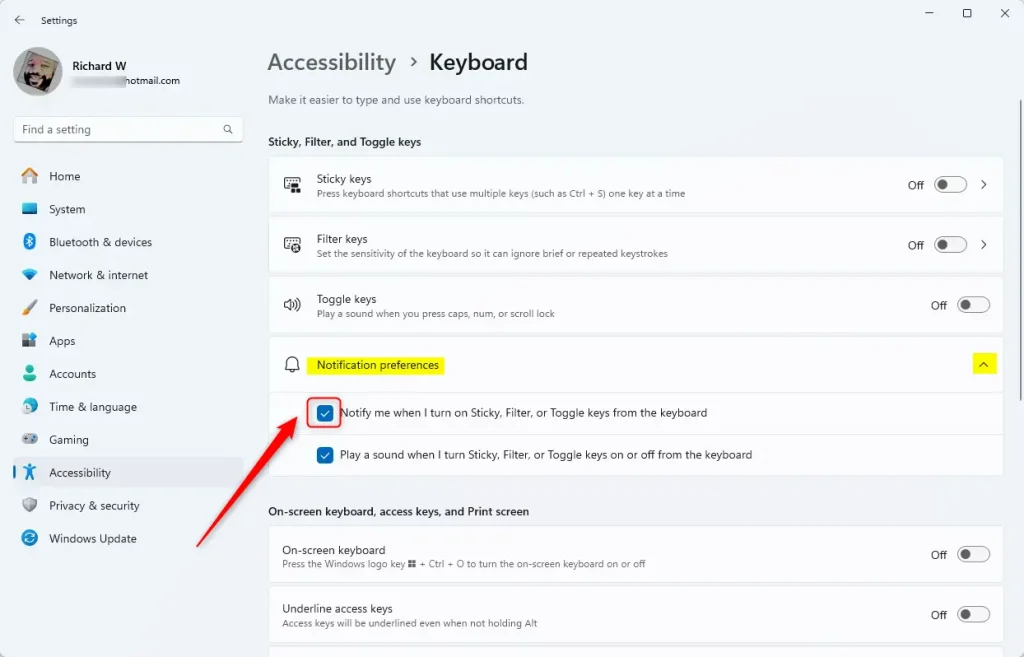
Windows 11 Accessibility Keyboard notification preferences - Close the Settings app when you’re done. Your change is saved automatically, so there is nothing else to confirm and no restart is needed.
To turn on sticky keys notifications in Windows 11, open the Settings app by pressing the Win+I on your keyboard. Select Accessibility from the left menu, then click Keyboard. From there, scroll down to Notification preferences and check the box that enables the alerts, so you always know when these keyboard helpers turn on.
To test it, press the Shift key five times. If Sticky Keys shortcuts are enabled, you should see or hear the Sticky Keys alert. To undo the change, go back to the same page and uncheck the box.
Summary
Enabling these notifications ensures you never accidentally leave the keyboard helpers turned on while typing. By adjusting your Accessibility settings, you can set up warnings that confirm whenever Sticky, Filter, or Toggle Keys become active on your computer. The change takes under a minute, and you can reverse it at any time by unchecking the same box.
What are Sticky Keys and how to turn them off/on
Windows 11 users can share questions and helpful tips about Sticky, Filter, or Toggle Keys notifications in the comments section below. This shared knowledge helps other users understand and manage their accessibility settings more effectively.
Have a question about this guide?
Answered by AI from this guide. Good questions may be added to this page — please don't include personal details.
Did this guide fix your problem?

About the Author
Richard
Tech Writer, IT Professional
Richard is a writer at Geek Rewind who turns complex IT tasks into clear, step-by-step guides. He draws on years of hands-on experience in system administration and enterprise IT operations, focusing on Windows, Linux and WordPress: the problems people actually run into, and the fixes that work. His server and WordPress guides come from systems he runs himself. Richard builds and maintains the platform behind Geek Rewind, from its Ubuntu servers and Nginx configuration to its custom WordPress plugins. Many new tutorials start with readers' questions, and he's always glad to answer them in the comments.
No comments yet — be the first to share your thoughts!