How to Enable or Disable Narrator for Modifier Keys in Windows 11


Narrator modifier key announcements in Windows 11 read aloud when you press keys like Shift, Ctrl, and Alt so you know they registered. This built-in accessibility feature helps you keep track of your keyboard shortcuts by speaking the key names out loud.
You can turn this setting on or off in the Windows 11 Accessibility settings under the Narrator menu.
Adjust the “Announce modifier keys” setting in Narrator options. Go to Settings Accessibility Narrator and toggle the switch for “Shift, Alt, and other modifier keys” on or off. This lets Narrator announce when you press these keys.
What is Narrator?
Narrator is a built-in tool in Windows that reads out loud what’s on your screen. It helps people who have trouble seeing or reading the screen by speaking the text and describing what’s happening.
Why turn on Narrator for keys like Shift and Alt?
Turning on Narrator to announce modifier keys in Windows 11 helps you know when you’ve pressed keys like Shift, Alt, or Ctrl. This feature is great if you rely on sound to confirm which keys you’re pressing, making it easier to use your keyboard.
How to turn on Narrator to announce modifier keys
Narrator modifier keys in Windows 11 can be set to speak aloud every time you press Shift, Ctrl, Alt, or the Win. You turn this feature on through the main Settings app by going to the Accessibility menu, selecting Narrator, and checking the box to hear when modifier keys are pressed.
- Open the Settings app on your Windows 11 PC. You can do this by:
- Clicking the Start menu (the Windows icon) and then selecting Settings.
- Or by pressing the keyboard shortcut
Windows key + Iat the same time.
- In the Settings window, click on Accessibility in the left menu.
- On the right side, find and click on Narrator to open its settings.

Narrator tile in Windows 11 Settings app for accessibility features. - Scroll down to the section called Verbosity. Click the arrow next to Have Narrator announce when I type to open more options.
- Find the option labeled Shift, Alt, and other modifier keys. Click the switch to turn it On or Off depending on what you want.
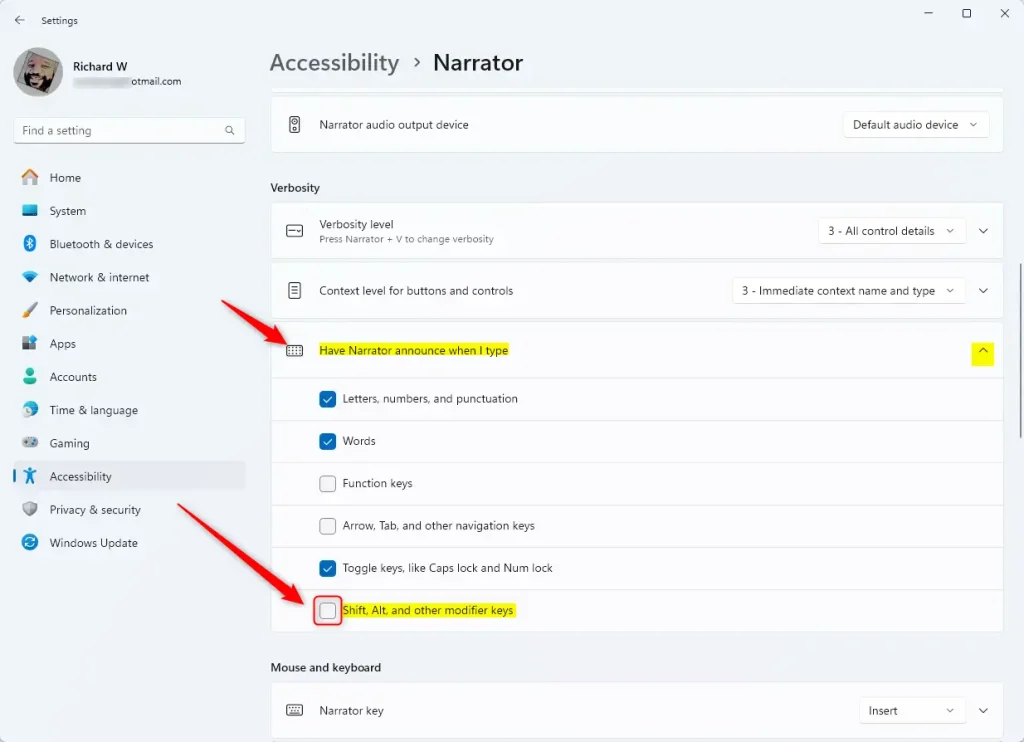
Toggle Narrator announcing modifier keys in Windows 11
That's it! Now Narrator will say the names of modifier keys when you press them, or stay quiet if you turn the option off.
Summary
In summary, enabling Narrator to announce modifier keys in Windows 11 is a helpful feature for users who prefer audio cues for keyboard input. You can quickly toggle this setting on or off within the Settings app, using the Windows key + I shortcut for fast access.What is the shortcut key for Narrator in 🪟 Windows 11?
Turn On Narrator using Ctrl+Windows logo key+Enter.
What keys turn on Narrator?
By default, both the Caps Lock and Insert keys act as your Narrator key in Windows 11. You can use either of these keys when a command requires the 'Narrator' key, and you can even change which key serves this purpose in the Narrator settings.
Was this guide helpful?

About the Author
Richard
Tech Writer, IT Professional
Richard, a writer for Geek Rewind, is a tech enthusiast who loves breaking down complex IT topics into simple, easy-to-understand ideas. With years of hands-on experience in system administration and enterprise IT operations, he’s developed a knack for offering practical tips and solutions. Richard aims to make technology more accessible and actionable. He's deeply committed to the Geek Rewind community, always ready to answer questions and engage in discussions.




No comments yet — be the first to share your thoughts!