How to Enable or Disable Narrator for Modifier Keys in Windows 11


- 7 steps
- Needs administrator rights
Narrator can read aloud the name of each modifier key (Shift, Ctrl, Alt and the Win) as you press it. That confirms the key registered, which is useful if you can’t see the keyboard or screen well, or if you build shortcuts by feel and want to be sure what you’re holding down.
The setting is in Windows 11 Settings, under the Accessibility page for Narrator. This tutorial shows where it is and how to switch it on or off. Changing it needs no restart and no admin rights.
Open Settings, go to Accessibility Narrator, scroll to Verbosity, expand “Have Narrator announce when I type”, and toggle on the switch next to “Shift, Alt, and other modifier keys”. Narrator will then speak the name of each modifier key as you press it.
What is Narrator?
Narrator is the screen reader built into Windows. It reads out loud what’s on your screen, including text, buttons, menus and notifications, and describes what is happening as you work. It is meant for people who have trouble seeing or reading the screen, and it is included in both Home and Pro editions at no extra cost.
Narrator also has a group of settings for what it says as you type. Modifier key announcements are one of them. They are separate from the announcements for letters, numbers and words, so you can turn each one on or off on its own.
Why turn on Narrator for keys like Shift and Alt?
When Narrator announces modifier keys, you know right away when you’ve pressed Shift, Alt, Ctrl or the Win. This is handy if you rely on sound to confirm what you’re pressing. It also helps in a few common situations:
- You use keyboard shortcuts a lot and want to catch a missed or stuck key.
- You are learning shortcuts and want each key spoken as you press it.
- You work without looking at the keyboard and want audio feedback for every key.
If you find the spoken key names distracting, for example when you type fast and hold Shift often, you can turn the option off the same way.
How to turn on Narrator to announce modifier keys
With this setting on, Narrator speaks aloud every time you press Shift, Ctrl, Alt or the Win. You change it in the Settings app: go to the Accessibility menu, select Narrator, and then switch the modifier keys option on or off. The steps below walk through it.
- Open the Settings app on your Windows 11 PC. You can do this by:
- Clicking the Start menu (the Windows icon) and then selecting Settings.
- Or by pressing the keyboard shortcut
Windows key + Iat the same time.
- In the Settings window, click Accessibility in the left menu. The accessibility options appear on the right.
- On the right side, find and click Narrator to open its settings. The Narrator page opens, with its main on/off switch at the top.
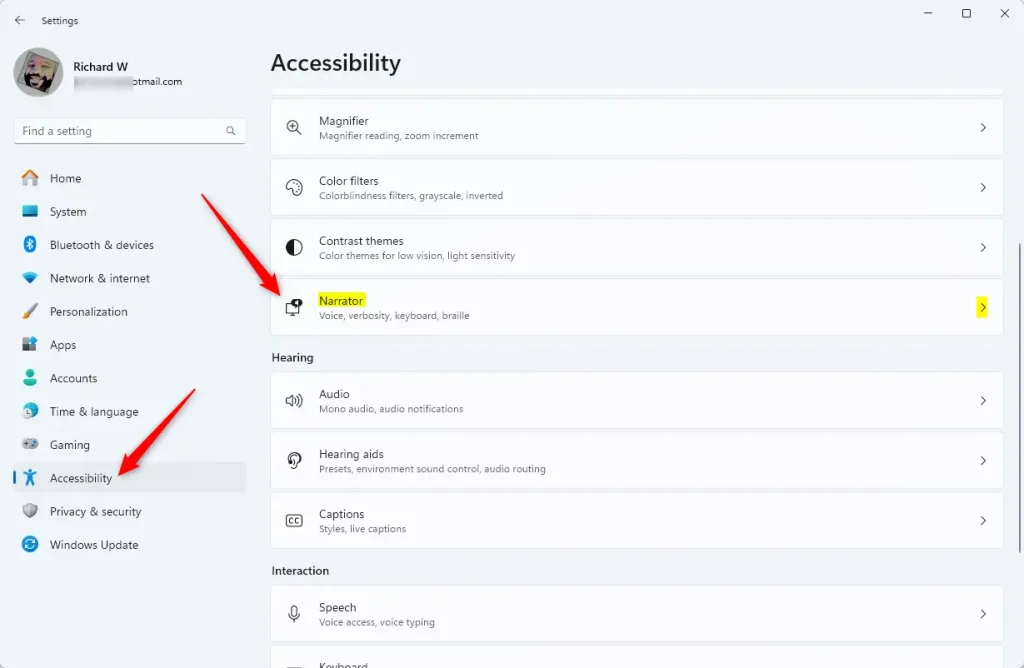
Narrator tile in Windows 11 Settings app for accessibility features. - Scroll down to the section called Verbosity. Click the arrow next to Have Narrator announce when I type to open more options. The list expands and shows the typing announcement settings.
- Find the option labeled Shift, Alt, and other modifier keys. Click the switch to turn it On or Off, depending on what you want. The switch changes state right away and there is no Save button.
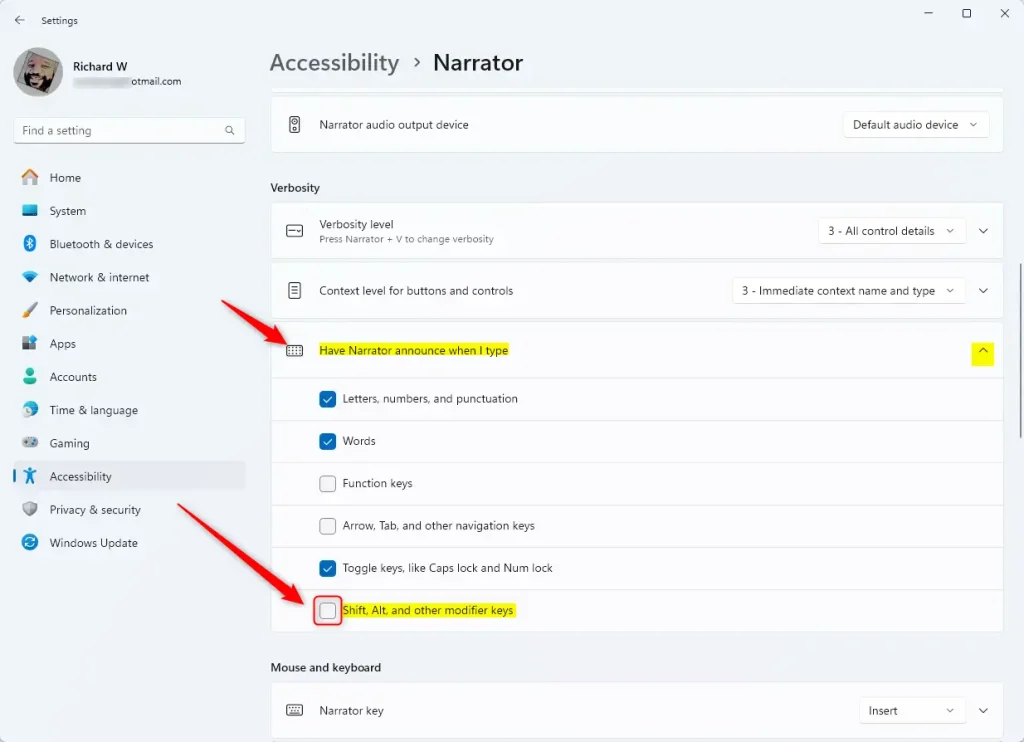
Toggle Narrator announcing modifier keys in Windows 11
That’s it! Now Narrator will say the names of modifier keys when you press them, or stay quiet if you turn the option off.
To check it, press and release Shift or Ctrl with Narrator running. If you turned the option on, you should hear the key name. If you hear nothing, make sure Narrator itself is on, using the switch at the top of the Narrator page, and check that your volume is up. To undo the change, go back to the same page and flip the switch the other way.
Summary
Have a question about this guide?
Answered by AI from this guide. Good questions may be added to this page — please don't include personal details.
Did this guide fix your problem?

About the Author
Richard
Tech Writer, IT Professional
Richard is a writer at Geek Rewind who turns complex IT tasks into clear, step-by-step guides. He draws on years of hands-on experience in system administration and enterprise IT operations, focusing on Windows, Linux and WordPress: the problems people actually run into, and the fixes that work. His server and WordPress guides come from systems he runs himself. Richard builds and maintains the platform behind Geek Rewind, from its Ubuntu servers and Nginx configuration to its custom WordPress plugins. Many new tutorials start with readers' questions, and he's always glad to answer them in the comments.
No comments yet — be the first to share your thoughts!