How to Change Narrator Verbosity on Windows 11

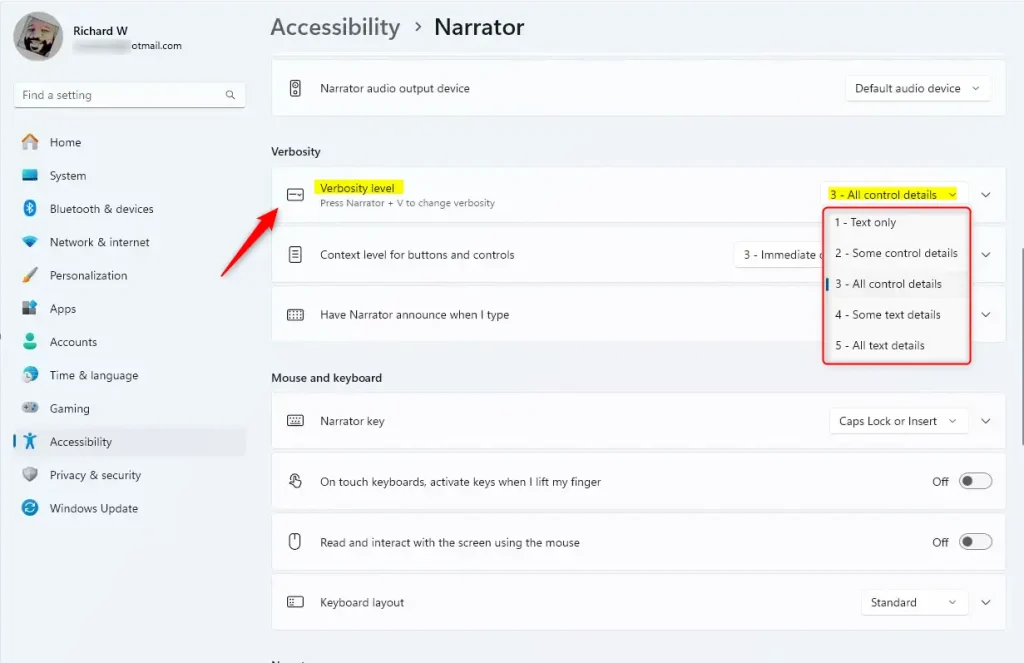
Open Settings , click Accessibility, then Narrator, scroll to Verbosity, and select your preferred level from the dropdown menu. The change applies immediately without restarting. You can also press Narrator key + V to cycle through levels without opening Settings.
What is Narrator?
Narrator is the built-in screen reader in Windows 11. It reads on-screen text aloud and describes interface elements such as buttons, menus, links and checkboxes as you move through them. It helps people who are blind or have low vision, and anyone who finds reading on screen difficult.
Why Change Narrator Verbosity?
Verbosity controls how much Narrator says about each item. At a high level it describes everything, which is useful when you are learning a new app. At a low level it reads little beyond the text, which is faster once you know your way around. Setting it to suit you keeps the spoken feedback useful without burying you in detail.
Understanding Verbosity Levels
Each verbosity level sets how much Narrator says about the item you are on. You can hear just the text, or the text plus context about buttons and other interactive elements. The right level is the one that gives you what you need to navigate without extra chatter.
- Text only: Narrator reads just the text. This is the quietest level.
- Some control details: Reads text and some information about buttons or controls.
- All control details: Reads all information about buttons, menus and controls.
- Some text details: Reads text with a bit more description.
- All text details: Reads everything with full descriptions. This is the most talkative level.
If you keep missing what an item is or what it does, move toward the “control details” levels. Changing the level never changes what is on screen. It only changes what Narrator says. You can switch back at any time, so try a few levels and keep the one that suits you.
How to Change the Narrator Verbosity Level
You change verbosity in the Settings app. The setting is part of the Narrator page, and it is the same on Windows 11 Home and Pro. Menu names can differ slightly between Windows 11 versions, so if a label doesn’t match exactly, look for the closest one.
- Open Settings . Press
Windows key + Ion your keyboard, or click the Start button and select Settings. The Settings window opens. - Click Accessibility in the left sidebar. The accessibility options appear on the right.
- Click Narrator. The Narrator page opens, with the on/off toggle at the top and its other options below.

- Scroll down to the Verbosity section. If you can’t see it, keep scrolling, because it sits below the voice and startup options.
- Click the Verbosity level dropdown menu. The list of levels opens.
- Pick the level you want from the list, such as Text only or Some control details. The new level applies straight away, with no restart needed.
To check it, turn Narrator on and move through a few items in Settings. If the level is wrong, open the dropdown and pick another. To go back to the default, open the same list and choose your previous level.
Quick Keyboard Shortcut
Press Narrator key + V on the keyboard and Narrator moves to the next verbosity level. Keep pressing it to cycle through the list. Narrator announces the level each time, so you know where you landed. This is handy when you want more detail for one task and less for the next.
The Narrator key is the modifier in that shortcut. By default Narrator accepts both Caps Lock and Insert, depending on how your accessibility settings are configured. If the shortcut does nothing, make sure Narrator is running first.
Summary
Adjusting narrator verbosity in Windows 11 lets you decide how much information the screen reader shares. Narrator reads the screen aloud to help people with vision problems, and changing its verbosity makes it more useful by giving you more or less detail as you need it.
- Narrator reads the screen out loud to help people with vision problems.
- You can adjust how much detail Narrator reads by changing the verbosity level.
- A higher verbosity level gives more information; a lower level gives less.
- You can change the level in Settings Accessibility Narrator, or cycle through levels with the keyboard shortcut.
- Changing verbosity helps make Narrator work just the way you want.
- For more help with Narrator and other Windows 11 features, visit this guide.
Was this guide helpful?

About the Author
Richard
Tech Writer, IT Professional
Richard is a writer at Geek Rewind who turns complex IT tasks into clear, step-by-step guides. He draws on years of hands-on experience in system administration and enterprise IT operations, focusing on Windows, Linux and WordPress: the problems people actually run into, and the fixes that work. His server and WordPress guides come from systems he runs himself. Richard builds and maintains the platform behind Geek Rewind, from its Ubuntu servers and Nginx configuration to its custom WordPress plugins. Many new tutorials start with readers' questions, and he's always glad to answer them in the comments.




No comments yet — be the first to share your thoughts!