How to Change the Narrator Voice in Windows 11

Narrator is the built-in screen reader in Windows 11. It reads text, buttons, and links aloud so you can use your PC without looking at the screen. Changing the Narrator voice replaces the standard computer-generated audio with one that is clearer or more natural, and it takes only a few clicks.
Microsoft includes several default voices and lets you download extra natural voices that sound much more like a real person. You can try different options, adjust the reading speed, and change the pitch and volume from the Windows 11 accessibility settings. You do not need to restart the PC, and nothing here needs an administrator account.
Navigate to Settings, then Accessibility, and finally Narrator. Select your preferred voice from the “Choose a voice” drop-down menu. You can also adjust the speed, pitch, and volume of the selected voice.
How to Customize Narrator Voice and Settings
The Narrator voice settings let you pick a new voice, change how fast it speaks, and adjust the pitch and volume. All of them are under Settings Accessibility Narrator. They are the same in Windows 11 Home and Pro. The steps below walk through each one.
If you want to hear each change as you make it, turn Narrator on first. Use the Narrator toggle at the top of the Narrator page, or press the Win+Ctrl+Enter. Press the same keys again to turn it off.
- Open Settings : Click the Start menu button (the Windows logo at the bottom left), then click Settings. The quicker way is to press the Win+I. The Settings window should open with a list of categories on the left.
- Go to Accessibility: In the list on the left side of the Settings window, click Accessibility. The right side now shows accessibility options such as Text size, Visual effects, and Narrator.

Windows 11 Accessibility menu - Open Narrator settings: On the right side, under the Vision group, click Narrator. The Narrator page opens, with the on/off toggle at the top and the voice options further down.

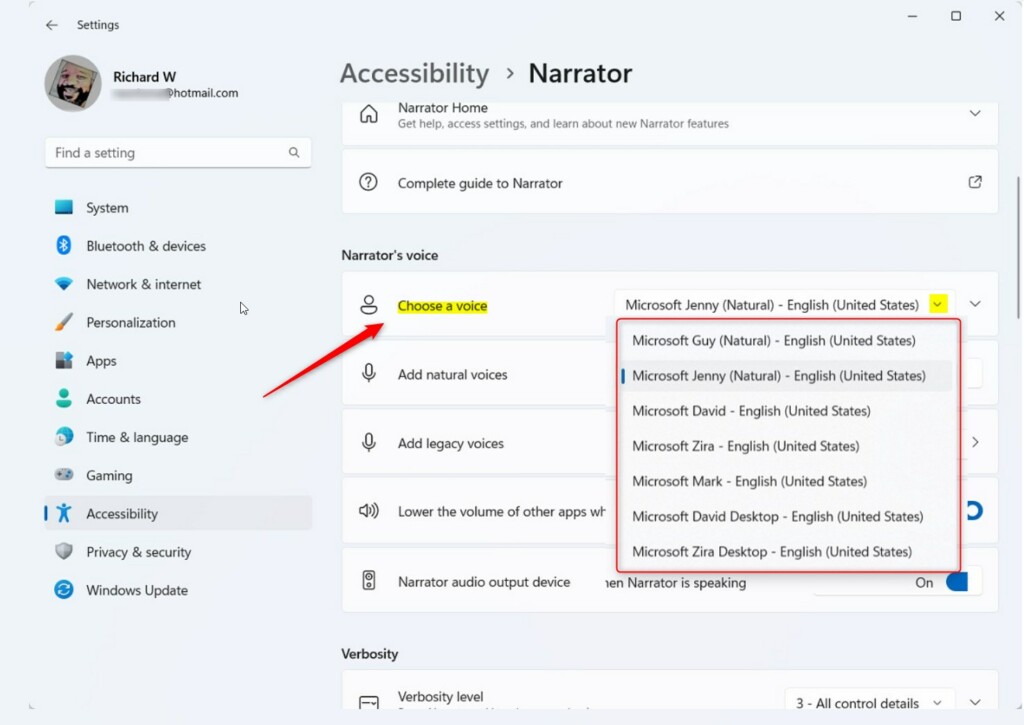
Windows 11 Narrator settings - Choose your Narrator voice: Under Narrator’s voice, click the drop-down menu next to Choose a voice. A list of the installed voices appears. Click the one you want. If Narrator is running, it switches to the new voice straight away, so you can judge it by how it reads the next item. To undo the change, open the same list and pick your old voice again.
If you want a more natural-sounding voice and see an Add natural voices button on this page, click it and choose a voice to download. Natural voices are available in recent builds of Windows 11 (version 22H2 and later). If the button is missing, run Windows Update and check again. Natural voices need an internet connection for the download but can be used offline once installed. Voices are also tied to languages, so a voice for another language may only appear after you add that language to Windows.
Choose Narrator voice in Windows 11 - Adjust speed, pitch, and volume: Click the arrow next to Choose a voice to open more settings. You will see three sliders. Move each one a little, then listen before moving it again. Small changes are easier to judge than big jumps.
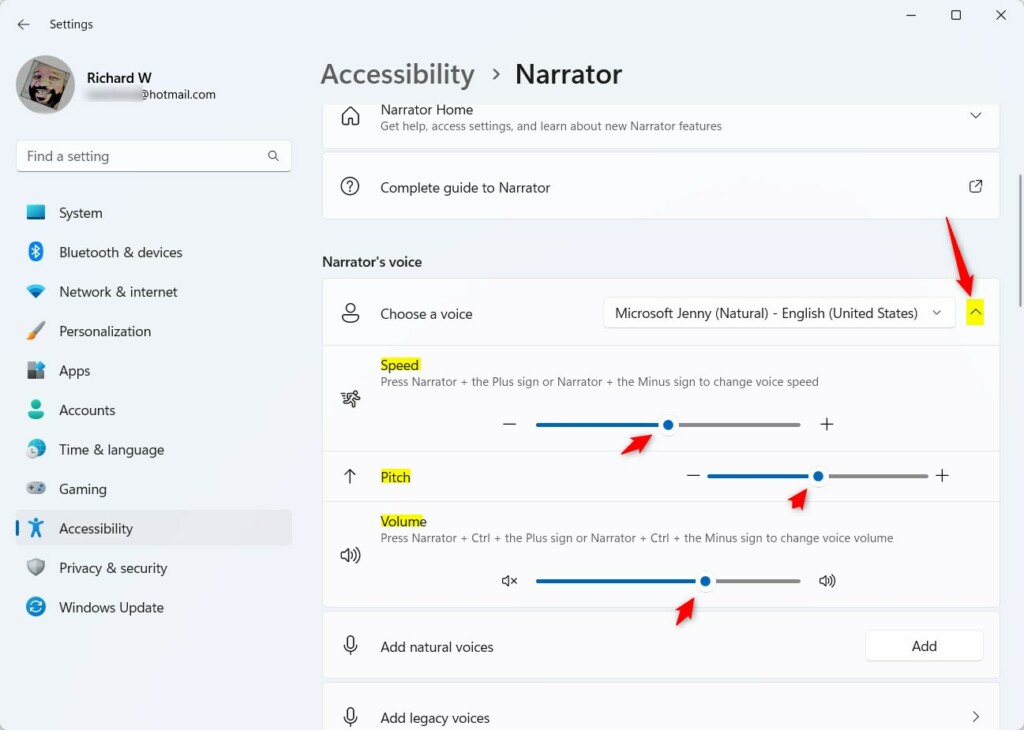
Adjust Narrator voice speed, pitch and volume - Speed: Move the slider left to make the voice talk slower or right to make it faster. You can also press Narrator key + Plus (+) or Narrator key + Minus (-) to change speed. The Narrator key is Caps Lock or Insert by default.
- Pitch: Move the slider to make the voice sound higher or lower. This is handy if a voice sounds thin or too deep through your speakers or headphones.
- Volume: Move the slider to make the voice louder or quieter. You can also press Narrator key + Ctrl + Plus (+) or Narrator key + Ctrl + Minus (-) to change volume. This setting only changes Narrator’s own level. The main system volume is separate, so check that too if the voice is still too quiet.
- Close Settings: When you are happy with the voice and settings, close the Settings window. There is no Save or Apply button, because each change takes effect as soon as you make it. Narrator keeps your choices the next time you start it.
You can change the Narrator voice and sound on your Windows 11 PC whenever you like. A different voice, speed, or pitch makes screen reading more comfortable, especially if you listen to it for long stretches. Pick the voice that suits your hearing best, and come back to these settings if you want to adjust it later.
Summary
- You learned how to open Narrator settings in Windows 11 through Settings Accessibility Narrator
- You can pick a new voice, add natural voices on recent builds, and adjust the speed, pitch, and volume to your liking, with keyboard shortcuts for speed and volume.
- This makes using Narrator easier and more enjoyable, especially if you rely on it to read your screen.
You can change the Narrator voice settings at any time to pick a new reader voice and adjust its speed, pitch, and volume. No restart is needed, and you can switch back to your old voice in the same menu if you do not like the new one. This lets you set up the built-in screen reader so it sounds the way you want while it reads your screen.
Have a question about this guide?
Answered by AI from this guide. Good questions may be added to this page — please don't include personal details.
Did this guide fix your problem?

About the Author
Richard
Tech Writer, IT Professional
Richard is a writer at Geek Rewind who turns complex IT tasks into clear, step-by-step guides. He draws on years of hands-on experience in system administration and enterprise IT operations, focusing on Windows, Linux and WordPress: the problems people actually run into, and the fixes that work. His server and WordPress guides come from systems he runs himself. Richard builds and maintains the platform behind Geek Rewind, from its Ubuntu servers and Nginx configuration to its custom WordPress plugins. Many new tutorials start with readers' questions, and he's always glad to answer them in the comments.
No comments yet — be the first to share your thoughts!