How to Change Volume for Narrator in Windows 11


Changing the volume for Narrator in Windows 11 lets you hear the built-in screen reader (a tool that reads on-screen text aloud) clearly over games and background music. Audio ducking automatically lowers the sound of other apps whenever Narrator speaks, and the original guide describes the reduction as 10%, 20%, or 50%.
You set all of this in the Narrator page of Settings. You can also set Narrator’s own volume there, so you can get the right mix for your ears without touching anything else.
You can adjust Narrator’s volume relative to other apps in Windows 11 Settings. Navigate to Accessibility, then Narrator, and toggle the “Lower the volume of other apps when Narrator is speaking” option to On or Off. This ensures Narrator’s voice is always clear.
How to Keep Narrator Volume Louder Than Other Apps
Narrator volume settings let you keep the built-in screen reader louder than background music, games, or videos so you never miss what Windows reads out. Narrator’s volume is separate from your main system volume. You adjust it in the Settings app , under Accessibility, in the section that controls the voice output.
You don’t need Narrator to be running to change these settings. If you want to hear your changes as you make them, press Win+Ctrl+Enter to start Narrator. Press the same keys again to turn it off. These settings are the same on Windows 11 Home and Pro.
- Open the Settings app. Click the Start menu and select Settings, or press Win+I on your keyboard to open Windows Settings . The Settings window opens with a list of categories on the left.
- In the list on the left, click Accessibility. The right side now shows accessibility options such as Text size, Visual effects, and Narrator.
- On the right side, click the Narrator tile. Depending on your Windows 11 build, it expands in place or opens its own Narrator page. Either way, you should now see the Narrator on/off switch and the Narrator settings below it.

- Scroll down to the section called Narrator’s voice. This is where the voice, speed, pitch, and volume options for Narrator are grouped. If you want Narrator itself louder or quieter, use the Volume slider here.
- Find the option Lower the volume of other apps when Narrator is speaking. It is a toggle switch in the same section. If you can’t find it, scroll a little further. It may sit below the voice sliders.
- Set the toggle switch to On or Off. Turn it On to enable the feature. Turn it Off to disable it. The change applies right away, so you don’t need to restart your PC or sign out. To undo it, come back to this page and flip the switch the other way.
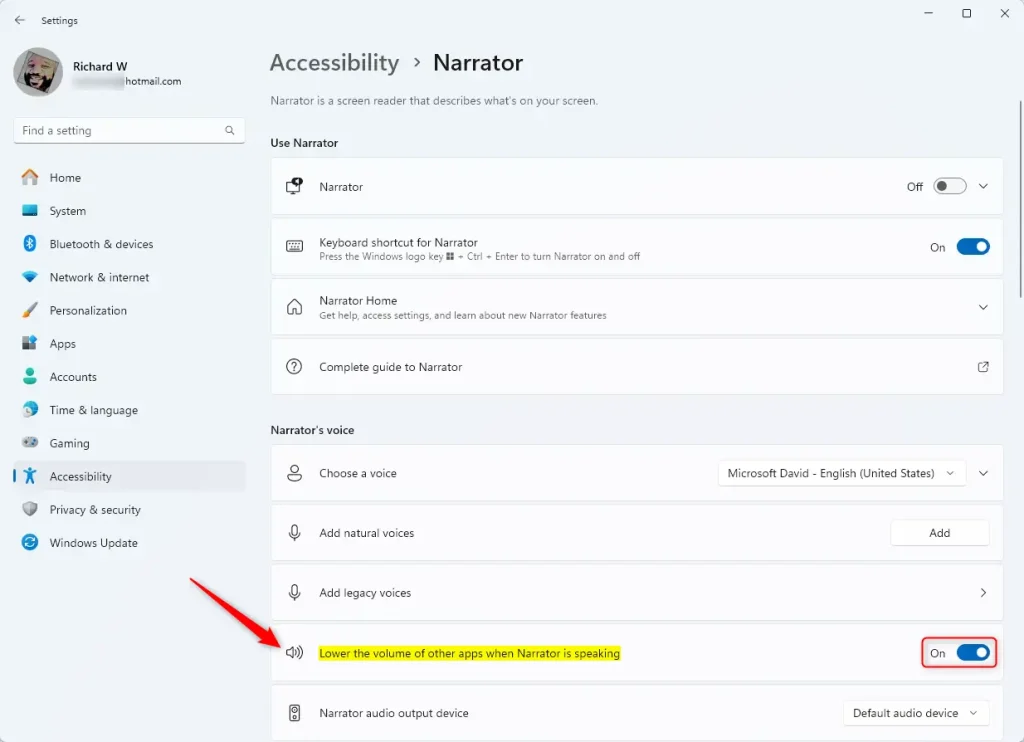
With the toggle on, Narrator will now lower background audio automatically whenever it speaks. To check it, start some music or a video, then press Win+Ctrl+Enter to start Narrator. The music should get quieter while Narrator talks and return to normal volume when it stops.
What Happens When You Enable This Feature
Enabling this feature reduces competing media tracks, so Narrator’s voice stays louder than whatever else is playing and is easier to follow. If Narrator is still hard to hear, raise the Volume slider in the same Narrator’s voice section. If other apps still seem too loud, also check your main system volume and the volume of the individual app.
Summary
Configuring Narrator volume settings in Windows 11 improves screen reader clarity, and background app sounds drop automatically whenever Narrator speaks. The settings take effect immediately and you can change them at any time from Settings Accessibility Narrator
Frequently Asked Questions
Was this guide helpful?

About the Author
Richard
Tech Writer, IT Professional
Richard is a writer at Geek Rewind who turns complex IT tasks into clear, step-by-step guides. He draws on years of hands-on experience in system administration and enterprise IT operations, focusing on Windows, Linux and WordPress: the problems people actually run into, and the fixes that work. His server and WordPress guides come from systems he runs himself. Richard builds and maintains the platform behind Geek Rewind, from its Ubuntu servers and Nginx configuration to its custom WordPress plugins. Many new tutorials start with readers' questions, and he's always glad to answer them in the comments.




[…] shortcuts, launch it automatically, adjust the voice, speed, and volume, manage natural voices, lower other apps volume when the Narrator is speaking, change Narrator audio output device, change verbosity level, emphasize formatted text, enable […]
[…] shortcuts, launch it automatically, adjust the voice, speed, and volume, manage natural voices, lower other apps volume when the Narrator is speaking, change Narrator audio output device, change verbosity level, emphasize formatted text, enable […]
[…] it automatically, adjust the voice, speed, and volume, manage natural voices, lower other apps volume when Narrator is speaking, change Narrator audio output device, change verbosity level, emphasize formatted […]
[…] it automatically, adjust the voice, speed, and volume, manage natural voices, lower other apps volume when Narrator is speaking, change Narrator audio output device, change verbosity level, emphasize formatted […]
[…] it automatically, adjust the voice, speed, and volume, manage natural voices, lower other apps volume when Narrator is speaking, change Narrator audio output device, change verbosity level, emphasize formatted […]
[…] Lower other app sounds when Narrator is talking […]