How to Change Narrator Math Reading Speech Style in Windows 11


Narrator in Windows 11 reads math equations out loud in three different styles: Clear speak, Simple speak, and Literal speak. You can pick the style that works best for you.
Clear speak uses plain language and reads equations the way they would sound in a classroom. Simple speak removes extra details to make equations faster to read. Literal speak reads every symbol exactly as written, which works best if you need to hear the precise math notation.
You can change this setting in the Settings app or by editing the Windows Registry (a database that stores how Windows works). Both methods change the style for your account only, so other people on the same computer will still use their own preferred style.
Open Settings Accessibility Narrator, then select Math reading under the Math section. Open the Speech style drop-down and choose Clear speak, Simple speak, or Literal speak. Your selection applies immediately.
About Narrator math reading
Narrator describes what is on your screen and lets you use your PC without a mouse if you are blind or have low vision. It reads and interacts with text and buttons, so you can read and write email, browse the web, and work with documents.
Math reading and navigation first appeared in Windows 11 build 26340.9354 (Experimental 26H2) for Insiders. Narrator now reads equations aloud in supported Microsoft 365 apps, including Word and PowerPoint. It does not announce every symbol one by one. It reads an equation the way it is meant to be understood. For a fraction, it reads the numerator and denominator together so you hear how they relate.
Build 26340.9577 (Experimental 26H2) for Insiders adds languages and browser support. Narrator math reading now supports six languages: English (United States), English (United Kingdom), Traditional Chinese, Finnish, German, and Spanish. Choose your language under Math reading settings in Narrator settings. Math reading also works with supported web content in Microsoft Edge (Stable version 153.0.4234.32 and later) and Chrome (Stable version 153.0.8010.18 and later).
Narrator math reading speech styles
The speech style sets how Narrator speaks a math expression. You can choose one of three:
- Clear speak (default): precision and comprehension.
- Simple speak: accessibility and familiarity.
- Literal speak: exactness and no figurative language.
Option One
Change Narrator Math Reading Speech Style in Settings
This method uses the Narrator page in Settings. It is the easiest route.
- Open Settings (Win+I).

Windows 11 Start menu with Settings gear icon highlighted. - Select Accessibility on the left, then select Narrator on the right. Open Narrator settings (Win+Ctrl+N)
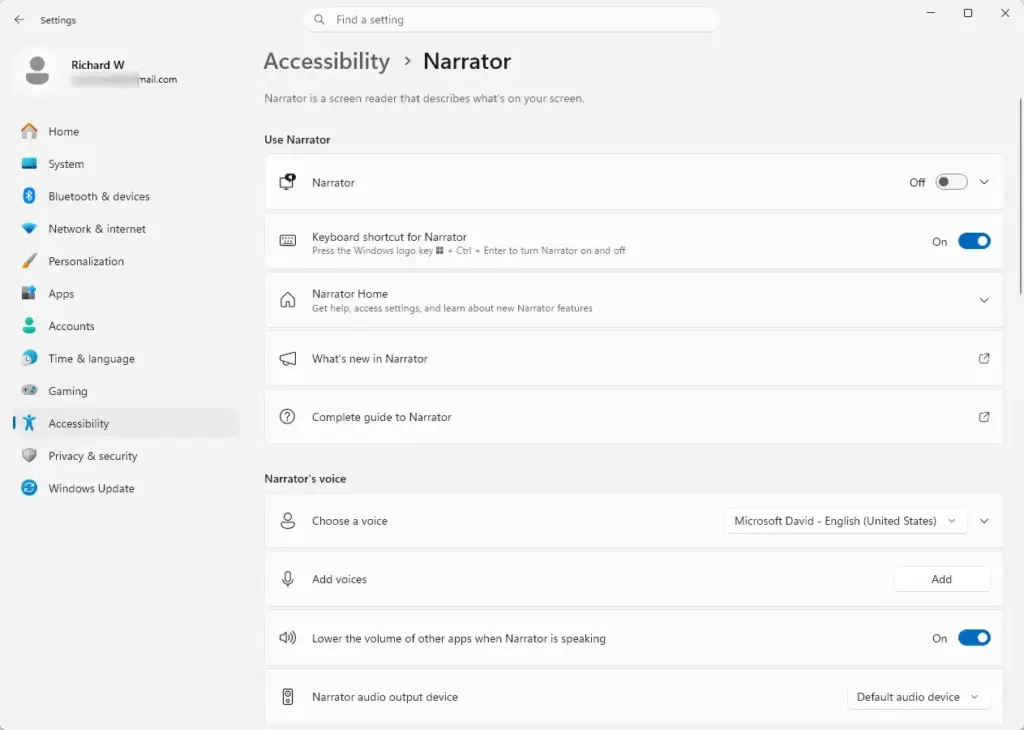
Settings › Accessibility › Narrator - Under the Math section, select Math reading. Open Math reading settings
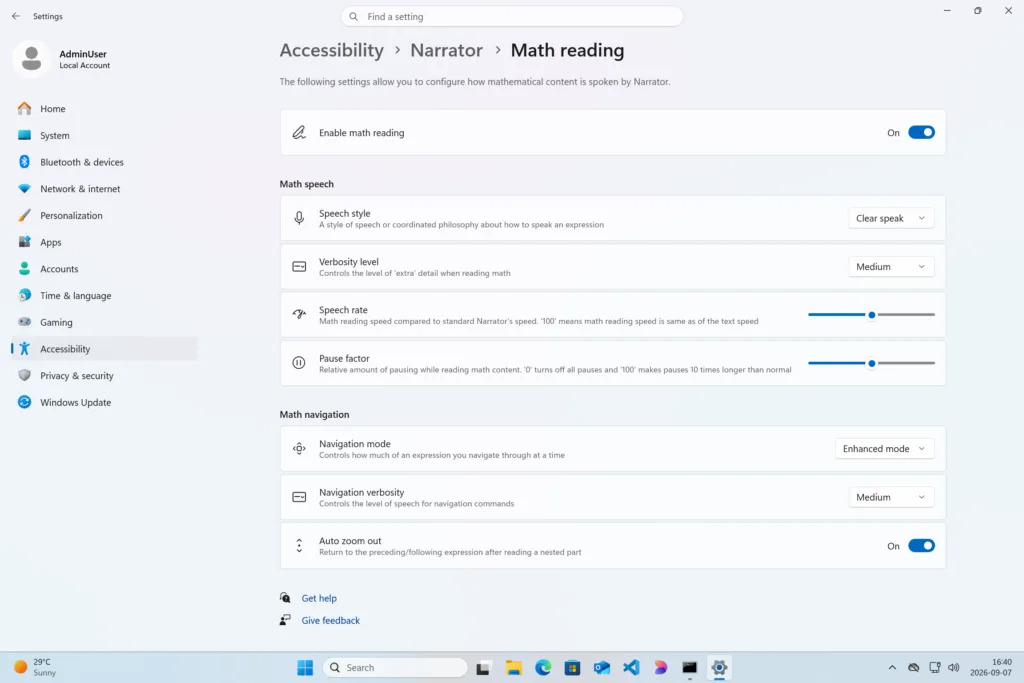
Settings › Accessibility › Narrator › Math reading - Under Math speech, open the Speech style drop-down menu and select Clear speak (default), Simple speak, or Literal speak.
- Close Settings.
Option Two
Change Narrator Math Reading Speech Style using Registry
Navigation to the registry path below:
HKEY_CURRENT_USER\Software\Microsoft\Narrator
The value name is MathReadingSpeechStyle. Set it to one of the following:
Use “Clear speak” Speech Style for Narrator Math Reading
This is the default setting.
"MathReadingSpeechStyle"="ClearSpeak"
Use “Simple speak” Speech Style for Narrator Math Reading
"MathReadingSpeechStyle"="SimpleSpeak"
Use “Literal speak” Speech Style for Narrator Math Reading
"MathReadingSpeechStyle"="LiteralSpeak"
What to do next
To go back to the original behavior, set the Speech style to Clear speak (default) on the same Math reading page. To change the language Narrator uses for math, use the language option under Math reading settings in Narrator settings.
Frequently asked questions
What does "change in meaning" mean?
"Change in meaning" refers to when Narrator's math reading style alters how an equation is interpreted or understood. For example, Clear speak simplifies notation into everyday language, which may express the same math differently than Literal speak, which reads every symbol exactly as written. The underlying math stays the same, but how it sounds changes.
Still have a question?
Answered by AI from this guide. Good questions may be added to this page — please don't include personal details.
Did this guide fix your problem?

About the Author
Richard
Tech Writer, IT Professional
Richard is a writer at Geek Rewind who turns complex IT tasks into clear, step-by-step guides. He draws on years of hands-on experience in system administration and enterprise IT operations, focusing on Windows, Linux and WordPress: the problems people actually run into, and the fixes that work. His server and WordPress guides come from systems he runs himself. Richard builds and maintains the platform behind Geek Rewind, from its Ubuntu servers and Nginx configuration to its custom WordPress plugins. Many new tutorials start with readers' questions, and he's always glad to answer them in the comments.
No comments yet — be the first to share your thoughts!