How to Change Narrator Math Reading Verbosity Level in Windows 11

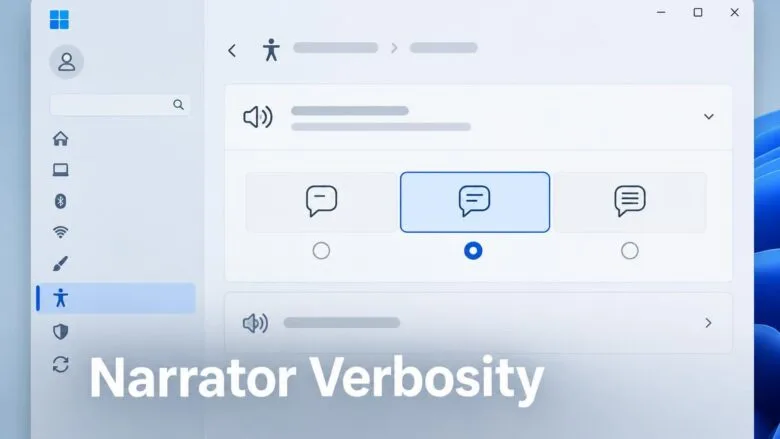
Narrator’s math reading verbosity level controls how much detail Narrator speaks when it reads equations out loud. Windows 11 gives you three choices: Terse (shortest), Medium (the default), or Verbose (most detailed).
This setting lives in the Accessibility settings, though you can also change it in the Registry Editor (a tool that stores Windows settings). The change takes effect right away.
Open Settings (Win+I) > Accessibility Narrator, then select Math reading under the Math section. Open the Verbosity level drop-down and choose Terse, Medium, or Verbose. Your selection takes effect immediately.
What the verbosity levels mean
Narrator is the screen reader built into Windows 11. It describes what is on your screen and lets people who are blind or have low vision use a PC without a mouse. It reads text and buttons and works with email, web browsing, and documents.
Math reading and navigation arrived in Narrator with Windows 11 build 26340.9354 (Experimental 26H2) for Insiders. Narrator reads equations aloud in supported Microsoft 365 apps, including Word and PowerPoint. It reads equations as a structured whole instead of announcing every symbol. For a fraction, it reads the numerator and denominator together.
To explore an equation piece by piece, press Narrator key + Alt+N to turn on math navigation. Use the arrow keys to move through parts such as fractions, exponents, and roots. Press Esc to exit math navigation mode.
Build 26340.9577 (Experimental 26H2) for Insiders adds more languages and browser support:
- Narrator math reading supports six languages: English (United States), English (United Kingdom), Traditional Chinese, Finnish, German, and Spanish. Choose your language under Math reading settings in Narrator settings.
- Math reading works with supported web content in Microsoft Edge Stable version 153.0.4234.32 and later, and Chrome Stable version 153.0.8010.18 and later.
The verbosity level has three options:
- Terseuses the fewest words needed to convey the math.
- Medium (default)balances brevity and detail.
- Verboseuses more words and gives fuller explanations.
Option One
Change Narrator Math Reading Verbosity Level in Settings
Use this method to pick a level from the Narrator page in Settings.
- Open Settings (Win+I).

Windows 11 Start menu with Settings gear icon highlighted. - Select Accessibility on the left, then select Narrator on the right.
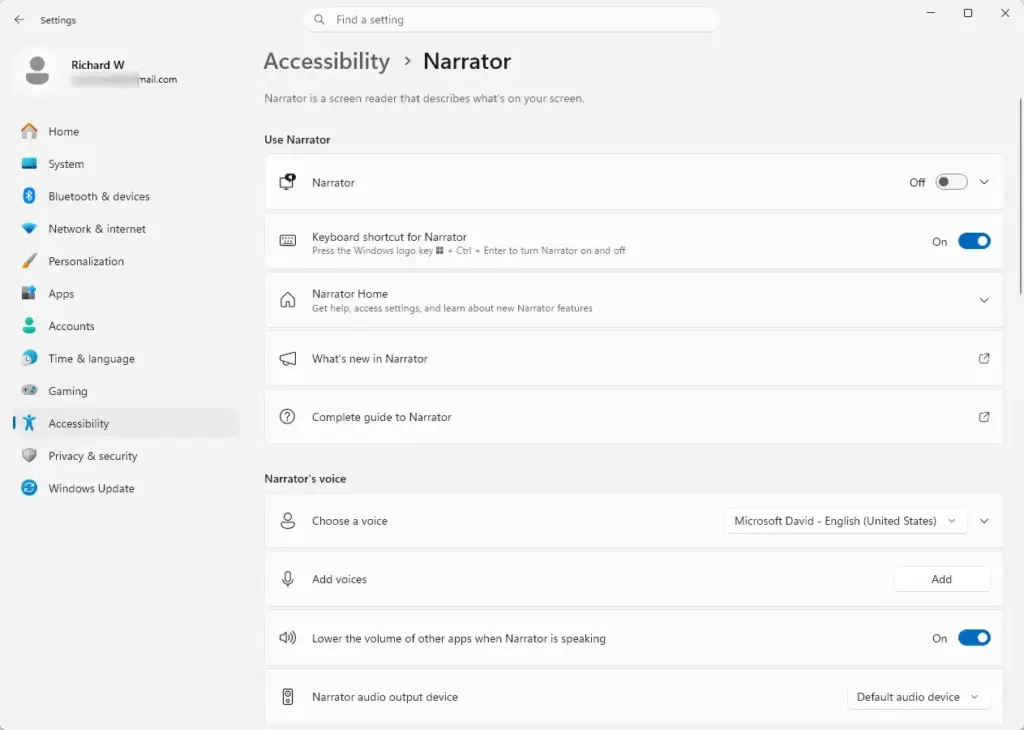
Settings › Accessibility › Narrator Open Narrator settings (Win+Ctrl+N)
- Under the Math section, select Math reading.
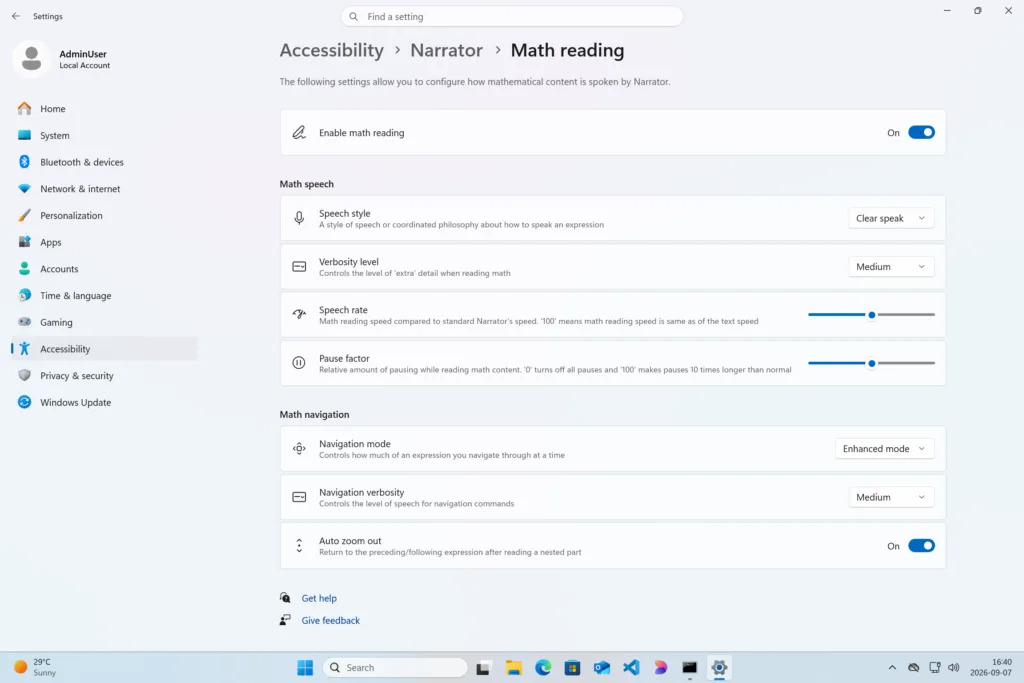
Settings › Accessibility › Narrator › Math reading - Under Math speech, open the Verbosity level drop-down menu and select Terse, Medium (default), or Verbose.
- Close Settings.
Option Two
Change Narrator Math Reading Verbosity Level using Registry
Navigate to the registry path below:
HKEY_CURRENT_USER\Software\Microsoft\Narrator
Use “Terse” Verbosity Level for Narrator Math Reading
Set the value to Terse for the shortest spoken output:
"MathReadingVerbosity"="Terse"
Use “Medium” Verbosity Level for Narrator Math Reading
Set the value to Medium for balanced output. This is the default setting:
"MathReadingVerbosity"="Medium"
Use “Verbose” Verbosity Level for Narrator Math Reading
Set the value to Verbose for the most detailed output:
"MathReadingVerbosity"="Verbose"
If you want to undo this
Frequently asked questions
How do I turn off the Narrator on my PC 🪟 Windows 11?
Press Win+Enter to toggle Narrator on and off. Alternatively, open Settings, go to Accessibility Narrator, then turn off the Narrator toggle. The screen reader will stop speaking immediately.
How to get more voices for Microsoft Narrator?
Open Settings and go to Accessibility Narrator Voice options. Click the dropdown under "Choose a voice" to see available voices installed on your PC. To add more voices, go to Settings Time & language Language & region, select your language, then download additional voices.
What is the keyboard shortcut for the Narrator in Windows?
Press Win+Enter to turn Narrator on or off. Press Narrator key + H to open Narrator help and view other commands. The Narrator key is usually Caps Lock or Insert, depending on your settings.
How to change text to speech voice on 🪟 Windows 11?
Open Settings and go to Accessibility Text-to-speech. Under "Choose a voice," click the dropdown to select a different voice. You can also adjust speech rate and pitch from this same menu.
Still have a question?
Answered by AI from this guide. Good questions may be added to this page — please don't include personal details.
Did this guide fix your problem?

About the Author
Richard
Tech Writer, IT Professional
Richard is a writer at Geek Rewind who turns complex IT tasks into clear, step-by-step guides. He draws on years of hands-on experience in system administration and enterprise IT operations, focusing on Windows, Linux and WordPress: the problems people actually run into, and the fixes that work. His server and WordPress guides come from systems he runs himself. Richard builds and maintains the platform behind Geek Rewind, from its Ubuntu servers and Nginx configuration to its custom WordPress plugins. Many new tutorials start with readers' questions, and he's always glad to answer them in the comments.
No comments yet — be the first to share your thoughts!