How to Enable or Disable Auto Zoom Out for Narrator Math Reading Navigation in Windows 11

Auto zoom out for Narrator math reading navigation in Windows 11 controls how the built-in screen reader moves through complex math equations. When it is turned on, Narrator automatically returns to the main expression after you finish reading a smaller nested part inside it. When it is turned off, Narrator stays at the nested level until you move back out yourself.
Open Settings with Win+I, go to Accessibility Narrator, then under Math reading find Math navigation and toggle Auto zoom out on or off. The change takes effect immediately.
Equations are built in layers. A fraction can contain a square root, which can contain another expression, and so on. Narrator lets you zoom in to read one of these inner parts on its own, then zoom out to return to the larger expression around it. Auto zoom out does that second step for you, so you do not have to remember how many levels deep you are or press extra keys to get back to the top.
Which choice is better depends on how you read math:
- OnNarrator returns to the main expression once you finish a nested part. This suits you if you mostly read equations from left to right and want to keep your place in the whole expression.
- OffNarrator stays inside the nested part after you finish it. This suits you if you want to study one inner piece closely and decide yourself when to move back out.
Narrator is the built-in Windows 11 screen reader that describes text and buttons out loud so you can use your PC without a mouse. To start or stop it quickly, press the Win+Ctrl+Enter. You can also turn it on from the Accessibility pages in the Settings app.
Math reading features are available in Microsoft Edge version 153.0.4234.32 and later and Chrome version 153.0.8010.18 and later. If your browser is older than that, math content may not be read the way described here, and the auto zoom out behavior will not apply. Update your browser first if you are not sure which version you have.
The change only affects how Narrator navigates math. It does not change your files or other Windows settings, and you can switch it back at any time using the same method you used to change it. The steps for doing this follow below.
Turn On or Off Auto Zoom Out for Narrator Math Reading Navigation in Settings
You can turn on or off auto zoom out for Narrator math reading navigation in the Windows 11 Settings app to change how equations display on your screen. When this feature is active, Narrator automatically adjusts the view so you can read math formulas more easily. Open the Settings app and go to Accessibility, then Narrator, to change this option whenever you need.- Open Settings using the Win+I keyboard shortcut.

Windows 11 Start menu with Settings gear icon highlighted. - Click or tap on Accessibility on the left side and click or tap on Narrator on the right side.
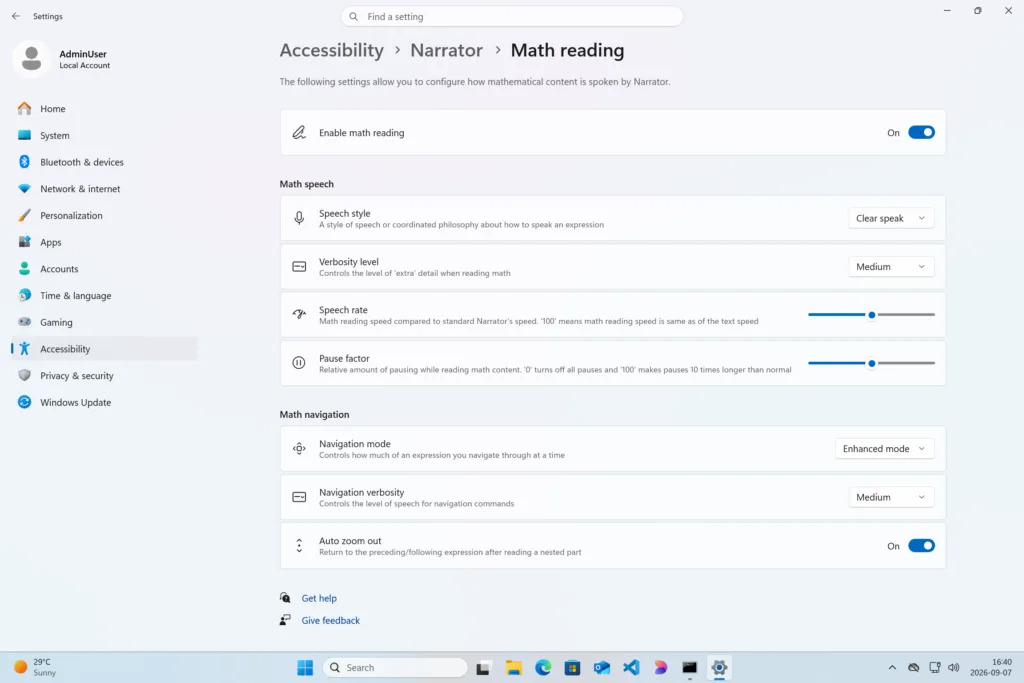
Settings › Accessibility › Narrator › Math reading
Open Narrator settings (Win+Ctrl+N) - Under the Math section (or the Narrator page’s math settings), click or tap on Math reading, if shown in your build.
Settings › Accessibility › Narrator › Math reading - Under Math navigation, turn on (default) or off Auto zoom out for what you want.
- You can now close Settings if you like.
What to do next
You can adjust the preferred language under Math reading settings or explore other accessibility options on the Narrator settings page.
Have a question about this guide?
Answered by AI from this guide. Good questions may be added to this page — please don't include personal details.
Did this guide fix your problem?

About the Author
Richard
Tech Writer, IT Professional
Richard is a writer at Geek Rewind who turns complex IT tasks into clear, step-by-step guides. He draws on years of hands-on experience in system administration and enterprise IT operations, focusing on Windows, Linux and WordPress: the problems people actually run into, and the fixes that work. His server and WordPress guides come from systems he runs himself. Richard builds and maintains the platform behind Geek Rewind, from its Ubuntu servers and Nginx configuration to its custom WordPress plugins. Many new tutorials start with readers' questions, and he's always glad to answer them in the comments.
No comments yet — be the first to share your thoughts!