How to Customize Visual Audio Alert Flashes in Windows 11 Accessibility Settings

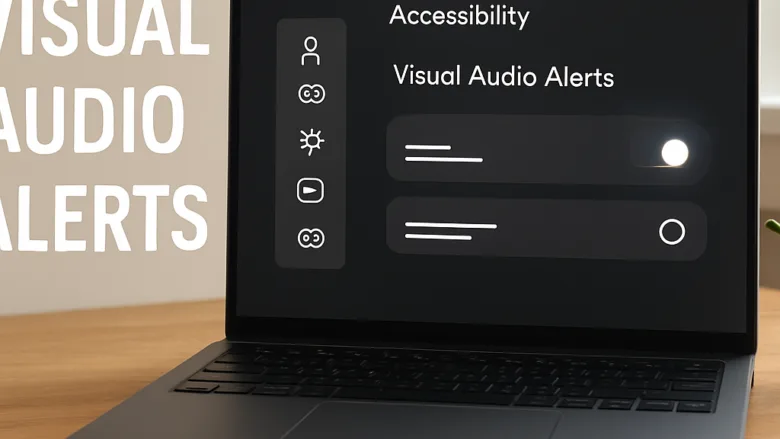
Visual audio alert flashes in Windows 11 are accessibility options that turn system sounds into visual cues, such as a flash of the title bar, the active window or the whole screen. They help you notice audio prompts in a quiet office, when your volume is muted, or when you miss standard sound notifications because of hearing difficulties.
Windows 11 gives you 3 flash types to choose from in the Settings app: the active title bar, the active window, or the entire screen. The feature works the same on Home and Pro, and you don’t need to restart the PC after changing it.
Open Settings with Win+I, click Accessibility, then Hearing. Under Audio, open the dropdown for Flash my screen during audio notifications and choose Flash active title bar, Flash active window, Flash entire screen, or Don’t flash. Your choice applies immediately without restarting.
How to Access Accessibility Settings in 🪟 Windows 11
The Accessibility page is the central place for Windows 11’s visual, hearing and physical assistance tools. This includes text size, contrast themes and the visual audio alerts covered here.
- Press the Win+I on your keyboard. The Settings app opens.
- Look at the left-hand sidebar and scroll down until you see Accessibility.
- Click Accessibility. The right side of the window now lists the assistive features, grouped under headings such as Vision, Hearing and Interaction.
Configuring Visual Notifications for Audio Cues
The flash setting lives on the Hearing page. You can have Windows flash only the title bar of the window you are working in, the whole active window, or the entire screen whenever it plays a sound. Or you can turn the flash off.
- Open Settings with the keyboard shortcut Win+I.
- Click Accessibility in the left sidebar.
- Scroll down the right side of the window and click Hearing. This opens the audio and caption settings.
- Find the Audio section, then open the dropdown menu for the audio notification flash. On current Windows 11 builds it reads Flash my screen during audio notifications. Older builds may word it as flashing the active window.
- Pick your preferred style from the list. The choices are Don’t flash, Flash active title bar, Flash active window and Flash entire screen. This decides which part of the display flashes when an alert sounds.
The change applies right away. To test it, trigger any system sound, such as a notification or a warning chime, and watch the screen. If the flash is too distracting, return to the same dropdown and choose Don’t flash to undo it. If you can’t find the dropdown, make sure you are on the Hearing page and that Windows is fully updated, since older builds lay this page out differently.
Exploring Additional Hearing-Related Accessibility Options
The Hearing page has other options that work well alongside visual flashes, notably mono audio and live captions.
Mono audio combines the left and right stereo channels into a single track. This helps if you use one earbud or have hearing loss in one ear, because you won't miss sounds that were mixed to only one side.
- Open Settings, then Accessibility, then Hearing.
- In the Audio section, switch Mono audio to On.
Switch it back to Off if you later want normal stereo sound.
You can turn them on from the quick settings flyout on the taskbar, or from the Hearing page in Accessibility settings. The first time you use them, Windows may ask to download language files for speech recognition.
Vision-Related Accessibility Enhancements
Vision settings make text and interface elements easier to read. They sit in the same Accessibility menu, under the Vision heading.
- Text size: open Accessibility in Settings and select Text size to make system fonts larger.
- Contrast themes: select Contrast themes to apply high-contrast color combinations that reduce eye strain. The screen may go blank for a moment while the theme applies.
- Mouse pointer visibility options, text cursor indicators, and screen magnification through Magnifier are also under the Vision section.
Every vision change can be undone by returning to the same page and resetting or switching it off.
What to do next
You should now see your chosen visual flash whenever system sounds play on your computer. If nothing flashes, go back to Accessibility Hearing and check that the dropdown is not set to Don't flash.
From here, you can set up live captions for media playback or customize keyboard shortcuts to open your preferred accessibility tools quickly.
Frequently asked questions
How to change alert Sounds on 🪟 Windows 11?
Open Settings and go to Accessibility Hearing. Turn on visual alerts and select Hearing from the left menu. Choose your flash type — full screen, title bar, or window flash — then adjust brightness and duration to suit your preference.
How do I change the visual effects in 🪟 Windows 11?
Go to Settings Accessibility Display to change visual effects like text size, contrast, and color filters. For window animations and transparency, visit Settings System Advanced system settings, then select Visual Effects under Performance options.
Can I customize the alarm sound in 🪟 Windows 11?
Open Settings System Sound Volume mixer. Find the app with the alarm, then click on it to adjust its volume separately. To change the actual alarm tone, open the Clock app, select the alarm, and pick a different sound from the available options.
How to customize Windows sound effects?
Go to Settings System Sound Advanced Volume mixer to control individual app sounds. For system notification sounds, visit Settings Accessibility Hearing to enable or adjust visual alerts instead of relying on audio cues.
Still have a question?
Answered by AI from this guide. Good questions may be added to this page — please don't include personal details.
Did this guide fix your problem?

About the Author
Richard
Tech Writer, IT Professional
Richard is a writer at Geek Rewind who turns complex IT tasks into clear, step-by-step guides. He draws on years of hands-on experience in system administration and enterprise IT operations, focusing on Windows, Linux and WordPress: the problems people actually run into, and the fixes that work. His server and WordPress guides come from systems he runs himself. Richard builds and maintains the platform behind Geek Rewind, from its Ubuntu servers and Nginx configuration to its custom WordPress plugins. Many new tutorials start with readers' questions, and he's always glad to answer them in the comments.
No comments yet — be the first to share your thoughts!