How to Turn On or off Mono Audio in Windows 11

Mono audio in Windows 11 combines the left and right stereo channels into a single track, so both ears hear exactly the same sound. It is an accessibility setting. It helps if you wear only one earbud or headphone, or if you have hearing loss in one ear. With stereo, anything panned to the missing side, such as a voice in a video call or a sound effect in a game, can drop out or get too quiet.
Mono audio mixes all audio together, so it automatically turns off spatial sound on your PC. It applies to the whole system, not to one app. You can switch it on or off from the Settings app, from Quick Settings, or through the registry. The registry method is the one to use if you need to apply it from a script or the other methods aren’t available.
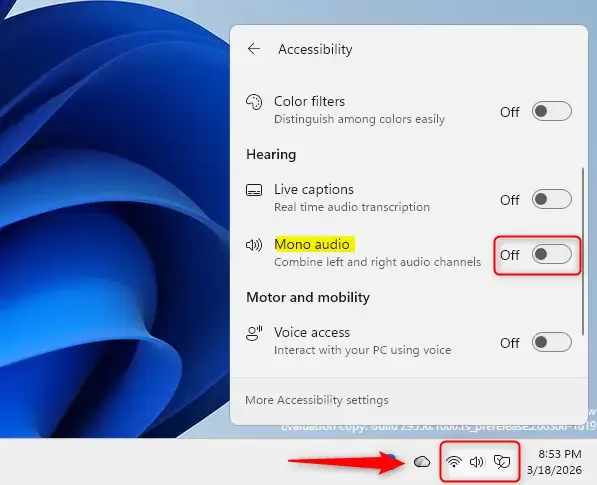
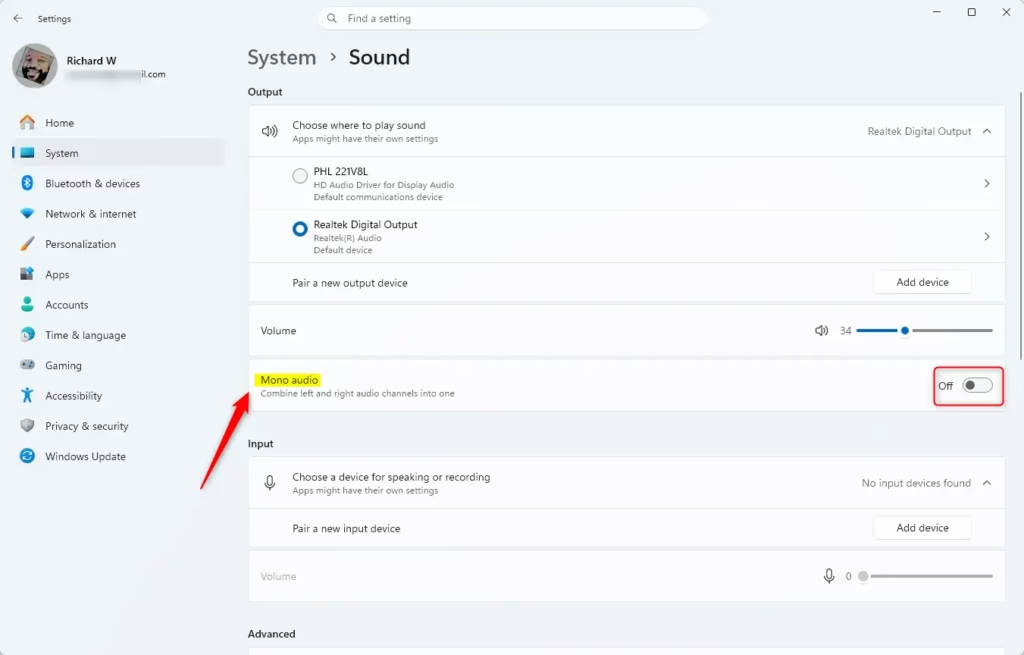
Press Win+A to open Quick Settings, click Accessibility, then toggle Mono audio on or off. The change takes effect immediately. Alternatively, press Win+I, click System Sound, find the Mono audio toggle and switch it as needed.
Option One
Turn On or Off Mono Audio in Quick Settings
This is the fastest method, because you don’t have to open the Settings app at all.
- Press Win+A to open Quick Settings. You can also click the network, volume or battery icons on the right side of the taskbar . A panel with tiles should appear above the taskbar.
- Click Accessibility. A small menu opens with accessibility options, including Mono audio.
- Turn Mono audio on or off, whichever you need. The change takes effect straight away, with no restart. Play something with clearly separated left and right sound to check it.
If you don’t see an Accessibility tile, it has probably been removed from your Quick Settings panel. Click the pencil icon (Edit quick settings) at the bottom of the panel, click Add, choose Accessibility, then click Done. If you still can’t find it, use one of the Settings methods below.
Option Two
Turn On or Off Mono Audio in System Settings
This method uses the Sound page in Settings. It also shows your other output options, such as the volume and the device you are playing through.
- Press Win+I to open Settings .
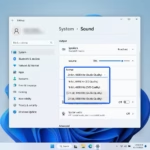
- Click System on the left side. Then click Sound on the right side. You should see a list of your sound settings, with your output devices at the top.
- Find the Output devices area. Turn Mono audio on or off based on what you need. If you can’t see it, scroll down the page. On some Windows 11 builds the toggle sits below the device list, or in the properties of the selected device.
- Close Settings if you like. The change is saved as soon as you flip the toggle.
To undo it, come back to the same page and flip the toggle the other way.

Option Three
Turn On or Off Mono Audio in Accessibility Settings
This is the same switch, but reached through the accessibility pages. Use it if you already work in the accessibility settings or can't find the toggle under Sound.
- Press Win+I to open Settings.
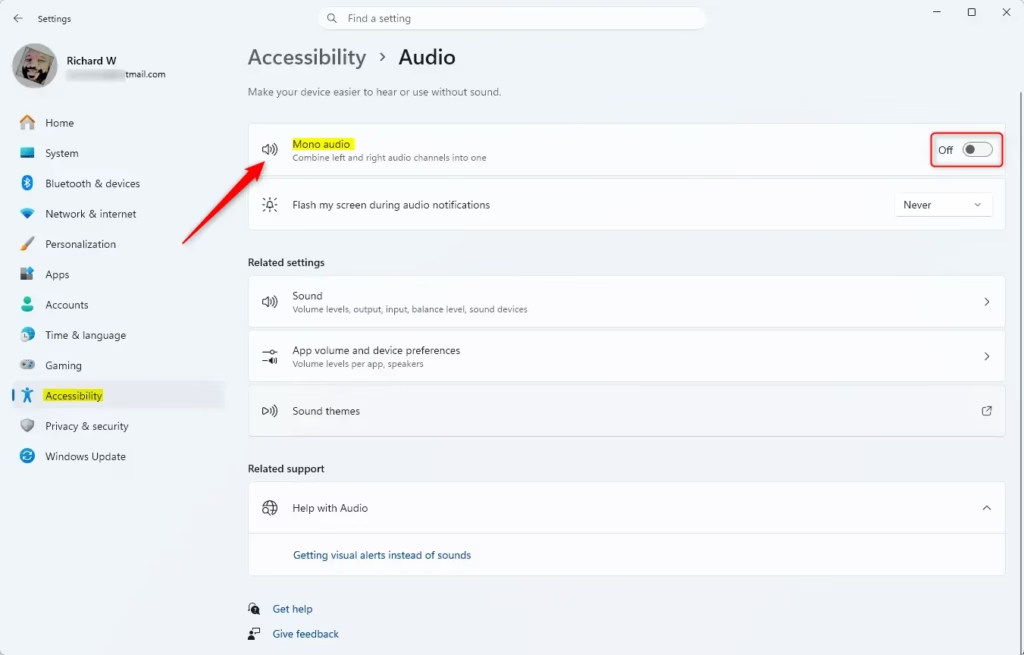
- Click Accessibility on the left side. On the right side, under Hearing, click Audio. You should see the audio options for accessibility on this page.
- Turn Mono audio on or off for what you want. The change applies immediately.
- Close Settings if you like.
The toggle here and the one under System Sound control the same setting. If you change it in one place, the other one follows.
Option Four
Turn On or Off Mono Audio Using Registry
Registry changes affect the whole system, so create a restore point first or back up the registry. That makes it easy to roll back if something goes wrong.
⚠️ Admin privileges required
You must be signed in with an administrator account to make this change. A standard account will be blocked or asked for admin credentials.
Turn On Mono Audio
reg add "HKEY_CURRENT_USER\Software\Microsoft\Multimedia\Audio" /v AccessibilityMonoMixState /t REG_DWORD /d 1 /f
Turn Off Mono Audio
This is the default setting.
Apply the change shown below to turn mono audio off again.
reg add "HKEY_CURRENT_USER\Software\Microsoft\Multimedia\Audio" /v AccessibilityMonoMixState /t REG_DWORD /d 0 /f
If the new value doesn't show up in the Settings app straight away, sign out and back in, or restart the PC. Then check the Mono audio toggle to confirm the change.
Summary
You can turn mono audio on or off in Windows 11 using four different methods, depending on what you prefer.
- Quick Settings: the fastest way, straight from the taskbar.
- System Settings: under Sound, next to your output devices.
- Accessibility Settings: under Hearing and Audio.
- Windows Registry: an advanced option that needs admin rights.
Remember that mono audio turns off spatial sound while it is on. If your sound seems flat after you stop using one earbud, turn mono audio off again.
Was this guide helpful?

About the Author
Richard
Tech Writer, IT Professional
Richard is a writer at Geek Rewind who turns complex IT tasks into clear, step-by-step guides. He draws on years of hands-on experience in system administration and enterprise IT operations, focusing on Windows, Linux and WordPress: the problems people actually run into, and the fixes that work. His server and WordPress guides come from systems he runs himself. Richard builds and maintains the platform behind Geek Rewind, from its Ubuntu servers and Nginx configuration to its custom WordPress plugins. Many new tutorials start with readers' questions, and he's always glad to answer them in the comments.

No comments yet — be the first to share your thoughts!