How to Enable or Disable Spatial Sound in Windows 11

This tutorial shows how to enable or disable Spatial Sound in Windows 11. The change takes effect immediately, so you don’t need to restart. It applies to one output device at a time, so repeat the steps for each device you use.
Open Settings, navigate to System Sound, select your output device, and choose Off or Windows Sonic for Headphones from the Spatial audio menu. Alternatively, use the Control Panel’s Sound settings or the Quick Settings Volume Mixer.
What is Spatial Sound?
Spatial sound builds a three-dimensional virtual soundscape. It places audio cues above and around you, not just to the left and right, so games, movies, and music feel more realistic. It works best with headphones, but you can also use it with supported speakers and home theater setups.
The feature works on both Windows 11 Home and Pro. Windows Sonic for Headphones is built in and free. Other formats, such as Dolby Atmos for Headphones, usually need an app installed from the Microsoft Store, and some may require a license or purchase.
Reference:
Spatial Sound for app developers for Windows, Xbox, and HoloLens 2. is Microsoft’s platform-level spatial sound solution for Xbox, Windows, and HoloLens 2. It enables surround and elevation audio cues.
Spatial Sound Tooltip on Volume Icon
The spatial sound tooltip on the volume icon is available starting with Windows 11 build 22598. Starting with build 25231, when you hover over the sound icon in Quick Settings, the tooltip shows when spatial audio is actually in use, not just that it is enabled. If you don’t see the tooltip, check your build number with Win+R and winver. An older build won’t show it.
Option 1Enable or Disable Spatial Sound in Settings
- Open Settings by pressing Win+I.
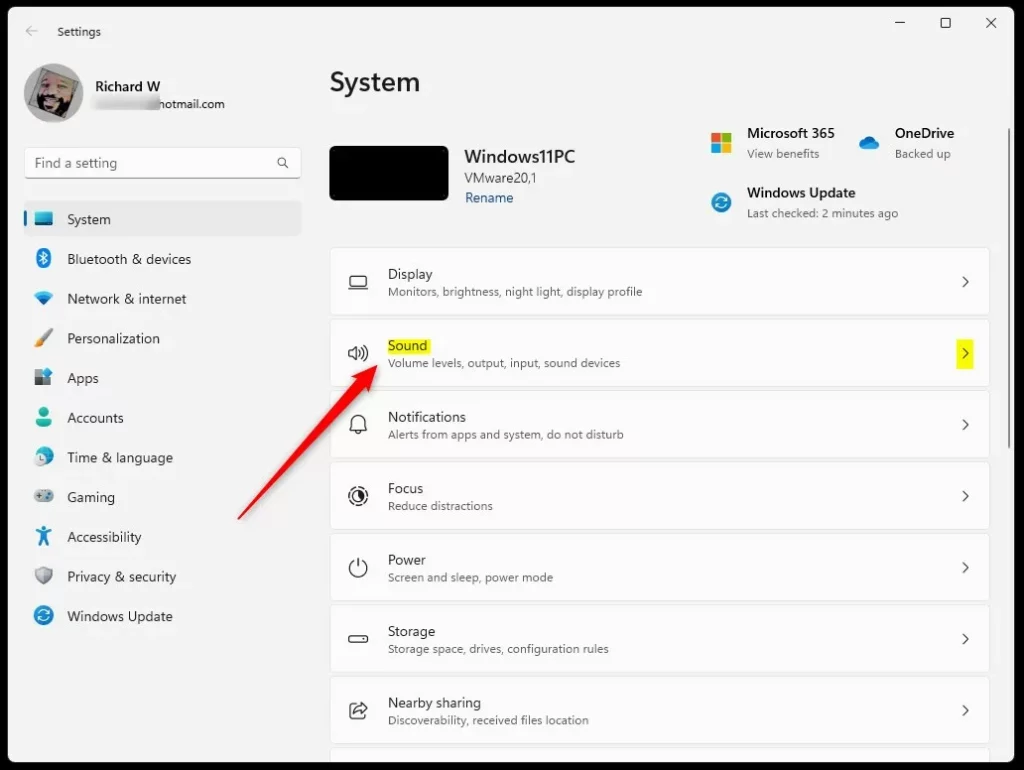
- Click System on the left side. Then click Sound on the right side. You should now see the Sound page with your output and input devices listed.
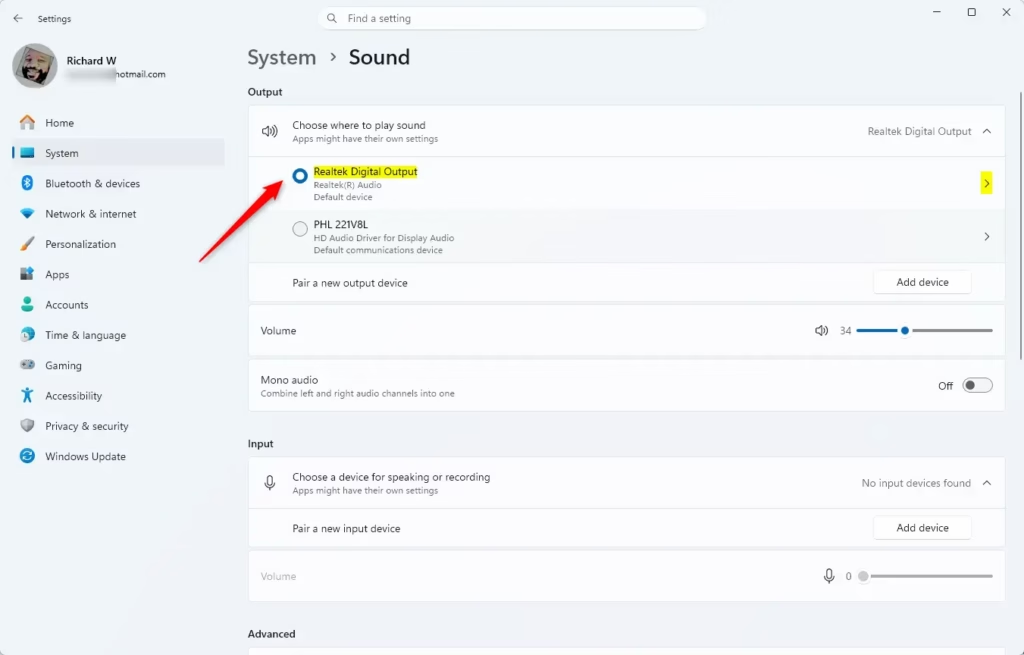
- Under Output devices, click the sound device you want to change, for example “Digital Audio (S/PDIF)”. The properties page for that device opens.
If the device you want isn’t listed, make sure it is plugged in and powered on. Disabled devices don’t appear here.
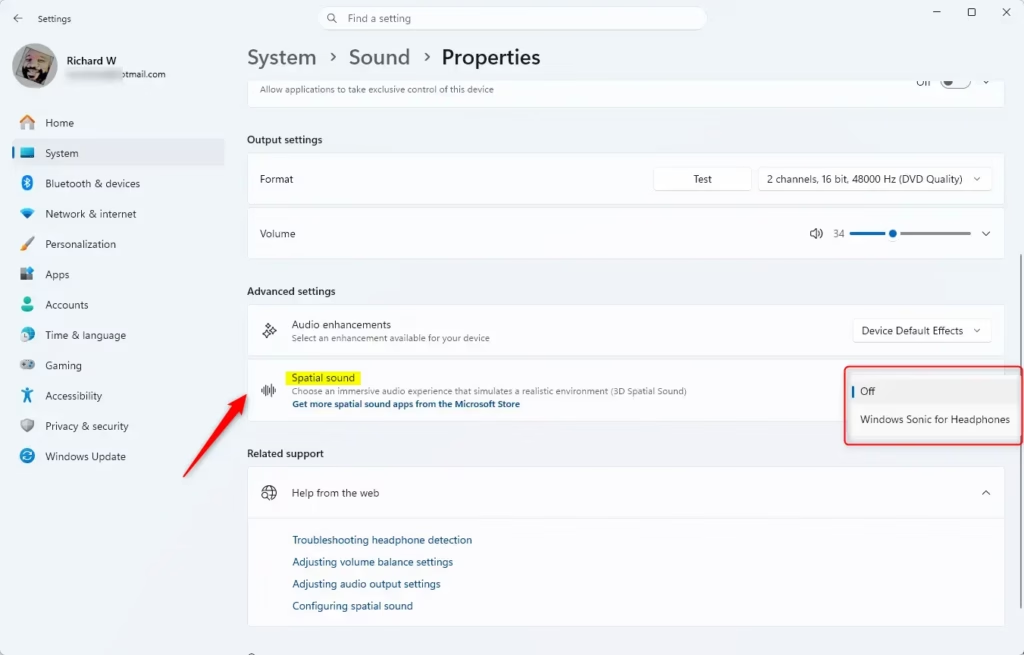
- In the Spatial audio drop-down menu, pick the option you want:
- Off disables spatial sound. This is the default.
- Windows Sonic for Headphones enables spatial sound.
If you have installed a Store app such as Dolby Atmos for Headphones, it will also appear in this list. If the Spatial audio setting is greyed out or missing, check whether mono audio is turned on. With mono audio on, Windows blocks spatial sound, including Windows Sonic for Headphones and Dolby Atmos. Turn mono audio off in the Accessibility audio settings, then come back to this page. Some devices, such as certain HDMI or S/PDIF outputs, may not offer every option.
To undo the change, return to this page and select the previous option.
- Close Settings if you like. The change is already saved.
Option 2Enable or Disable Spatial Sound in Control Panel
You can also change these settings using the classic Control Panel. Open the Control Panel (icons view), and click/tap on the Sound icon.- Open the Control Panel (icons view), and click/tap on the Sound icon.
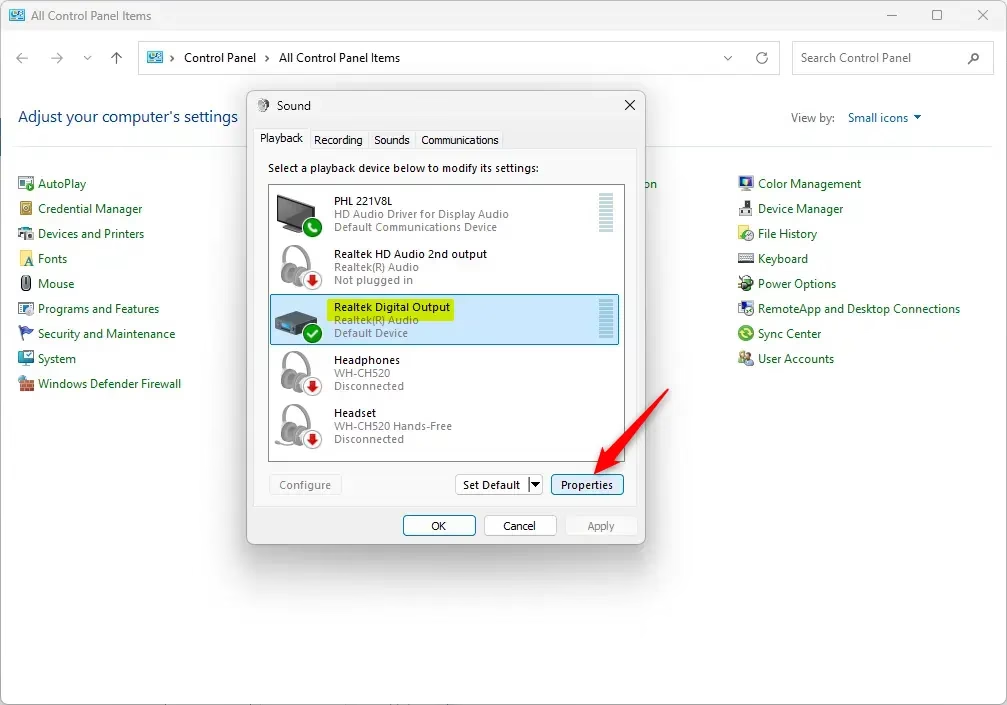
- In the Playback tab, select the device (ex: “Digital Audio (S/PDIF)”) you want to enable or disable spatial sound for, and click/tap on Properties. (see screenshot below)
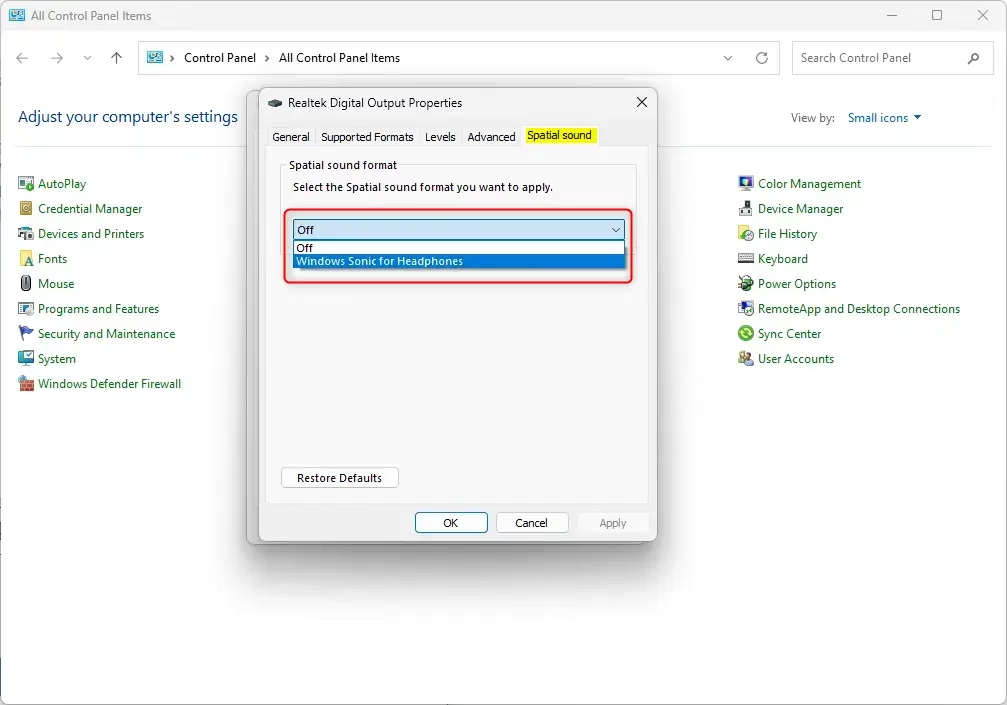
- Click/tap on the Spatial sound tab, select Off (disable – default) or Windows Sonic for Headphones (enable) for what you want in the Spatial sound format drop menu, and click/tap on OK. (see screenshot below)
- Click/tap on OK.
- You can now close the Control Panel if you like.
Option 3Enable or Disable Spatial Sound in Quick Settings Volume Mixer
For Windows 11 version 22H2 and newer, you can quickly turn spatial sound on or off using the Quick Settings volume mixer. Press Win+Ctrl+V or open Quick Settings (Win+A) to access and select your preferred spatial audio option.
Perform one of the following actions:
- Press the Win+Ctrl+V keys.
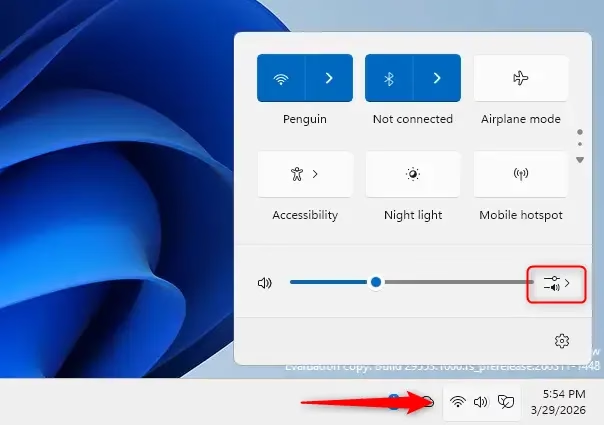
- Open Quick Settings (Win+A), and click/tap on the Select a sound output button. (see screenshot below)
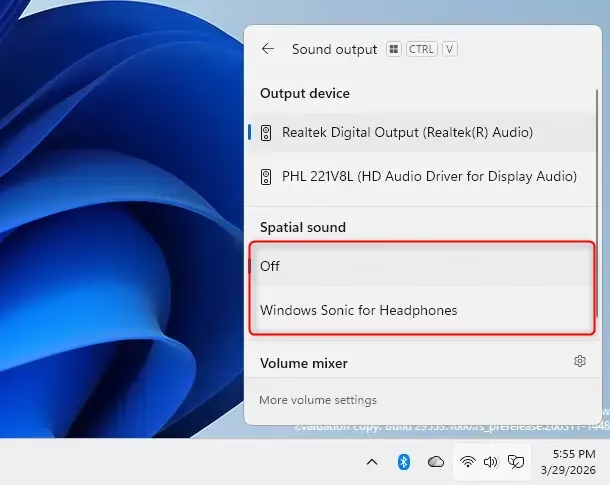
- Select Off (disable – default) or Windows Sonic for Headphones (enable) for what you want under Spatial Audio.
That’s it!
Summary
Spatial sound in Windows 11 gives you a 3D audio experience. You can turn it on or off using Settings, Control Panel, or Quick Settings by choosing ‘Windows Sonic for Headphones’ or ‘Off’ for your audio device.
Have a question about this guide?
Answered by AI from this guide. Good questions may be added to this page — please don't include personal details.
Did this guide fix your problem?

About the Author
Richard
Tech Writer, IT Professional
Richard is a writer at Geek Rewind who turns complex IT tasks into clear, step-by-step guides. He draws on years of hands-on experience in system administration and enterprise IT operations, focusing on Windows, Linux and WordPress: the problems people actually run into, and the fixes that work. His server and WordPress guides come from systems he runs himself. Richard builds and maintains the platform behind Geek Rewind, from its Ubuntu servers and Nginx configuration to its custom WordPress plugins. Many new tutorials start with readers' questions, and he's always glad to answer them in the comments.
No comments yet — be the first to share your thoughts!