How to Disable Audio Output on Windows 11

Disabling audio output in Windows 11 stops sound from playing through a specific pair of speakers, headphones or a monitor, and you don’t have to unplug anything. Windows 11 has built-in sound settings that turn off individual playback devices. This tutorial covers four ways to do it, from the simplest to the most advanced, and also shows how to mute a single app without touching the hardware.
You can disable audio output on Windows 11 through Sound settings by preventing apps from using the device, or by using the Sound Control Panel to right-click and select Disable. This stops sound from playing through unwanted speakers or headphones.
Why disable audio output?
Disabling a sound device stops Windows from sending audio to that hardware. The device stays physically connected, but it goes silent and Windows no longer offers it as an output. This is a quick way to change your audio setup without touching any cables.
It works the same on Windows 11 Home and Pro, and you don’t need a restart. You may need a standard administrator account for some methods. Any app that is already playing sound through the device may need to be reopened before it switches to another output.
What happens when done?
Once a device is disabled, it disappears from the list of available sound output options, so you can’t pick it by accident. You can reactivate it later by following the same steps and choosing the opposite option. In the Settings app that is Allow, and in the classic Sound window it is Enable.
If you can’t find the device afterwards, it has not been removed. Windows hides disabled devices in some views. Section by section below, I point out where to look for them.
How to turn off a sound device via Settings
The easiest way to disable an audio device is through the Settings app. Open Settings, go to System Sound, pick the device you want to turn off, and block apps and Windows from using it. This is the first method to try, and it is the safest, because you can undo it with one click.
- Open the Settings app. You can press the Windows key + I on your keyboard to open it quickly. The Settings window should appear with a list of categories on the left. Official Microsoft Support
- Click System in the left menu. The System options appear on the right.
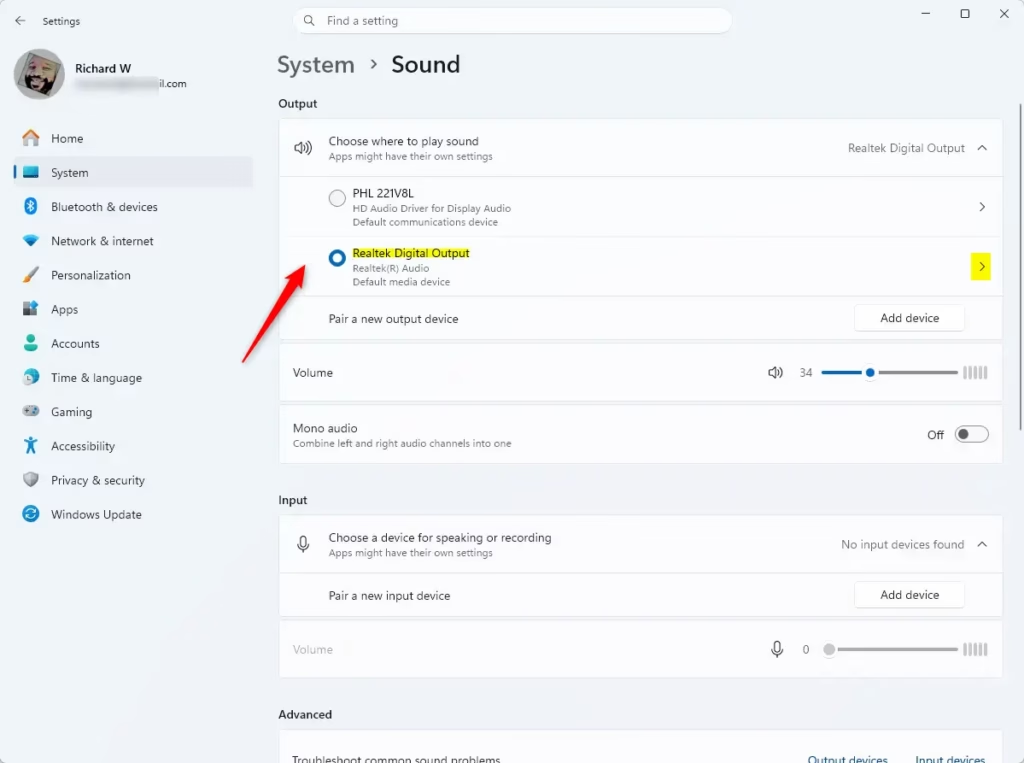
- Select Sound on the right side of the screen. You should now see the Output section, which lists your speakers, headphones and any other playback devices Windows currently detects.

Next, find the device you want to stop. Check the name carefully. Many PCs list several outputs that look alike, such as speakers, a headset, and one entry for each HDMI or DisplayPort monitor. If you can't tell which is which, play some audio and watch which device's volume bar moves.
- Under the Output section, click the small arrow next to the device name. The properties page for that device opens, with its settings and test options.

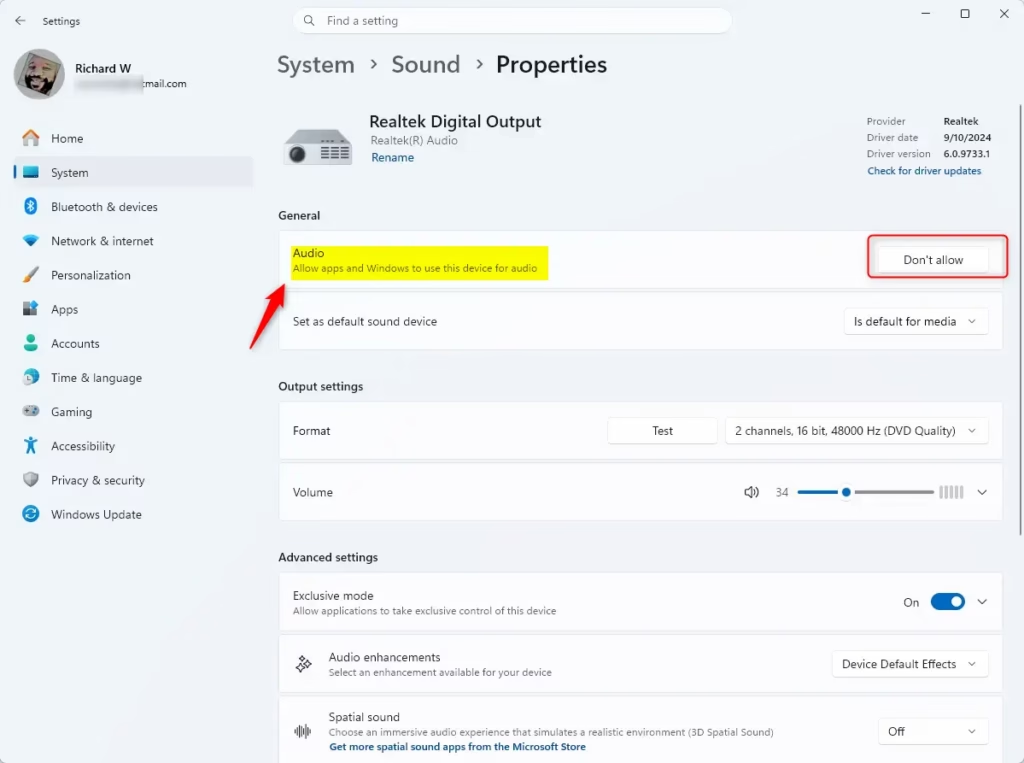
Now, look for the General settings for that device. This is where Windows lets you block the device from being used at all.
- Find the option that says Allow apps and Windows to use this device for audio.
- Click the Don't allow button. The device stops receiving audio and no longer appears in the normal list of outputs.
To turn the device back on, go back to Settings System Sound and look for the device in the list of all sound devices (in recent Windows 11 versions this is under All sound devices). Open it and click Allow. The exact layout varies a little between Windows 11 releases. If you don't see a disabled device, update Windows or use the classic Sound window in the next section.
If the option is missing or greyed out, the device may be disconnected (a Bluetooth headset that is switched off, for example), or its driver may not support this setting. In that case use the classic Sound window instead.
Advanced Method: Using the Sound Control Panel
The classic Sound Control Panel is a good alternative when the Settings app doesn't show the option or doesn't behave. Press the Windows key + R, type mmsys.cpl, and press Enter. In the window that opens, you can right-click any playback device and disable it. The setting stays in place until you enable the device again, including after a restart.
- Press Windows key + R, type mmsys.cpl, and press Enter. The Sound window opens on the Playback tab, listing your output devices.
- Right-click the device you wish to disable. A short context menu appears.
- Select Disable. The device turns grey, or disappears from the list, depending on your view settings.
To bring the device back, open the same window, right-click an empty area of the list, and tick Show Disabled Devices. Then right-click the device and select Enable.
Stick to disabling secondary output devices, such as an HDMI monitor you don't use for sound.
Advanced Management: PowerShell and Registry
You can disable audio hardware from PowerShell or the command line when you need to script the change or when a driver ignores the other methods. This advanced method requires an administrator window, so open Terminal or Command Prompt with Run as administrator. It uses the pnputil tool to target a specific device and force it into an inactive state. Use the command below with the instance ID of your own device, not someone else's.
pnputil /disable-device "DeviceInstancePath"
Look up the correct device ID first, because disabling the wrong device can silence your whole system. To undo the change, run the matching enable command for the same device. A restart is usually not needed, but it can help if the device doesn't respond right away.
You can also tweak registry keys to force device states, though this is risky. Registry paths like HKEY_LOCAL_MACHINE\SOFTWARE\Microsoft\Windows\CurrentVersion\MMDevices control these settings. A wrong edit can break audio for every app, so back up the key first (File Export in Registry Editor), work from an administrator account, and restart afterwards. For most people the Settings app or the Sound window is the better choice.
How to disable audio output for specific applications
If you only want to mute sound for a single app, don't disable the hardware. Use the Volume Mixer instead. The device keeps working for everything else, so you can silence a browser and still hear your music player or calls.
- Right-click the speaker icon in the taskbar. A small menu opens above it.
- Select Open volume mixer. The mixer lists the apps that are currently running and able to play sound.
- Adjust the slider for the specific app to zero or mute it. The change takes effect immediately and only affects that app. If you don't see the app, start playing sound in it first so it shows up in the list.
Summary
You can manage your sound devices in Windows 11 without unplugging any hardware. Disable audio output through Settings System Sound for the quickest, easily reversible change. Use the classic Sound Control Panel when Settings doesn't offer the option. Keep the command line and registry for scripting or stubborn drivers. For a single noisy app, use the Volume Mixer instead of switching off the device.
Have a question about this guide?
Answered by AI from this guide. Good questions may be added to this page — please don't include personal details.
Did this guide fix your problem?

About the Author
Richard
Tech Writer, IT Professional
Richard is a writer at Geek Rewind who turns complex IT tasks into clear, step-by-step guides. He draws on years of hands-on experience in system administration and enterprise IT operations, focusing on Windows, Linux and WordPress: the problems people actually run into, and the fixes that work. His server and WordPress guides come from systems he runs himself. Richard builds and maintains the platform behind Geek Rewind, from its Ubuntu servers and Nginx configuration to its custom WordPress plugins. Many new tutorials start with readers' questions, and he's always glad to answer them in the comments.
My audio divices dissapear from the list when i disable them so i cant turn them back on …
I had the same issue, you can find them here:
System > Sound > Advanced > All sound devices
I cant allow my soundbar and it also shows disconnected in Sound Options under Control Panel even though its paired on my Bluetooth devices