Why Your Mouse Pointer Drifts or Moves Erratically in Windows 11

A drifting or jumpy mouse pointer in Windows 11 usually comes from one of four causes: a dirty sensor, a driver problem, wireless interference, or a touchpad that is still on and fighting with your mouse. For many people the fix is simply turning off Enhanced pointer precision and checking the touchpad settings. You don’t need to reinstall drivers or open Device Manager for that.
Start with the quick settings checks. They take a couple of minutes and often solve it. If they don’t, move on to driver and hardware troubleshooting, then to less obvious causes like USB power settings and background apps. Working in this order saves time, because you rule out the easy fixes before you reach for a reinstall.
A mouse pointer drifts or jumps in Windows 11 most often because of Enhanced pointer precision, a dirty sensor, a faulty driver, wireless interference, or a laptop touchpad still active alongside your mouse. To fix it, open Settings , go to Bluetooth & devices Mouse Additional mouse settings, clear Enhanced pointer precision on the Pointer Options tab, then click Apply.
Rule Out Hardware vs. Software First
The test takes a couple of minutes and tells you which half of this article to focus on.
- Plug in or pair a different mouse. Any spare mouse works. A wired one is best for this test because it removes wireless interference as a variable. If the drift stops with the other mouse, the problem is your original mouse or its receiver (the USB dongle or the Bluetooth connection), not Windows. If the second mouse drifts too, the problem is on the Windows side: a driver, a setting, or interference. In that case you can skip the sections on cleaning the sensor and replacing batteries.
- Try the original mouse on a different computer if you have one handy. If it still drifts there, the mouse is faulty and no Windows setting will fix it.
Turn Off Enhanced Pointer Precision
Enhanced pointer precision changes how far the cursor moves based on how fast you move the mouse. For some people this feels like drift or “jumping”, especially after a Windows update resets mouse settings to their defaults. Turning it off makes the cursor track distance consistently, with no acceleration.
- Open Settings . Press Win+I, or right-click the Start button and choose Settings.

Windows 11 Start menu with Settings gear icon highlighted. - Go to Bluetooth & devices Mouse You should see a slider for Mouse pointer speed, plus options for the primary button and scrolling.
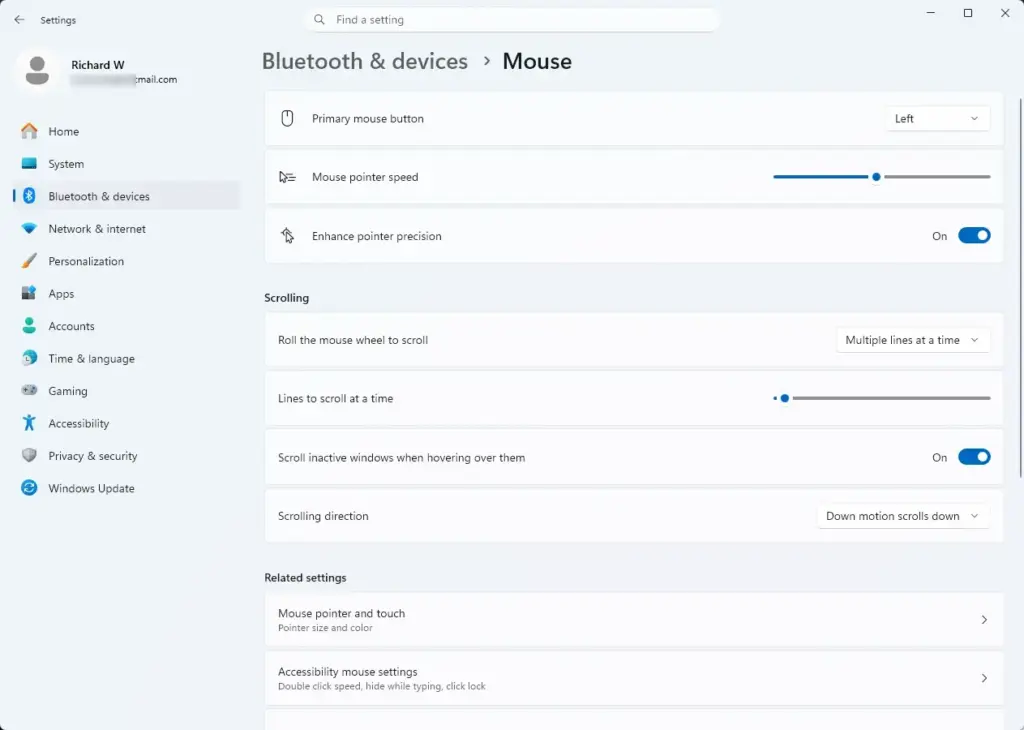
Settings › Bluetooth › Mouse - Check the Mouse pointer speed slider. The default sits around the middle (10 out of 20). If it is set very high, small hand movements send the cursor a long way and it can feel like drift. Lower it a few notches and test.
- Select Additional mouse settings, near the bottom of the page. This opens the older Mouse Properties dialog box. Windows 11 still uses it for pointer options that haven’t moved into the new Settings app .
- Click the Pointer Options tab at the top of the dialog box.
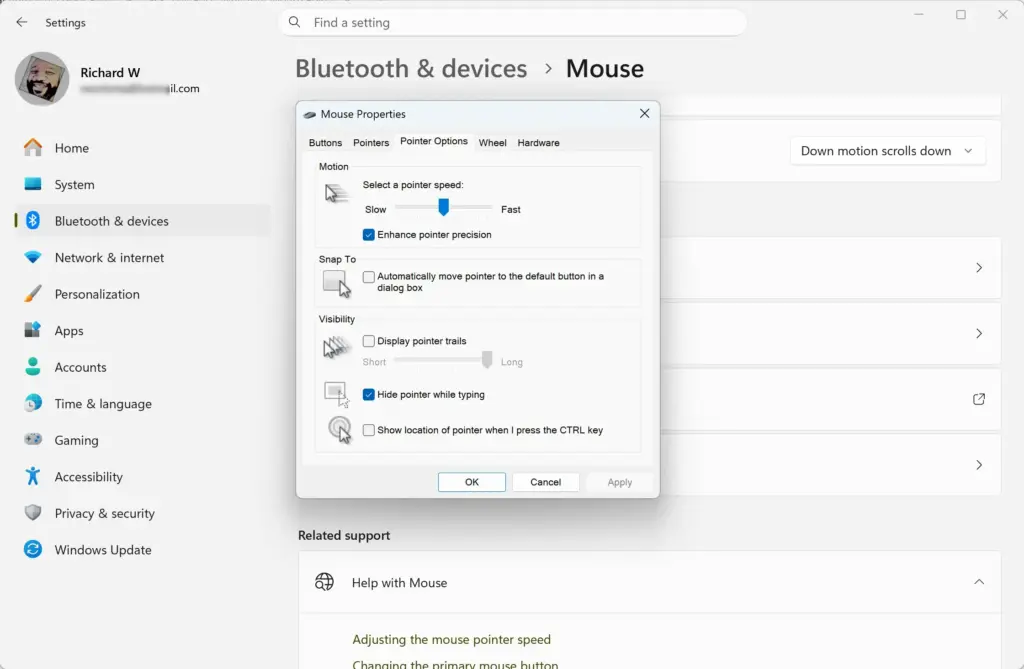
- Clear the checkbox next to “Enhanced pointer precision” under Motion, then click Apply and OK. The change applies immediately, so you don’t need to restart to test it.
Two more things can make a mouse feel like it is drifting even when Windows is fine. First, many gaming and office mice have a DPI button, usually just behind the scroll wheel, that cycles through sensitivity levels. A high DPI means a tiny movement covers a lot of screen. Press it and watch whether the cursor speed changes. If the mouse came with manufacturer software, check the DPI value there too, since it can override the button. Keep your DPI and the Windows pointer speed slider from both being set high at once, because they multiply each other.
Second, Windows 11 has a page at Settings Accessibility Mouse pointer and touch. It controls how the pointer looks, including its style, size and color. It doesn’t change how the pointer tracks, but it’s worth a quick look in case someone changed the pointer to something that looks wrong or hard to follow.
If the cursor still drifts with Enhanced pointer precision off, that setting wasn’t your problem. Move on to the touchpad and driver checks below. If you want the acceleration back later, repeat these steps and tick the box again.
Check for a Touchpad Still Fighting Your Mouse
On a laptop, an active touchpad can register accidental taps or palm contact while you type. This sends stray clicks and movement that look exactly like a mouse glitch, especially if you rest your wrist near the touchpad while using a separate USB or Bluetooth mouse.
- Open Settings and go to Bluetooth & devices Touchpad
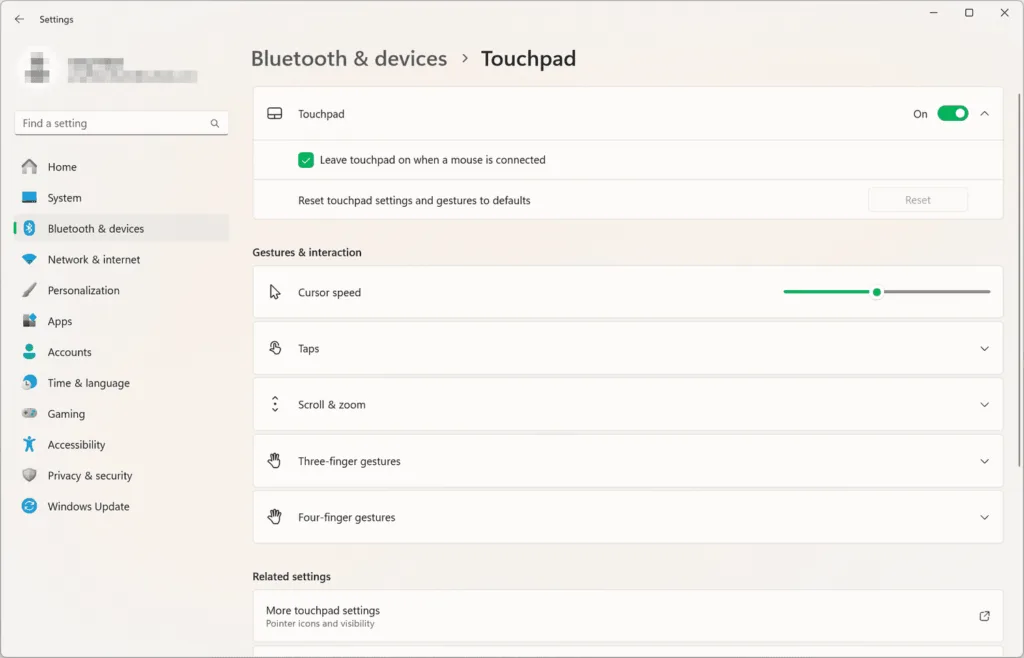
Settings › Bluetooth › Touchpad - Turn the toggle at the top off if you only use an external mouse. The touchpad options below it grey out, which confirms the touchpad is disabled.
- Look for “Leave touchpad on when a mouse is connected” on the Touchpad page if you want to use both. Unchecking it stops the touchpad from staying active once Windows detects an external mouse plugged in or paired.
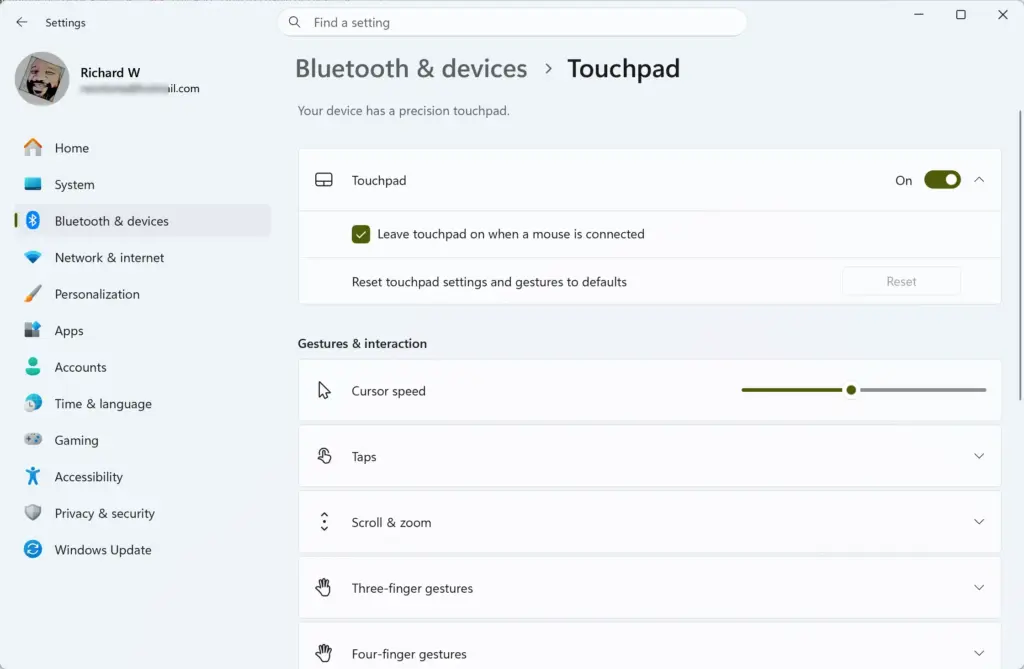
If you would rather keep the touchpad on, expand the Taps section on the same page and try a lower touchpad sensitivity, or turn off tap-to-click. That often stops accidental palm touches without disabling the touchpad completely.
If this page shows no touchpad at all, you’re either on a desktop or your laptop’s touchpad driver isn’t installed correctly. Check Device Manager in the next section.
Update or Reinstall the Mouse Driver
A corrupted or outdated driver can send bad position data to Windows. The result is jumps, drift toward one edge of the screen, or a cursor that freezes and then skips forward. Uninstalling or changing a driver in Device Manager may prompt for administrator approval (UAC).
- Check Windows Update for driver updates first. Go to Settings Windows Update Advanced options Optional updates If a Driver updates entry is listed, expand it and look for a mouse, touchpad or HID item. Tick it and select Download & install. If nothing is listed, there is simply no driver update on offer there.
- Get the latest driver from the manufacturer. For a laptop touchpad, go to the laptop maker’s support page and download the touchpad driver for your exact model. For a mouse, use the mouse maker’s site. This matters because Windows only offers drivers it has on file, and these are often older than the ones the manufacturer publishes.
- Right-click the Start button and choose Device Manager.
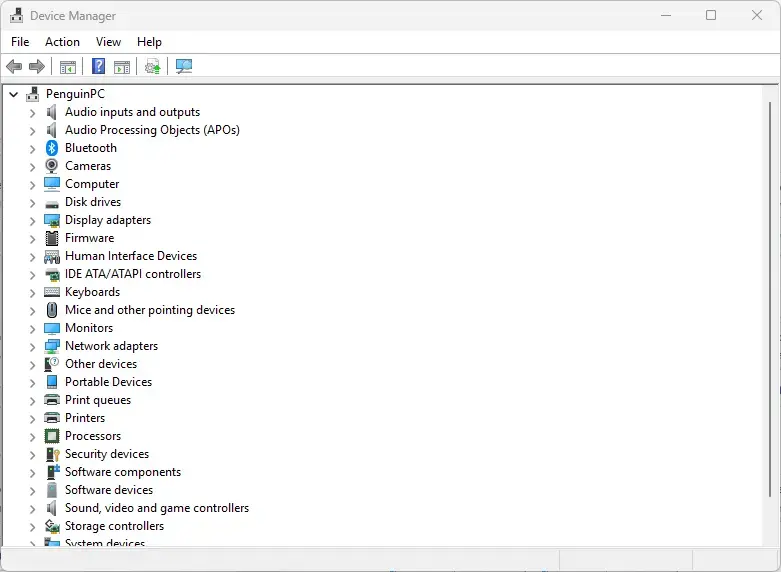
Windows 11 Device Manager window showing hardware and drivers. - Expand “Mice and other pointing devices” by clicking the arrow next to it. You’ll see your mouse listed, sometimes under a generic name like “HID-compliant mouse” instead of the manufacturer’s model name.
- Right-click your mouse entry and select “Update driver”, then choose Search automatically for drivers. If Windows says “The best drivers for your device are already installed,” it only means Windows found nothing newer in its own sources. It does not mean you have the latest driver, so don’t rule the driver out yet. This is why the manufacturer download in step 2 is worth doing.
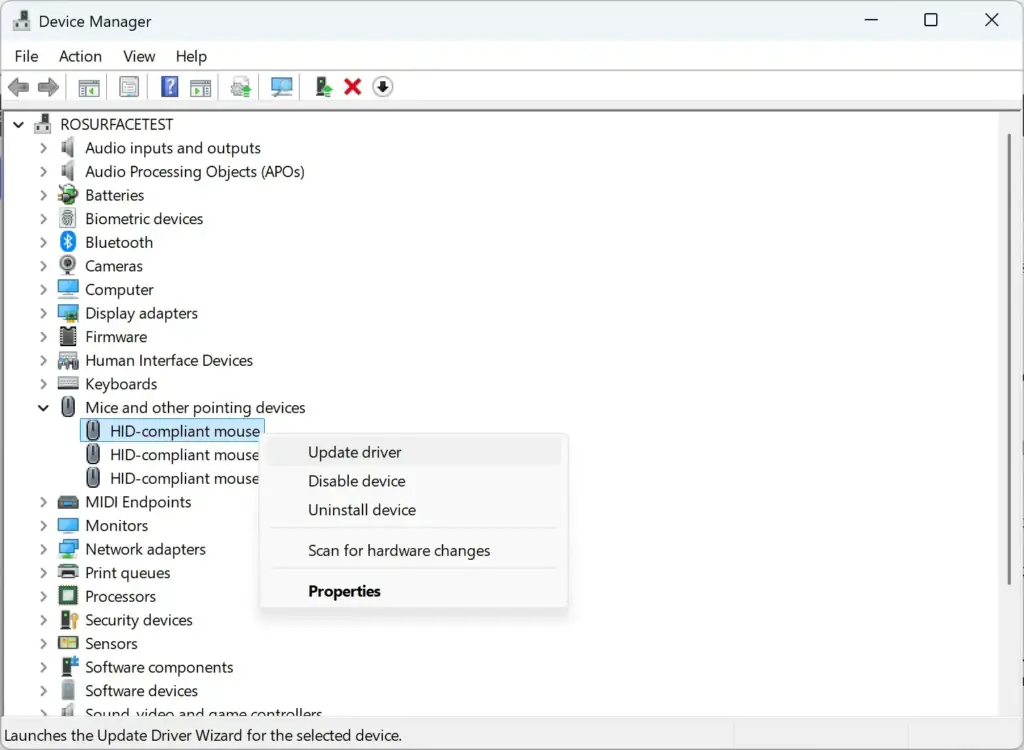
- If updating doesn’t help, right-click the device again and select “Uninstall device.” Confirm the prompt if asked. Windows removes the driver immediately. Don’t do this on a desktop with no other pointing device attached unless you’re comfortable getting around with the keyboard alone, because you will briefly have no mouse at all.
- Unplug the mouse (or its USB receiver), wait a few seconds, then plug it back in. Windows reinstalls the driver automatically. You’ll see a brief notification in the bottom-right corner confirming the device was set up. If you installed a manufacturer driver, run its installer now instead.
If you have the manufacturer’s own software installed (Logitech, Razer, Microsoft Mouse and Keyboard Center, etc.), check there too. A corrupted profile in that software can override Windows settings and cause the same symptoms. Uninstalling and reinstalling the manufacturer’s software is often faster than hunting through its settings for the broken option.
Check for Wireless Interference
Wireless mice, especially cheaper ones that use a 2.4GHz USB receiver, are sensitive to interference from other wireless devices. If you see bursts of drift or jumps instead of constant movement, wireless interference is a likely cause.
- Move the USB receiver closer to the mouse, or plug it into a USB extension cable so it isn’t sitting behind a metal PC case, which blocks the signal.
- Unplug other USB 3.0 devices nearby for a test. USB 3.0 ports and cables are a known source of interference with 2.4GHz receivers sitting close to them.
- Move other wireless devices away, including Wi-Fi routers, other wireless mice or keyboards, and Bluetooth speakers, if the receiver and mouse are near them.
- Replace the batteries if the mouse is battery-powered. A low battery often causes exactly this symptom. The mouse still works, but the cursor skips or drifts because the signal is weak, well before the mouse dies completely.
If you’re using a Bluetooth mouse rather than a USB receiver, try removing and re-pairing it. Go to Settings Bluetooth & devices, click the three dots next to the mouse, choose Remove device, then pair it again with the Add device button at the top of that page. The mouse needs to be in pairing mode, so check its manual if it doesn’t show up.
Clean the Sensor and Check the Surface
Optical and laser mice read movement by tracking the surface underneath them. Dust, hair, or a reflective or glass surface can confuse the sensor and cause jittery or drifting movement that has nothing to do with Windows.
- Turn the mouse over and check the sensor lens for dust, lint, or a hair stuck across it.
- Wipe the sensor gently with a dry cotton swab. Don’t use liquid near the sensor opening.
- Switch to a plain, matte mouse pad if you’re using the mouse directly on a glass desk, a glossy surface, or a patterned mat. Glossy and transparent surfaces are the most common cause of erratic optical tracking.
Rule Out Background Software and Malware
Remote access and screen-sharing tools such as TeamViewer, AnyDesk and Remote Desktop can move the cursor if a session is active or misconfigured, and this is easy to mistake for a hardware fault. Malware that takes remote control of a machine can do the same thing, though that is far less common than a simple software conflict.
- Open Task Manager by pressing Ctrl+Shift+Esc, and check the Processes tab for any remote access software you don’t remember installing or running.
- Close or uninstall any remote access tool you’re not actively using. Some of these run quietly in the background even when you’re not in a session.
- Run a full scan with Windows Security if you don’t recognize anything unusual but still suspect malware. Open Settings , go to Privacy & security Windows Security Virus & threat protection, and choose Scan options. Select Full scan, then click Scan now. A full scan takes much longer than the quick scan, so let it finish.
Before you run an offline scan, save your work and close your apps. If you suspect someone is controlling your PC remotely, or the full scan finds nothing but the cursor still moves on its own, use the offline scan as well. It runs outside normal Windows, so it can catch malware that hides while Windows is running. The scan restarts your computer, and Windows may show a warning before it does. It usually takes around 15 minutes.
- Go back to Scan options in Virus & threat protection.
- Select “Microsoft Defender Antivirus (offline scan)”, then click Scan now.
- Confirm the prompt. The PC restarts into a blue scanning screen. When the scan is done, Windows starts normally. You can read the result in Virus & threat protection under Protection history.
Test in Safe Mode
Safe Mode loads Windows with only essential drivers running. That tells you whether a third-party driver or background app is causing the drift, since almost everything else is switched off. If the cursor behaves normally in Safe Mode, something you've installed is the cause. If it still drifts, you're looking at a Windows setting, a core driver, or a hardware issue that Safe Mode won't hide.
- Open Settings and go to System Recovery
- Select "Restart now" next to Advanced startup, then confirm. Your PC restarts and shows a blue Choose an option screen. If the drive is encrypted with BitLocker, Windows may ask for your recovery key at this point, so have it available.
- Select Troubleshoot Advanced options Startup Settings, then click Restart.
- Press 4 or F4 on the list that appears to start Windows in Safe Mode. Move the mouse around and see whether the problem still happens.
- Restart normally when you're done testing. Safe Mode ends the next time you reboot without choosing anything special.
Check USB Selective Suspend
On laptops, Windows can power down idle USB ports to save battery. This setting occasionally makes a wireless receiver or wired mouse disconnect and reconnect for a moment, which looks like a jump or skip rather than smooth movement.
- Open Control Panel and go to Hardware and Sound Power Options
- Click "Change plan settings" next to your selected power plan, then click Change advanced power settings. A small Power Options window opens.
- Expand "USB settings" and then "USB selective suspend setting."
- Set both "On battery" and "Plugged in" to Disabled, then click Apply and OK. On a desktop you will usually see only "Plugged in". The change takes effect right away, with no restart. On a laptop, leaving this disabled permanently uses slightly more battery, so switch it back to Enabled later if you don't need the fix anymore.
What If Nothing Above Fixes It
If you've tried a different mouse, disabled Enhanced pointer precision, and reinstalled the driver, and the cursor still drifts, treat it as a hardware fault. The most likely culprits are the mouse itself, a failing USB port, or, less often, a graphics driver issue causing rendering glitches that look like cursor movement. Testing the mouse on another PC, as described at the start of this article, is the fastest way to confirm which side the fault is on before you spend money on hardware. If a second PC shows the same drift with the same mouse, replace the mouse or its receiver rather than troubleshooting Windows further.
What to Do Next
If you've traced the problem to a driver conflict rather than the mouse hardware, check Device Manager now and then after Windows updates. A feature update can occasionally reset mouse settings or install a generic driver over the manufacturer's one. If the fix involved disabling the touchpad and you later want both devices working together without interference, go back to the Touchpad page in Settings and adjust sensitivity instead of leaving the touchpad off entirely.
Frequently asked questions
Why does my mouse behave erratically in 🪟 Windows 11?
A drifting mouse in Windows 11 usually comes from a dirty sensor, a driver issue, wireless interference, or your touchpad interfering with the mouse. Start by testing with a different mouse to see if the problem follows it. Then check Enhanced pointer precision in Mouse settings and make sure your touchpad is off if you're using an external mouse.
Why is my mouse cursor moving erratically?
Erratic cursor movement typically means your mouse sensor is dirty, the driver needs updating, or wireless signals are interfering. If you're using a laptop, your touchpad might be fighting with the mouse. Disable Enhanced pointer precision in Settings Bluetooth and devices > Mouse, then test with a clean mouse or different device.
Why is my mouse moving inconsistently?
Inconsistent mouse movement usually points to a dirty sensor, outdated drivers, or wireless interference. Test with a different mouse first—if it behaves normally, your original mouse has a hardware problem. If the new mouse drifts too, turn off Enhanced pointer precision and check that your touchpad isn't active alongside your external mouse.
How can I fix the cursor jumping around while typing in 🪟 Windows 11?
Cursor jumping while typing often means your touchpad is still enabled and responding to accidental touches while your hands are on the keyboard. Disable it in Settings Bluetooth and devices > Touchpad. If that doesn't help, turn off Enhanced pointer precision in Mouse settings, or test with a wired mouse to rule out wireless interference.
Still have a question?
Answered by AI from this guide. Good questions may be added to this page — please don't include personal details.
Did this guide fix your problem?

About the Author
Richard
Tech Writer, IT Professional
Richard is a writer at Geek Rewind who turns complex IT tasks into clear, step-by-step guides. He draws on years of hands-on experience in system administration and enterprise IT operations, focusing on Windows, Linux and WordPress: the problems people actually run into, and the fixes that work. His server and WordPress guides come from systems he runs himself. Richard builds and maintains the platform behind Geek Rewind, from its Ubuntu servers and Nginx configuration to its custom WordPress plugins. Many new tutorials start with readers' questions, and he's always glad to answer them in the comments.
No comments yet — be the first to share your thoughts!