How to Enable or Disable the Touchpad in Windows 11 Settings

Touchpad settings in Windows 11 are at Settings Bluetooth & devices Touchpad To turn the touchpad on or off, flip the toggle at the top of that page. The change takes effect right away, with no restart or sign-out.
This works for most people who want to switch the touchpad off when they plug in a mouse, or back on afterwards. But the toggle sometimes won’t show up, won’t stay off, or isn’t the right tool for the job. This guide covers those cases, plus the Device Manager method, where you disable the touchpad at the driver level, the way IT teams often do it.
Open Settings , click Bluetooth & devices, then click Touchpad and flip the toggle at the top of the page to turn the touchpad off or on. The change takes effect immediately, with no restart or sign-out needed. If the Touchpad entry is missing, the laptop may not use the Precision Touchpad driver.
Turn the Touchpad On or Off in Settings
This is the main method. It works on any Windows 11 laptop that uses the standard Precision Touchpad driver, which is Microsoft’s touchpad software and is what most modern laptops use. You don’t need administrator rights for it on a personal PC.
- Open Settings . Click the Start button , then click the gear icon, or press Win+I. The Settings window opens on the Home page.

Windows 11 Start menu with Settings gear icon highlighted. - Click Bluetooth & devices in the left-hand menu. The right side of the window lists your connected devices, printers, mouse and touchpad options.

Windows Settings menu highlighting the Bluetooth and devices option for printers - Click Touchpad. You’ll land on a page with a toggle labelled “Touchpad” at the very top. Below it are sections for taps, scroll and zoom gestures, and three- and four-finger gestures.
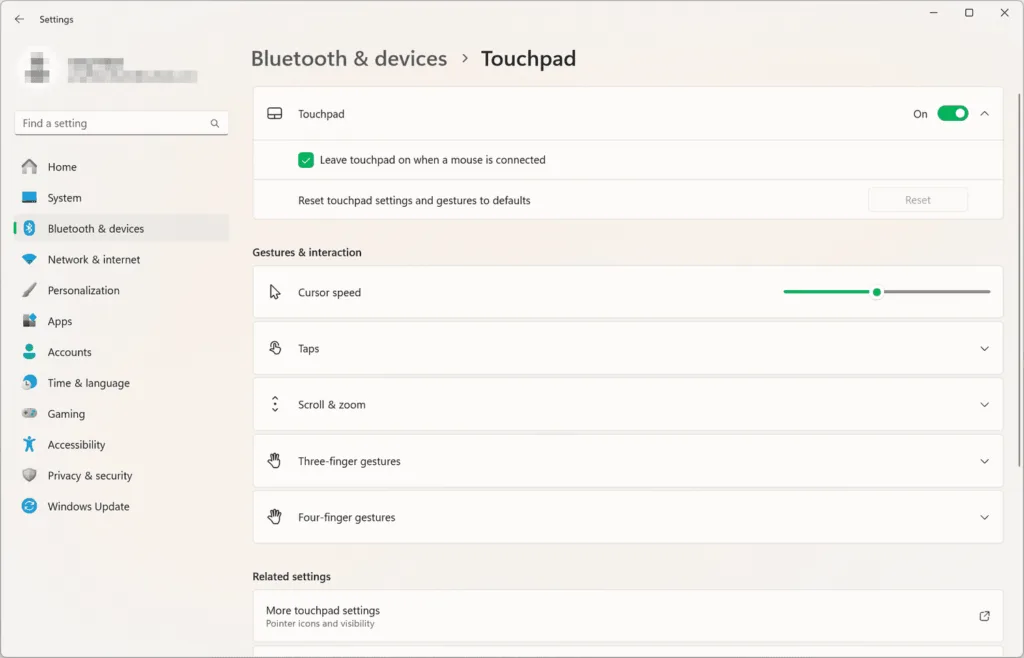
Settings › Bluetooth › Touchpad - Switch the toggle off to disable the touchpad, or on to enable it. When it’s off, every option below it (tap to click, gestures, sensitivity) greys out, because none of it applies while the touchpad is disabled. Switch it back on and the options become available again.
If the touchpad is already on and you only want to change how easily it reacts, look in the Taps section of the same page. The touchpad sensitivity setting is a drop-down list there, and you can pick a more or less sensitive level. This is the place to go if the cursor jumps while you type because your palm brushes the pad.
If you don’t see a “Touchpad” entry under Bluetooth & devices at all, skip ahead to the section on why it might be missing. It usually means your laptop isn’t using the Precision Touchpad driver.
Turn the Touchpad Off Automatically When You Plug In a Mouse
Windows has a setting for this.
- Open the Touchpad page the same way as above: Settings Bluetooth & devices Touchpad
Settings › Bluetooth › Touchpad - Find the checkbox labelled “Leave touchpad on when a mouse is connected.” It sits just under the main toggle. If the main toggle is off, this checkbox is greyed out too, so make sure the touchpad is switched on first.
- Clear the checkbox if you want Windows to disable the touchpad whenever it detects a mouse and re-enable it the moment you unplug the mouse. Leave the checkbox ticked if you want the touchpad to stay active alongside a mouse.
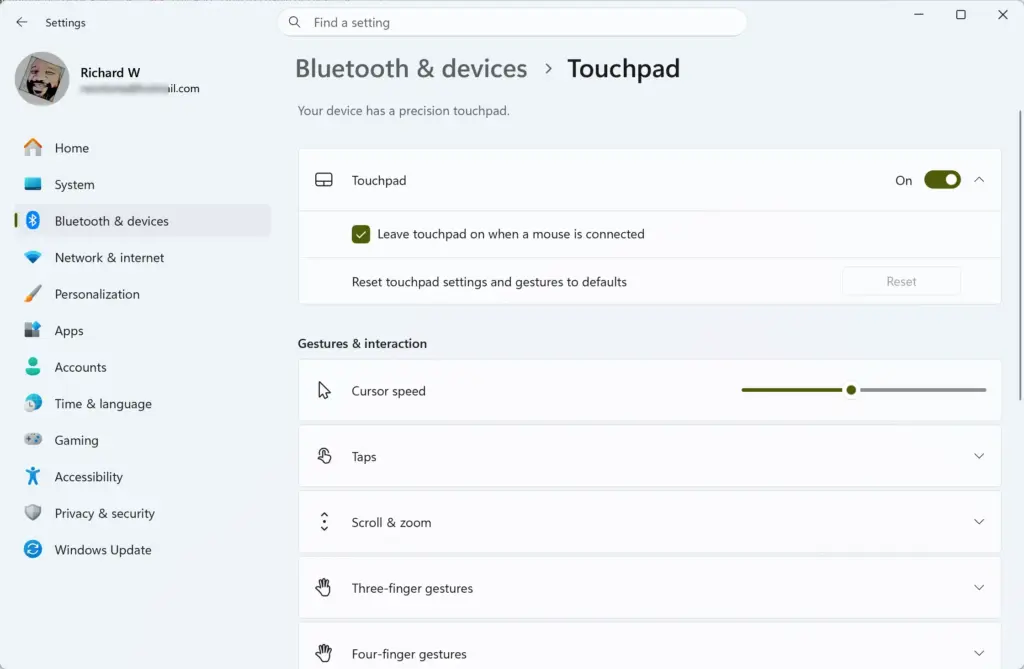
This setting reacts to a connected mouse (USB, wireless dongle or Bluetooth ). It won’t disable the touchpad just because you’re using a stylus or an external keyboard.
Disable the Touchpad from Device Manager
Use this method if the Settings toggle is missing, if third-party touchpad software has taken over the settings page, or if you manage the machine remotely and want a change that is less likely to be overwritten.
Two things to know before you start. First, you need administrator rights on the PC. On a standard account, Windows will ask for an admin password, and without one you can’t disable the device. Second, a device disabled in Device Manager is not guaranteed to stay disabled. A driver update, or Windows reinstalling the driver, can bring the touchpad back to life. If that happens, repeat the steps below.
- Right-click the Start button and select Device Manager from the menu. The Device Manager window opens, listing hardware categories.
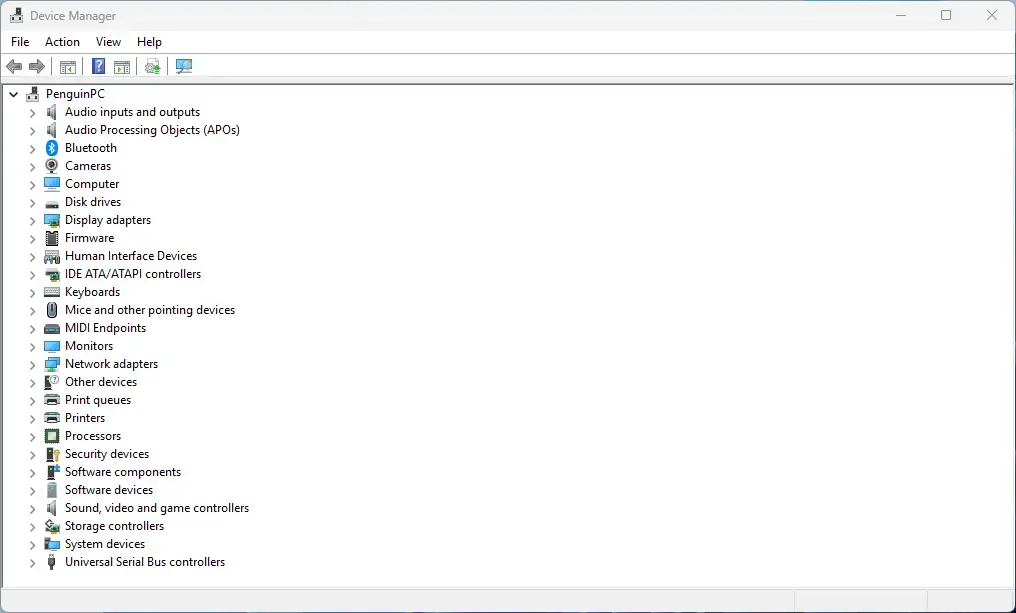
Device Manager - Expand “Mice and other pointing devices” by clicking the arrow next to it. You’ll see your touchpad listed, often as “HID-compliant touch pad” or under the manufacturer’s name (Synaptics, Elan or similar).
- Right-click the touchpad entry and choose Disable device from the menu. A warning box asks you to confirm. Click Yes. The touchpad stops responding immediately.
- To turn it back on, right-click the same entry again and choose Enable device. No restart is required either way.
If you disable the only pointing device you have, you’ll need to plug in a mouse, use the touchscreen if your laptop has one, or navigate with the keyboard (Tab and the arrow keys work in most menus) to re-enable it.
Use a Keyboard Shortcut or Function Key
Many laptop manufacturers build a hardware toggle into the keyboard, separate from anything in Windows. Look for a touchpad icon on one of the function keys (commonly F5, F6, F7 or F9, depending on the brand) and press it together with the Fn key. On some models you can press the function key alone, depending on how the Fn lock is set.
This shortcut works through the manufacturer’s driver, not Windows Settings , so the two can disagree. If you disable the touchpad with the function key, Settings may still show the touchpad as “on” even though it doesn’t respond. If that happens, press the same key combination again to turn it back on.
If you’re not sure your laptop has this shortcut, check the function key row for a small touchpad or crossed-out touchpad icon, or look up your exact model on the manufacturer’s support site.
Why the Touchpad Toggle Might Be Missing or Greyed Out
A few things trip people up in practice:
- No “Touchpad” entry under Bluetooth & devices at all. This almost always means Windows doesn’t see your touchpad as a Precision Touchpad device. Usually the manufacturer ships its own driver (older Synaptics or Elan drivers) instead of using Microsoft’s Precision Touchpad standard. In that case, look for a separate “Mouse and Touchpad” or manufacturer-named control panel , either in Settings or as a standalone app installed by the laptop maker.
- The toggle is there but greyed out. This can happen if your workplace or school has locked the touchpad settings through management software. On a managed device, IT support needs to change this, not you. Forcing it through Device Manager will usually get reverted at the next policy refresh.
- You just updated Windows or your touchpad driver. Driver updates occasionally reset touchpad settings to default (touchpad on, gestures enabled). If a setting you configured before an update has quietly reverted, that’s the likely cause rather than anything you did wrong.
- Desktop with an external touchpad. If you’ve plugged in a standalone touchpad accessory rather than using a laptop’s built-in one, it may show up under “Mouse” instead of “Touchpad” in Bluetooth & devices. Windows doesn’t always classify external touchpads as Precision Touchpad devices.
If the Touchpad page in Settings has an "Advanced" or "Additional settings" link, it opens the manufacturer's own control panel. Settings made there can override what you set in Windows, so if the touchpad won't stay disabled, check there too.
How to Undo Any of These Changes
Every method above can be undone in the same place you made the change:
- In Settings, go to Settings Bluetooth & devices Touchpad and flip the toggle back on.
- For the mouse behaviour, tick "Leave touchpad on when a mouse is connected" again.
- In Device Manager, right-click the device and choose Enable device.
- For the function-key method, press the same Fn key combination again.
None of these changes need a restart to take effect or to undo, and none of them affect other Windows settings.
What to Do Next
Once the touchpad is behaving the way you want, check the gesture and sensitivity settings on the same Touchpad page in Settings. They're easy to fine-tune while you're already there. If you use an external mouse regularly, our guide on adjusting Night light and other display comfort settings in Windows 11 is a natural next stop for setting up your desk for longer sessions. And if you manage more than one Windows 11 machine, it's worth learning how Task Manager can help you spot a touchpad driver that's misbehaving or hogging resources before it causes bigger problems.
Frequently asked questions
How do I turn the touchpad back on 🪟 Windows 11?
Open Settings with Windows key + I, then go to Bluetooth & devices Touchpad. Toggle the switch at the top to On. If the toggle doesn't appear, your touchpad driver may need updating in Device Manager, or your laptop may not have a Precision Touchpad.
Why can't I enable the touchpad?
The touchpad toggle might be missing if your laptop uses a non-standard driver instead of Microsoft's Precision Touchpad. Check Device Manager: right-click the touchpad under Mice and other pointing devices, select Enable device. Update the driver from the manufacturer's website if that doesn't work.
How do I disable the touchpad in 🪟 Windows 11?
Open Settings with Windows key + I, go to Bluetooth & devices, click Touchpad, and flip the toggle at the top to Off. Changes take effect immediately. For a deeper disable that survives restarts, use Device Manager: right-click the touchpad under Mice and other pointing devices and select Disable device.
Which F key disables the touchpad?
Many laptops have a touchpad key among the F keys, but the exact key varies by model. Check your keyboard for a touchpad icon on an F key (often F5, F7, or F9) and press it with Fn. If nothing happens, use Settings or Device Manager instead, since the hotkey depends on your laptop model and driver.
Still have a question?
Answered by AI from this guide. Good questions may be added to this page — please don't include personal details.
Did this guide fix your problem?

About the Author
Richard
Tech Writer, IT Professional
Richard is a writer at Geek Rewind who turns complex IT tasks into clear, step-by-step guides. He draws on years of hands-on experience in system administration and enterprise IT operations, focusing on Windows, Linux and WordPress: the problems people actually run into, and the fixes that work. His server and WordPress guides come from systems he runs himself. Richard builds and maintains the platform behind Geek Rewind, from its Ubuntu servers and Nginx configuration to its custom WordPress plugins. Many new tutorials start with readers' questions, and he's always glad to answer them in the comments.
No comments yet — be the first to share your thoughts!