How to Enable Touchpad Tapping in Windows 11 Touchpad Settings

- 37 steps
- Needs administrator rights
- Includes a restart or sign-out
Touchpad tapping in Windows 11 lets you click by lightly tapping your trackpad instead of pressing the button — it’s turned on in Settings Bluetooth & devices Touchpad, under the Taps section. The change takes effect instantly and doesn’t need a restart or administrator rights.
This article covers how to turn single-finger tapping on and off, adjust tap sensitivity, enable two-finger and three-finger tap options, and what to do if the Touchpad settings page is missing or greyed out.
Open Settings Bluetooth & devices Touchpad, expand Taps, and tick Tap with a single finger to single-click. Tapping is enabled immediately without restart or administrator rights. One-finger taps register as left-clicks; add the two-finger option for right-clicks.
Before You Start
Touchpad tapping means touching the pad lightly instead of pressing it down until it clicks. One finger acts as a left-click, and two fingers act as a right-click. Windows 11 controls this from a single page, but only for a precision touchpad—one that uses Microsoft’s built-in driver rather than a manufacturer’s custom software. Most laptops sold in the last several years have one.
The steps below match current Windows 11. Microsoft changes the wording of some labels between builds, so a label on your screen may differ slightly from the one written here. The layout and order of the options stay the same.
- Edition: Home and Pro behave the same here.
- Restart: Not needed.
- Administrator rights: Not needed for the Settings steps. The driver steps near the end of this guide do need them, and I flag where.
- If the touchpad is not responding at all: Connect a USB or Bluetooth mouse, or use the keyboard-only method below.
How to Turn On Touchpad Tapping in 🪟 Windows 11
This is the main method. It enables tap-to-click and shows you the related options on the same page.
Open the Touchpad Settings Page
- Open Settings by pressing the Win+I.

Windows 11 Start menu with Settings gear icon highlighted. - Select Bluetooth & devices in the left-hand list.

Windows Settings menu highlighting the Bluetooth and devices option for printers - Select Touchpad. You should now see a page headed Touchpad with an on/off switch at the top.
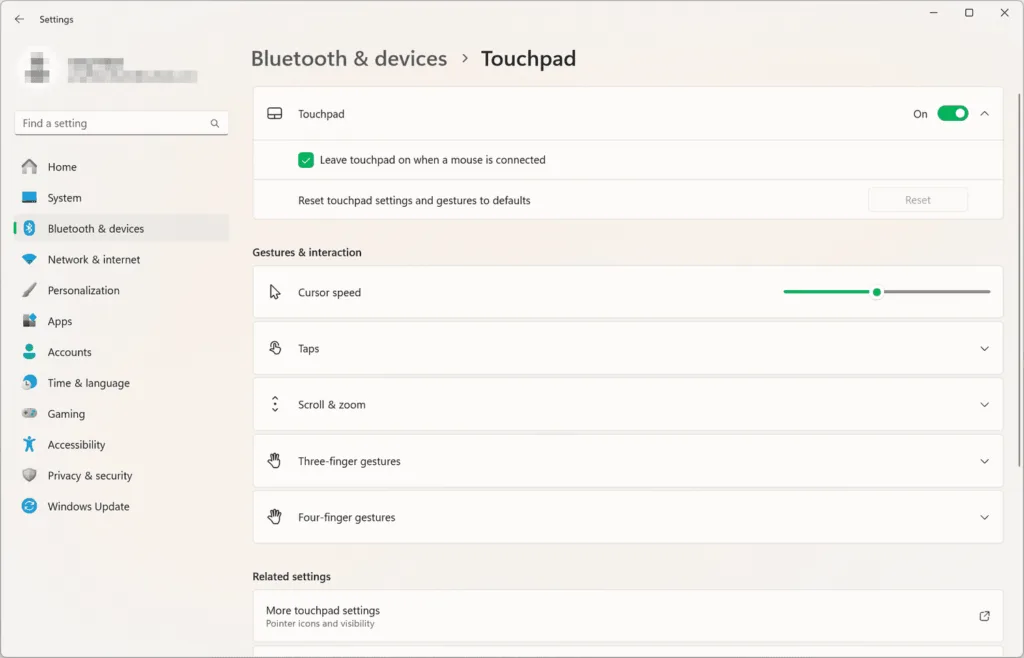
Settings › Bluetooth › Touchpad - Check that the Touchpad switch is set to On. If it is Off, the touchpad ignores all input, including taps. Select the switch to turn it on.
If there is no Touchpad entry under Bluetooth & devices, go to the section on a missing Touchpad page further down.
Turn On the Tap Options
This step enables the actual tapping. The options sit inside a collapsible group, so expand it first.
- On the Touchpad page, select Taps to expand the group. A list of tick boxes appears.
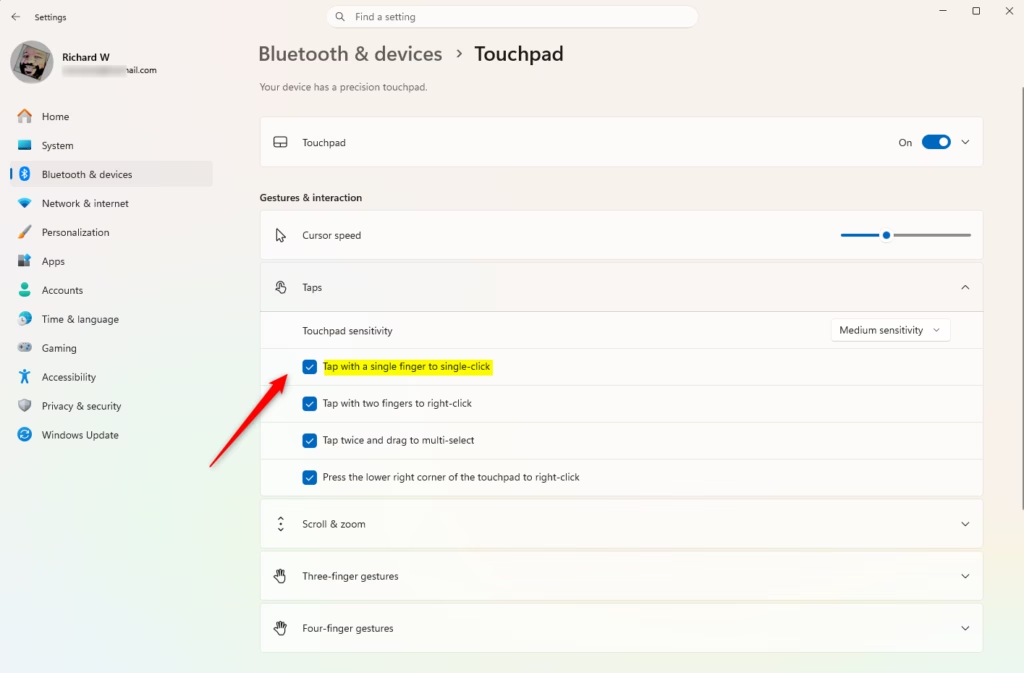
- Tick Tap with a single finger to single-click. A light tap on the pad now registers as a left-click.
- Tick Tap with two fingers to right-click if you want a two-finger tap to open the right-click menu.
- Tick Tap twice and drag to multi-select if you want to select text or drag items by tapping, lifting, and then tapping and holding while you move.
- Leave Press the lower right corner of the touchpad to right-click as you prefer. It is separate from tapping. It makes a physical press in the bottom-right corner act as a right-click.
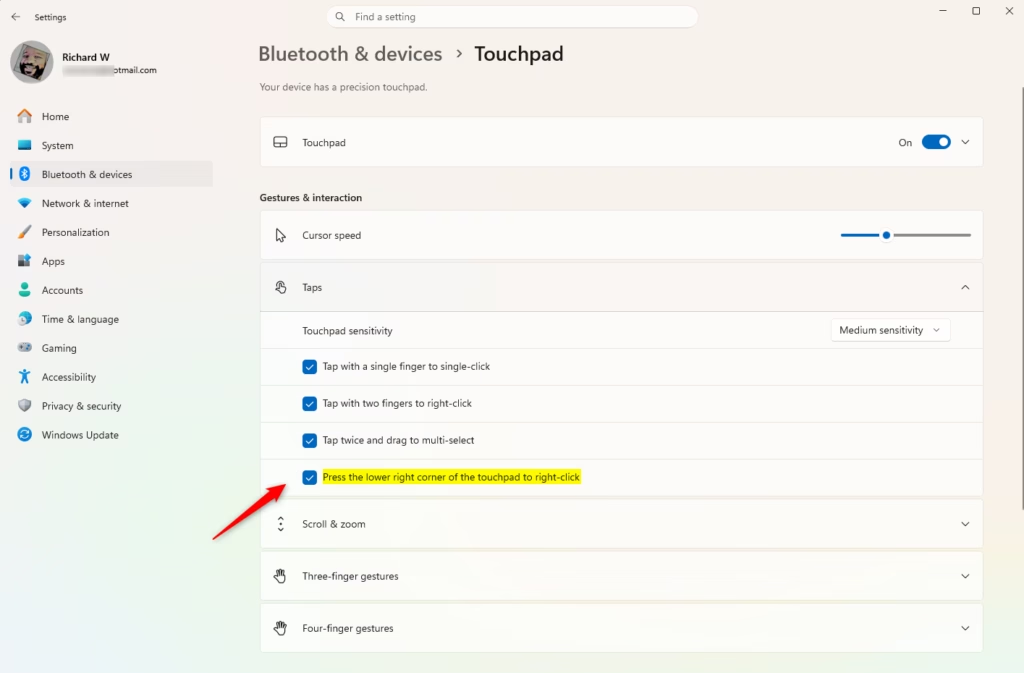
- Test the change. Move the pointer over an icon on the desktop and tap once. The icon should highlight. Tap twice quickly and the item should open.
The settings save as soon as you tick them. There is no Apply or OK button, and you can close Settings when you are done.
Set the Touchpad Sensitivity
Sensitivity controls how readily the touchpad registers a light touch as a tap. It also affects how well Windows ignores your palm while you type. Change it if taps are missed or if they fire when you do not want them.
- On the Touchpad page, find the Touchpad sensitivity drop-down. It is near the top, under the on/off switch.
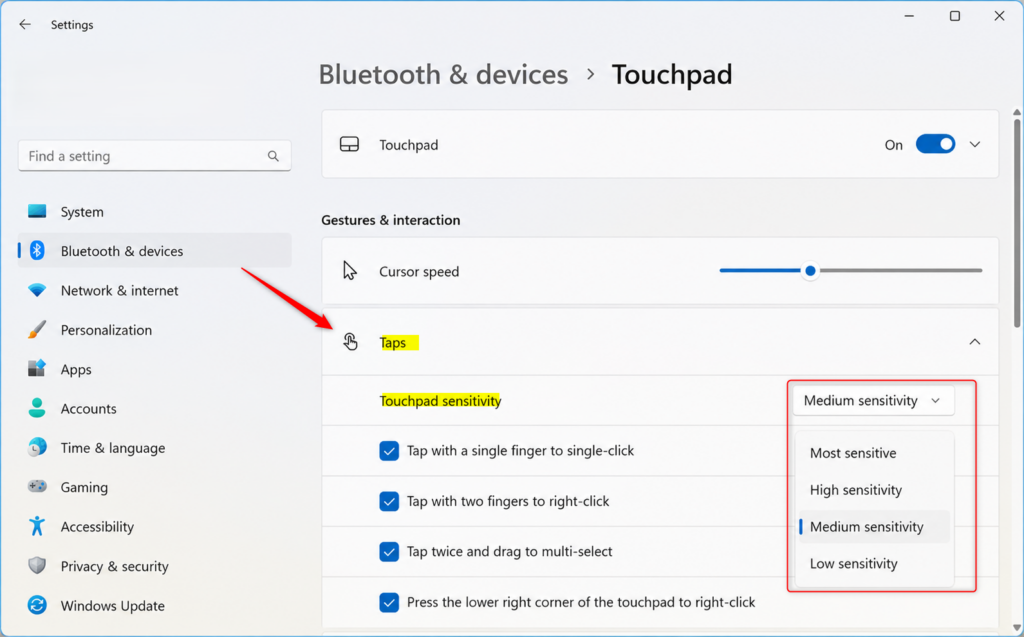
Windows 11 touchpad sensitivity options: Low, Medium, High, Most Sensitive. - Open the drop-down and choose one of Most sensitive, High sensitivity, Medium sensitivity or Low sensitivity.
- Tap on the desktop again to test. If light taps are still missed, move one step more sensitive. If taps fire while you type, move one step less sensitive.
Medium is a sensible starting point. Windows uses it by default on most devices.
Open Touchpad Settings With the Keyboard Only
Use this if the touchpad is off or tapping is not working and you have no mouse.
- Press the Win to open Start.
- Type touchpad settings. The best match should be Touchpad settings (System settings).
- Press Enter. The Touchpad page opens.
- Press Tab until the focus lands on the Touchpad switch, then press the Spacebar to turn it on.
- Keep pressing Tab to reach Taps. Press Enter to expand it, then Tab to a tick box and press the Spacebar to tick it.
What Each Tap Option Does
You can use this list to decide which options to keep. All of them are under Taps on the Touchpad page.
- Tap with a single finger to single-click: One light tap acts as a left-click. Two quick taps act as a double-click. This is the option most people mean by touchpad tapping.
- Tap with two fingers to right-click: Tap with two fingers together to open the context menu, the same as a right-click.
- Tap twice and drag to multi-select: Tap once, lift, then tap again and hold. You can then move your finger to select text or drag a file. Lift your finger to drop it.
- Press the lower right corner of the touchpad to right-click: This works by pressing down, not tapping. It gives you a right-click without needing two fingers.
Three-finger and four-finger gestures are separate groups on the same page. They have their own drop-downs, and they work independently of the tap options.
If the Touchpad Page Is Missing or Taps Are Greyed Out
Competing guides rarely cover this, and it is the most common reason the steps above do not match what you see.
The Touchpad Page Does Not Appear
Windows shows the Touchpad page only when it detects a precision touchpad. If you see Mouse but no Touchpad under Bluetooth & devices, your laptop is probably using a manufacturer driver (often Synaptics or ELAN) instead of Microsoft’s. The tap options then live in the manufacturer’s own settings.
- Open Settings Bluetooth & devices Mouse.
- Under Related settings, select Additional mouse settings. The Mouse Properties window opens.
- Look for a tab named after your touchpad maker, such as ELAN, or one called Device Settings. Select it.
- Find the option for tapping, often labelled something like tap or tap to click, and turn it on. Select Apply, then OK.
The exact tab name and layout depend on the manufacturer and driver version, so I cannot give a single set of labels for every laptop. If there is no such tab, the driver update steps below are the next thing to try.
The Touchpad Is Off, or Windows Turns It Off When a Mouse Is Connected
On the Touchpad page, a tick box such as Leave touchpad on when a mouse is connected controls whether the pad stays active when you plug in a mouse. If the touchpad stops working whenever a mouse is attached, tick it.
Many laptops also have a function-key combination, or a dedicated key, that disables the touchpad. Some models disable it with a double-tap in a corner of the pad. If the Touchpad switch in Settings is On but the pad is dead, press that key once and test again. The key and its icon vary by manufacturer. Check your laptop’s manual for yours.
The Options Are Greyed Out or Will Not Stay Ticked
If the tap tick boxes are greyed out, the pad is usually switched off in the Touchpad switch at the top. Turn it on and the options become available. On a work or school laptop, an administrator may have locked some settings. In that case the change will not hold, and you need to ask your IT team.
Update or Reinstall the Touchpad Driver
A faulty or outdated driver can make taps unreliable, or remove the Touchpad page entirely. Try an update first, then a reinstall.
Administrator privileges required. Windows asks for confirmation when you change drivers.
- Right-click the Start button and select Device Manager.
- Expand Mice and other pointing devices. Your touchpad is usually listed here, sometimes as HID-compliant mouse or under the maker’s name.
- Right-click the touchpad entry and select Update driver.
- Select Search automatically for drivers. Windows reports either that it installed a new driver or that the best driver is already installed.
- If nothing changes, check your laptop maker’s support site for a touchpad driver for your exact model and install it.
- In Device Manager, right-click the touchpad entry and select Uninstall device.
- Select Uninstall to confirm.
- Restart the computer. Windows detects the touchpad and reinstalls a driver on startup.
- Return to Settings Bluetooth & devices Touchpad and check the tap options again.
If Taps Fire by Accident
If the pointer jumps or clicks while you type, your palm is probably being read as a tap. Try these in order:
- Open Settings Bluetooth & devices Touchpad and set Touchpad sensitivity one step lower.
- If it still happens, untick Tap twice and drag to multi-select under Taps. This is the option most likely to cause a stray selection or drag.
- If it continues, untick Tap with a single finger to single-click and click by pressing the pad instead.
How to Turn Touchpad Tapping Off or Reset It
Changing a tap option is reversible. Nothing is deleted and no restart is needed.
- Open Settings Bluetooth & devices Touchpad.
- Select Taps to expand it.
- Untick the options you no longer want. Tapping stops working at once.
Expand Reset your touchpad if it is collapsed, then select Reset. This returns sensitivity, taps, scrolling and gestures to the Windows defaults, so you lose any custom changes. The Reset button appears on current builds of Windows 11. If your version does not show it, change each setting back by hand.
Where Windows Stores Touchpad Settings
For a precision touchpad, Windows keeps your touchpad choices for your user account under this registry key:
HKEY_CURRENT_USER\Software\Microsoft\Windows\CurrentVersion\PrecisionTouchPad
The value names and data for individual tap options are not confirmed here, so I do not list them. [Registry method: to be verified]. Use the Settings steps above instead. They give the same result and are safer than editing the registry by hand.
If This Didn’t Work
If taps still do not register after the driver steps, test the pad in a different environment, such as the firmware setup screen if your laptop has one, to see whether the hardware is at fault. Some laptops also have a pointing-device setting in the BIOS or UEFI (the firmware menu you reach at startup). If the tap options ever reset, a driver reinstall or a manufacturer driver update is the most likely cause. Return to the Touchpad page and tick them again. Once tapping works the way you want, the next setting to adjust is the Scroll & zoom group on the same page, where you control two-finger scrolling and pinch to zoom.
Frequently asked questions
My 🪟 Windows 11 touchpad is disabled. How can I enable it?
Go to Settings Bluetooth & devices Touchpad. At the top, toggle on the Touchpad switch. If it's greyed out, your laptop may not have a precision touchpad, or the driver needs updating. Check Device Manager under Human Interface Devices for touchpad driver issues.
How to unlock the mouse on a Lenovo laptop?
On Lenovo laptops, press the touchpad disable key (usually Fn + F6 or marked with a touchpad icon) to toggle it on. If that doesn't work, go to Settings Bluetooth & devices Touchpad and turn on the Touchpad switch at the top of the page.
Why isn't my laptop touchpad working?
First, check if the touchpad is disabled by pressing Fn plus the touchpad key on your keyboard. Then go to Settings Bluetooth & devices Touchpad and make sure the toggle is on. If still not working, update or reinstall the touchpad driver in Device Manager.
How do I adjust the touchpad on 🪟 Windows 11?
Open Settings Bluetooth & devices Touchpad. Adjust tap sensitivity under Taps, enable or disable tap gestures, and change pointer speed under Pointer. Enable three-finger gestures under Multi-finger gestures. Changes apply immediately without restarting.
Still have a question?
Answered by AI from this guide. Good questions may be added to this page — please don't include personal details.
Did this guide fix your problem?

About the Author
Richard
Tech Writer, IT Professional
Richard is a writer at Geek Rewind who turns complex IT tasks into clear, step-by-step guides. He draws on years of hands-on experience in system administration and enterprise IT operations, focusing on Windows, Linux and WordPress: the problems people actually run into, and the fixes that work. His server and WordPress guides come from systems he runs himself. Richard builds and maintains the platform behind Geek Rewind, from its Ubuntu servers and Nginx configuration to its custom WordPress plugins. Many new tutorials start with readers' questions, and he's always glad to answer them in the comments.
No comments yet — be the first to share your thoughts!