How to Turn On or off Tap Twice and Drag on Touchpad to Multi-Select in Windows 11

Tap twice and drag is a touchpad gesture that lets you highlight text or select several files without holding down a click. Tap the touchpad twice in quick succession, keep your finger down on the second tap, and slide across the surface. Windows treats this as a click-and-drag. Lift your finger and the selection stops.
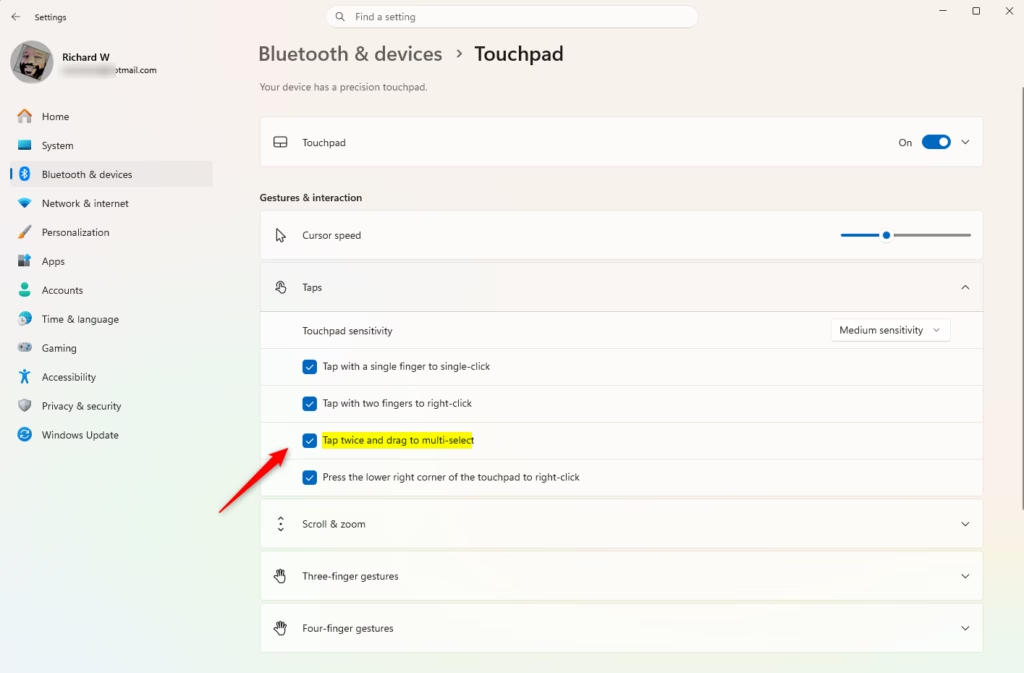
Open Settings, go to Bluetooth & devices, then Touchpad, expand Taps, and check or uncheck “Tap twice and drag to multi-select.” This gesture allows you to select multiple items by tapping and dragging on your touchpad.
It works for most of the things you would normally do with a held click:
- Highlighting a block of text in a document or web page.
- Drawing a selection box around several files or icons in File Explorer or on the desktop.
- Dragging a selected item to a new spot, such as moving a file into another folder.
Most Windows 11 laptops with a precision touchpad support this gesture, and it is usually on by default. If your laptop has an older, non-precision touchpad, the option may be missing or may sit in the touchpad maker’s own software instead of Windows.
Turning it on speeds up selecting because you no longer need to press and hold the pad. Turning it off helps if you often brush the pad with your palm or thumb while typing. Two light accidental taps followed by a slide can start a selection you did not want, and you end up highlighting text or dragging a file somewhere by mistake.
The option is called Tap twice and drag to multi-select. You find it in the Taps section of Settings Bluetooth & devices > Touchpad. It is a simple checkbox. The change applies as soon as you set it, with no restart or sign-out, and you can reverse it at any time by changing the same checkbox back. If the Touchpad page or the Taps section is missing, check that the touchpad is enabled and that its driver is installed and up to date. The Touchpad page only shows up when Windows detects a touchpad.
Turn On or Off Tap Twice and Drag Using Settings
You can turn on Windows 11 touchpad tap and drag using the Settings app when you want to select multiple files or items without pressing a physical mouse button. Open Settings by pressing Win+I, click Bluetooth & devices on the left side, and select Touchpad on the right. From there, expand the taps section and check or uncheck the box for tap twice and drag.- Open Settings by pressing
Win+I. - Click on Bluetooth & devices on the left side. Then click on Touchpad on the right side. (See screenshot below)
- Click on Taps to expand the section. (See screenshot below step 4)
- Check the box (on – default) or uncheck the box (off) next to Tap twice and drag to multi-select based on what you want. (See screenshot below)
- You can now close Settings.
Option Two
Turn On or Off Tap Twice and Drag Using Registry
You can turn on Windows 11 touchpad tap and drag using Registry Editor if the standard settings app is not working or if you prefer using commands. Open Registry Editor (a database for advanced Windows configurations), go to 🗝️HKEY_CURRENT_USER\
This is the default setting.
reg add "HKEY_CURRENT_USER\Software\Microsoft\Windows\CurrentVersion\PrecisionTouchPad" /v TapAndDrag /t REG_DWORD /d 4294967295 /f
To turn it off:
reg add "HKEY_CURRENT_USER\Software\Microsoft\Windows\CurrentVersion\PrecisionTouchPad" /v TapAndDrag /t REG_DWORD /d 0 /f
Summary
Control the 'Tap twice and drag' feature on your Windows 11 touchpad. Use Settings for a convenient approach, or the Registry if you prefer command-line methods. The feature remains active by default, though you can turn it off anytime depending on your workflow.
Was this guide helpful?

About the Author
Richard
Tech Writer, IT Professional
Richard is a writer at Geek Rewind who turns complex IT tasks into clear, step-by-step guides. He draws on years of hands-on experience in system administration and enterprise IT operations, focusing on Windows, Linux and WordPress: the problems people actually run into, and the fixes that work. His server and WordPress guides come from systems he runs himself. Richard builds and maintains the platform behind Geek Rewind, from its Ubuntu servers and Nginx configuration to its custom WordPress plugins. Many new tutorials start with readers' questions, and he's always glad to answer them in the comments.


No comments yet — be the first to share your thoughts!