How to Turn On or off Tap Touchpad with Single Finger to Single-Click in Windows 11

Single-finger tap lets you click by tapping the touchpad lightly instead of pressing it down. It is the setting behind the basic “tap to click” behavior. It applies to laptops with a precision touchpad running Windows 11 version 22H2 or newer.
You can turn it on or off from the Settings app, with no extra software. The change takes effect right away, and you do not need to restart.
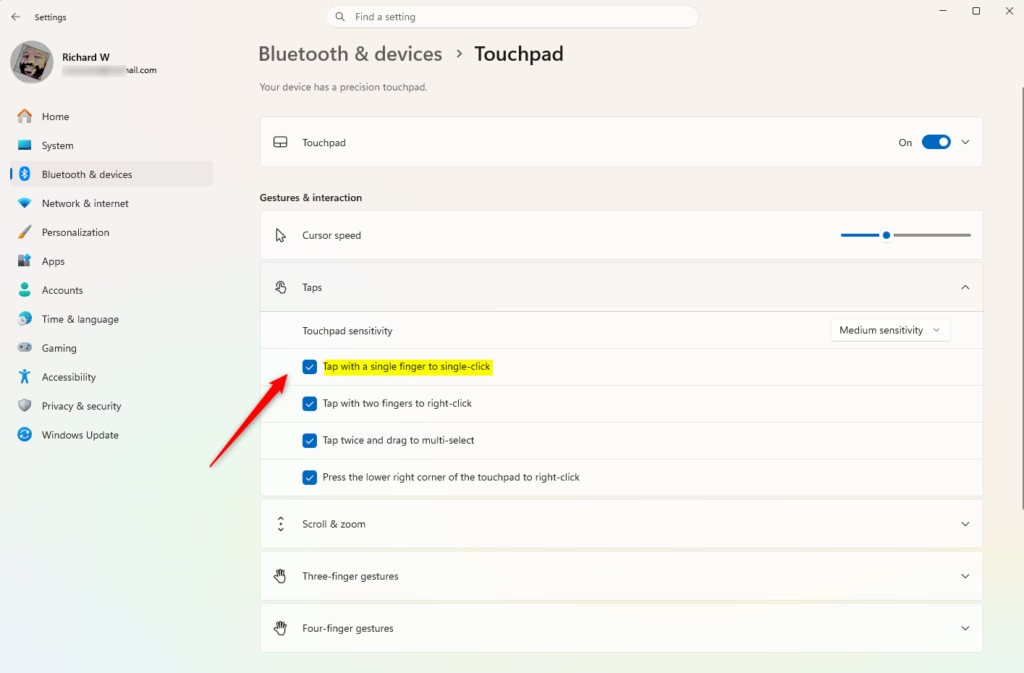
Navigate to Settings Bluetooth & devices Touchpad. Expand the Taps section and check or uncheck “Tap with a single finger to single-click” to enable or disable the feature.
Turn On or Off Tap Touchpad with Single Finger to Single-Click in Settings
- Press Win+I to open Settings . The Settings window opens with the list of categories on the left.
- Click Bluetooth & devices on the left side, then click Touchpad on the right side. (see screenshot below) The touchpad options for your device are now on screen.
This page controls whether a single light tap counts as a mouse click. With it on, you do not have to press the touchpad down every time you want to select something. With it off, you must press the touchpad physically to click.
If you do not see a Touchpad page, the PC probably has no touchpad, as on most desktops. It may also have an older, non-precision touchpad that does not use these settings. In that case, check the touchpad options in the manufacturer’s own software or in the classic Mouse settings.
- Click Taps to expand it. (see screenshot below step 4) A list of tap options appears.
- Check the box for Tap with a single finger to single-click to turn it on (this is the default). Uncheck it to turn it off. (see screenshot below) The change applies immediately, so you can test it by tapping the touchpad.
- Close Settings when you are done.
If the options under Taps are greyed out, check that the Touchpad toggle at the top of the page is on. To undo the change, come back to this page and set the checkbox the way it was before.
Option Two
Turn On or Off Tap Touchpad with Single Finger to Single-Click using Registry
If you prefer not to use the Settings app, you can change this setting through the Registry Editor. This method turns single-finger tapping on or off by updating the registry values directly. It is more advanced than the Settings method, and the values it changes are the same ones Settings uses.
The system applies this configuration by default, so you only need the off option if you want to disable single-finger tap.
Changing registry values needs an administrator account. If the change does not seem to take effect, sign out and back in, or restart the PC, and then test again. To go back, apply the opposite option, or use the checkbox in Settings as described above.
reg add "HKEY_CURRENT_USER\Software\Microsoft\Windows\CurrentVersion\PrecisionTouchPad" /v TapsEnabled /t REG_DWORD /d 4294967295 /f
reg add "HKEY_CURRENT_USER\Software\Microsoft\Windows\CurrentVersion\PrecisionTouchPad" /v TapsEnabled /t REG_DWORD /d 0 /f
Summary
In short, you can manage single-finger tap-to-click with either the Settings app or the Registry Editor. Settings is the easier choice for most people, and it lets you see the result immediately. The registry method is useful when you want to apply the change in a more direct way.
Have a question about this guide?
Answered by AI from this guide. Good questions may be added to this page — please don't include personal details.
Did this guide fix your problem?

About the Author
Richard
Tech Writer, IT Professional
Richard is a writer at Geek Rewind who turns complex IT tasks into clear, step-by-step guides. He draws on years of hands-on experience in system administration and enterprise IT operations, focusing on Windows, Linux and WordPress: the problems people actually run into, and the fixes that work. His server and WordPress guides come from systems he runs himself. Richard builds and maintains the platform behind Geek Rewind, from its Ubuntu servers and Nginx configuration to its custom WordPress plugins. Many new tutorials start with readers' questions, and he's always glad to answer them in the comments.
No comments yet — be the first to share your thoughts!