How to Change or Disable Touchpad Single-Finger Scrolling Side in Windows 11


Touchpad edge scrolling lets you slide one finger down the right or left edge of your laptop trackpad to scroll a page. Many older laptops turn it on by default. If your hand brushes the edge while you type, the page jumps.
In Windows 11 you can choose which side scrolls, or turn the feature off. Which method you use depends on whether the option appears in Settings. The sections below cover Settings first, then the Registry Editor, then drivers.
Open Settings , go to Bluetooth & devices, then Touchpad. Click Scroll & zoom and choose Disabled, Left Side, or Right Side for single-finger scrolling. If the option is missing, you may need to use your touchpad manufacturer’s control panel software.
Method 1Change Scrolling via Windows Settings
Use the Settings app first. It is the safest method, and it needs no administrator rights on a normal personal account.
- Press Win+I to open Settings.
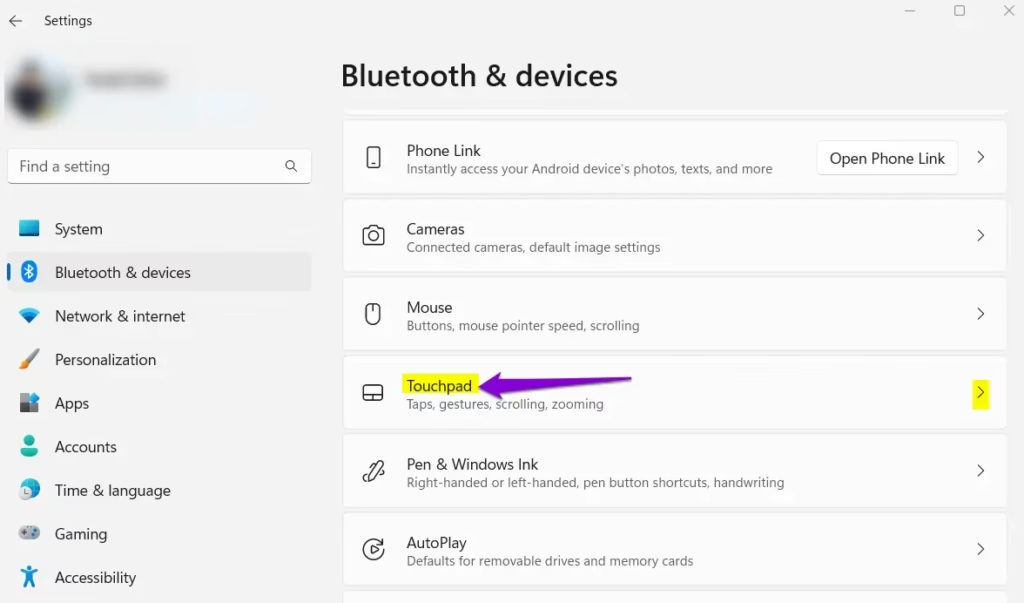
- Go to Settings Bluetooth & devices Touchpad You should see the touchpad options, with the Touchpad switch at the top.
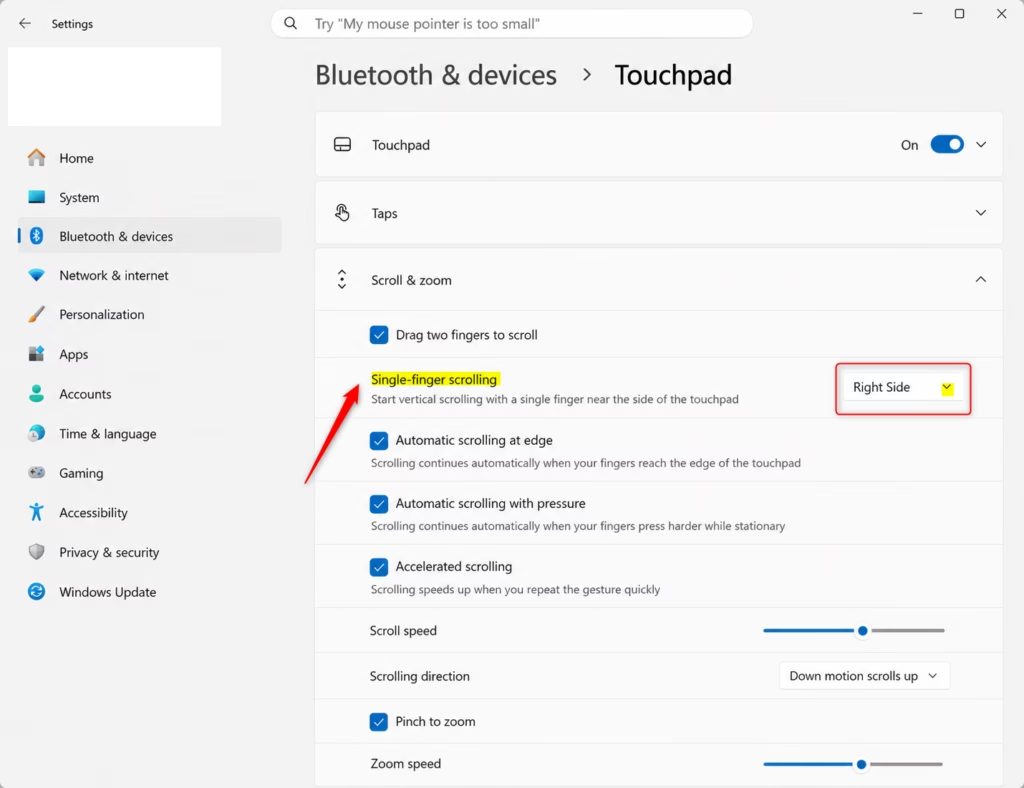
- Click Scroll & zoom to expand the section. The scrolling and zoom options appear below it.
- Next to Single-finger scrolling, open the drop-down and choose Disabled, Left Side, or Right Side. The change applies right away, so you can test it on the touchpad without restarting.
If you do not see Single-finger scrolling, the touchpad driver probably does not expose it. Some touchpads only list the two-finger scroll options in Windows. In that case, try the Registry method or update the driver, both described below. Also check that the Touchpad switch is on. The other options are hidden or greyed out when it is off, and on some laptops the Touchpad page does not appear at all if no touchpad is detected.
To undo the change, return to the same page and pick the previous setting.
Method 2Change Scrolling via Registry Editor
If the Settings app does not offer the option or the choice does not stick, you can set it in the Registry Editor. The registry is the database where Windows and apps store their settings. You need an administrator account for this. A wrong change in the registry can cause problems, so work carefully and consider making a backup first. In Registry Editor, use File Export to save a copy of the key you are about to change.
- Press Win + R, type regedit, and press Enter. Approve the User Account Control prompt if it appears. The Registry Editor window opens.
- Go to this key:
HKEY_CURRENT_USER\Software\Microsoft\Windows\CurrentVersion\PrecisionTouchPad. You can paste the path into the address bar at the top of the window, or expand the folders on the left one by one. - If SingleFingerPanningMode already exists in the right pane, skip to step 5. If not, right-click an empty area in the right pane and select New DWORD (32-bit) Value. A new entry appears with its name ready to edit.
- Type SingleFingerPanningMode as the name and press Enter.
- Double-click the entry and set Value data to 0 (Disabled), 1 (Left), or 2 (Right). Click OK.
- Close the Registry Editor. Restart the PC, or sign out and back in, so Windows reads the new value.
To undo the change, set the value back to what it was, or right-click the entry and choose Delete to remove it. You can also import the backup you exported earlier.
Troubleshooting Common Issues
An outdated or generic touchpad driver often causes erratic scrolling. It can also hide options such as single-finger scrolling. Updating the driver is worth a try before you spend time on other fixes.
- Right-click the Start button and select Device Manager. The list of hardware categories opens.
- Expand Mice and other pointing devices. Your touchpad is usually listed here, for example as an HID-compliant mouse or a brand name such as Synaptics or ELAN.
- Right-click the touchpad entry and select Update driver.
- Choose Search automatically for drivers and follow the prompts. Restart the PC if Windows asks you to.
Windows only finds drivers it has in its own catalog. If it says the best driver is already installed, check your laptop maker's support page for a newer touchpad driver for your exact model. Installing that driver often adds a dedicated touchpad settings page.
Summary
The Settings app is the quickest way to change or turn off edge scrolling, and the Registry Editor is the fallback when Settings does not show the option. If neither works, update the touchpad driver and check the settings again.
Was this guide helpful?

About the Author
Richard
Tech Writer, IT Professional
Richard is a writer at Geek Rewind who turns complex IT tasks into clear, step-by-step guides. He draws on years of hands-on experience in system administration and enterprise IT operations, focusing on Windows, Linux and WordPress: the problems people actually run into, and the fixes that work. His server and WordPress guides come from systems he runs himself. Richard builds and maintains the platform behind Geek Rewind, from its Ubuntu servers and Nginx configuration to its custom WordPress plugins. Many new tutorials start with readers' questions, and he's always glad to answer them in the comments.



No comments yet — be the first to share your thoughts!