Touchpad Gestures for Windows 11

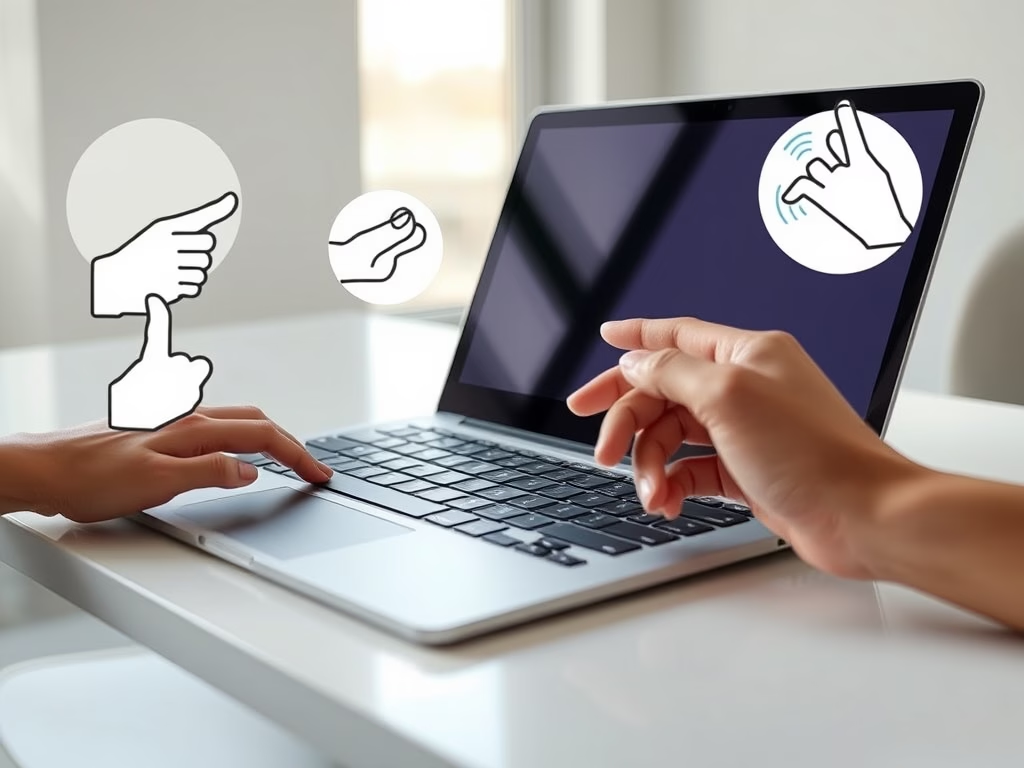
Touchpad gestures in Windows 11 let you control your screen with finger movements on your laptop trackpad instead of a mouse. You use two, three, or four fingers for everyday tasks like scrolling down a long web page, zooming in on a photo, or switching between open apps.
Learning these trackpad shortcuts makes working on a laptop much faster. A quick three-finger swipe up opens Task View, the screen that shows all your open windows. A three-finger swipe sideways jumps between open programs. Most of the gestures can be changed in Settings, so you can adjust them to suit how you work.
Windows 11 touchpad gestures let you control your laptop using finger movements on the trackpad. Tap once to select, swipe up with three fingers to open Task View, swipe sideways with three fingers to switch apps, and pinch two fingers together or apart to zoom. You can customize these gestures in Settings Bluetooth & devices Touchpad if your laptop has a precision touchpad.
Check if Your Laptop Supports These Gestures
This is a hardware and driver standard that Windows uses to read multi-finger input accurately. Most laptops sold in the last several years have one. Older or budget models may not, and on those you usually get only basic scrolling and tapping. Checking takes under a minute.
- Click the Start button (the Windows icon) on the taskbar .
- Open Settings. You can also press Win+I on your keyboard to open it directly.
- Go to Bluetooth & devices Touchpad The Touchpad page opens on the right.
- Look for gesture options on that page. On a precision touchpad you will see sections such as Taps, Scroll & zoom, Three-finger gestures, and Four-finger gestures. If you see them, you have a precision touchpad and everything in this tutorial applies to you.
Run Windows Update first, then check the laptop maker’s support page for a touchpad driver for your exact model. If the page shows a Touchpad toggle, make sure it is switched on. Otherwise the gesture settings stay hidden or have no effect.
Changes on this page apply immediately and need no restart. To undo anything, return to the same page and set the option back.
Basic Touchpad Gestures You Can Use
Windows 11 touchpad gestures let you control your laptop without an external mouse using simple finger movements. Tapping once with one finger selects an item, dragging two fingers scrolls up or down pages, and pinching your fingers together or apart zooms in or out. Learning these core movements makes navigating your screen much faster during everyday tasks.| What You Want to Do | How to Do It (Gesture) |
|---|---|
| Select or open something | Tap once on the touchpad with one finger |
| Scroll up, down, or sideways | Put two fingers on the touchpad and slide them up/down or left/right |
| Zoom in or out (like on photos or webpages) | Put two fingers on the touchpad and pinch them together (zoom out) or spread them apart (zoom in) |
| Open right-click menu (extra options) | Tap with two fingers or press the lower-right corner of the touchpad |
| See all open windows | Swipe up with three fingers on the touchpad |
| See your desktop (hide all windows) | Swipe down with three fingers on the touchpad |
| Switch between open apps or windows | Swipe left or right with three fingers |
| Switch between different desktops | Swipe left or right with four fingers |
Quick Tips
- Try these gestures slowly at first to get used to how they work.
- You can customize gestures in the Touchpad settings (see above) to make them work best for you.
- If a gesture doesn’t work, check your touchpad settings or your laptop’s manual.
More Help and Information
Additional reference materials from Microsoft provide visual guides and video walkthroughs:
- Touch gestures for Windows (Microsoft Support)
- Surface touchpad use and settings (Microsoft Support)
Have a question about this guide?
Answered by AI from this guide. Good questions may be added to this page — please don't include personal details.
Did this guide fix your problem?

About the Author
Richard
Tech Writer, IT Professional
Richard is a writer at Geek Rewind who turns complex IT tasks into clear, step-by-step guides. He draws on years of hands-on experience in system administration and enterprise IT operations, focusing on Windows, Linux and WordPress: the problems people actually run into, and the fixes that work. His server and WordPress guides come from systems he runs himself. Richard builds and maintains the platform behind Geek Rewind, from its Ubuntu servers and Nginx configuration to its custom WordPress plugins. Many new tutorials start with readers' questions, and he's always glad to answer them in the comments.
No comments yet — be the first to share your thoughts!