How to Change Touchpad Four-Finger Swipe Gestures in Windows 11


Four-finger swipe gestures on Windows 11 let you switch between open apps, show your desktop, or change the audio volume with a quick swipe on your laptop touchpad. They work on precision touchpads running Windows 11 version 22H2 or newer. Most laptops sold in the last several years have one.
You can change what these swipes do to match how you work. This guide covers three ways to do it. The first, in the Settings app, is the quickest and is all most people need. The others give you more control or suit machines you manage in other ways.
If you do not see the options below, the touchpad is probably not a precision touchpad, or its driver is missing. Install the latest touchpad driver from your laptop maker or from Windows Update . A touchpad that is turned off also leaves the gesture options greyed out, so check that the Touchpad toggle at the top of the page is on.
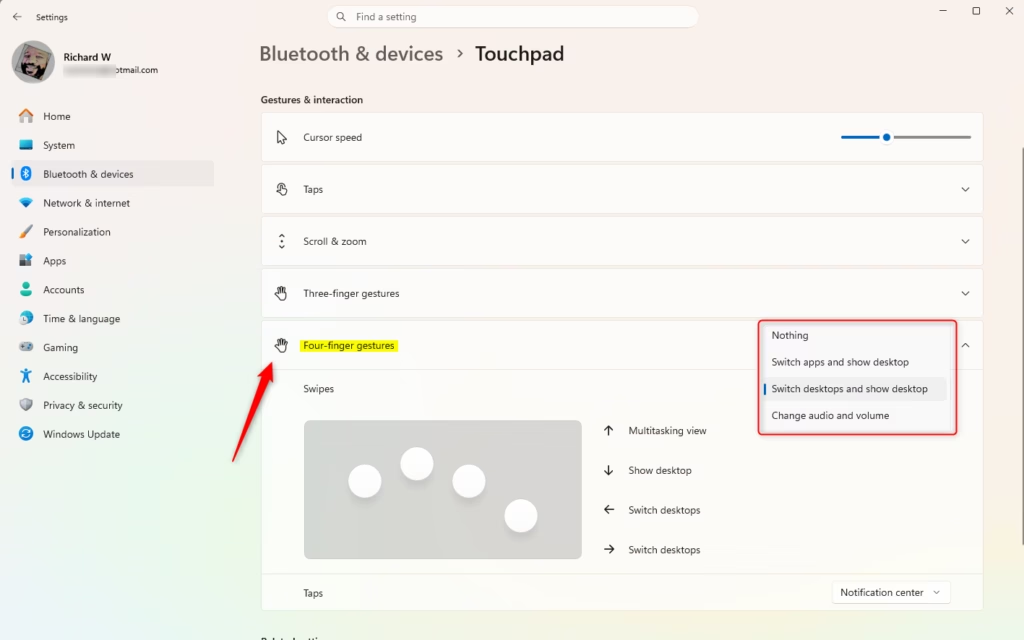
Go to Settings , then Bluetooth & devices, and select Touchpad. Expand Four-finger gestures and choose your desired action from the Swipes menu.
Change Touchpad Four-finger Swipe Gestures in Settings
- Open Settings (Win+I).
- Click Bluetooth & devices on the left side, then click Touchpad on the right side. You should see the touchpad toggle, followed by sections for scrolling, zooming, and three- and four-finger gestures. (see screenshot below)
If Touchpad is missing from the list, your PC has no touchpad that Windows recognizes. That is normal on a desktop without a touchpad or a precision touchpad.
- Click Four-finger gestures to expand it. A Swipes drop-down menu appears.
- Open the Swipes drop-down menu and select one of these options:
- Nothing: four-finger swipes do nothing. Pick this if you keep triggering gestures by accident.
- Switch apps and show desktop: swipe left or right to move between open apps, and swipe up or down to show the desktop or return to your windows.
- Switch desktops and show desktop (default): swipe left or right to move between virtual desktops, and swipe up or down to show the desktop or return to your windows.
- Change audio and volume: swiping changes the audio volume.
- Close Settings. The change applies as soon as you pick the option, so you do not need to restart. Try a four-finger swipe on the touchpad to confirm it behaves the way you chose.
To undo the change, open the same drop-down menu and choose Switch desktops and show desktop, which is the default.
Option Two
Change Touchpad Four-finger Swipe Gestures Using Registry
Sign in with an administrator account, or enter administrator credentials when Windows asks. If the change does not show up right away, sign out and back in, or restart the PC.
Change Touchpad Four-finger Swipe Gestures to "Nothing"
reg add "HKEY_CURRENT_USER\Software\Microsoft\Windows\CurrentVersion\PrecisionTouchPad" /v FourFingerSlideEnabled /t REG_DWORD /d 0 /f
Change Touchpad Four-finger Swipe Gestures to "Switch apps and show desktop"
reg add "HKEY_CURRENT_USER\Software\Microsoft\Windows\CurrentVersion\PrecisionTouchPad" /v FourFingerSlideEnabled /t REG_DWORD /d 1 /f
Change Touchpad Four-finger Swipe Gestures to "Switch desktops and show desktop"
This configuration is the default setting. Use it whenever you want to go back to how Windows 11 behaves out of the box.
reg add "HKEY_CURRENT_USER\Software\Microsoft\Windows\CurrentVersion\PrecisionTouchPad" /v FourFingerSlideEnabled /t REG_DWORD /d 2 /f
Change Touchpad Four-finger Swipe Gestures to "Change audio and volume"
reg add "HKEY_CURRENT_USER\Software\Microsoft\Windows\CurrentVersion\PrecisionTouchPad" /v FourFingerSlideEnabled /t REG_DWORD /d 3 /f
Option Three
Change Touchpad Four-finger Advanced Swipe Gestures in Settings
- Open Settings (Win+I).
- Click Bluetooth & devices on the left side, then click Touchpad on the right side.
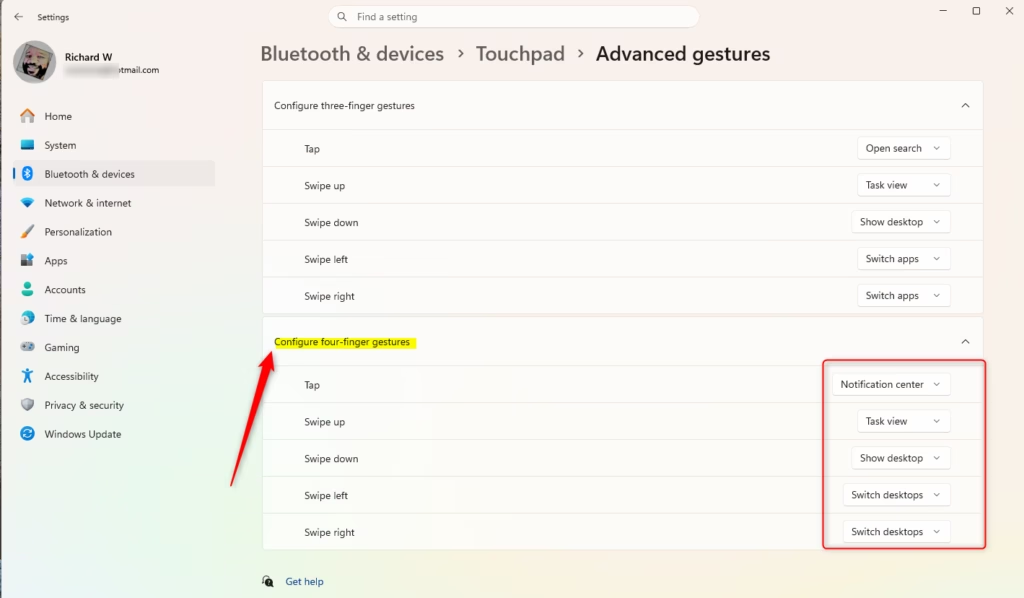
- Click Advanced gestures. This page lets you set each gesture on its own instead of choosing one preset.
- Under Configure four-finger gestures, open each gesture drop-down menu and select the action you want for it.
- Close Settings. Like the first method, this takes effect right away and needs no restart.
To undo your changes, return to this page and set each drop-down menu back to its original action. You can also go back to the first method and choose the default preset.
Summary
You now have three ways to change four-finger swipe gestures on your Windows 11 touchpad.
The Settings app is the most direct route, and the Swipes drop-down menu covers most needs. The Registry and the Advanced gestures section in Settings give you finer control over what each gesture does. If you only want to turn four-finger swipes off or switch between the presets, stay with the first method.
Was this guide helpful?

About the Author
Richard
Tech Writer, IT Professional
Richard is a writer at Geek Rewind who turns complex IT tasks into clear, step-by-step guides. He draws on years of hands-on experience in system administration and enterprise IT operations, focusing on Windows, Linux and WordPress: the problems people actually run into, and the fixes that work. His server and WordPress guides come from systems he runs himself. Richard builds and maintains the platform behind Geek Rewind, from its Ubuntu servers and Nginx configuration to its custom WordPress plugins. Many new tutorials start with readers' questions, and he's always glad to answer them in the comments.



No comments yet — be the first to share your thoughts!