How to Turn On or off Pinch to Zoom On Touchpad in Windows 11

Pinch to zoom in Windows 11 lets you zoom in and out of photos, web pages, and documents by pinching or spreading two fingers on your laptop trackpad. It works the same way as on a phone or tablet. Most laptops built in the last five years have a precision touchpad, which handles this gesture without extra software.
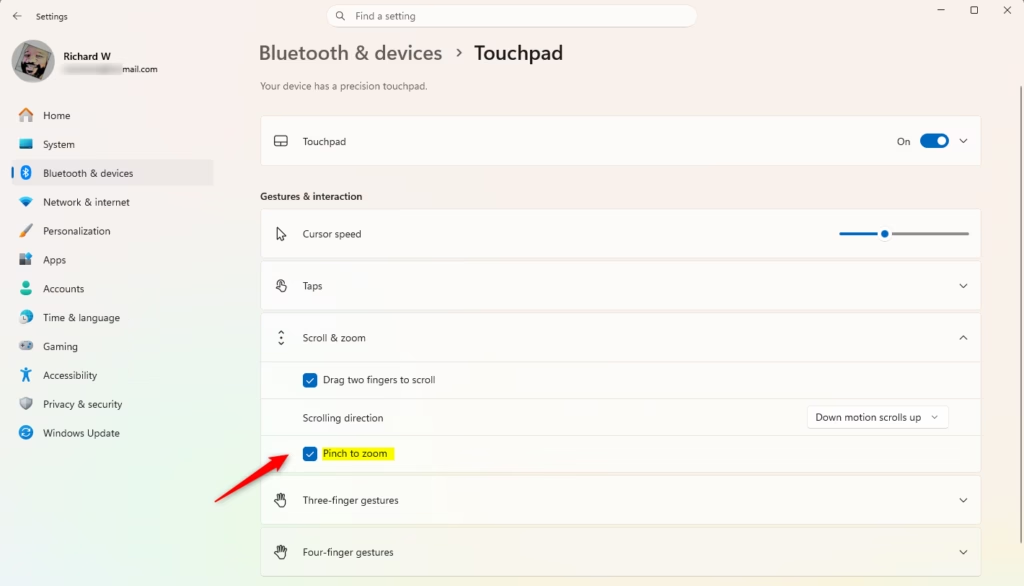
Open Settings, go to Bluetooth & devices Touchpad, expand Scroll & zoom, then check or uncheck Pinch to zoom. The change takes effect immediately without restarting.
You can turn the gesture on or off in a few clicks in the Windows 11 Settings app . If your fingers keep zooming the screen by accident, turning it off fixes that right away. The gesture is also easy to trigger by accident while you scroll with two fingers, because a slight change in finger spacing counts as a pinch. In that case, switching it off usually helps more than adjusting how you scroll.
Before you start, a few things are worth knowing:
- The setting is in Settings Bluetooth & devices Touchpad, in the Scroll & zoom section. It is a checkbox labeled Pinch to zoom.
- The Touchpad page only appears on a device that has a touchpad. If you use a desktop PC with a mouse, you will not see it.
- If the Touchpad page is missing or limited on a laptop, the touchpad may not be a precision touchpad. Older models often use the maker’s own driver instead. In that case, the zoom option may be in the touchpad vendor’s settings, such as the Mouse properties window, rather than in Settings.
- The change takes effect immediately. You do not need to restart the PC.
- The setting is the same on Windows 11 Home and Pro.
- To undo the change, go back to the same page and set the checkbox the other way.
The steps below walk through the change.
Turn On or Off Pinch to Zoom on Touchpad in Settings
You can turn on or off pinch to zoom on touchpad using the Windows Settings app. This lets your screen react when you pinch two fingers together or pull them apart on the trackpad. Open the main settings menu, select your device options, and find the zoom controls under the scroll menu to change this behavior in seconds.- Open Settings by pressing
Win+I. - Click on Bluetooth & devices on the left side. Then click on Touchpad on the right side. (see screenshot below)
- Click on Scroll & zoom to expand it open. (see screenshot below step 4)
- Check (on – default) or uncheck (off) Pinch to zoom for what you want. (see screenshot below)
- You can now close Settings if you like.
Option Two
Turn On or Off Pinch to Zoom on Touchpad Using Registry
You can turn on or off pinch to zoom on touchpad using the Registry Editor if the main settings menu fails to work. This advanced method lets you change system values directly through specific command lines. Make sure you enter the correct command to enable or disable the two-finger zoom feature without opening the standard control panels.
Turn On "Pinch to zoom"
System defaults maintain this configuration initially.
reg add "HKEY_CURRENT_USER\Software\Microsoft\Windows\CurrentVersion\PrecisionTouchPad" /v ZoomEnabled /t REG_DWORD /d 0xFFFFFFFF /f
Turn Off "Pinch to zoom"
reg add "HKEY_CURRENT_USER\Software\Microsoft\Windows\CurrentVersion\PrecisionTouchPad" /v ZoomEnabled /t REG_DWORD /d 0 /f
Summary
Configuring touchpad zoom relies on either the graphical settings menu or registry modifications.
Have a question about this guide?
Answered by AI from this guide. Good questions may be added to this page — please don't include personal details.
Did this guide fix your problem?

About the Author
Richard
Tech Writer, IT Professional
Richard is a writer at Geek Rewind who turns complex IT tasks into clear, step-by-step guides. He draws on years of hands-on experience in system administration and enterprise IT operations, focusing on Windows, Linux and WordPress: the problems people actually run into, and the fixes that work. His server and WordPress guides come from systems he runs himself. Richard builds and maintains the platform behind Geek Rewind, from its Ubuntu servers and Nginx configuration to its custom WordPress plugins. Many new tutorials start with readers' questions, and he's always glad to answer them in the comments.
No comments yet — be the first to share your thoughts!