Skip to content
Windows 🟡 Intermediate

Windows 11 Touchpad and Pen Settings Explained

Richard
Written by
Richard
2 min read
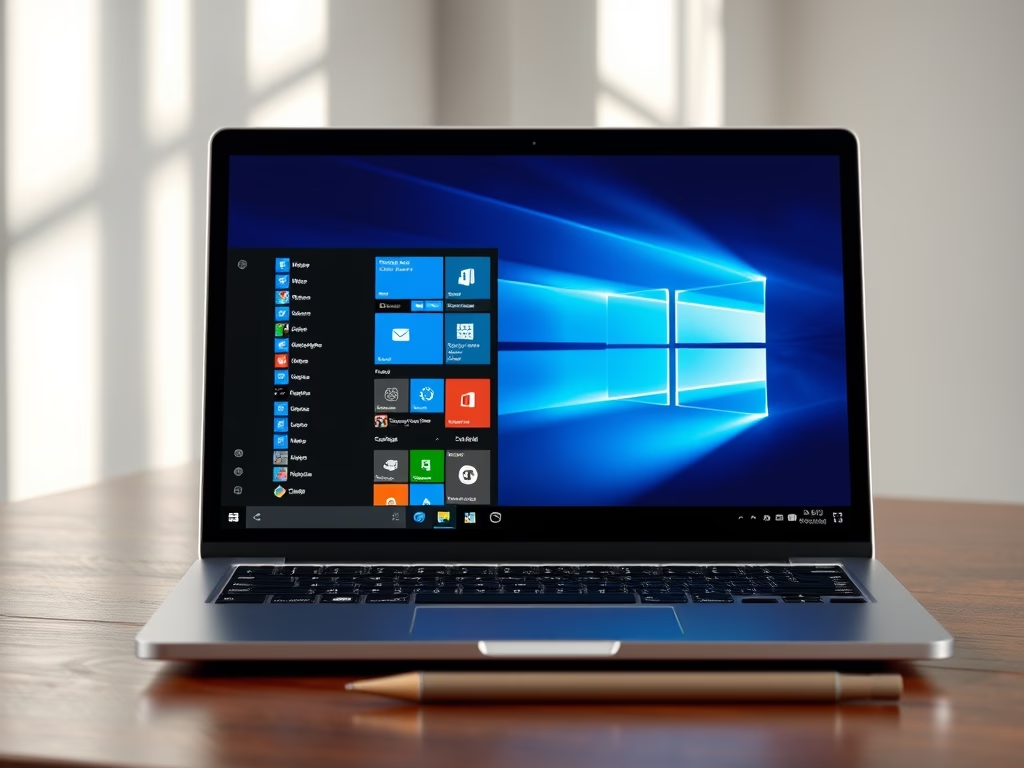
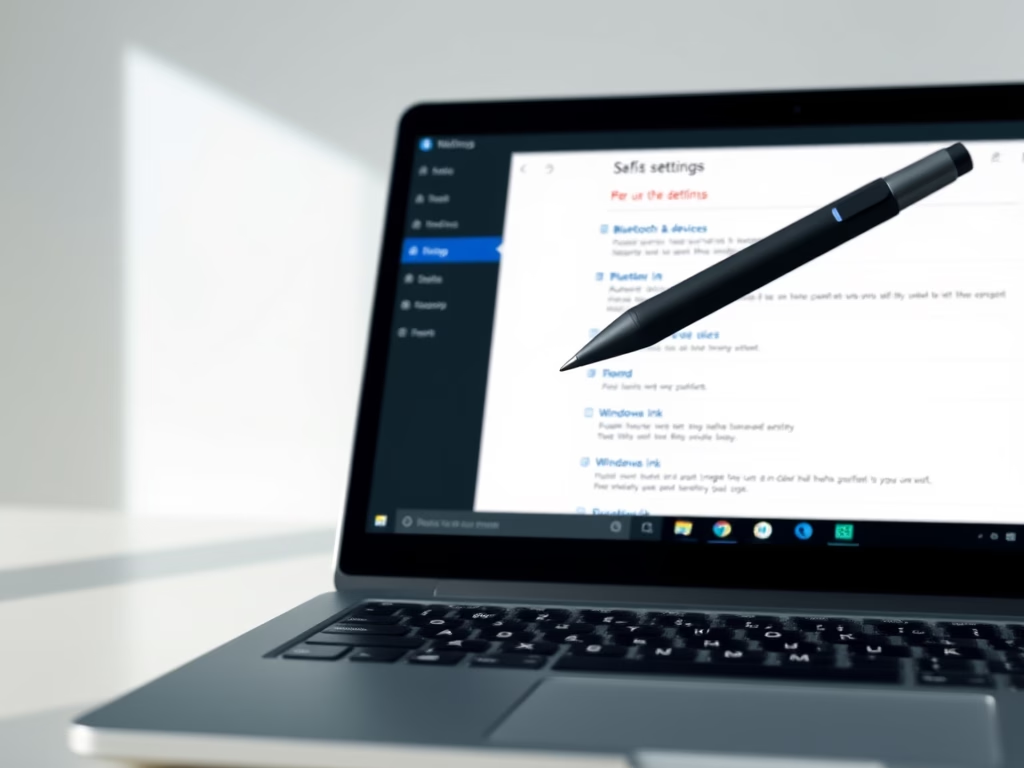
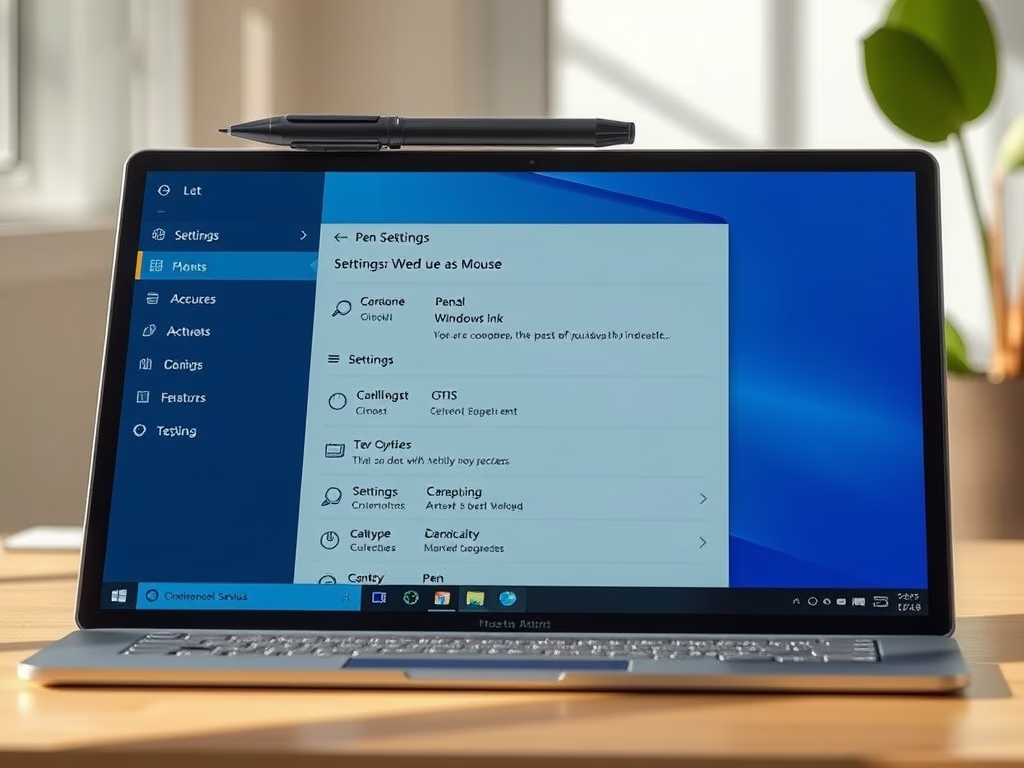
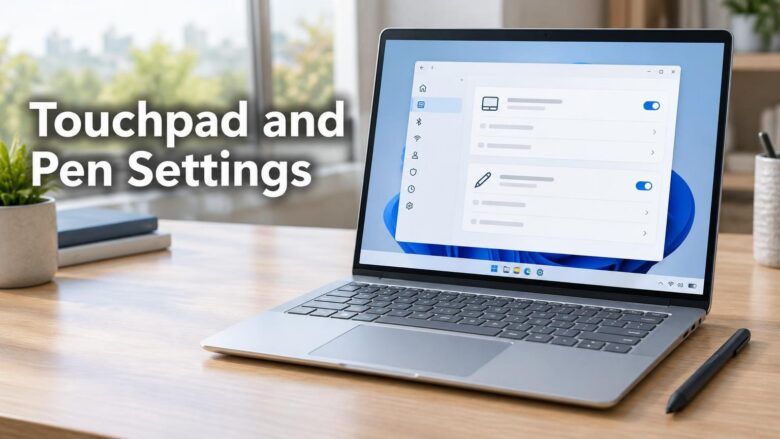
A Windows 11 laptop on a desk with its touchpad and a stylus pen beside it, with a settings window open on screen.

Windows 11 touchpad and pen input settings control how your touchpad, touch screen, pen and mouse respond to you. Most of them sit under Settings Bluetooth & devices, with handwriting and text input under Settings Personalization. People often find these settings only after something misbehaves, such as a touchpad that switches off or a pen that clicks when you did not press it. This page groups the 34 guides by the job you are trying to do, so you can go straight to the one you need.

Advertisement
Start hereHow to Enable or Disable the Touchpad in Windows 11 SettingsTurning the touchpad on or off is the most basic input setting, and checking it first rules out the most common cause of a pointer that seems to have stopped responding.

Turn an input device on, off or back on

Use these guides when a touchpad, touch screen or mouse has stopped responding, or when you want to switch one off on purpose. They cover the toggles in Settings and the steps to take when a device stays unresponsive. Start here before changing any finer settings.
Use touchpad and touch screen gestures

Gestures let you swipe, pinch and tap to move around Windows without a keyboard. These two guides list the gestures for the touchpad and for the touch screen. Read the one that matches the device you use most.

Set up your pen and its buttons

A pen can do more than write. These guides show how to set pen shortcuts, choose which hand you write with, use the pen as a mouse, and stop finger touches from interfering while the pen is in use. Read the pen shortcut guides before you change the pen button’s action, so you know what the button does by default.
How to configure pen shortcuts and pressure sensitivity in Windows 11 Pen and Windows Ink settings
1 How to Set Pen Shortcuts in Windows 11 and Adjust Pressure Pen & Windows Ink settings in Windows 11 control how your stylus (pen) behaves, including what the buttons on the side of… 10 min read ↻ Updated Nov 2026
How to Find the Music Folder in Windows 11
2 How to Choose the Hand You Write with for Pen in Windows 11 Windows 11 lets you tell it which hand you write with. Menus then open on the side your palm and wrist won't… 3 min read ↻ Updated Oct 2026
How to Enable or Disable Display Additional Keys Pressed when using Pen in Windows 11
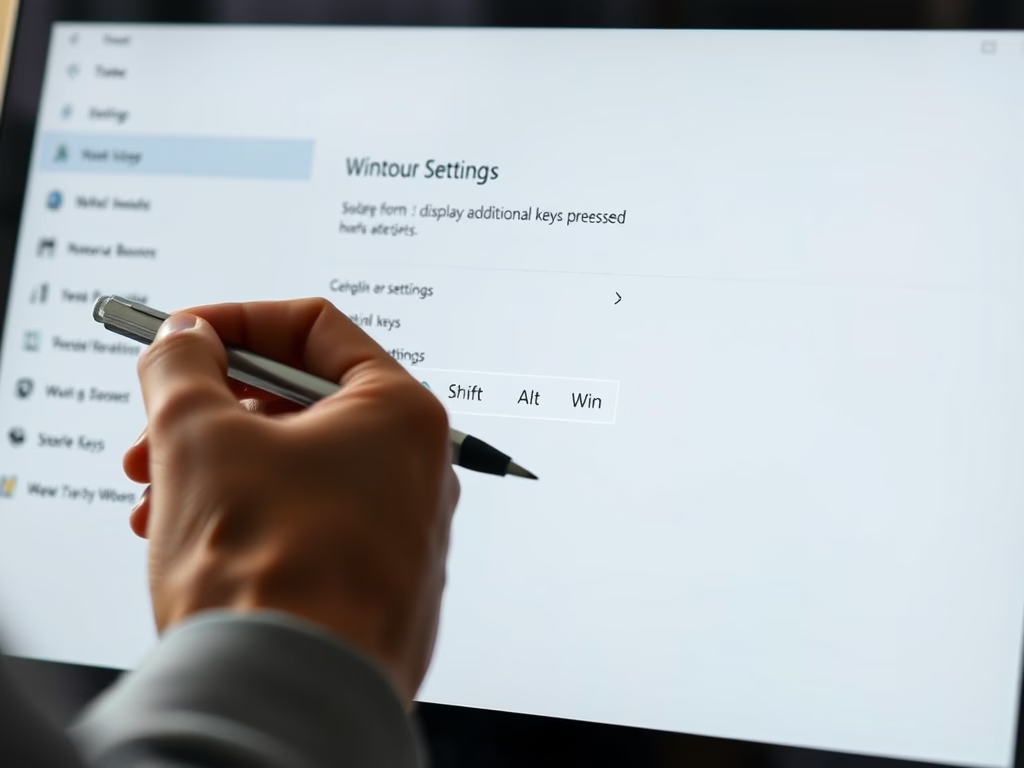
3 How to Enable or Disable Display Additional Keys Pressed When Using Pen in Windows 11 Windows 11 can show onscreen feedback when you press keyboard shortcuts while using a stylus. The pen settings usually appear only when… 3 min read ↻ Updated Nov 2026
How to Enable or Disable Pen Visual Effects in Windows 11
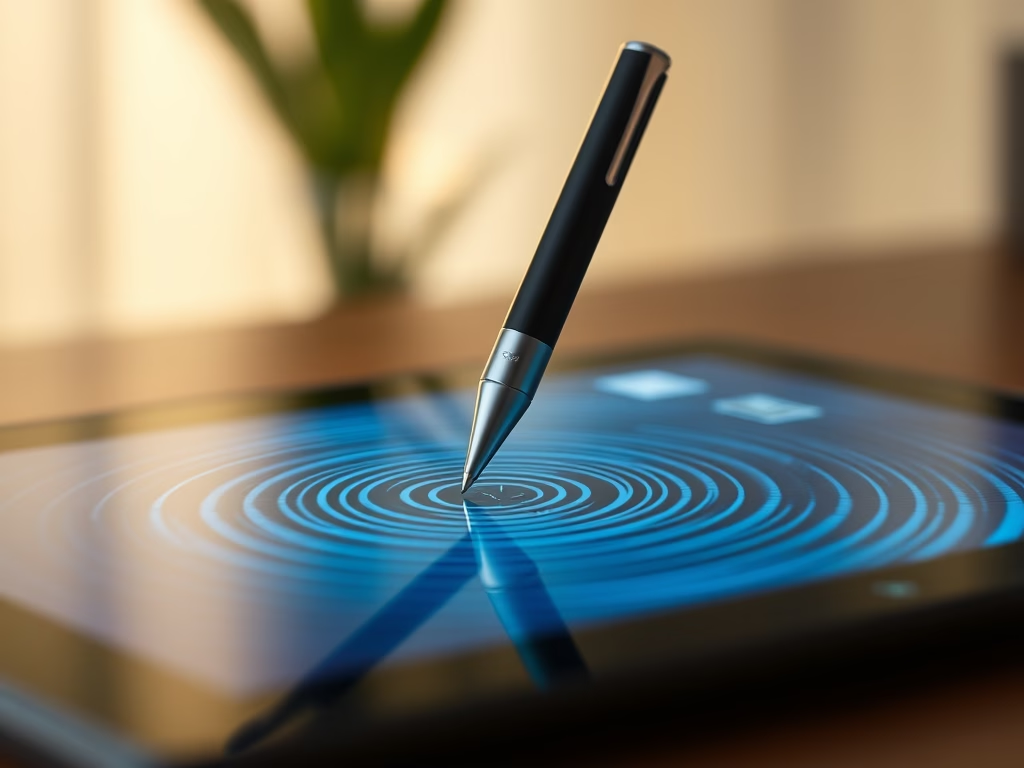
4 How to Enable or Disable Pen Visual Effects in Windows 11 Pen visual effects in Windows 11 show a small circle animation and ripple on the screen whenever your stylus touches the display.… 4 min read ↻ Updated Oct 2026
How to Enable or Disable Pen Cursor in Windows 11
5 How to Enable or Disable Pen Cursor in Windows 11 The pen cursor in Windows 11 is a small dot that appears on screen when you hold a stylus close to the… 3 min read ↻ Updated Oct 2026
How to Enable or Disable Use Pen as Mouse in Windows 11
6 How to Enable or Disable Use Pen as Mouse in Windows 11 Use pen as mouse in Windows 11 makes your digital stylus behave like a standard pointer. You can then click small buttons,… 3 min read ↻ Updated Oct 2026
How to Enable or Disable Ignore Touch Input when using Pen in Windows 11
7 How to Enable or Disable Ignore Touch Input When Using Pen in Windows 11 Ignore touch input when using a pen is a built-in Windows 11 setting that stops palm marks and stray finger taps from… 4 min read ↻ Updated Oct 2026
How to Change what Pen Shortcut Button Does in Windows 11
8 How to Change What Pen Shortcut Button Does in Windows 11 This guide explains how to customize your digital pen's shortcut button on a Windows 11 computer. Ensure Bluetooth is enabled for the pen connection, access the Settings app, navigate to Bluetooth & devices, then Pen & Windows Ink. You can choose different actions for single-click, double-click, and press-and-hold. 4 min read ↻ Updated Nov 2026
How to Enable Variable Refresh Rate in Windows 11
9 How to Use the Pen to Erase Ink in Windows 11 The article instructs how to use and customize a Bluetooth-paired pen within Windows 11, highlighting the feature that allows the pen's top to erase ink digitally. The guide explains two procedures to activate this function: through the Windows Settings App and the Windows Registry Editor. After implementing changes, the users need to restart their device. 5 min read ↻ Updated Oct 2026

Change how press, hold and double-tap work with the pen

These settings control timing: how long you must hold the pen tip down for a right-click, and how quickly two taps count as a double-tap. Change one setting at a time and test it in a document or on the desktop. That way you can tell which change made the difference.

Advertisement

Write and type by hand with the handwriting panel

The handwriting panel turns pen or fingertip writing into typed text in any text box. These guides explain how to open it, turn on fingertip writing, change its font size, control auto-completion and choose whether the touch keyboard makes sounds. Read the text input guide if the panel does not appear where you expect.
Settings > Personalization > Text input
1 How to Configure Text Input Preferences in Windows 11 Personalization Settings Text input preferences in Windows 11 control how your PC handles typing assistance, including automatic spelling corrections and word suggestions. These built-in… 9 min read ↻ Updated Oct 2026
Settings > Time & language > Typing
2 How to Configure Handwriting Panel Auto-Completion in Windows 11 Inking and Typing Handwriting panel auto-completion in Windows 11 finishes words for you as you write with a stylus or finger on the screen. It… 8 min read ↻ Updated Nov 2026
Settings > Personalization
3 What Breaks When You Disable Windows 11 Inking and Typing Personalization Windows 11 Inking and Typing Personalization is a built-in feature that saves your custom words, writing habits, and local dictionary data to… 8 min read ↻ Updated Oct 2026
How to Access the Handwriting Panel in Windows 11
4 How to Access the Handwriting Panel in Windows 11 Windows 11 allows touchscreen device users to type using an on-screen keyboard and a handwriting panel. To enable it, activate the touch keyboard in the taskbar settings and select handwriting mode. This lets users write text with a finger or pen, which Windows converts into typed text. 5 min read ↻ Updated Nov 2026
Enable Handwriting: Use Your Fingertip in Windows 11
5 Enable Handwriting: Use Your Fingertip in Windows 11 Windows 11 allows users to enable or disable fingertip writing in the handwriting panel via the Settings app or the Registry Editor. This feature facilitates text entry without a physical keyboard, making it ideal for quick notes. Users can effortlessly switch the setting based on their preferences. 3 min read ↻ Updated Oct 2026
How to Enable or Disable Windows 11 Touch Keyboard Sounds
6 How to Enable or Disable Windows 11 Touch Keyboard Sounds The article provides a guide to enable or disable the Touch keyboard's key sounds feature in Windows 11. Users can alter this feature via the Windows Settings app or the Windows Registry Editor. When enabled, the virtual keyboard produces a clicking sound as keys are pressed, akin to a physical keyboard. 4 min read ↻ Updated Oct 2026
How to Set Max Recording Length in Windows 11 Gameplay Captures
7 Enable Handwriting: Use Your Fingertip in Windows 11 This article provides instructions to enable or disable the use of fingertip for writing in the handwriting panel in Windows 11. This feature is available for touchscreen devices and can be adjusted using either the Settings app or the Windows Registry Editor. The process includes navigating to specific settings or folders and altering check boxes or values. 2 min read ↻ Updated Oct 2026
How to Send and Receive Text Messages on Windows 11
8 How to Change Font Size in Windows 11 Handwriting Panel This post provides instructions on how to modify the font size in the handwriting panel in Windows 11, a feature available on touchscreen devices. Users can adjust the font size from the default medium to small or large using the Windows Settings App or the Windows Registry Editor. The specific steps for each method are detailed. 4 min read ↻ Updated Oct 2026

Adjust pointer speed, look and feedback

These guides cover the mouse pointer: which button is primary, how fast it moves, how it looks and whether it vibrates on supported hardware. Use them when the pointer feels too fast, too slow, too small or hard to follow. Read the enhanced pointer precision guide before you change acceleration, because it affects how far the pointer moves.
change the primary mouse button in windows
1 How to Change the Primary Mouse Button in Windows 11 Mouse Properties Swap your left and right mouse buttons to accommodate left-handed use or hand injuries. The change takes effect straight away, needs no… 5 min read ↻ Updated Oct 2026
Settings > Bluetooth > Mouse
2 How to Adjust Mouse Pointer Speed In Windows 11 Settings Mouse pointer speed in Windows 11 controls how far the cursor moves on screen for a given movement of your hand. The… 11 min read ↻ Updated Oct 2026
How to customize pointer appearance using Windows 11 Mouse Properties
3 How to Customize Pointer Appearance Using Windows 11 Mouse Properties To customize mouse pointer appearance in Windows 11, open Settings > Accessibility > Mouse pointer and touch for size and color. Open… 7 min read ↻ Updated Nov 2026
How to configure custom pointer color and size in Windows 11 mouse pointer settings
4 How to Configure Custom Pointer Color and Size in Windows 11 Mouse Pointer Settings Custom pointer color and size in Windows 11 Mouse Pointer Settings let you change the color and scale of your cursor so… 6 min read ↻ Updated Nov 2026
Should you enable enhanced pointer precision in Windows 11 mouse properties
5 Should You Enable Enhanced Pointer Precision in Windows 11 Mouse Properties Enhanced pointer precision in Windows 11 is the mouse acceleration setting. To find it, open Settings > Bluetooth & devices > Mouse… 9 min read ↻ Updated Nov 2026
How to Enable or Disable Controlled Folder Access for Microsoft Defender Antivirus in Windows 11
6 How to Change Mouse Haptic Feedback Intensity in Windows 11 Mouse haptic feedback intensity in Windows 11 controls the physical vibration strength you feel when you click buttons, drag windows, or resize… 5 min read ↻ Updated Oct 2026
Control Panel
How to Enable or Disable Control Panel and Settings in Windows 11
7 How to Enable or Disable Mouse Haptic Feedback in Windows 11 Mouse haptic feedback in Windows 11 adds physical vibrations to your clicks and window snaps, so you can feel what happens on… 5 min read ↻ Updated Oct 2026

Have a question about this guide?

Answered by AI from this guide. Good questions may be added to this page — please don't include personal details.

Tags: #Windows 11
Richard

About the Author

Richard

Tech Writer, IT Professional

Richard is a writer at Geek Rewind who turns complex IT tasks into clear, step-by-step guides. He draws on years of hands-on experience in system administration and enterprise IT operations, focusing on Windows, Linux and WordPress: the problems people actually run into, and the fixes that work. His server and WordPress guides come from systems he runs himself. Richard builds and maintains the platform behind Geek Rewind, from its Ubuntu servers and Nginx configuration to its custom WordPress plugins. Many new tutorials start with readers' questions, and he's always glad to answer them in the comments.

Advertisement

No comments yet — be the first to share your thoughts!

Leave a Comment

Your email address will not be published. Required fields are marked *