How to Change Pen Double-Tap Tolerance in Windows 11


- 32 steps
- Needs administrator rights
- Includes a restart or sign-out
Pen double-tap tolerance controls how far your stylus tip can move on the screen between two taps and still count as a double-click. If the value is too low, Windows misses quick double-taps whenever your hand shifts slightly. If it is too high, two taps in slightly different places can be read as one double-tap.
You can adjust this value from the Settings app. The setting is the same on Windows 11 Home and Pro, and no restart is needed. The change applies as soon as you move the slider.
- Press Win+I to open the Settings app.
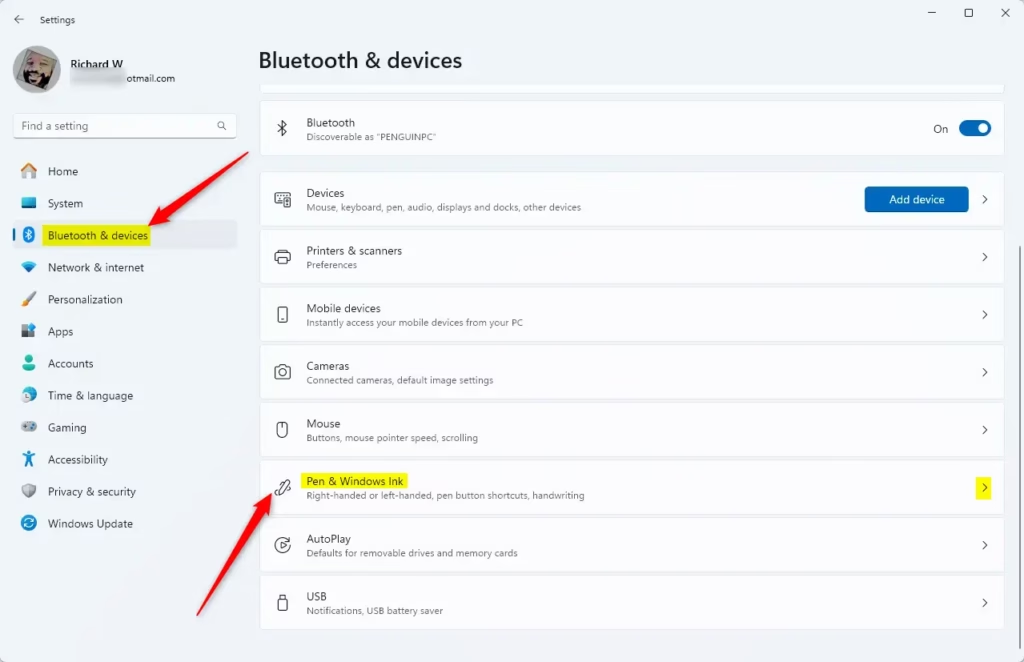
- Click Bluetooth & devices in the left sidebar. The list of connected devices appears on the right.
- Select Pen & Windows Ink. This page only shows up on devices with a pen-capable screen or a paired pen. If you don’t see it, check that the pen is connected and its battery is charged.
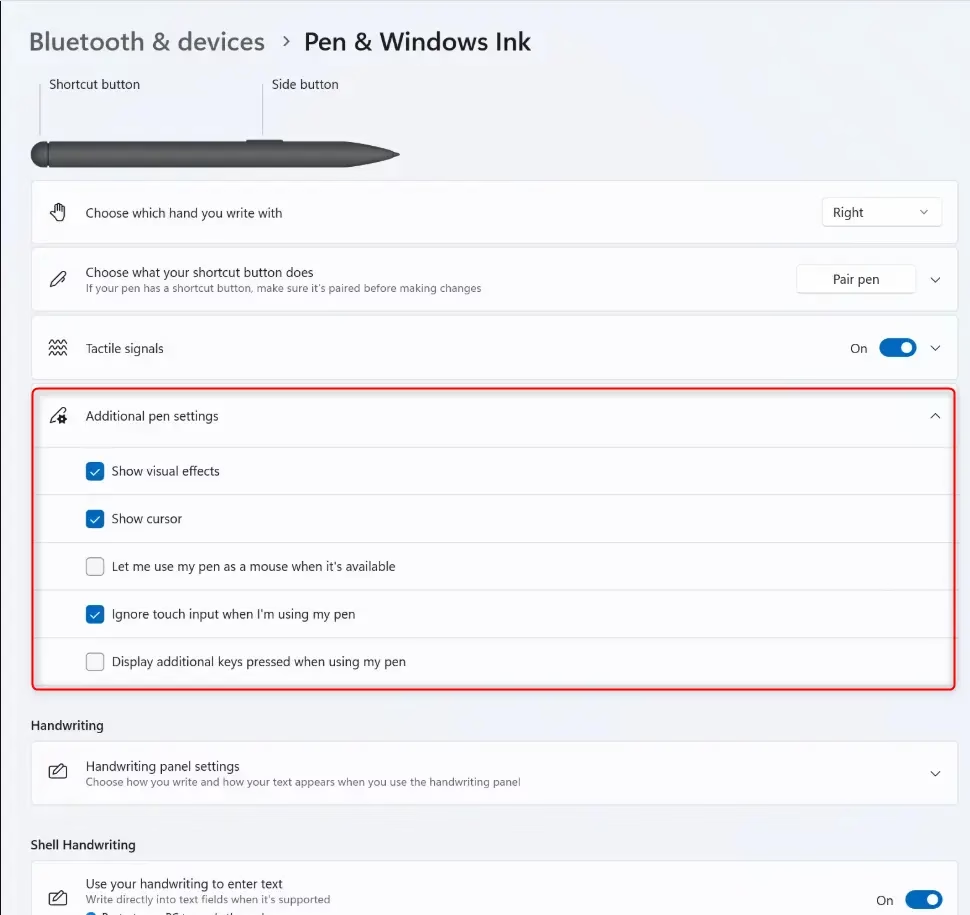
- Click Additional pen settings to expand the menu. On some builds this link opens the classic Pen and Touch window instead. If so, continue in that window.
- Find the slider labeled The distance your stylus can move between taps when you double-tap.
- Move the slider to the left to decrease the tolerance or to the right to increase it.
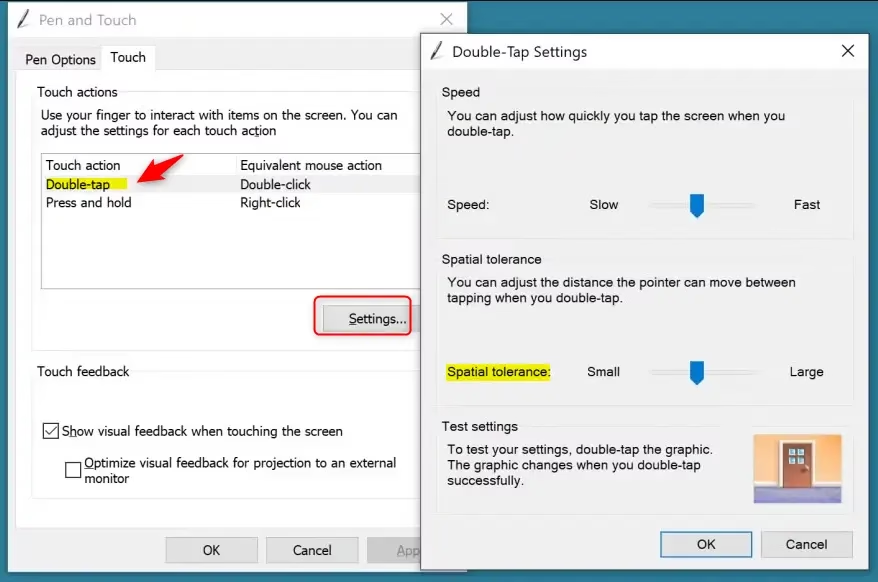
If you can’t find that slider, open the Pen Options tab in the classic Pen and Touch window, select Double-tap in the list, and click Settings. The double-tap sliders are in that dialog.
You adjust the pen double-tap tolerance in Windows 11 by navigating to Settings Bluetooth & devices Pen & Windows Ink Additional pen settings and moving the spatial tolerance slider. Alternatively, use Control Panel Pen and Touch Pen Options or the Registry Editor at 🗝️HKEY_CURRENT_USER\
Why Change Pen Double-tap Settings?
Adjusting the spatial tolerance helps your pen recognize double-taps more accurately. If your pen is too sensitive or not sensitive enough, changing this setting fixes the problem.
Make small changes and test after each one. Double-tap a file or folder in File Explorer with the pen and see whether it opens. If you are not sure which way to go, try a slightly higher tolerance first, since missed double-taps are the most common complaint. To undo a change, move the slider back to where it was.
Option One
You can change pen double-tap tolerance in the Settings app if your stylus struggles to register double-taps. Open Settings, go to Bluetooth & devices, select Pen & Windows Ink, and click Additional pen settings. From there, adjust the slider for the distance your stylus can move between taps until your double-taps work reliably every time.
- Press Win+I to open the Settings app.
- Navigate to Bluetooth & devices in the left sidebar.
- Select Pen & Windows Ink. If the page is missing, Windows is not detecting a pen or pen-capable display.
- Click Additional pen settings to expand the menu.
- Locate the slider labeled The distance your stylus can move between taps when you double-tap.
- Move the slider to the left to decrease the tolerance or to the right to increase it. Then test with a double-tap on a file in File Explorer.
Option Two
Change Pen Double-tap Spatial Tolerance in Registry Editor ⚠️ Requires Admin Privileges
You can change pen double-tap spatial tolerance using the Registry Editor if you prefer making system adjustments through the registry. Open Registry Editor by typing regedit.exe in your search bar, go to 🗝️HKEY_CURRENT_USER\- Open Registry Editor by typing
regedit.exein your search bar and running it. - In the left pane, navigate to this location:
HKEY_CURRENT_USER\Software\Microsoft\Wisp\Pen\SysEventParameters - In the right pane, find the DblDist DWORD value. Double-click it to edit it.
- Click on Decimal. Type a number between 3 (small) and 50 (large) for your preferred double-tap sensitivity. Then click OK. The default value is 20.
- Close Registry Editor when done.
- Sign out and sign back in or restart your computer to apply the changes.
Summary
Changing your pen double-tap spatial tolerance adjusts how far your pen pointer can move between taps. This helps your pen recognize double-taps better. Three methods handle this adjustment: Settings, Control Panel, or Registry Editor. Every method yields the exact same result. Pick whichever approach fits your workflow.
Change Pen Double-tap Spatial Tolerance in Control Panel
You can change pen double-tap spatial tolerance through the Control Panel to make double-clicking with your stylus easier. Open Control Panel in icons view, click the Pen and Touch icon, open the Pen Options tab, and click Settings under Double-tap. Move the Spatial tolerance slider left for a smaller area or right for a larger area, then click OK.- Open Control Panel in icons view. Click on the Pen and Touch icon.
- Do the following:
- Click on the Pen Options tab.
- Select Double-tap.
- Click on Settings.
- Move the Spatial tolerance slider left for a smaller distance or right for a larger distance. Choose what works best for you. Then click OK. You can double-tap on the door graphic under Test settings to test your current double-tap setting.
- Click OK again.
- Close Control Panel when finished.
Option Three
Change Pen Double-tap Spatial Tolerance in Registry Editor ⚠️ Requires Admin Privileges
You can change pen double-tap spatial tolerance using the Registry Editor if you prefer making system adjustments through the registry. Open Registry Editor by typing regedit.exe in your search bar, go to 🗝️HKEY_CURRENT_USER\- Open Registry Editor by typing
regedit.exein your search bar and running it. - In the left pane, navigate to this location:
HKEY_CURRENT_USER\Software\Microsoft\Wisp\Pen\SysEventParameters - In the right pane, find the DblDist DWORD value. Double-click it to edit it.
- Click on Decimal. Type a number between 3 (small) and 50 (large) for your preferred double-tap sensitivity. Then click OK. The default value is 20.
- Close Registry Editor when done.
- Sign out and sign back in or restart your computer to apply the changes.
Summary
Changing your pen double-tap spatial tolerance adjusts how far your pen pointer can move between taps. This helps your pen recognize double-taps better. Three methods handle this adjustment: Settings, Control Panel, or Registry Editor. Every method yields the exact same result. Pick whichever approach fits your workflow.
Have a question about this guide?
Answered by AI from this guide. Good questions may be added to this page — please don't include personal details.
Did this guide fix your problem?

About the Author
Richard
Tech Writer, IT Professional
Richard is a writer at Geek Rewind who turns complex IT tasks into clear, step-by-step guides. He draws on years of hands-on experience in system administration and enterprise IT operations, focusing on Windows, Linux and WordPress: the problems people actually run into, and the fixes that work. His server and WordPress guides come from systems he runs himself. Richard builds and maintains the platform behind Geek Rewind, from its Ubuntu servers and Nginx configuration to its custom WordPress plugins. Many new tutorials start with readers' questions, and he's always glad to answer them in the comments.
No comments yet — be the first to share your thoughts!