How to Change Pen Double-Tap Speed In Windows 11

- 24 steps
- Needs administrator rights
- Includes a restart or sign-out
Pen double-tap speed controls how quickly you have to tap the screen twice with a stylus for Windows 11 to treat it as a double-click. If the timing is too strict, Windows misses your double-taps and you end up tapping repeatedly. If it is too loose, two separate taps can register as one double-tap and open files or apps by accident.
Adjust your pen double-tap speed in Windows 11 via Settings. Go to Bluetooth & devices, then Pen & Windows Ink, expand Additional pen settings, and move the double-tap time slider left for faster taps or right for slower ones.
You change this setting from the Bluetooth & devices area of Settings. It takes a few seconds, and you can change it back at any time. Matching the timing to how fast you actually tap makes the pen feel natural to use.
Before you start, note what you need:
- A device with a pen-capable screen, or a pen that is paired or connected to your PC. Without pen hardware, Windows hides the pen settings.
- The same steps work on Windows 11 Home and Pro. No administrator rights are needed, because the setting only affects your own user account.
- No restart is needed. Changes apply as soon as you make them.
To reach the pen settings:
- Open Settings by pressing Win+I.
- Go to Settings Bluetooth & devices.
- Select Pen & Windows Ink. You should now see the pen options for your device.
- Find the double-tap speed setting and adjust it. Move it toward slower if Windows misses your double-taps, or toward faster if separate taps are being read as one.
- Test the new speed by double-tapping a folder on the desktop with your pen. Adjust again until it opens reliably without false triggers.
If you can’t find the Pen & Windows Ink page, Windows doesn’t detect a pen on your PC. Check that the pen is connected or paired, and that your screen supports pen input. If the page opens but doesn’t show a double-tap speed control, your version of Windows 11 or your device’s pen driver may keep that timing in a different settings location. In that case, check the pen settings provided by your device manufacturer.
To undo a change, return to the same page and move the setting back to where it was. If you don’t remember the original value, the middle of the range is a sensible starting point.
Option One
Change Pen Double-tap Speed in Settings
You can change pen double-tap speed in Settings by opening your device options and adjusting the tap time slider. This built-in Windows 11 menu lets you control how fast or slow you need to tap your stylus for shortcuts to work, making it the easiest way to match your natural hand movement without touching advanced system files.- Open Settings by pressing
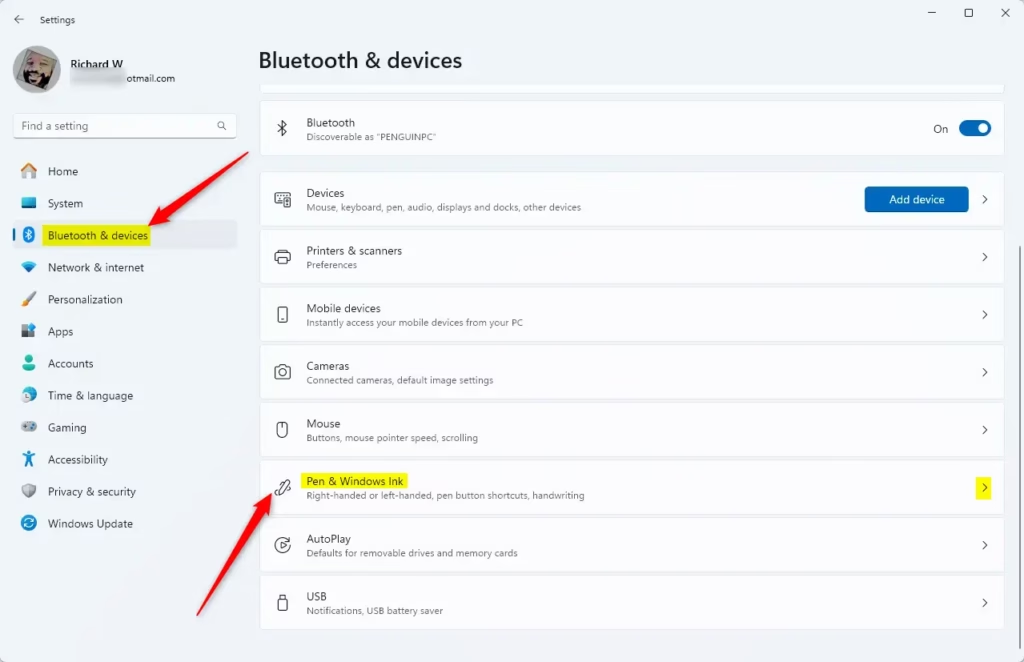
Win+I. - Click on Bluetooth & devices on the left side. Then click on Pen & Windows Ink on the right side. Open Pen & Windows Ink settings
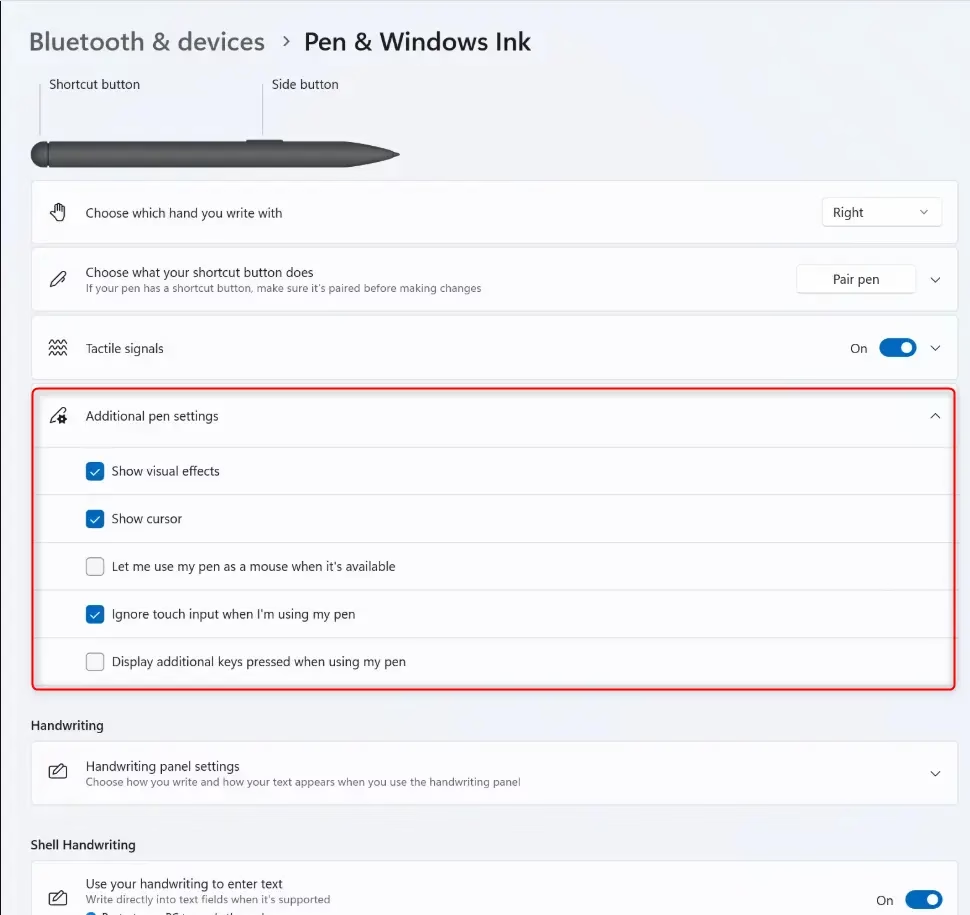
- Click on Additional pen settings to expand it.
- Look for the slider called The amount of time allowed between taps when you double-tap. Move the slider left to make the time shorter (faster taps) or right to make it longer (slower taps). The default time is 10. Hover your mouse over the slider to see the current number.
- Close Settings when you are done.
Option Two
Change Pen Double-tap Speed in Control Panel
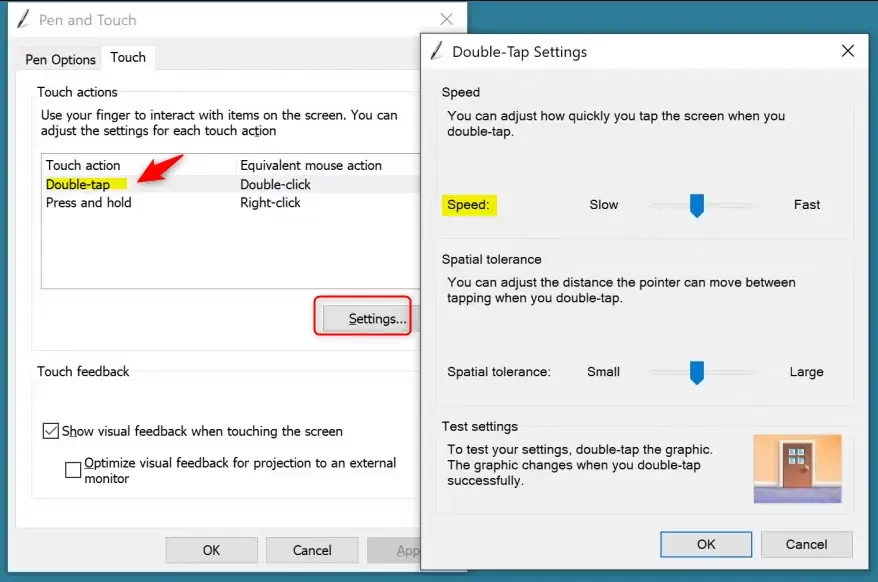
- Open Control Panel in icon view. Click on the Pen and Touch icon.
- Do the following:
- Click on the Pen Options tab.
- Select Double-tap.
- Click on Settings.
- Move the Speed slider left for slower taps or right for faster taps. Pick the speed you want. Then click OK.
You can change pen double-tap speed using the traditional Control Panel menu if you prefer classic Windows settings. Opening the Pen and Touch tool lets you adjust a dedicated speed slider and test your taps on a built-in graphic before saving your changes, giving you precise control over your stylus response time.
- Click OK.
- Close Control Panel when you are done.
Option Three
Change Pen Double-tap Speed in Registry Editor
- In the left pane, navigate to this location:
You can change pen double-tap speed in Registry Editor by editing a specific system value if you want exact numerical control. Modifying the DblTime DWORD value lets you set the exact millisecond delay between taps, making it a handy option for advanced users who find standard menu sliders are not precise enough.
- In the right pane, find the DblTime DWORD value. Double-click on it to edit it.
- Click on Decimal. Type a number between 100 (fast) and 2000 (slow) for your desired double-tap speed. Then click OK.
The default double-tap speed is 300.
- Close Registry Editor when finished.
- Sign out and sign back in, or restart your computer to apply the changes.
Summary
Choosing how to change pen double-tap speed depends on which Windows menu you prefer to use for your stylus setup. Whether you pick the main Settings app, the classic Control Panel, or Registry Editor (a database that stores system settings), adjusting this timing helps your stylus register double-taps reliably every time you use it.
Frequently asked questions
How to adjust mouse double click speed?
Open Settings and go to Bluetooth & devices Mouse. Find the slider labeled "Mouse double-click speed" and move it left to make clicks faster or right to make them slower. Test your change by double-clicking the test box on the same screen.
How do I disable Windows Ink in 🪟 Windows 11?
Open Settings and go to Bluetooth & devices Pen & Windows Ink. Toggle off "Use your pen as a mouse" and disable "Press and hold" if you don't want pen shortcuts. You can also turn off handwriting and shape recognition here.
How do I turn on two-finger scrolling on the touchpad in 🪟 Windows 11?
Open Settings and go to Bluetooth & devices Touchpad. Scroll down to find "Multi-finger gestures" and toggle on "Two-finger scrolling." Choose vertical only or both directions depending on your preference.
How to calibrate a Windows Ink pen?
Open Settings and go to Bluetooth & devices Pen & Windows Ink. Click "Calibrate your pen display" to launch the calibration tool, then follow the on-screen prompts to tap the crosshairs at each location on your screen.
Still have a question?
Answered by AI from this guide. Good questions may be added to this page — please don't include personal details.
Give the new speed a day of normal use before you adjust it further. If double-taps still feel off, the cause is often the screen itself: a dirty screen, a worn pen tip or a low pen battery can make taps register unreliably, whatever speed you set.
Did this guide fix your problem?

About the Author
Richard
Tech Writer, IT Professional
Richard is a writer at Geek Rewind who turns complex IT tasks into clear, step-by-step guides. He draws on years of hands-on experience in system administration and enterprise IT operations, focusing on Windows, Linux and WordPress: the problems people actually run into, and the fixes that work. His server and WordPress guides come from systems he runs himself. Richard builds and maintains the platform behind Geek Rewind, from its Ubuntu servers and Nginx configuration to its custom WordPress plugins. Many new tutorials start with readers' questions, and he's always glad to answer them in the comments.
No comments yet — be the first to share your thoughts!