Change the Double-Click Speed In Windows 11

- 9 steps
- Needs administrator rights
The double-click speed in Windows 11 sets how quickly you must press the mouse button twice for Windows to treat it as one double-click. You change it with the Double-click speed slider in Mouse Properties, which you reach from Settings Bluetooth & devices Mouse
The change applies immediately, needs no administrator rights, and does not require a restart. Windows 11 does not put this slider on the main Settings page, so the steps below use the older Mouse Properties window, the one that holds this slider.
To change the double-click speed in Windows 11, open Settings, select Bluetooth & devices, then Mouse, then Additional mouse settings. On the Buttons tab of Mouse Properties, drag the Double-click speed slider toward Slow for a longer window between clicks or toward Fast for a shorter one. Select Apply to save it. No restart is needed.
What the double-click speed controls
A double-click is two presses of the left mouse button within a short time window. If the second press arrives after that window closes, Windows reads two separate single clicks. The slider changes the length of that window.
Moving it toward Slow gives you more time between clicks. Moving it toward Fast gives you less.
Adjust it when a double-click often fails to open a file or folder, or when Windows starts a rename because your two clicks registered as separate. A longer window also helps if you use a mouse with a stiff button, have a hand tremor, or are teaching someone who is new to the mouse. A shorter window suits fast clickers who open items by accident when they click twice in a row.
That includes desktop icons, files in apps, and any program that responds to a double-click. It belongs to your user account, so other people who sign in to the same PC keep their own speed.
Change the double-click speed in 🪟 Windows 11
These steps change the double-click speed in Windows 11 using the slider in Mouse Properties and then test the result before you save it.
- Open Settings . Press Win+I, or right-click the Start button and choose Settings. The Settings window opens with a list of categories on the left.

Start Menu - Select Bluetooth & devices. This category is in the left pane. It lists connected devices, printers, and input options such as the mouse and touchpad.

Windows Settings menu highlighting the Bluetooth and devices option for printers - Select Mouse. The Mouse page opens. It shows the Primary mouse button and Mouse pointer speed settings, plus scrolling options. No double-click slider appears here.
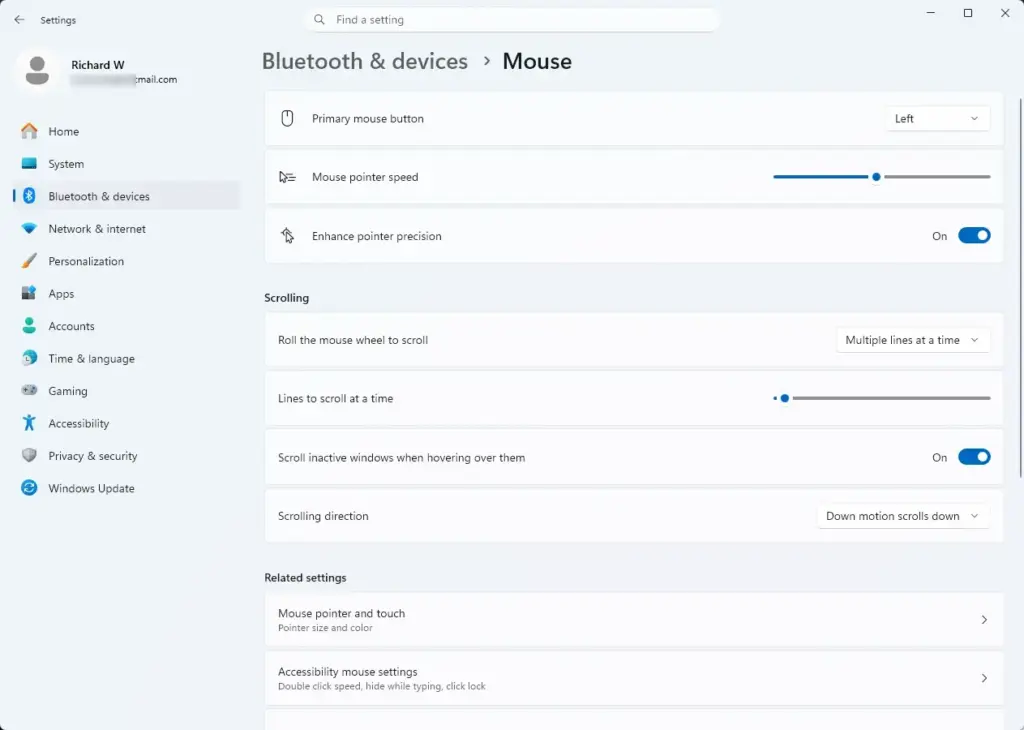
Settings › Bluetooth › Mouse - Select Additional mouse settings. This link sits under Related settings. If you do not see it, scroll down the Mouse page. A window titled Mouse Properties opens.
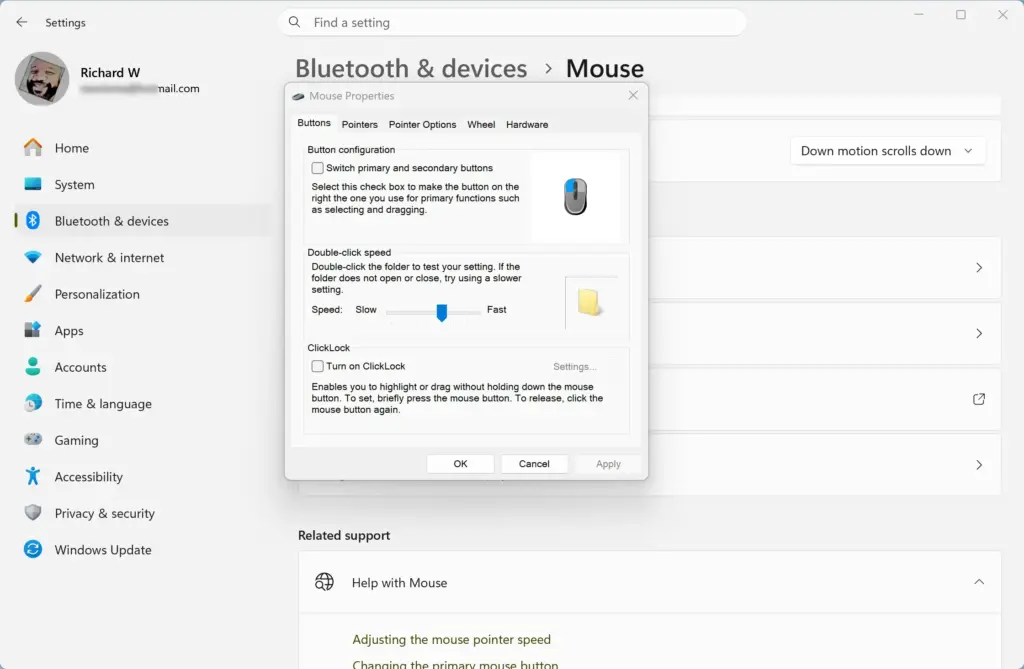
- Open the Buttons tab. It is the first tab in the window and is usually selected already. You should see Button configuration, Double-click speed, and ClickLock sections.
change clicklock setting mouse - Drag the Double-click speed slider. Move it left toward Slow for a longer window between clicks, or right toward Fast for a shorter one. The slider has no numbers, so adjust in small steps.
- Test the speed on the folder icon. Double-click the small folder icon to the right of the slider. A successful double-click opens the folder. Double-click it again to close it.
- Select Apply. This saves the new speed without closing the window. The speed takes effect right away, so you can keep testing in other windows if you want.
- Select OK. The Mouse Properties window closes and the setting stays in place. No restart or sign-out is needed.
If the folder test does not feel right, go back to the slider step, move it one notch, and test again. To check a slow pair of clicks, click the folder once, wait a moment, then click again. Repeat until the folder opens every time, but a slow pair of clicks does not open it.
Open Mouse Properties without going through Settings
Either method below opens the same window with the same Buttons tab.
- Run dialogPress Win+R, type
main.cpl, and press Enter. Mouse Properties opens straight away. - Control PanelOpen Control Panel, set View by to Large icons or Small icons, and select Mouse. Control Panel is the older settings app that came before Settings.
The Run command is the quickest route and works on every edition of Windows 11, including Home and Pro. No edition difference affects this slider.
Choose a speed that fits how you click
The default sits near the middle of the slider, and it suits most people. Change it in small steps rather than dragging to an extreme. Set the slider too far toward Slow and two separate clicks can register as one double-click. For example, if you click a file once to select it and click again to rename it, a slow setting can read those two clicks as a double-click and open the file.
Use the folder test as your guide, but also try the speed in real use. Open File Explorer and double-click a few folders and files. Pay attention to two things: whether your double-clicks reliably open items, and whether single clicks that you space out stay as single clicks.
If the main problem is opening items by accident, a better fix may be to avoid double-clicking at all. Windows 11 can open items with a single click, which removes the timing issue completely. The post on how to enable single click to open items in Windows 11 covers that option.
Other settings on the same Buttons tab
The Buttons tab holds two more settings that affect how clicks feel. Both are separate from the double-click speed, and you can leave them alone.
- Switch primary and secondary buttonsThis checkbox, in the Button configuration section, swaps the left and right buttons for left-handed use. After you tick it, double-click with the right button. Windows 11 also offers this as Primary mouse button on the Settings Bluetooth & devices Mouse page
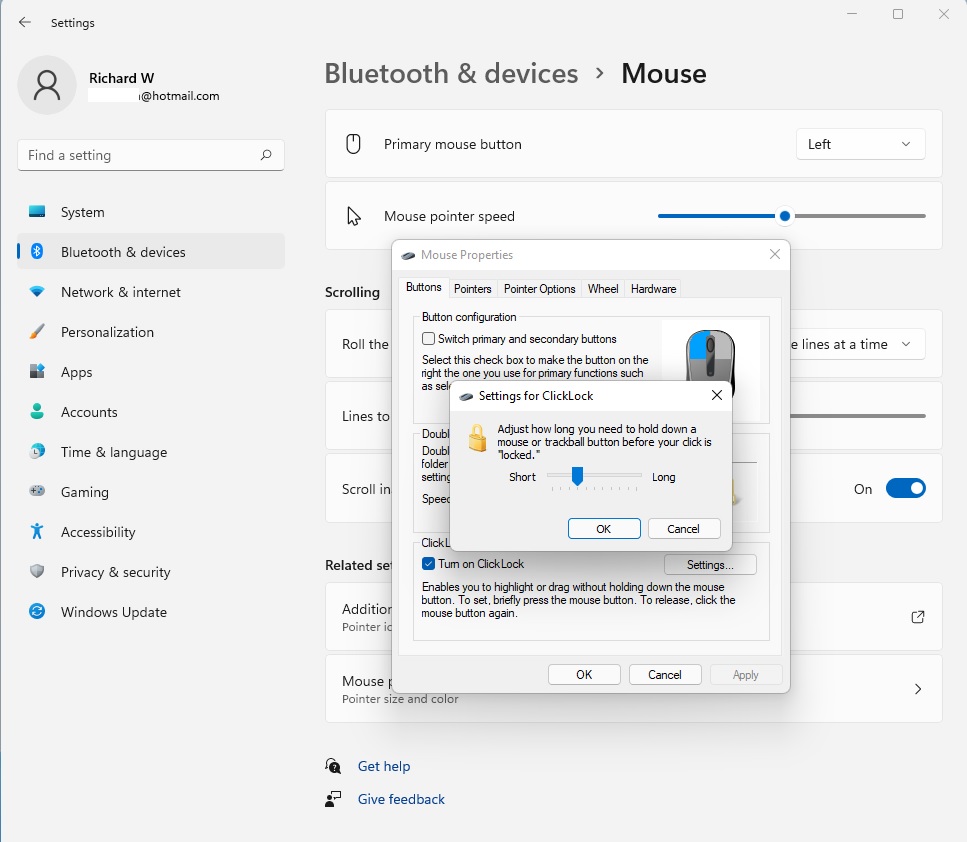
- Turn on ClickLockThis checkbox lets you drag items without holding the button down. Press and hold briefly to lock the drag, then click again to release it. The post on how to turn on Click Lock for dragging in Windows 11 explains how it works and how to adjust the hold time.
If you move the double-click slider and then notice drags behaving oddly, check that ClickLock is not turned on. It changes how the button responds when held, which is a different behavior from double-click timing.
If the slider does not seem to work
Most problems come from one of a few causes. Check them in this order.
The folder test fails at every speed. Click once, wait a moment, and click again. If the folder still never opens, the problem may be the mouse itself. A worn button can register one press as two, or miss a press entirely.
Try a different mouse or a different USB port, then repeat the test. If a wireless mouse is the issue, replace its batteries first.
You changed the speed, but double-clicks still behave the same. Make sure you selected Apply or OK. Closing the window with the X button discards the change. Open Mouse Properties again and check where the slider sits.
The setting reverts after you restart or sign in. [Verification Required: the introduction says the change persists without a restart, so confirm whether the slider can revert after a restart or sign-in.] If the slider has moved back, sign in to the same account you changed it on, because Windows stores this setting for each user.
Some mouse manufacturers install their own configuration software, which can apply its own click settings when it starts. If you use such software, check its options for a click or double-click setting.
You cannot open Mouse Properties, or the page is blocked. On a work or school PC, an administrator can restrict Control Panel and settings pages. You will see a message that the action has been cancelled or is restricted. Ask your IT team to change the setting, because you cannot work around it without administrator rights.
The Additional mouse settings link is missing. Scroll to the bottom of the Settings Bluetooth & devices Mouse page and look under Related settings. If you still cannot see it, use the main.cpl Run command from the previous section.
Undo the change or return to the default
The change is safe and reversible. Open Mouse Properties again, go to the Buttons tab, and drag the slider back to where it was. Select Apply, then OK.
Windows does not show a number for the slider and has no Reset button for it. Note the slider position before you move it, or take a screenshot of the window with Windows + Shift + S. The default position is near the middle, so moving the slider to the center gets you close to the original.
What to do next
The double-click speed is now saved for your account and applies to every double-click from here on. If you still open things by accident, switch to single-click opening using the guide to enable single click in Windows 11. If you work with taskbar icons a lot, you may also want to review the Last Active Click setting for the taskbar. [Verification Required: add where to find this setting in Settings.]
Frequently asked questions
How to change administrator in 🪟 Windows 11?
To change a user to administrator in Windows 11, open Settings, go to Accounts, then Other users. Select the account, click Change account type, pick Administrator from the Account type list, and click OK. You must be signed in as an administrator to do this.
How to change pin in 🪟 Windows 11?
To change your PIN in Windows 11, open Settings, go to Accounts, then Sign-in options. Under Ways to sign in, select PIN (Windows Hello) and click Change PIN. Enter your current PIN, then type and confirm the new one. If you forgot your PIN, select I forgot my PIN on the sign-in screen.
How to change text size in 🪟 Windows 11?
To change text size in Windows 11, open Settings, go to Accessibility, and select Text size. Drag the Text size slider to the size you want, then select Apply. Text in most apps gets bigger, but some apps may ignore it, so you may need their own zoom setting.
Still have a question?
Answered by AI from this guide. Good questions may be added to this page — please don't include personal details.
Did this guide fix your problem?

About the Author
Richard
Tech Writer, IT Professional
Richard is a writer at Geek Rewind who turns complex IT tasks into clear, step-by-step guides. He draws on years of hands-on experience in system administration and enterprise IT operations, focusing on Windows, Linux and WordPress: the problems people actually run into, and the fixes that work. His server and WordPress guides come from systems he runs himself. Richard builds and maintains the platform behind Geek Rewind, from its Ubuntu servers and Nginx configuration to its custom WordPress plugins. Many new tutorials start with readers' questions, and he's always glad to answer them in the comments.
No comments yet — be the first to share your thoughts!