5 Windows 11 Mouse Settings to Fix Cursor Speed

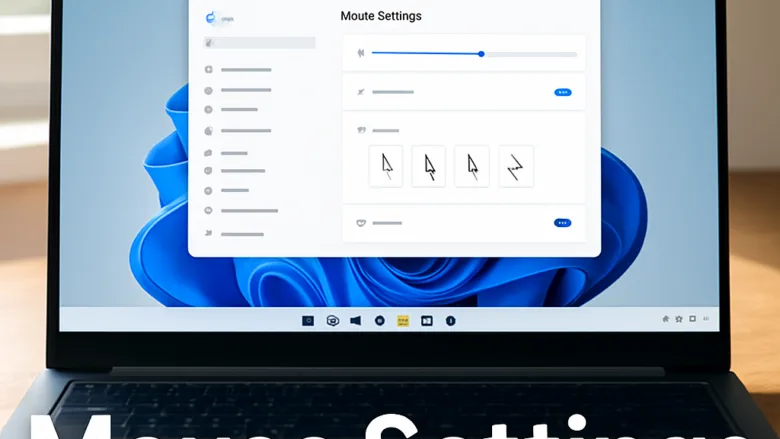
Mouse settings in Windows 11 control how fast your cursor moves, how quickly clicks respond, and how smoothly pages scroll. This guide covers five core settings. Matching them to your natural hand movement makes the computer more comfortable to use all day. It also helps with hand strain from a sluggish or overly fast pointer.
Most of these settings are in one place: Settings Bluetooth & devices Mouse. Changes there apply straight away, so you can test them as you go. You do not need to restart. Any change can be undone by setting the option back.
To change your mouse settings in Windows 11, open the Settings app and select Bluetooth & devices, then click Mouse to adjust your pointer speed, button functions, and scrolling behavior. You can also visit Accessibility and click Mouse pointer and touch to change the size and color of your cursor.
Set Up Your Basic Pointer and Buttons
These guides help you adjust the core settings you interact with every day. You will learn how to switch your click buttons and make the cursor easier to track. Both are quick changes, and you can reverse either one in seconds if it does not suit you.

Adjust Speed and Scrolling
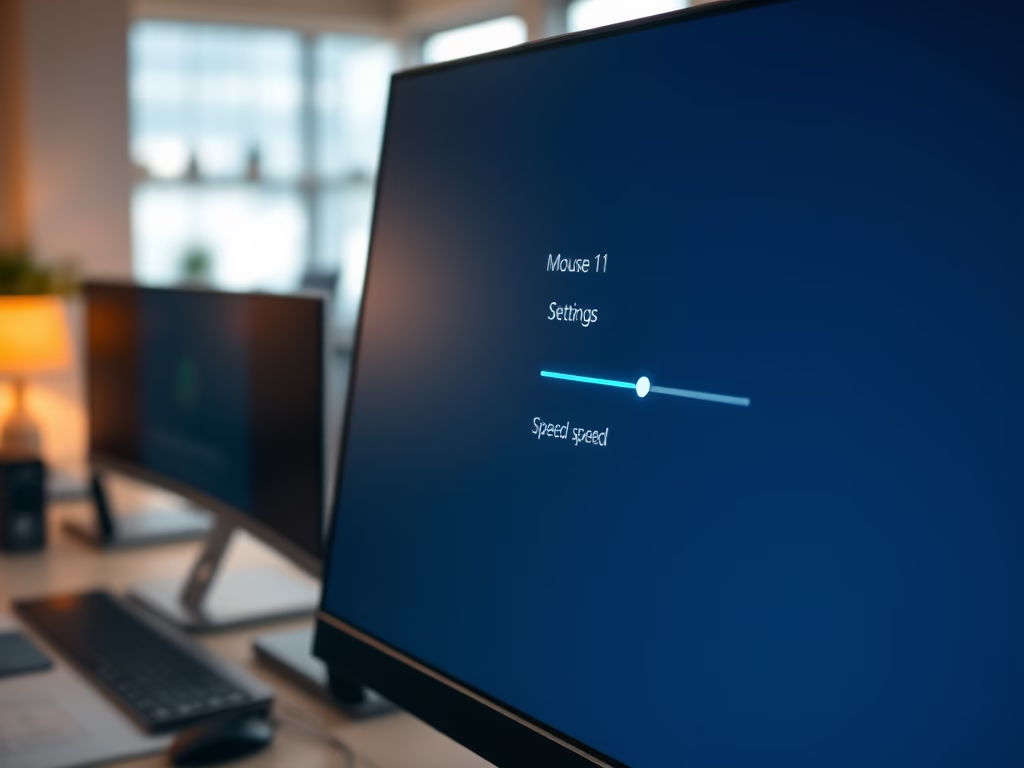
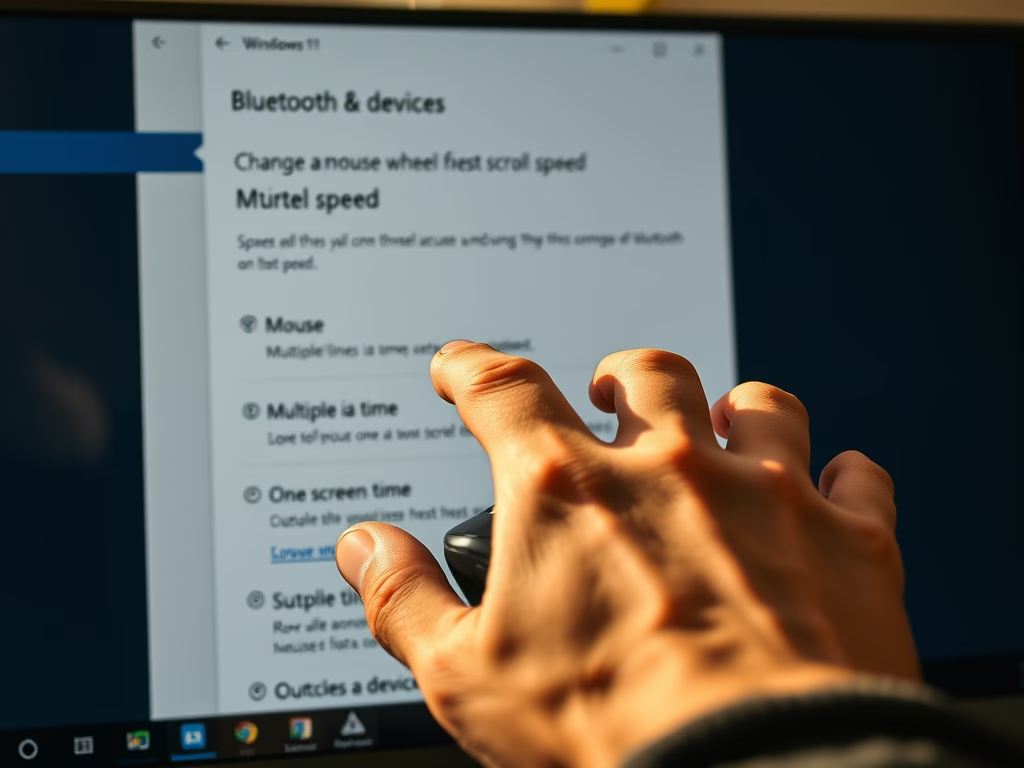
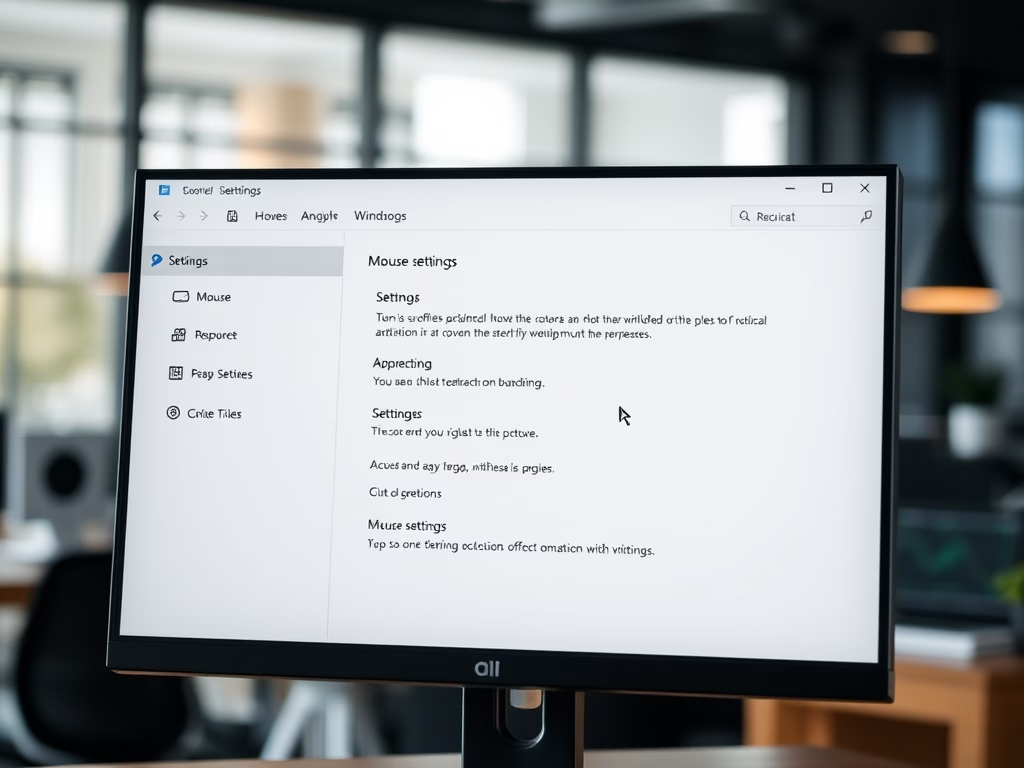
Configure how fast your cursor moves across the screen and how many lines text moves when you turn the wheel. These adjustments make reading long web pages and documents much more comfortable.
A good approach is to change one setting at a time. Move the pointer across the whole screen, then scroll a long page. If it still feels off, adjust the same setting again before you touch anything else.
Fine-Tune Precision and Movement
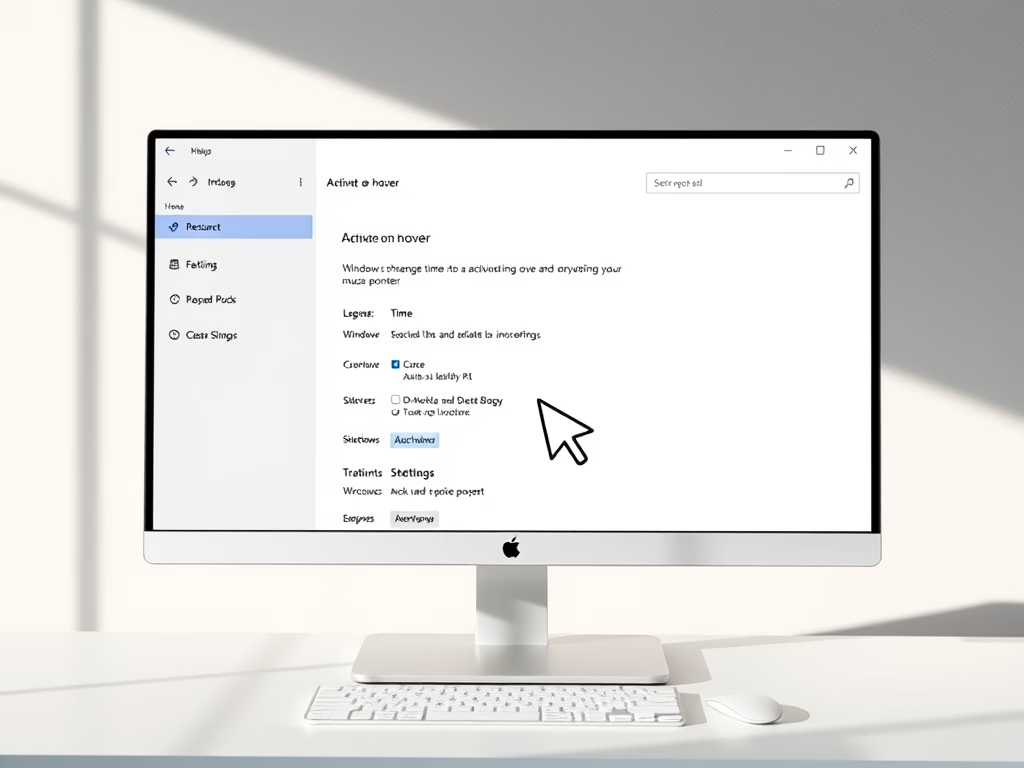
These settings change how your computer tracks your hand movements and handles window focus. They are helpful if you want more exact control over your cursor placement.
Some of these options change how the pointer behaves in ways you may not notice at first. If the pointer feels different or less predictable after a change, go back and switch that option off. Testing it in a familiar app, such as a drawing program or a spreadsheet, shows the difference quickly.
Find Missing Cursors and Shortcuts
Use these tutorials to locate a lost pointer quickly on a busy screen or set up keyboard shortcuts. They solve common visibility problems when working across multiple monitors.
Visibility settings matter most on large or high-resolution displays, where a small pointer can disappear against a busy background. Size, color, and a locate-on-demand ring each help in a different way, and you can combine them.
Common questions
How do I make my mouse pointer bigger in 🪟 Windows 11?
Windows 11 lets you change the pointer's size and color from the Accessibility settings.
- Open Settings, then go to Accessibility Mouse pointer and touch. You should see the pointer style options and a size slider.
- Under Mouse pointer style, pick a style. White and black are the usual choices. Inverted changes color to contrast with whatever is behind it. The custom option lets you choose a bright color such as green or pink.
- Drag the Size slider to the right to make the pointer larger. The pointer on screen grows as you drag, so you can stop when it looks right.
To undo this, move the slider back to the left and choose the white style again.
Why does my mouse cursor move too fast?
Your pointer speed is probably set too high. Lowering it is a one-slider change.
- Open Settings and go to Bluetooth & devices Mouse
- Find the Mouse pointer speed slider and drag it to the left. The pointer now travels a shorter distance for the same hand movement.
- Move the mouse across the screen to test it. Adjust the slider until you can reach the screen edges comfortably and still stop on small targets.
If the speed still feels uneven, check the Enhance pointer precision option on the same page. It changes speed depending on how fast you move the mouse. Some people find it helpful and others find it unpredictable, so try it both on and off.
Can I switch the left and right mouse buttons?
Yes. This is helpful if you are left-handed or sharing a computer.
- Open Settings and go to Bluetooth & devices Mouse
- Next to Primary mouse button, open the drop-down list.
- Change the option from Left to Right. The change takes effect immediately, so the right button now selects and clicks, and the left button opens the context menu.
To switch back, choose Left in the same list. If someone else changed it and you cannot tell which button to use, remember that the button you now click to open the drop-down is the primary one.
How do I find my mouse pointer on the screen?
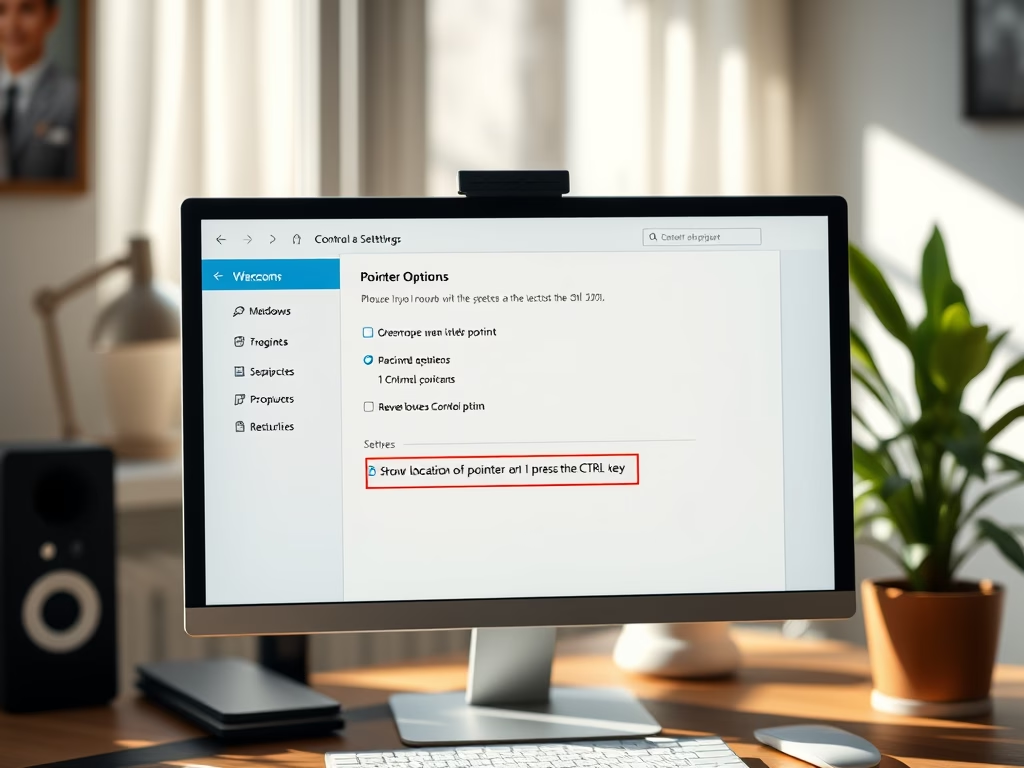
You can turn on a mouse feature that shows a ring around your cursor when you press the Control key. It helps you spot the pointer instantly on large monitors or multiple screens.
- Open Settings and go to Bluetooth & devices Mouse
- Under Related settings, click Additional mouse settings. The Mouse Properties window opens.
- Select the Pointer Options tab.
- Near the bottom, tick Show location of pointer when I press the CTRL key.
- Click Apply, then OK.
Now press and release Ctrl. A ring shrinks toward the pointer to show where it is. To turn it off, clear the same tick box.
How do I change how fast pages scroll when I turn the wheel?
You can change how far a page moves with each turn of the wheel.
- Open Settings and go to Bluetooth & devices Mouse
- Find Roll the mouse wheel to scroll. Choose Multiple lines at a time or One screen at a time.
- If you chose multiple lines, drag the Lines to scroll at a time slider. A higher number moves the page further for each notch of the wheel.
Try scrolling a long web page to check the result. If your mouse has a high-resolution or free-spinning wheel, a few lines per notch is usually enough. If you can see the Scroll inactive windows when hovering over them toggle, it is on this same page and lets you scroll a window without clicking it first.
Frequently asked questions
Why do I have problems controlling my arrow with my mouse 🪟 Windows 11?
Your pointer is most likely set too fast or too slow for your hand, or pointer acceleration is making it jump unpredictably. Open Settings Bluetooth & devices Mouse and move the Mouse pointer speed slider until it feels steady. Then turn off Enhance pointer precision. Changes apply straight away, so you can test them.
Where do I go on 🪟 Windows 11 to change trackball speed?
Trackballs use the same pointer speed setting as regular mice in Windows 11. Open Settings Bluetooth & devices Mouse and drag the Mouse pointer speed slider. The change applies straight away. If the trackball came with its own software, adjust speed there too, since that software can override Windows.
Why does my cursor feel so fast?
Your cursor is likely set to a high pointer speed, or Enhance pointer precision is turned on, which makes it move farther when you move your hand quickly. Open Settings Bluetooth & devices Mouse, lower the Mouse pointer speed slider, and turn off Enhance pointer precision. If it still feels fast, check your mouse's software for a high DPI (sensor sensitivity) setting.
Is there away to make your cursor move at smaller intervals?
Yes. Lower the Mouse pointer speed slider in Settings Bluetooth & devices Mouse so the cursor covers less screen for each inch you move. Turn off Enhance pointer precision so each movement stays steady. For finer control, lower the DPI (sensor sensitivity) in your mouse's software.
Still have a question?
Answered by AI from this guide. Good questions may be added to this page — please don't include personal details.
Did this guide fix your problem?

About the Author
Richard
Tech Writer, IT Professional
Richard is a writer at Geek Rewind who turns complex IT tasks into clear, step-by-step guides. He draws on years of hands-on experience in system administration and enterprise IT operations, focusing on Windows, Linux and WordPress: the problems people actually run into, and the fixes that work. His server and WordPress guides come from systems he runs himself. Richard builds and maintains the platform behind Geek Rewind, from its Ubuntu servers and Nginx configuration to its custom WordPress plugins. Many new tutorials start with readers' questions, and he's always glad to answer them in the comments.
No comments yet — be the first to share your thoughts!