How to Change Time to Activate Window by Hovering over with Mouse Pointer in Windows 11

Activation by hover in Windows 11 brings an inactive window to the front the moment you rest your mouse pointer on it. You don’t need to click. Windows 11 also lets you set the delay, in milliseconds, before that switch happens. A shorter delay speeds up multitasking across several open apps. A longer one stops windows jumping forward when you only meant to move the pointer across the screen.
Open Settings, go to Accessibility Mouse, and under Activate on hover, adjust the slider for Amount of time mouse needs to be over a window to activate it. Set your preferred delay in milliseconds, where 500 ms is the default.
Why Would You Want This?
The hover activate window time is how long your pointer must rest over an inactive window before Windows brings it to the front. You can shorten it so windows respond almost at once. You can lengthen it if windows come forward by accident while you move the mouse.
By default, Windows waits half a second (500 milliseconds) after the pointer settles on a window. This guide shows two ways to change that value. Pick whichever matches your Windows 11 build.
What Happens When You Change This Setting?
Whatever value you choose is the exact pause Windows observes before it raises a background window. A very low number makes windows pop up almost instantly, which can feel jumpy. A high number feels sluggish. It’s worth trying a few values until the behavior suits how you work.
Option 1Change Hover Time in Settings
You can change the delay in the Settings app if you run Windows 11 build 26100.4202 or newer. The slider is in the accessibility options and works the same on Home and Pro. If you don’t see it, your build is older. Install the latest updates from Windows Update , or use the registry method further down.
- Open Settings by pressing
Win+I.The Settings window opens.
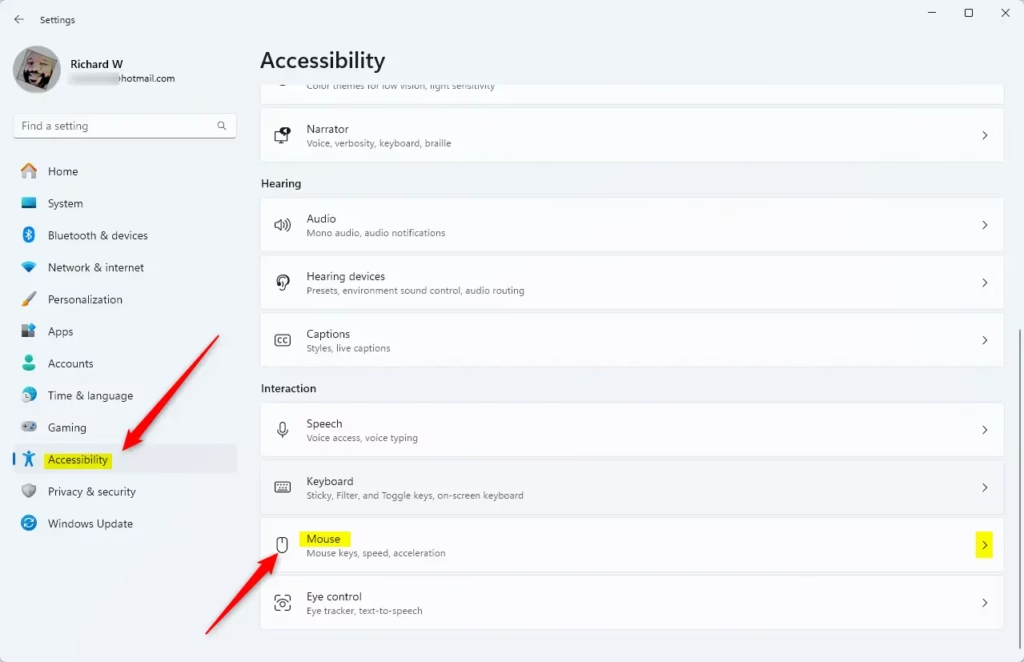
- Click Accessibility on the left side, then click Mouse on the right side under Interaction.
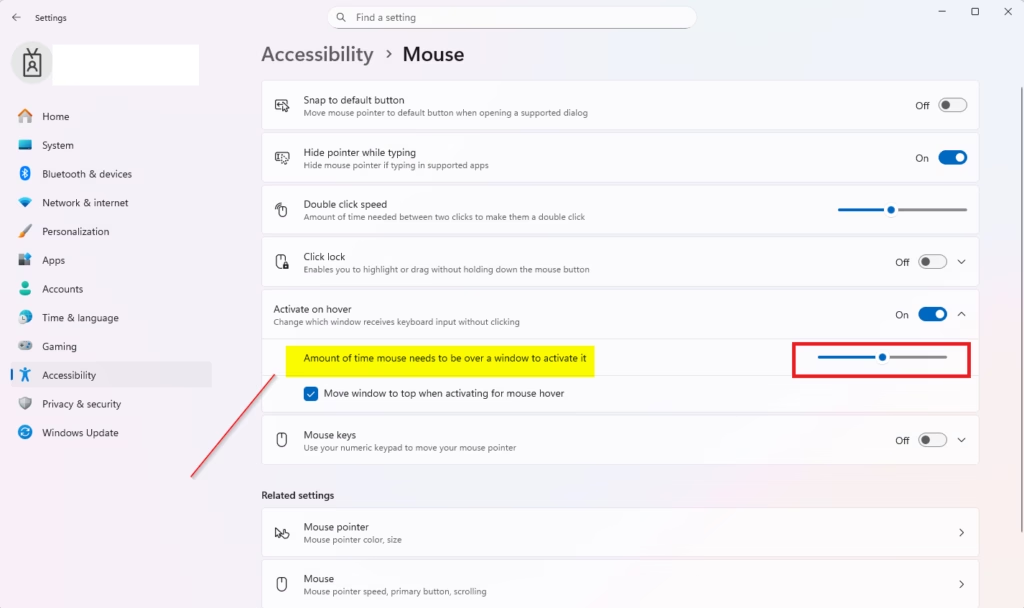
You should now see the mouse options, including Activate on hover.
- Under Activate on hover, adjust Amount of time mouse needs to be over a window to activate it to the delay you want.📝NoteThis requires Activate on hover to be turned on first.
If the slider is greyed out, turn that setting on and try again.
- Close Settings when you're done.
To undo the change, come back to the same slider and set it to the original value. The default is half a second (500 ms).
Option 2Change Hover Time Using Registry Editor
The Registry Editor method lets you change the activation delay on older Windows 11 versions where the Settings slider is missing. It works on both Home and Pro. You open the desktop registry key for your user account and change the timeout value. This lets you set any custom speed you want. You don't need administrator rights, because the value belongs to your own account.
- Open Registry Editor by typing
regedit.exein your search bar and pressing Enter.If a User Account Control prompt appears, click Yes. Registry Editor should now be open.
- Navigate to the location below in the left pane of Registry Editor.
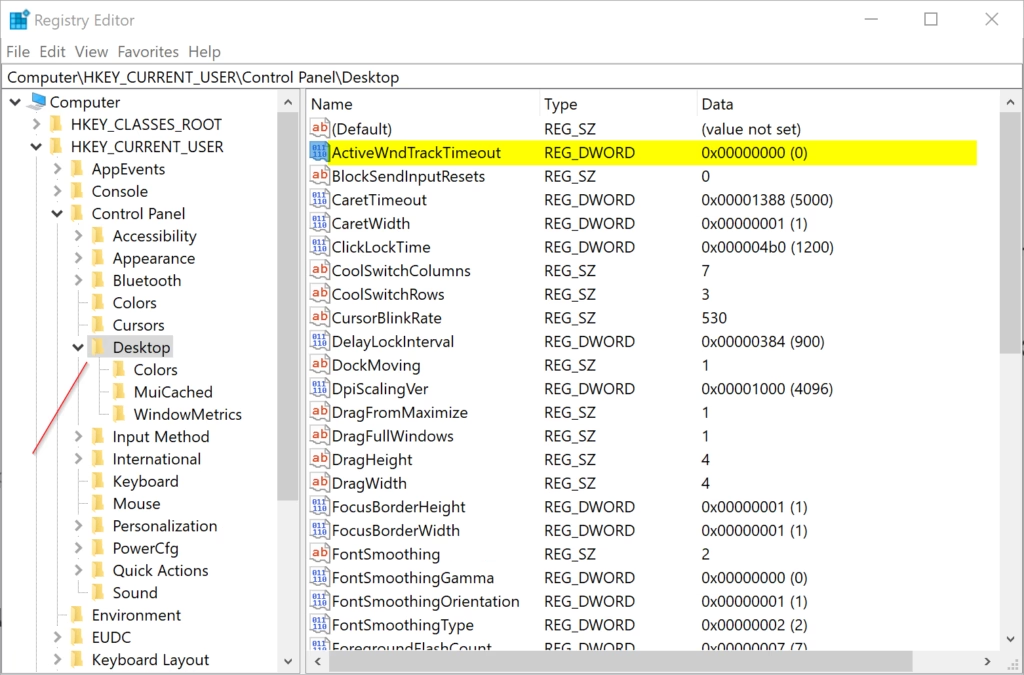
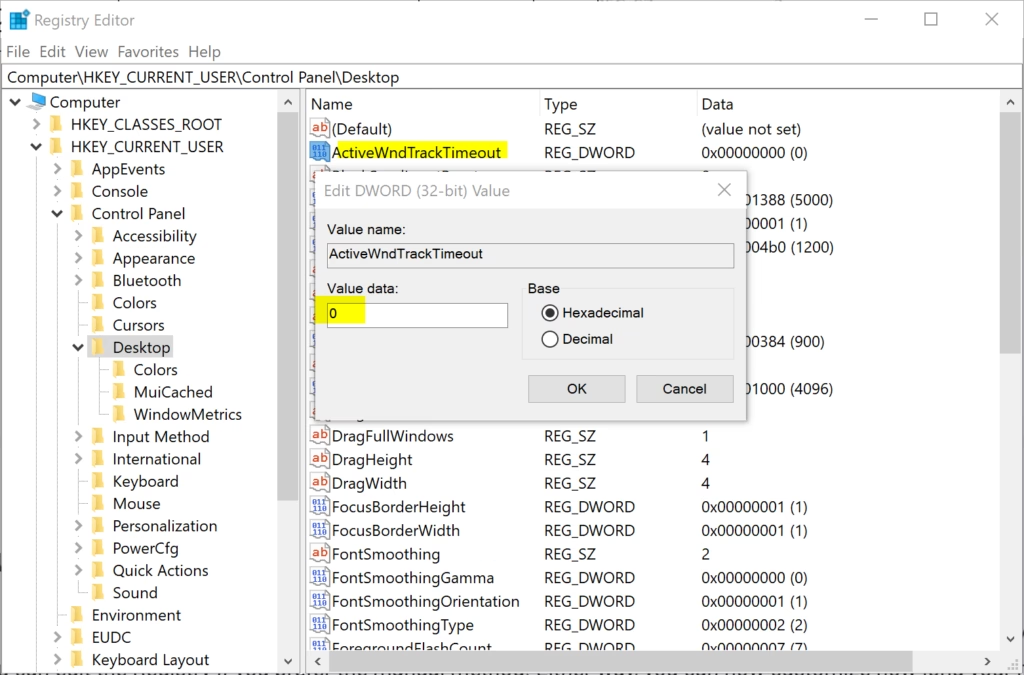
HKEY_CURRENT_USER\Control Panel\DesktopThe Desktop key should now be selected, and its values are listed in the right pane.
- In the right pane of the Desktop key, double-click the ActiveWndTrkTimeout entry to modify it.📝NoteIf you don't see the ActiveWndTrkTimeout entry, check that you've turned on Activate a window by hovering over it with the mouse.
Then press
F5in Registry Editor to refresh the view and look again. - Select Decimal, type the number of milliseconds (ms) you want for the timeout, and click OK.
Tip: The default is 500 ms. 1000 ms equals 1 second, so 250 gives you a quarter of a second. To undo the change, repeat these steps and enter 500.
- Close Registry Editor.
If the new delay doesn't take effect right away, sign out and back in, or restart your PC, so Windows reads the value again.
Summary
Changing this hover delay takes only a moment, using either the Settings app or the registry. If the new timing doesn't feel right, go back and adjust the value. You can return to the 500 ms default at any time.
How do I activate a window by hovering my mouse over it in Windows?
Open Settings and go to System Accessibility Interaction. Turn on the toggle for "Activation by hover". Windows will then bring an inactive window to the front when you rest your mouse pointer on it for the default delay of 500 milliseconds.
How to make 🪟 Windows 11 wake up with a mouse?
Move your mouse or click your mouse button. Windows 11 doesn't have a dedicated "wake with mouse" setting—any mouse movement or click will wake the screen from sleep mode. You can adjust sleep timing in Settings System Power & battery
How do I change active hours in 🪟 Windows 11?
Open Settings and select System Notifications. Scroll down to "Active hours" and choose "Change active hours". Select your preferred start and end times when Windows won't restart to install updates. You can set up to two active hours periods daily.
How do I change the mouse cursor settings in 🪟 Windows 11?
Open Settings and go to Bluetooth & devices Mouse. Adjust cursor speed with the pointer speed slider. Under "Related settings", you can also change primary mouse button, cursor thickness, and enable mouse keys for keyboard-only navigation.
Was this guide helpful?

About the Author
Richard
Tech Writer, IT Professional
Richard is a writer at Geek Rewind who turns complex IT tasks into clear, step-by-step guides. He draws on years of hands-on experience in system administration and enterprise IT operations, focusing on Windows, Linux and WordPress: the problems people actually run into, and the fixes that work. His server and WordPress guides come from systems he runs himself. Richard builds and maintains the platform behind Geek Rewind, from its Ubuntu servers and Nginx configuration to its custom WordPress plugins. Many new tutorials start with readers' questions, and he's always glad to answer them in the comments.




No comments yet — be the first to share your thoughts!