How to Turn On/Off Enhance Pointer Precision in Windows 11


Enhance Pointer Precision in Windows 11 changes how far your cursor moves based on how fast you move the mouse. It works as mouse acceleration. Slow, careful movements give you small, precise adjustments. A quick flick sends the cursor much farther across the screen.
You can turn this feature on or off in the Settings app, in Mouse Properties through Control Panel , or by changing the `MouseSpeed` value in the Windows Registry at `🗝️HKCU\
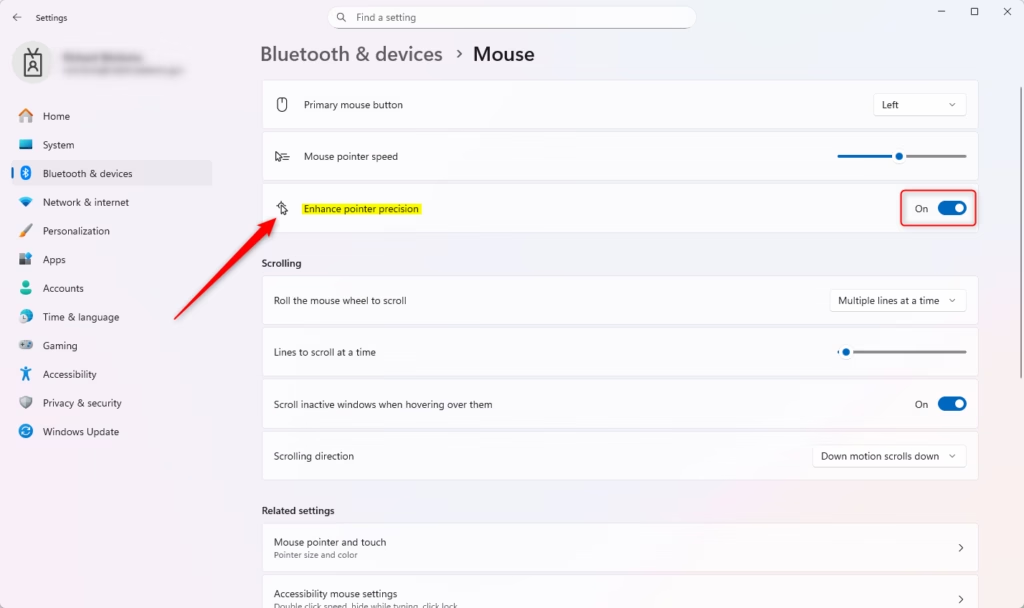
Open Settings , go to Bluetooth & devices Mouse, and toggle Enhance pointer precision on or off under Motion. The change takes effect immediately with no restart needed.
Option 1
Turn On or Off Enhance Pointer Precision in Settings
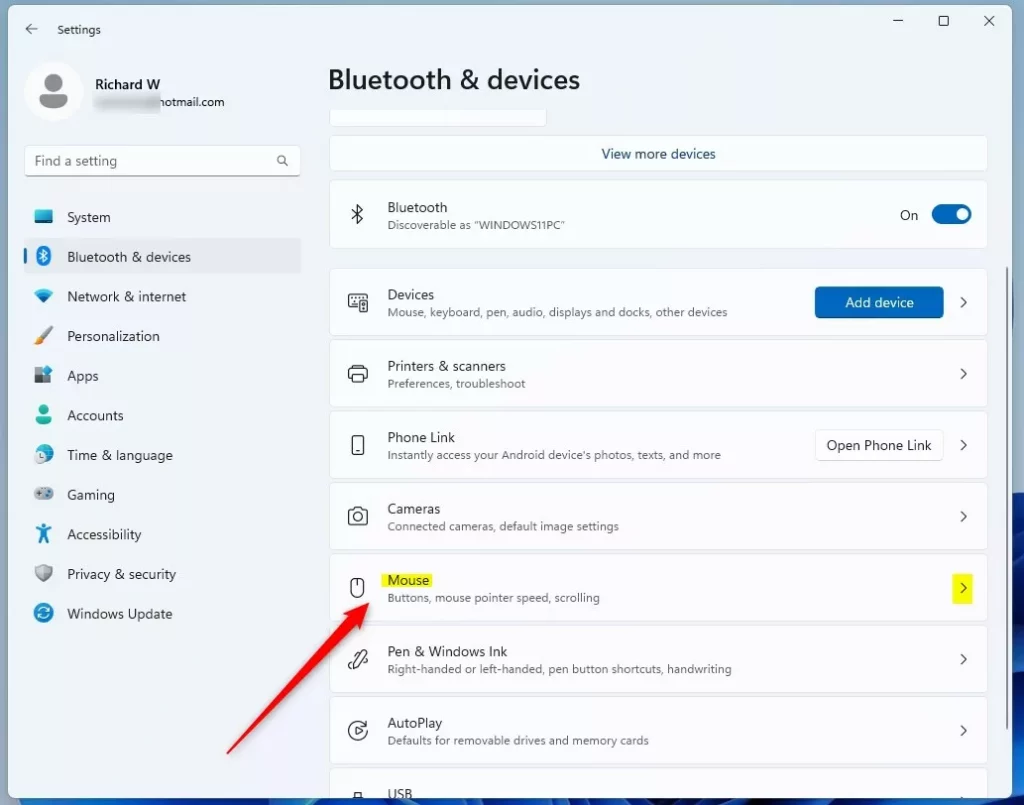
The Settings app is the quickest method. Press Win+I to open Settings , select Bluetooth & devices, click Mouse, and use the toggle under Motion to turn the setting on or off. If you don’t see the toggle on the Mouse page, you are probably on an older Windows 11 build that hides it. Use the Control Panel method below instead.
- Open Settings by pressing
Win+I. The Settings window should open. - Click Bluetooth & devices on the left side. Then click Mouse on the right side. You should now see the mouse options, including the primary button, cursor speed and scrolling.
- Under Motion, set Enhance pointer precision to On (the default) or Off, depending on what you want. The change applies right away, so move the mouse and check how it feels. To undo it, flip the toggle back.
- Close Settings when you’re done. You don’t need to restart.
Option 2
Turn On or Off Enhance Pointer Precision in Control Panel
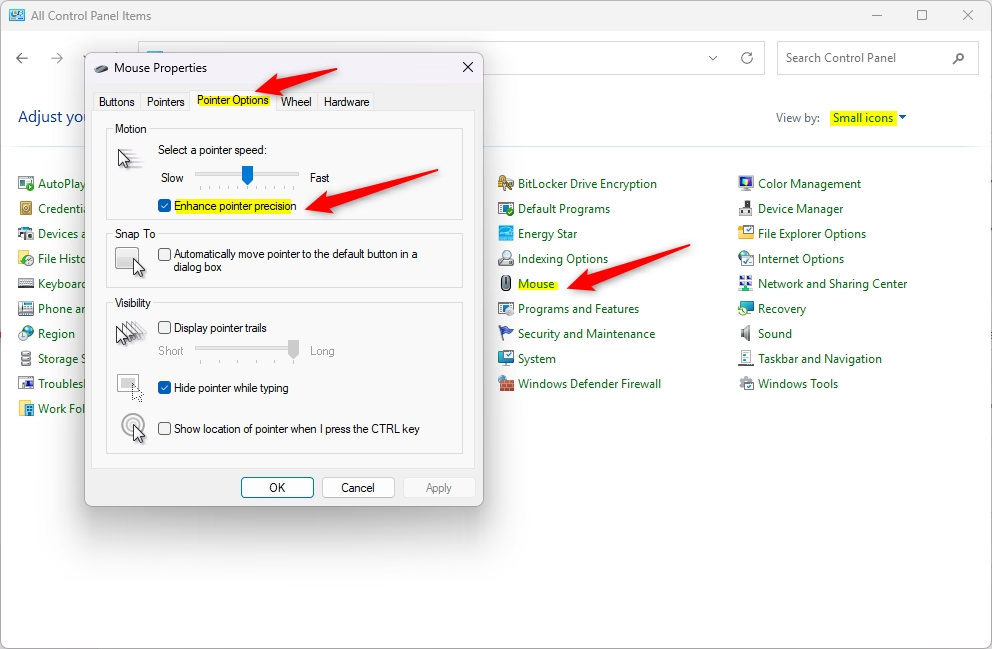
You can also use the classic Control Panel . Open Control Panel, set View by to Large icons (or Small icons), click Mouse, open the Pointer Options tab, and check or uncheck the box next to the setting. This is the method to use if the Settings app doesn’t show the toggle.
- Open Control Panel in icons view (Large icons or Small icons). If you can’t find it, search for Control Panel in the Start menu . Click the Mouse icon. The Mouse Properties window should open.
- Click the Pointer Options tab.
- Under Motion, check the box next to Enhance pointer precision to turn it on (the default), or uncheck it to turn it off. To undo the change later, come back here and set the box the other way.
- Click OK to save and close the window. If you would rather test first, click Apply, move the mouse, then click OK.
- Close Control Panel when you’re done. You don’t need to restart.
Option 3
Turn On or Off Enhance Pointer Precision using Registry
Changes take effect immediately. If the pointer doesn’t seem to change, sign out and sign back in so Windows reloads the values. The values are stored per user, so they only affect the account you change them in.
⚠️ Admin privileges required
Turn On Enhance Pointer Precision
Windows 11 ships with Enhance pointer precision turned on, so use this one if you want to go back to the original behavior.
reg add "HKEY_CURRENT_USER\Control Panel\Mouse" /v MouseSpeed /t REG_SZ /d 1 /f
reg add "HKEY_CURRENT_USER\Control Panel\Mouse" /v MouseThreshold1 /t REG_SZ /d 6 /f
reg add "HKEY_CURRENT_USER\Control Panel\Mouse" /v MouseThreshold2 /t REG_SZ /d 10 /f
Turn Off Enhance Pointer Precision
reg add "HKEY_CURRENT_USER\Control Panel\Mouse" /v MouseSpeed /t REG_SZ /d 0 /f
reg add "HKEY_CURRENT_USER\Control Panel\Mouse" /v MouseThreshold1 /t REG_SZ /d 0 /f
reg add "HKEY_CURRENT_USER\Control Panel\Mouse" /v MouseThreshold2 /t REG_SZ /d 0 /f
Summary
Enhance pointer precision is a Windows feature that changes how your mouse pointer moves, making it more accurate for some tasks. It adjusts the pointer's speed to match how fast you move your hand. That helps with small, careful work, but it can make the pointer feel inconsistent in games and design software. If your aim or cursor placement feels unpredictable, turn it off for a few days and see whether you prefer it.
Have a question about this guide?
Answered by AI from this guide. Good questions may be added to this page — please don't include personal details.
Did this guide fix your problem?

About the Author
Richard
Tech Writer, IT Professional
Richard is a writer at Geek Rewind who turns complex IT tasks into clear, step-by-step guides. He draws on years of hands-on experience in system administration and enterprise IT operations, focusing on Windows, Linux and WordPress: the problems people actually run into, and the fixes that work. His server and WordPress guides come from systems he runs himself. Richard builds and maintains the platform behind Geek Rewind, from its Ubuntu servers and Nginx configuration to its custom WordPress plugins. Many new tutorials start with readers' questions, and he's always glad to answer them in the comments.
No comments yet — be the first to share your thoughts!