Locate Pointer Options in Windows 11

- 4 ways to do it
- Needs administrator rights
- Includes a restart or sign-out
Pointer options in Windows 11 are the mouse settings that control pointer behavior. They set how fast the pointer moves, whether it leaves trails, and whether a circle appears around it when you press the Ctrl key. To reach them, open Settings Bluetooth & devices Mouse Additional mouse settings, then select the Pointer Options tab.
That tab sits inside the classic Mouse Properties window, not on the main Settings page. This is why many people cannot find it. This guide shows four ways to open it, explains every option on it, and covers what to do when the tab is missing.
No administrator rights are needed. Pointer options apply only to your user account. They take effect when you click Apply, and you do not need to restart.
To open Pointer options in Windows 11, press Win+R, type main.cpl, and press Enter, then click the Pointer Options tab in Mouse Properties. You can also go to Settings Bluetooth & devices Mouse Additional mouse settings. Pointer options control pointer speed, pointer trails, and the Ctrl key location circle.
What Pointer Options Include in 🪟 Windows 11
The Pointer Options tab groups its settings into three sections: Motion, Snap To, and Visibility. Each controls how the pointer behaves rather than how it looks.
- Motion has the Select a pointer speed slider and the Enhance pointer precision checkbox.
- Snap To has one checkbox that moves the pointer to the default button in dialog boxes.
- Visibility has Display pointer trails, Hide pointer while typing, and Show location of pointer when I press the CTRL key.
The last option is the one most people want when they lose the pointer on a large or multi-monitor desktop. Later sections cover each setting in detail.
Pointers can cause confusion. The Pointers tab next to it changes the pictures Windows uses for the arrow, the busy circle and so on. Pointer Options changes how the pointer behaves. For size and color, see the section on appearance below.
Method 1Open Pointer Options From Settings
This route works on every edition of Windows 11, including Home. It is the one to use if you prefer to start in the Settings app.
These steps open the pointer options in Windows 11 from start to finish:
- Press Win+I. The Settings app opens.

Start Menu - Click Bluetooth & devices in the left menu. The list of connected devices appears.

Windows Settings menu highlighting the Bluetooth and devices option for printers - Click Mouse. The page shows the primary mouse button, the mouse pointer speed slider and scrolling options.
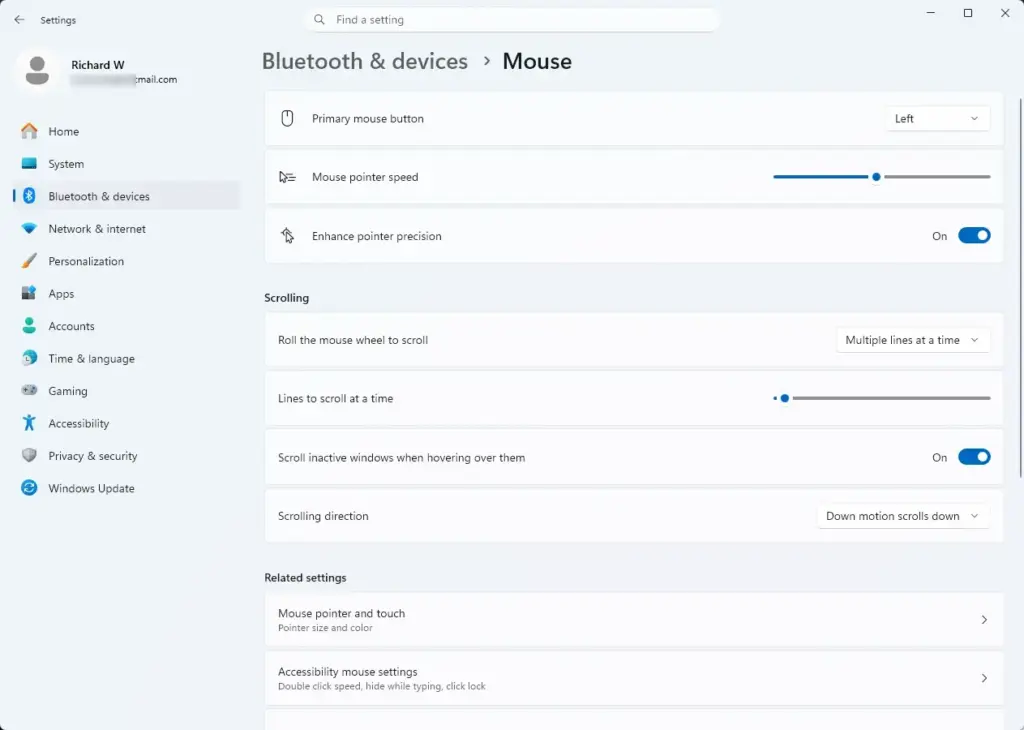
Settings › Bluetooth › Mouse - Scroll down to Related settings. The heading sits near the bottom of the page.
- Click Additional mouse settings. The Mouse Properties window opens, usually with the Buttons tab in front.
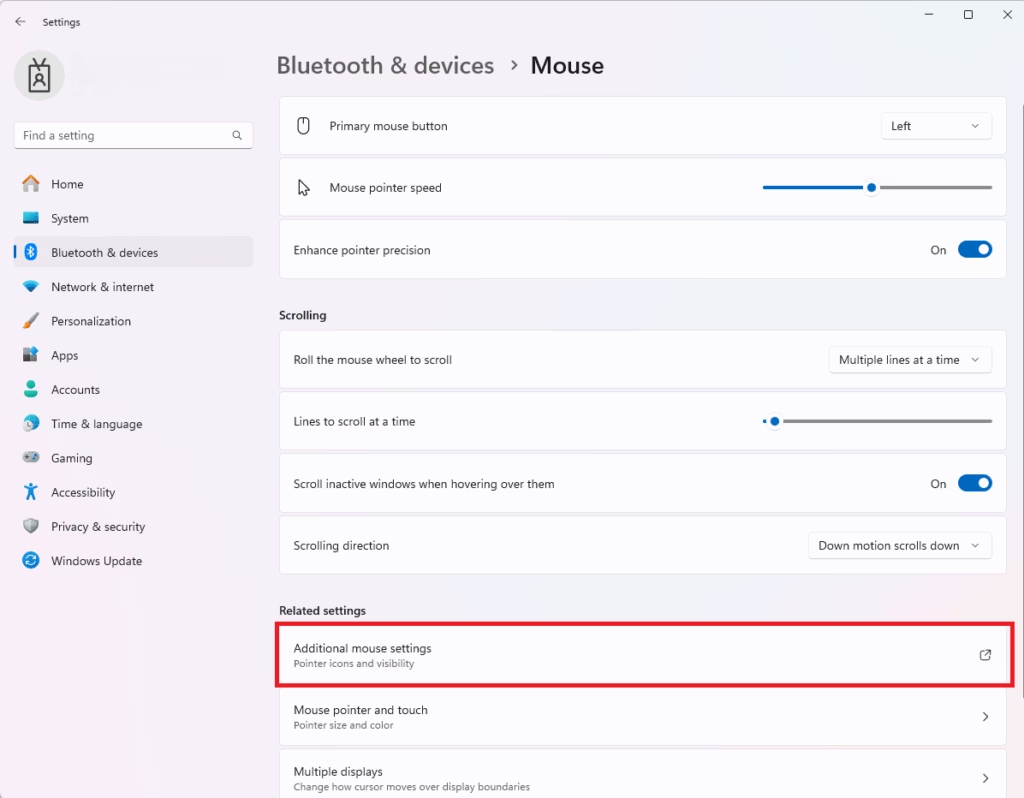
Mouse Properties window with Additional mouse settings visible. - Click the Pointer Options tab. You now see the Motion, Snap To and Visibility sections.
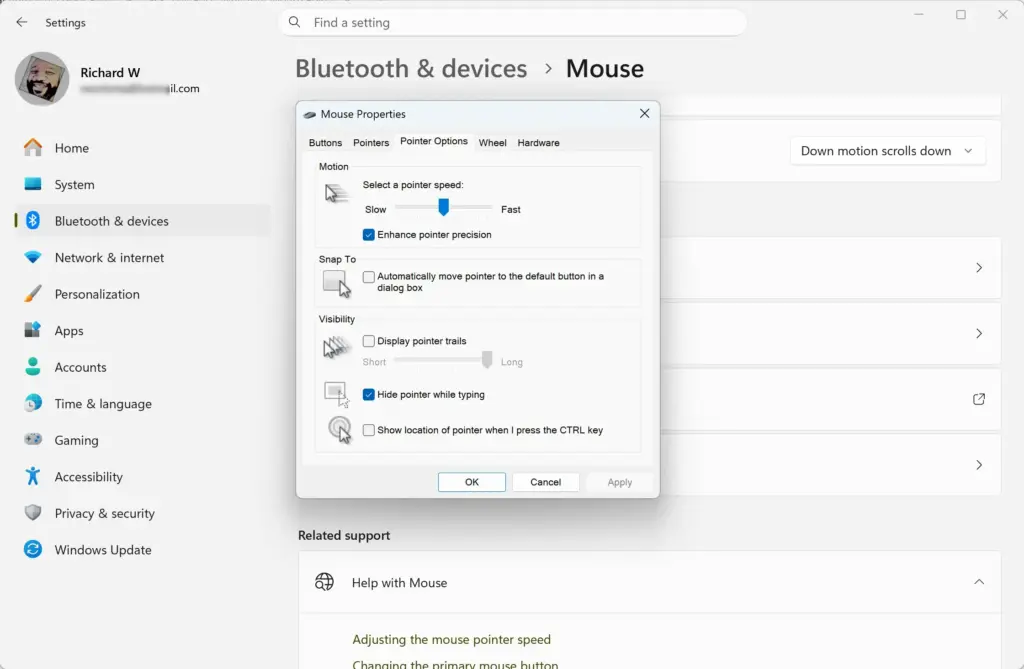
- Change the options you want. Each one is explained in the sections below.
- Click Apply. The change takes effect at once, and you can test it with the window still open.
- Click OK. The window closes and your choices stay saved.
If Additional mouse settings is missing, widen the Settings window or scroll further. On a narrow window, the Related settings block can sit below the visible area.
Note that the Mouse page in Settings also has its own Mouse pointer speed slider. It controls the same speed as the slider in the dialog box. Depending on your build, Settings may show a few other options directly, but the Mouse Properties window is the one place that has all of them.
Method 2Open Pointer Options With a Run Command
- Press Win+R. The Run box opens.
- Type
main.cpland press Enter. The Mouse Properties window opens. - Click the Pointer Options tab. The three sections appear.
The Run command main.cpl opens the Mouse item in Control Panel directly. If nothing opens, check the spelling of the command and try again.
Method 3Open Pointer Options From Control Panel
Control Panel still holds the Mouse item in Windows 11. Use this route if you work in Control Panel already, for example after you find Power Options in Control Panel.
- Click Start, type
Control Panel, and press Enter. Control Panel opens. - Click Hardware and Sound. If Control Panel shows categories, follow the next step. If it shows icons, skip to step 4 and click Mouse in the list.
- Click Mouse under the Devices and Printers heading. Mouse Properties opens.
- If you use the icon view, click Mouse in the list of icons. Mouse Properties opens.
- Click the Pointer Options tab. The options appear.
Method 4Search From the Start Menu
The Start menu search can also find the mouse settings. It lands on the Settings page, so you still go through Additional mouse settings to reach the tab.
- Click Start and type
mouse settings. The best match is Mouse settings. - Press Enter. The Mouse page in Settings opens.
- Click Additional mouse settings under Related settings. Mouse Properties opens.
- Click the Pointer Options tab.
Change the Pointer Speed
The speed setting decides how far the pointer travels on screen when you move the mouse. A slow setting gives you fine control, while a fast one saves arm movement on large displays.
Drag the Select a pointer speed slider toward Slow or Fast, click Apply, and move the mouse to test it. Make small changes, one notch at a time. A big jump is hard to judge, and you may overshoot.
Some mice have a DPI button (dots per inch, a hardware control for sensitivity) that changes speed too. It adds to the setting on this page. If the pointer still feels too quick after you lower the slider, check the DPI on the mouse itself.
Enhance Pointer Precision
Enhance pointer precision is Windows’ name for mouse acceleration, which means the pointer speeds up when you move the mouse quickly. When it is on, the pointer moves farther if you move the mouse quickly and less far if you move it slowly. The same hand movement can therefore cover different distances.
Leave it on for general use. Turn it off if you need the pointer to travel the same distance every time, as in image editing, computer-aided design (CAD) or games. Clear the checkbox and click Apply.
Turn On Snap To
Snap To moves the pointer to the default button whenever a dialog box opens, for example OK or Yes. It saves mouse travel, but it can also make you click a button before you read the message.
Select Automatically move pointer to the default button in a dialog box to enable it. The setting is off by default on most PCs. Clear the checkbox to turn it off again.
Show the Pointer Location With the Ctrl Key
This option helps you find a lost pointer. When you press Ctrl, Windows draws a shrinking circle around the pointer, which leads your eye to it. It is useful on large monitors, high-resolution screens and multi-monitor setups.
- Open the Pointer Options tab using any method above. The Visibility section is at the bottom.
- Select Show location of pointer when I press the CTRL key. The checkbox shows a tick.
- Click Apply. The setting is active straight away.
- Press the Ctrl key. A circle appears and closes in on the pointer. Either Ctrl key works.
- Click OK. The window closes.
If you see no circle, confirm that the box is ticked and that you clicked Apply. Also check that the app in front is not capturing the keyboard, as some full-screen games and remote desktop windows do.
To undo it, clear the checkbox and click Apply.
Display Pointer Trails and Hide the Pointer While Typing
Display pointer trails leaves a fading string of pointer copies behind the cursor as it moves. This makes the pointer easier to follow, especially on a low-contrast display or a projector. Tick the box, then drag the slider between Short and Long. Click Apply and move the mouse to see the result.
Hide pointer while typing removes the pointer from the screen while you type, so it does not cover text. It returns the moment you move the mouse. If the pointer seems to vanish at random, this checkbox is the usual reason. Clear it if you prefer the pointer always visible.
Change Pointer Size and Color
Size and color are not in Pointer Options. They live under Accessibility, and they help as much as any option above when the pointer is hard to see.
- Open Settings Accessibility Mouse pointer and touch. The pointer style and size controls appear.
- Choose a style under Mouse pointer style, such as white, black, inverted or custom. The pointer on screen changes at once.
- Drag the Size slider to make the pointer larger. Release it when the pointer looks right.
Our guide to customizing pointer appearance and cursor thickness in Windows 11 covers these controls in more depth, including the text cursor.
Pointer Speed for a Laptop Touchpad
A touchpad has its own speed setting, separate from the mouse. Open Settings Bluetooth & devices Touchpad and adjust the Cursor speed slider there. The page appears only on devices with a touchpad.
The options on the Pointer Options tab, such as trails, Snap To and the Ctrl-key circle, still apply to the pointer whether you use a mouse or a touchpad.
If Pointer Options Is Missing or Greyed Out
The Pointer Options tab is part of Windows and is present on Home, Pro, Enterprise and Education. If you cannot see it, one of these causes is likely.
- You may have opened a window from the mouse maker’s own software. Software from mouse makers can open its own settings window with different tabs. Close it and press Win+R, type
main.cpl, and press Enter to get the standard Windows window. - The tab sits behind others. If the window is narrow, tabs can wrap onto a second row. Click each tab name until you find Pointer Options, and do not confuse it with Pointers.
- No mouse is connected. Settings Bluetooth & devices Mouse may show fewer controls. Connect a mouse or check that a wireless one is paired and powered on.
- Your PC is managed. A work or school computer can have its settings restricted by the organization. If a checkbox is greyed out or switches back, ask your IT department. This guide cannot confirm which policy applies on your PC.
If the Mouse page in Settings shows no controls at all, restart the PC once, then reconnect the mouse and try again.
Undo Your Changes
On most PCs, trails and Snap To start switched off, and the Ctrl-key circle also starts off. The Use Default button on the Pointers tab resets only the pointer pictures, not the options on the Pointer Options tab.
What to Do Next
Pointer options are one click away now. If you still lose the pointer, the Ctrl-key circle is the quickest way to find it again. If you still find the pointer hard to follow, increase its size and change its color with the pointer appearance settings. [Verification Required: confirm the link between this article and Voice Access before publishing, or remove this sentence. Linked text: Voice Access filtering options]
Have a question about this guide?
Answered by AI from this guide. Good questions may be added to this page — please don't include personal details.
Did this guide fix your problem?

About the Author
Richard
Tech Writer, IT Professional
Richard is a writer at Geek Rewind who turns complex IT tasks into clear, step-by-step guides. He draws on years of hands-on experience in system administration and enterprise IT operations, focusing on Windows, Linux and WordPress: the problems people actually run into, and the fixes that work. His server and WordPress guides come from systems he runs himself. Richard builds and maintains the platform behind Geek Rewind, from its Ubuntu servers and Nginx configuration to its custom WordPress plugins. Many new tutorials start with readers' questions, and he's always glad to answer them in the comments.
No comments yet — be the first to share your thoughts!