How to Turn On or off Show Pointer Location When Press CTRL Key in Windows 11

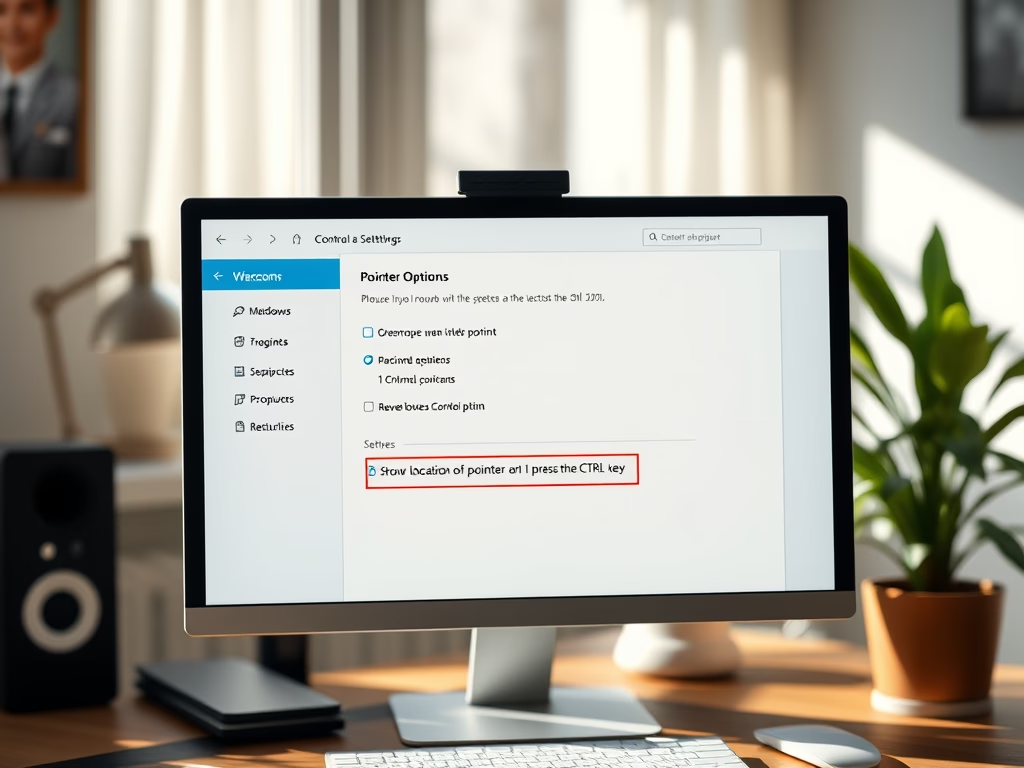
The Show location of pointer when I press the CTRL key setting in Windows 11 plays a short circle animation around your mouse cursor each time you press the Ctrl key. It is an accessibility option, and it helps most on crowded screens, high-resolution displays and multi-monitor setups where the pointer is easy to lose. Turning it on or off takes less than a minute. It works the same on Windows 11 Home and Pro, and you don’t need to restart.
Open the Control Panel , click Mouse, then go to the Pointer Options tab. Tick the box next to Show location of pointer when I press the CTRL key to turn it on, or clear it to turn it off, then click OK.
Why Use This Feature?
Busy displays often hide a fast-moving cursor, especially if you have several windows open or a small pointer on a large screen. With this option on, one tap of Ctrl shows you where the pointer is. Nothing is clicked and nothing moves, so it is safe to press at any time.
Where Does Windows Store This Setting?
You can reach that window in two ways: through the Control Panel (the steps below) or from the Settings app, where the Mouse page has an Additional mouse settings link under the related settings.
Change mouse settings – Microsoft Support
Use the link above to learn how to change settings for mouse buttons, the mouse wheel, and the pointer.
How to Turn This Feature On or Off
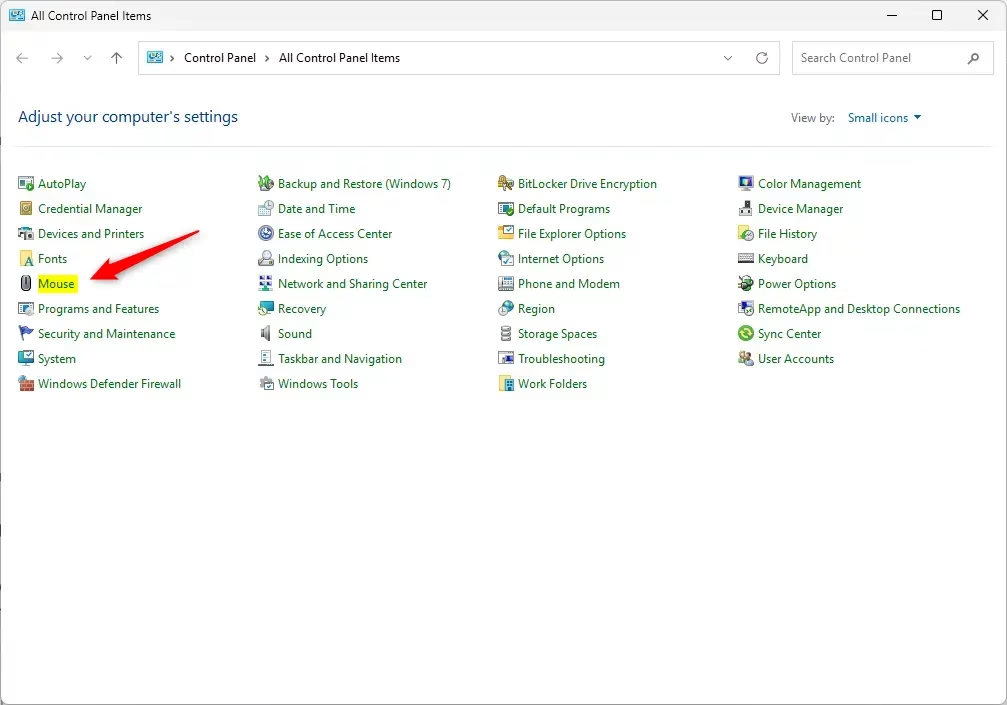
- Open the Control Panel . In the View by box at the top right, switch from Category to Large icons or Small icons. You should now see a flat list of all the Control Panel items.
- Click the Mouse icon. The Mouse Properties window opens.
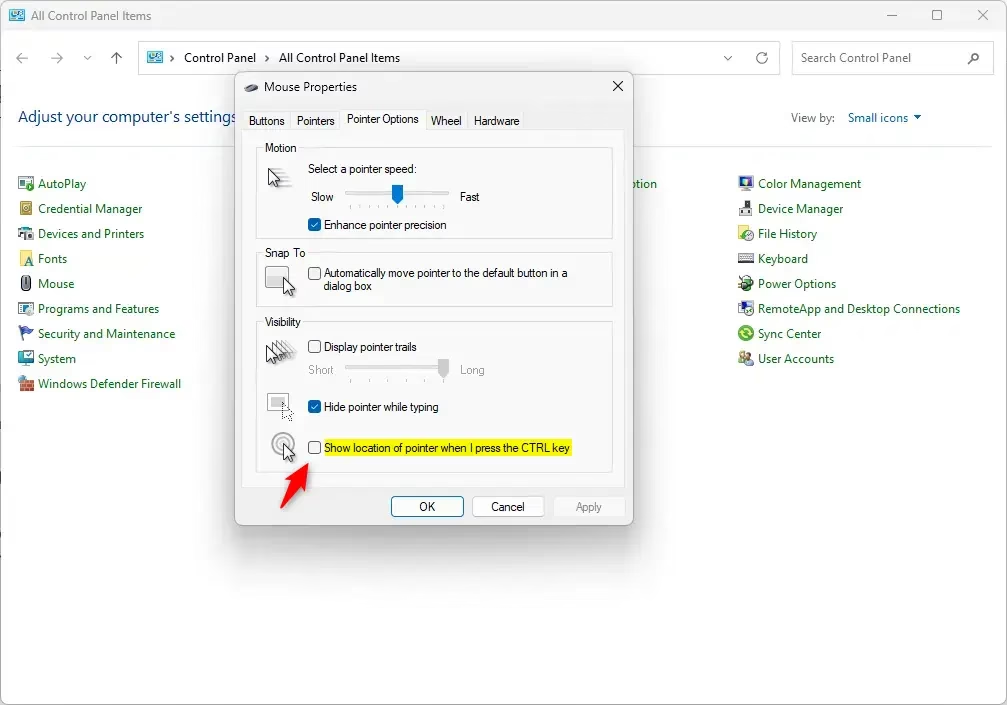
- Click the Pointer Options tab. This tab holds the pointer speed, Snap To and Visibility groups.
- Find the option Show location of pointer when I press the CTRL key. It is the last option in the Visibility group, near the bottom of the tab, below the Snap To group.
- Tick the box to turn the feature on. Clear the box to turn it off.
- Click OK to save your changes. If you want to keep the window open, click Apply instead. The window closes after OK.
- Close the Control Panel if it is still open.
- Test the change by moving the mouse and pressing Ctrl. If the setting is on, a circle shrinks in toward the pointer.
To undo the change later, follow the same steps and reverse the checkbox. The setting applies to your user account and takes effect immediately.
In short: open the Control Panel, click Mouse, and go to the Pointer Options tab. Find Show location of pointer when I press the CTRL key at the bottom of the tab, then tick or clear the box and click OK.
Also check that the setting is still ticked, since some remote desktop sessions and virtual machines do not show the animation.
The quickest route is the same each time: open the Control Panel, click Mouse, and switch to the Pointer Options tab. Tick Show location of pointer when I press the CTRL key to turn the feature on, or clear it to turn the feature off, and then click OK.
If the Control Panel is hard to find, press the Windows key, type Control Panel, and open it from the results. From there the steps are the same.
What Happens When You Enable This?
Once the setting is on, pressing the Ctrl key on your keyboard makes a circle appear around your mouse pointer and close in on it. That makes the pointer easy to spot, even if you were not looking at that part of the screen.
Summary
This feature helps you find your mouse cursor on a busy screen by flashing a circle around it when you press Ctrl. You can turn it on or off at any time from the Mouse settings in the Control Panel. You do not need extra software or downloads, and you do not need to restart Windows.
Have a question about this guide?
Answered by AI from this guide. Good questions may be added to this page — please don't include personal details.
Did this guide fix your problem?

About the Author
Richard
Tech Writer, IT Professional
Richard is a writer at Geek Rewind who turns complex IT tasks into clear, step-by-step guides. He draws on years of hands-on experience in system administration and enterprise IT operations, focusing on Windows, Linux and WordPress: the problems people actually run into, and the fixes that work. His server and WordPress guides come from systems he runs himself. Richard builds and maintains the platform behind Geek Rewind, from its Ubuntu servers and Nginx configuration to its custom WordPress plugins. Many new tutorials start with readers' questions, and he's always glad to answer them in the comments.
No comments yet — be the first to share your thoughts!