How to Open Devices and Printers in Windows 11

To open Devices and Printers in Windows 11, press Win+R, type control printers, and press Enter. That opens the classic window that lists your printers and devices, and it works on Home and Pro without a restart. This window is a Control Panel tool that puts connected hardware in one place: printers, scanners, Bluetooth accessories and other peripherals. From it you can check a printer’s status, set a default printer, or remove old gear you no longer use. Windows 11 buries it behind the newer Settings pages, but a short command skips them.
The Run box is the quickest route. After you press Enter, the window opens at once. This tutorial also covers two other ways in: the Settings app , and a second Run command that opens the same folder. All three end at the same window, so pick whichever you find easiest to remember.
Press Win+R, type control printers, and press Enter to open Devices and Printers in Windows 11. The classic window lists your printers, scanners and Bluetooth devices, and it opens at once on Home and Pro without a restart. If the command doesn’t work, use Settings, Bluetooth & devices, Devices, then More devices and printers settings.
Open Devices and Printers Using the Settings App
The Settings app has a direct path to the classic window. It takes a few clicks, but it is handy if you don’t remember any commands. You go to Bluetooth & devices, open the Devices page, and follow a link under Related settings. The steps below are in order. The Settings pages in Windows 11 have been reworked a few times, so if a label on your PC looks slightly different, use the Run method instead.
- Open the Settings app. You can do it either of two ways:
- Click the Start button, then click Settings. If Settings isn’t pinned to the Start menu , click All apps and find it in the list.
- Or press Win+I on your keyboard to open Settings quickly. This works from almost anywhere in Windows.
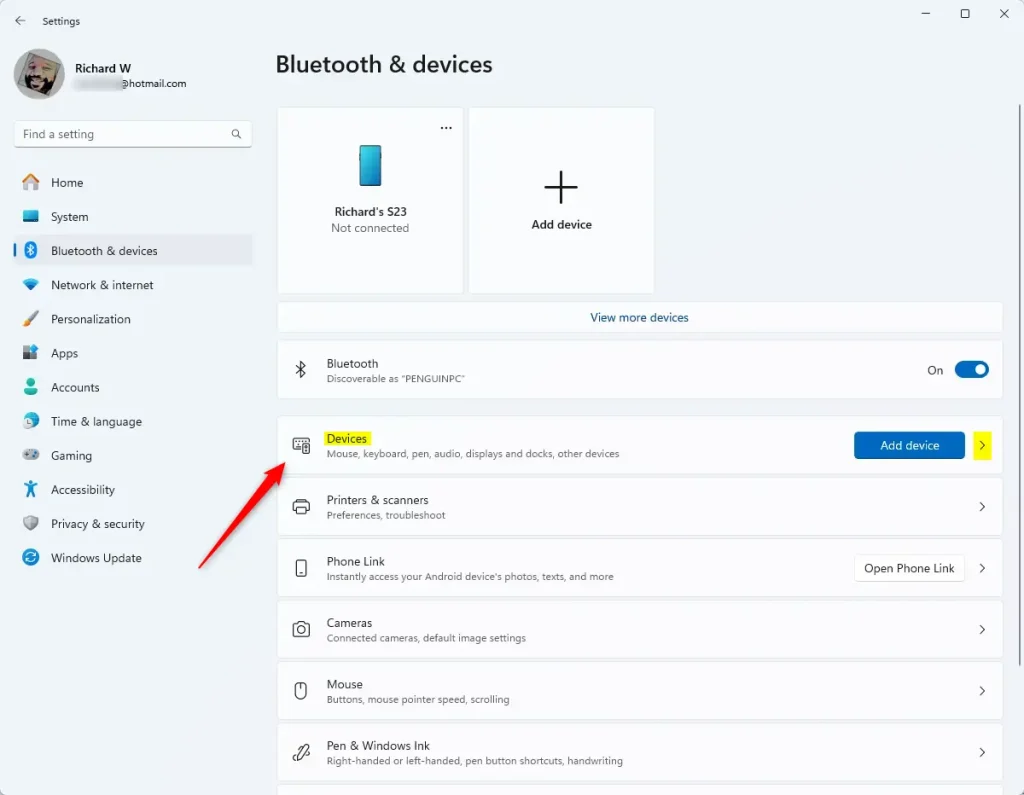
- In Settings, click Bluetooth & devices on the left side. The right side now shows your connected devices and a set of tiles for Devices, Printers & scanners, and more. If the Settings window is narrow, the category list may shrink to an icon strip. Widen the window or click the menu icon at the top left to see the names.

- On the right side, find and click the Devices section to open it. The page that opens lists your paired Bluetooth and other connected devices. Don’t confuse it with the Printers & scanners tile. That page is the newer Settings view of your printers, and it does not have the link we need.
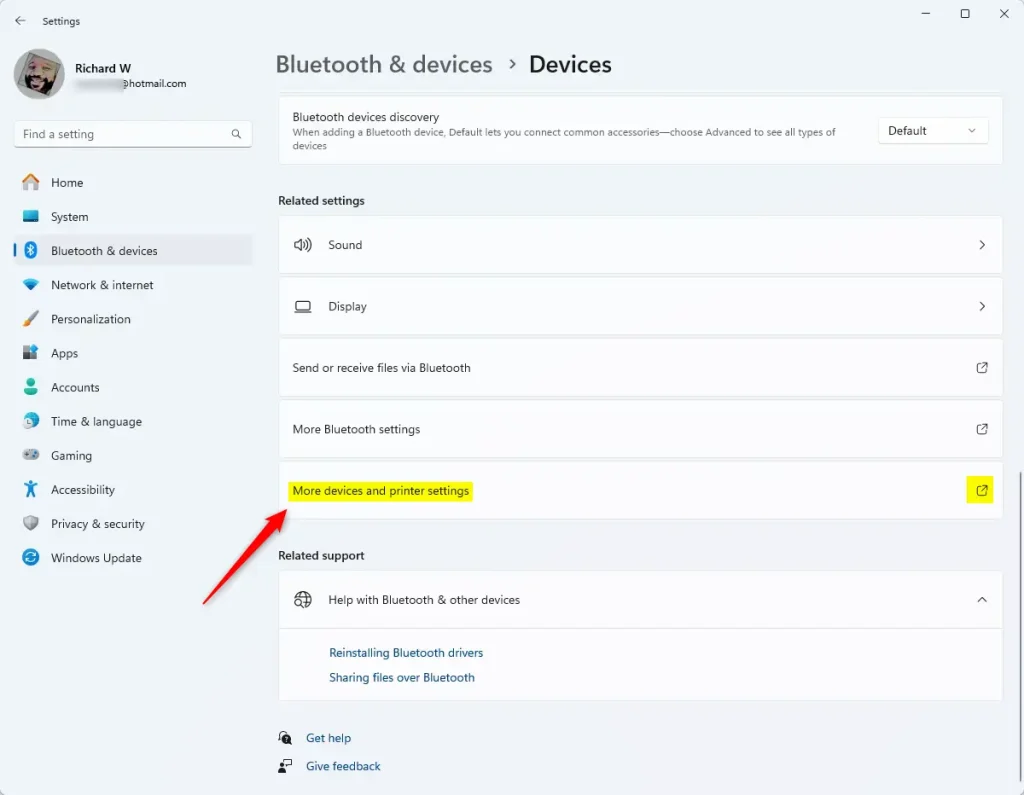
- Scroll down to the Related settings area near the bottom of the page, then click More devices and printers settings. If you don’t see it right away, keep scrolling, because the link sits below the device list. The longer your list of paired devices, the further down it is.
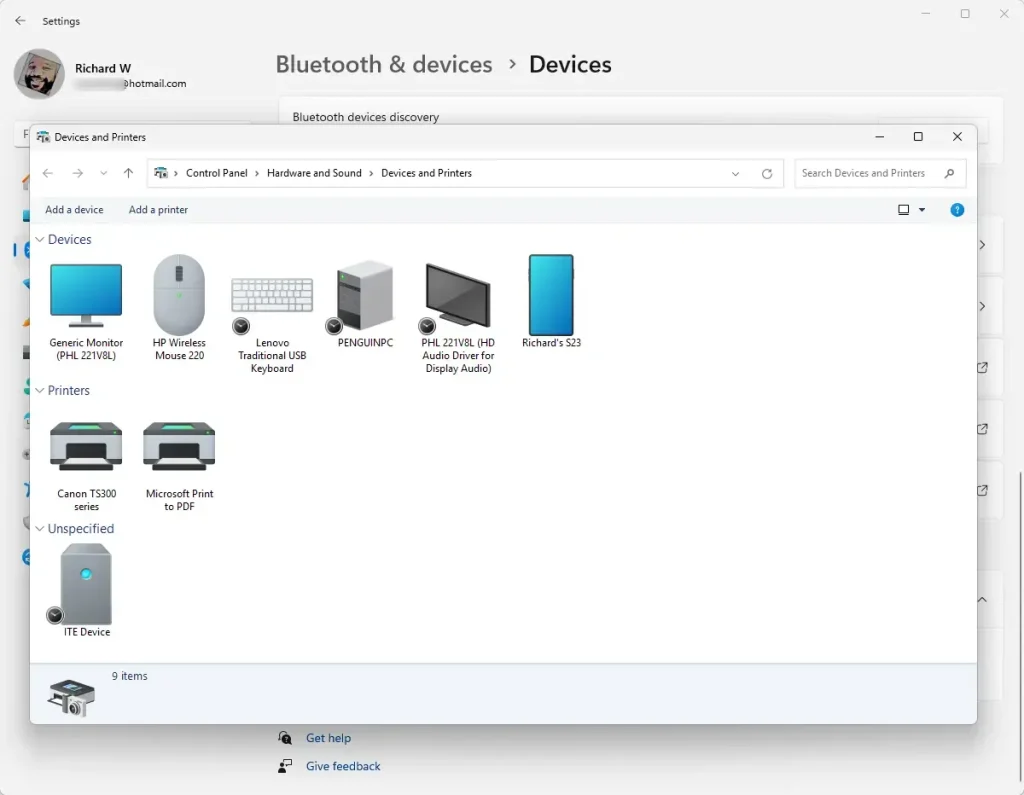
The classic Devices and Printers folder now opens in its own window. Connected devices and printers appear as icons inside it. Your default printer has a green check mark on its icon.
Depending on the device, the menu offers options such as See what's printing, Printer properties, and Remove device. Use Remove device with care. It takes the device out of the list, and you may have to add it again later. How much status information you get, ink levels included, depends on the printer's driver. Some makers only show ink levels in their own app. Close the window when you're done. Nothing was changed by opening it, so there is nothing to undo.
Open Devices and Printers Using the Run Box
This second method uses a longer command that points straight at the Devices and Printers folder. Because it contains braces and several colons, paste it rather than typing it by hand. One wrong character and Windows will say it can't find the file. Run works the same on Home and Pro, and no restart is needed.
- Press Windows key + R on your keyboard to open the Run box. A small Run window appears at the bottom left of the screen. If the shortcut doesn't work, right-click the Start button and click Run instead.
- Copy and paste this command into the box:
shell:::{A8A91A66-3A7D-4424-8D24-04E180695C7A} - Press Enter or click OK. The Devices and Printers window opens right away.
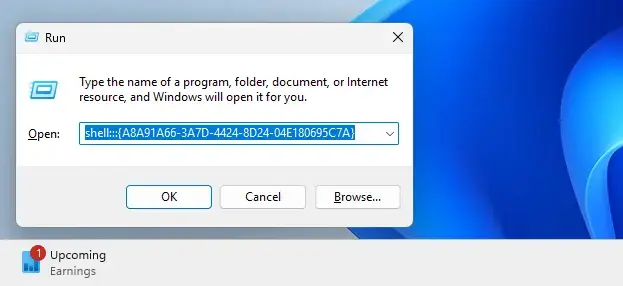
That's all there is to it. The folder stays open on screen until you close it, and you can use it the same way as in the Settings method above. If the window doesn't appear, or Windows says it can't find the file, open the Run box again and check that the command was pasted in full, with nothing missing at the start or end. Pasting it again from this page is usually quicker than fixing it by hand.
Summary
The Devices and Printers folder in Windows 11 is a central place for managing the hardware connected to your computer, including printers, scanners, and external devices. You can open it from the Settings app or with a command in the Run dialog box. Both ways end at the same window.
- The Devices and Printers folder lets you see and manage all devices and printers connected to your PC.
- You can open it from the Windows Settings app by going to Bluetooth & devices Devices More devices and printers settings. The last link is under Related settings, near the bottom of the page.
- Or open it faster using the Run box with this command:
shell:::{A8A91A66-3A7D-4424-8D24-04E180695C7A}. The shorter control printers command, typed into the same box, does the same job. - Try both ways and use whichever one is easier for you. Neither needs a restart, and both work on Home and Pro.
Have a question about this guide?
Answered by AI from this guide. Good questions may be added to this page — please don't include personal details.
Did this guide fix your problem?

About the Author
Richard
Tech Writer, IT Professional
Richard is a writer at Geek Rewind who turns complex IT tasks into clear, step-by-step guides. He draws on years of hands-on experience in system administration and enterprise IT operations, focusing on Windows, Linux and WordPress: the problems people actually run into, and the fixes that work. His server and WordPress guides come from systems he runs himself. Richard builds and maintains the platform behind Geek Rewind, from its Ubuntu servers and Nginx configuration to its custom WordPress plugins. Many new tutorials start with readers' questions, and he's always glad to answer them in the comments.
No comments yet — be the first to share your thoughts!